Brock Mesarich | AI for Non Techies · Youtube+Oauth2 · 31:26

My Simple Claude Cowork System (steal this)

A 31-minute build-along that takes Claude from a chat app to a five-part operating system: folder structure, identity file, app connectors, saved skills, and scheduled automations.

Posted
June 2nd 2026
yesterday
Duration
31:26
Format
Tutorial
educational
Channel
BM
Brock Mesarich | AI for Non Techies
§ 01 · The Hook

The bait, then the rug-pull.

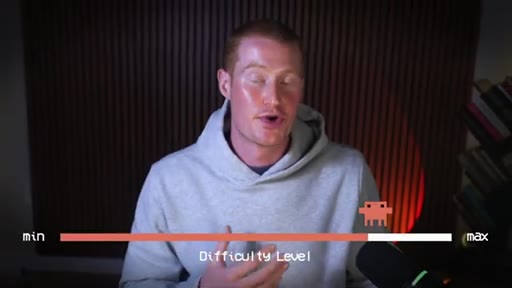
A difficulty slider on screen -- min on the left, max on the right -- is the first thing you see. It is a quiet bet that most people who opened this video already felt the max end. What follows is a deliberate dismantling of that fear: a 31-minute build-along that leaves you with a five-part workspace that runs morning briefings while you sleep.

§ · Chapters

Where the time goes.

00:00 – 01:00

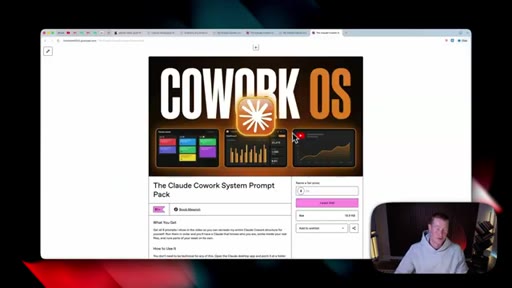
01 · Intro + free prompt pack

Difficulty slider pattern interrupt. Promises free Cowork OS prompt pack and build-alongside structure.
01:00 – 06:19

02 · Section 1: The Body

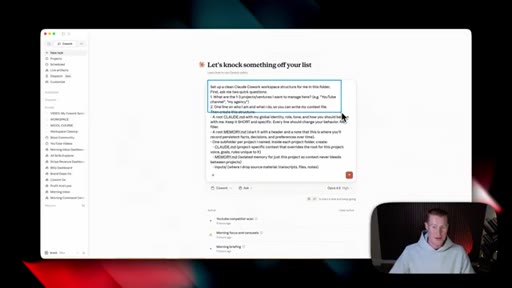
Workspace folder as the physical home for Claude. One folder per project area. Prompt auto-builds the subfolder structure with CLAUDE.md and Memory MD per project.
06:19 – 09:26

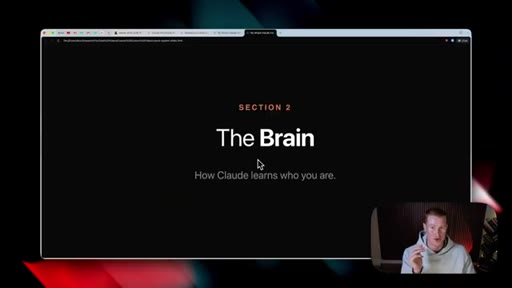
03 · Section 2: The Brain

CLAUDE.md is the identity file Claude loads every session. Good vs. bad examples. Memory MD grows from use. AquaVoice dictation hack for faster setup.
09:26 – 14:08

04 · Section 3: The Hands

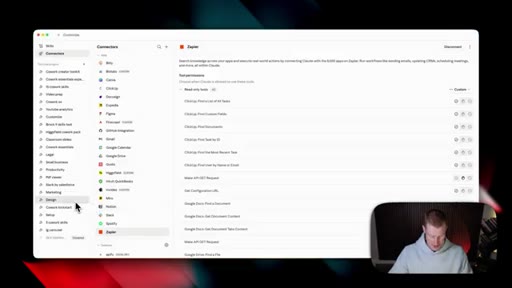
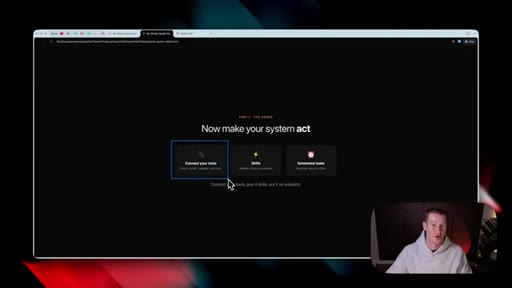
Native connectors for Gmail, Google Calendar, and 100+ apps. Zapier MCP for apps not on the native list. Live demo: inbox triage and calendar summary in one prompt.
14:08 – 22:27

05 · Section 4: Skills

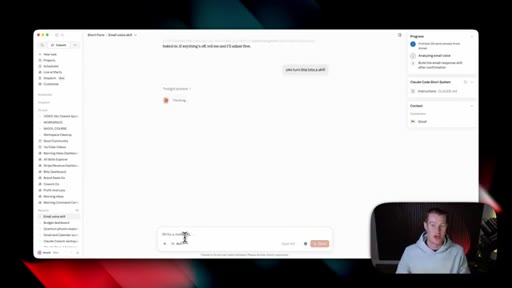
15 free skills on Gumroad. Budget dashboard live demo. Build-your-own skill by teaching Claude your email voice from sent Gmail history. Skills dashboard live artifact.
22:27 – 31:26

06 · Section 5: Scheduled Tasks

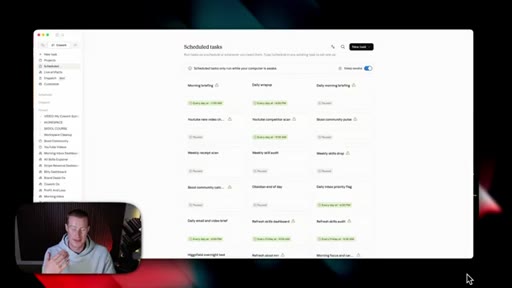
Morning briefing runs at 7AM daily -- inbox, calendar, AI news, HTML dashboard, Slack DM. Weekly skill audit automation. Token cost warning. Keep-awake toggle caveat.

§ · Storyboard

Visual structure at a glance.
difficulty hook
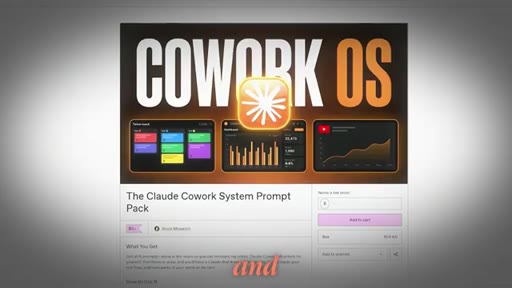
Cowork OS prompt pack
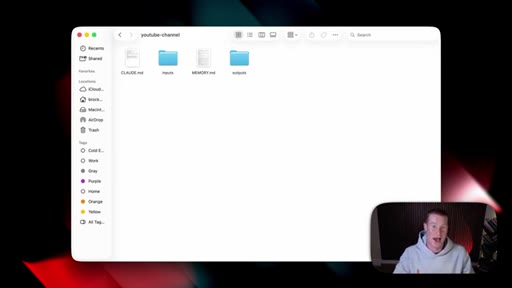
workspace folder demo
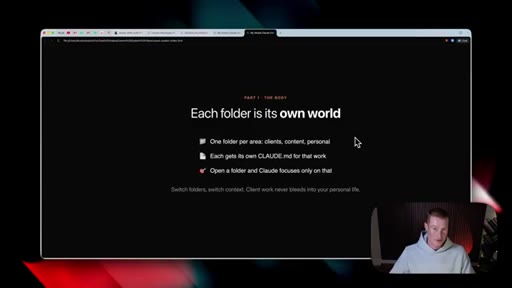
each folder is its own world
Section 2 The Brain
good vs bad CLAUDE.md
connectors directory
Gmail and Calendar live demo
teach Claude email voice
skills dashboard artifact
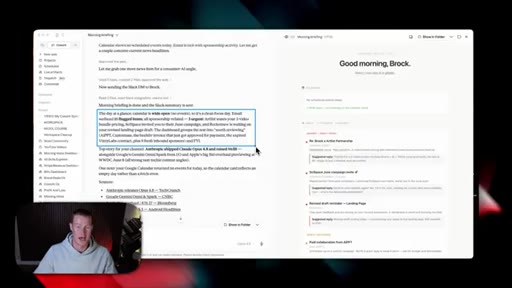
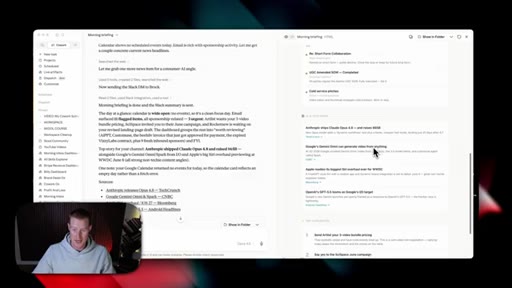
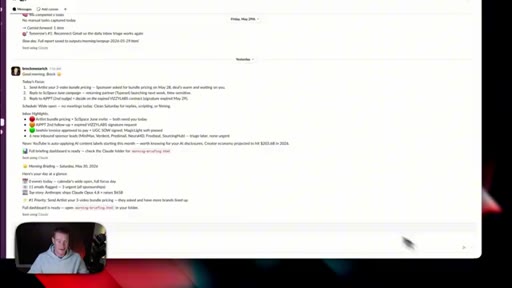
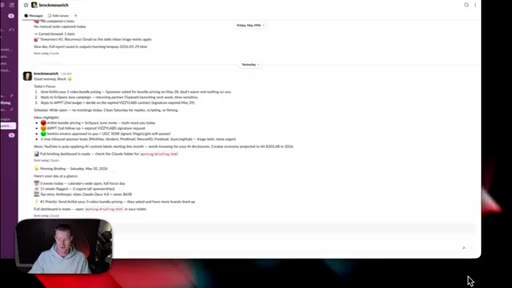
morning briefing HTML
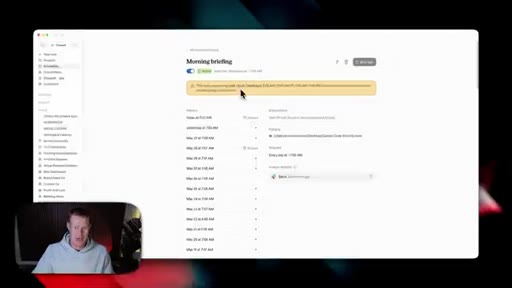
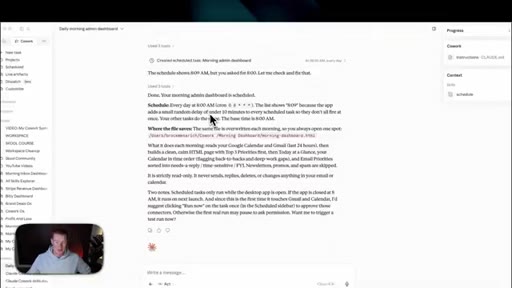
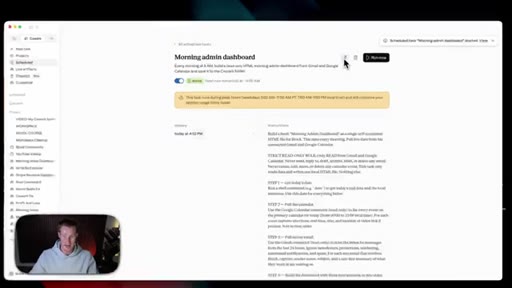
morning admin scheduled task
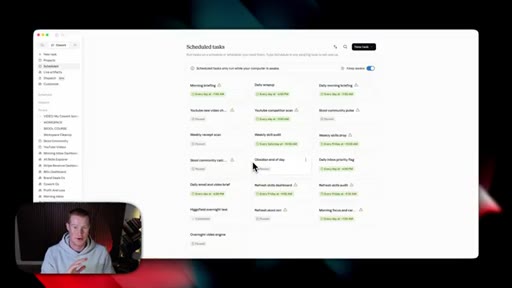
full scheduled task list
§ · Frameworks

Named ideas worth stealing.

01:00 model

Cowork OS: Five-Part System

  1. The Body (workspace folder)
  2. The Brain (CLAUDE.md + Memory MD)
  3. The Hands (connectors + MCP)
  4. Skills (saved workflows)
  5. Scheduled Tasks (automations)

A body metaphor for structuring a Claude workspace: each part has a distinct job, and the system only fully functions when all five are in place.

Steal for Any AI productivity onboarding or workshop framework
09:50 concept

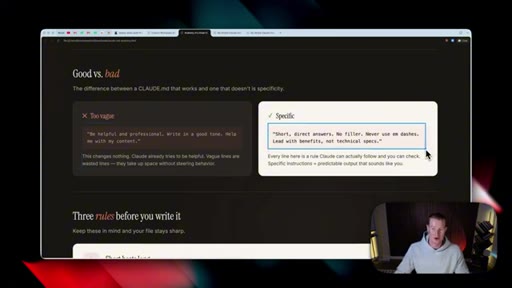
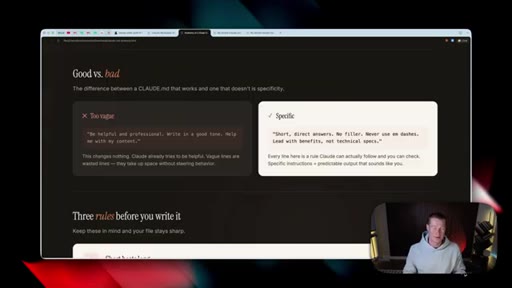
Good vs. Bad CLAUDE.md

  1. Bad: Be helpful and professional
  2. Bad: Write in a good tone
  3. Good: Short direct answers no fillers
  4. Good: Never use em dashes
  5. Good: Lead with benefits not technical specs

Specificity is the only thing that makes a CLAUDE.md file actually change behavior. Vague instructions are indistinguishable from no instructions.

Steal for Any CLAUDE.md, system prompt, or AI identity file
§ · Quotables

Lines you could clip.

00:05
"Set it up the right way, and it becomes a full system that knows you, works inside your real files, and runs your work in the background."
Clean promise statement, speaks directly to the pain of cluttered AI sessions. → TikTok hook
10:50
"Think of this as your AI employee. You really want to give it good instructions."
Reframes CLAUDE.md from a technical file to a management responsibility. → IG reel cold open
18:22
"A skill is basically a job that we can teach Claude to do one single time, and it always knows how to run this specific workflow whenever we trigger it."
Defines skills in one sentence anyone can understand. → newsletter pull-quote
§ · Resources Mentioned

Things they pointed at.

§ · CTA Breakdown

How they asked for the click.

30:00 next-video
"If you want more videos like this, subscribe. And if you want to dive even deeper, join my School community."

Standard subscribe plus paid community pitch. School community is where the 50-skill pack lives. Low friction on the free prompts, soft upsell at the end.

§ 04 · The Script

Word for word.

HOOK opening / re-engagementCTA the pitch
00:00HOOKCloud Cowork can be pretty complicated when you're getting started. And once you've used it for a while, it can start to feel a bit cluttered. But set it up the right way, and it becomes a full system that knows you, works inside your real files, and runs your work in the background.
00:13HOOKBut most people never get there because the setup looks and feels complicated. But trust me, it doesn't have to be. In this video, I'll show you my simple Claude system, build it with you completely from scratch, and even give you all my prompts for free so you could build alongside me.
00:28HOOKCTASo without further ado, let's dive right into this. First of all, I wanted to give you guys this completely free prompt pack in order to set up Claude CoWork exactly as I'm gonna show in this video. So you don't need to do this from scratch.
00:39HOOKCTAThis will automatically set this up for you if you follow this step by step. This is the process I'm gonna go through in this video. So every single time I set something up, you could set up the exact same thing yourself.
00:49HOOKCTAThere will be a link in the description for you guys to get this prompt pack. This is gonna save you guys so much time, and it's gonna help you follow along with this video. Alright.
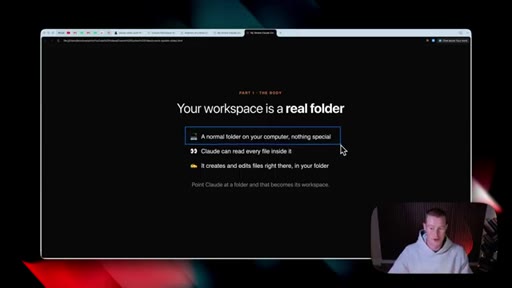
00:56HOOKCTASo the first section, and this is really gonna be the foundation of our entire Claude Cowork system, and that is the body. This is gonna be the home for everything else that we're gonna be building inside of this video, so let's talk about that now. So if you're new to Claude Cowork, our workspace is a real folder that's living inside of our computer,
01:16and this is our body, so to say. To dive a little bit deeper into this, this is basically just a normal folder on our computer. It is absolutely nothing special.
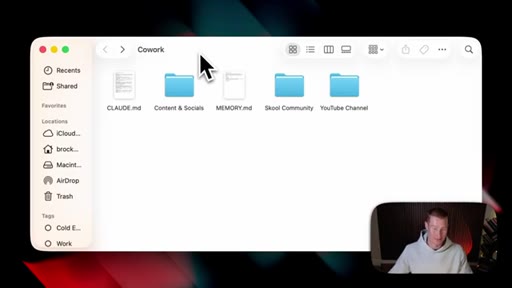
01:25Claude can read and write and edit these different files that are living inside of this folder, and it can create and edit files right there, again, inside of this workspace folder that is gonna function as our body of this entire system. To show you a quick visual of what this looks like, for example, we have this main folder right here, and then we have a couple of different subfolders.
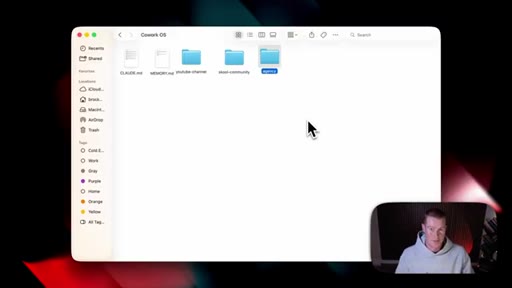
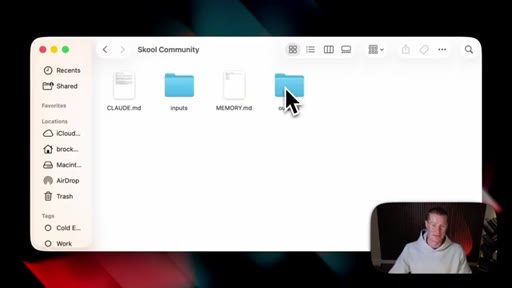
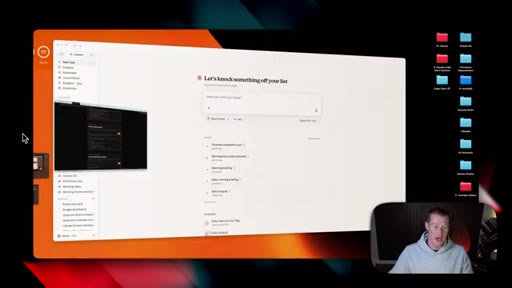
01:46We have one for clients, content, personal, finances. This is basically where, you know, everything's gonna live that we're building. To show you more literally what I mean, this is my Cowork OS folder right here that you could see on my screen, and I'm gonna show you guys exactly how to build this same system in this video.
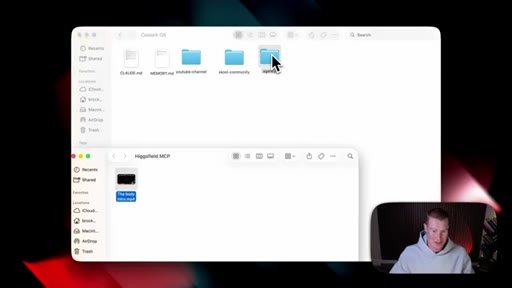
02:01So I have a couple of different things. We have a Claude MD file, memory MD. We have a specific YouTube channel subfolder.
02:07We have school community subfolder and an agency folder. Underneath all of these, I could click on this, and we have specific claudium d files in here for each of these projects. We then have inputs and outputs as separate files.
02:19And, guys, you might be feeling like, Brock, I'm lost already. Don't worry. I'm gonna break all this down, break down the fundamentals, even give you the prompts that you can use to create something similar in this video.
02:29I just wanted to start by showing you exactly what this workspace folder actually looks like. The very first thing that we need to do is make sure that we have the Claude desktop app downloaded. If you do not have the desktop app, we're not gonna be able to use Claude Cowork and set up this folder structure in this workspace like I'm gonna show you in this video.
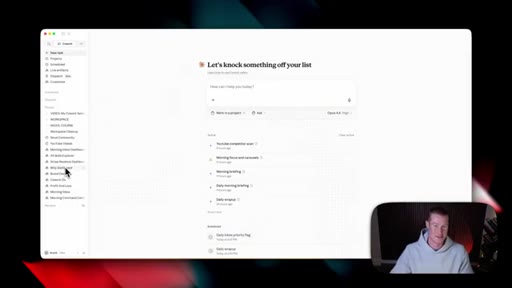
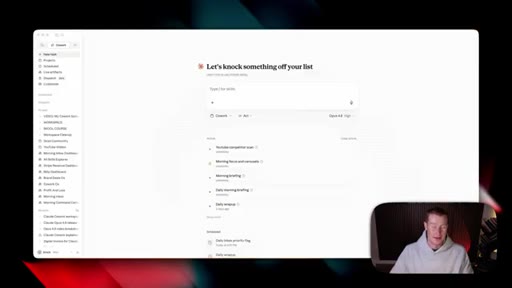
02:46Alright. So once we have Claude Cowork set up, this is exactly what we're gonna see. You are not gonna see anything right here.
02:52You're not gonna see any of these scheduled tasks or any of these pinned conversations on the left hand side. This will look completely new, completely fresh to you. But what we need to do is set up our body, which is our workspace folder.
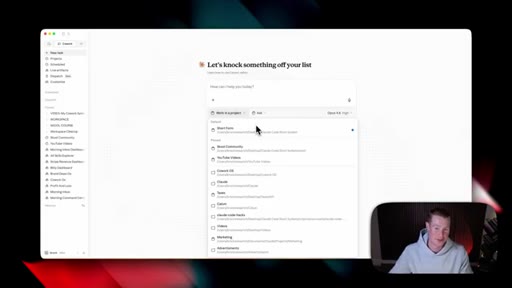
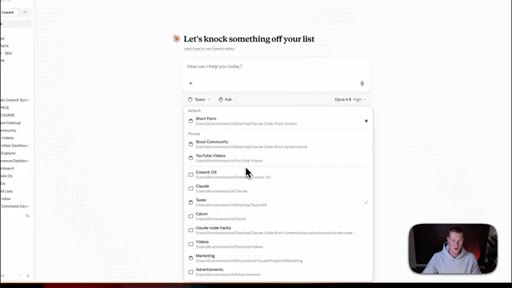
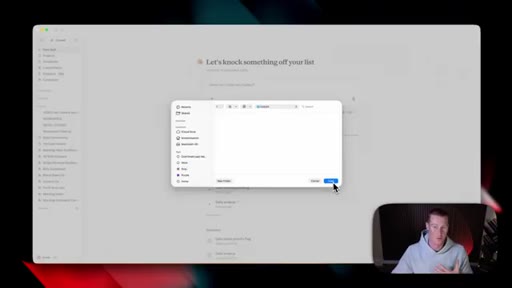
03:04And in order to do that, we're gonna come right here. If you see this little blue square right here, it says work inside of a project. We need to click on this.
03:12And from here, we could select any folder that we're working inside of on our computer. Alright. So let me quickly explain how this works because I know this can be confusing to people that are just getting started with
03:23So let's say that we have a folder that is already living on our computer. And this one, in my case, is for taxes. This is where I store my w nine.
03:32I store all of my different tax documentation and information that my accountant gives me. This is where I stay organized tax wise.
03:39Now if I click this and I click on allow or always allow, you could see that I now have this selected, and we will also see it selected right here. And this means that we can now pull information
03:50in those files from that specific folder. Not only that, but we could also create documents. Let's say I create a PDF guide or a receipt tracker.
03:59That could then automatically get populated into that folder on my computer. So now that you understand how that works, we need to now begin building our folder from scratch. So for the sake of this video, we're gonna be building from scratch.
04:11And, again, you guys can download the free prompts that I'm gonna actually give you in order to set this up yourself. So what we're gonna do is scroll all the way down to where it says choose a different folder. Make sure to select that.
04:23You're gonna see, obviously, it will let you pull from any of the folders you already have. I'm just gonna click on new one. Let's call this co work.
04:30Call it whatever you want. Co work operating system, workspace folder, any of these names that you wanna give it, you could go ahead and give it. Next, we're gonna click on open and select always allow so it doesn't ask if it can make changes to it.
04:41Perfect. And now if I go into finder and I look up Cowork, which is that specific folder, you can now see that this is an actual folder living on my computer. I could click on this and open this up.
04:52I'm gonna go ahead and drag this onto my desktop so I could always see this. And if I open it up, this is what we're gonna see. There's absolutely nothing in here yet.
04:59Alright. So now that we've linked Cowork to this specific workspace folder and it's empty, we need to now structure this, and this is where things can get really messy going forward once you start using Claude. If we do not set this up now, it's gonna be a mess in the future when we have tons of files living, you know, everywhere inside of this folder.
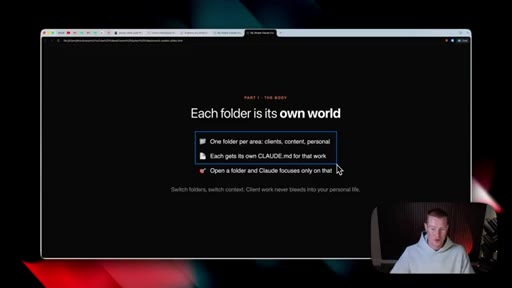
05:17So what we're gonna do is we're gonna set up a couple of specific subfolders inside of our main workspace. A general rule of thumb that I use is we use one folder per specific area.
05:28Whether that's clients, content, personal, or finances, each of these will get its own folder so that way it does not stay cluttered. Then each of these different projects will get its own claud MD file. I'm gonna explain later what a Claude MD file is.
05:41This is very crucial that we need to set up. And, again, I'm gonna give you the prompt in order to set this up yourself. Then whenever we open up a folder, Claude will focus only on the folder that we're working inside of.
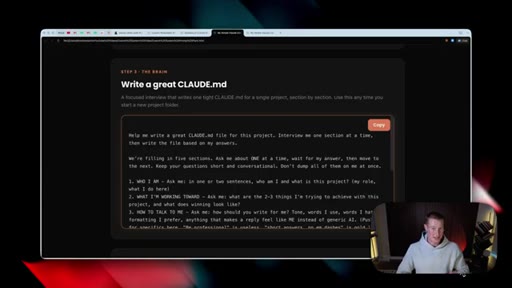
05:51So if we're working on something YouTube related, it'll be working directly inside of that YouTube work space. Now luckily for you, I gave you the prompt to set up our different subfolders. So what I'm gonna do is I'm gonna come over to this cool little prompt pack that I gave you.
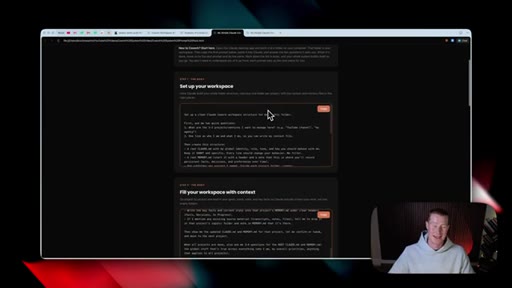
06:06Make sure to pull this up if you don't already have it pulled up. Then we're just gonna click on copy, and I'm gonna walk you through this prompt just a little bit. Next, we're gonna come back over to co work and simply just paste this in.
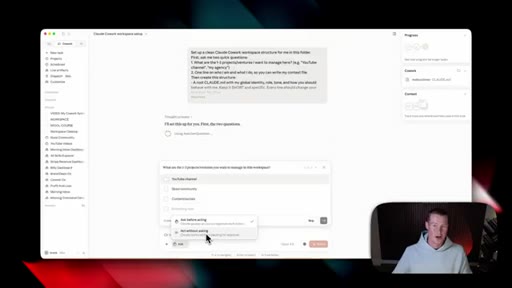
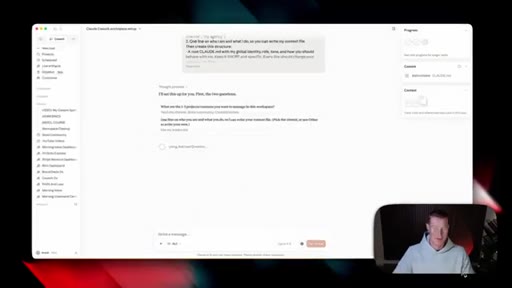
06:15I'm gonna give you a quick rough breakdown on what exactly this prompt entails. So it says, set up a clean co work workspace structure for me inside of this folder. First, ask me two quick questions.
06:25What are the one to three projects slash ventures I want to manage here? And then number two, it says one line on who I am, what I do, so you could write my context file, then create this structure. It then breaks down a specific root ClodMD file, a root memory MD file, and all these different things.
06:41And, again, I'm gonna talk about what those even mean. But first of all, let's just send this off to Claude, and it's gonna begin asking us these questions. Next up, I personally come down to Claude.
06:50I click on this little ask button, and I turn this to act without asking. Otherwise, it's gonna continue to ask you every time it has to go and do something. Alright.
06:59So the first questions that it's asking me is what are the one to three project ventures you want to manage in this workspace? All of these are perfect. YouTube channel, school community, content and socials.
07:08These are things specific that I would wanna use. You could set this up for your specific, you know, life or business or professional life as well. So next, it said one line on who you are and what you do so I could write you a context file.
07:20Cool thing about this is Claude already has context on who I am, so I'm just gonna click on use my known bio. If you've never used Claude before, I suggest giving a brain dump on who you are, what it is you do, and what you want your, you know, set up to look like. Real quick, I do wanna mention, this is gonna set up my clot m d file and my memory m d files for these specific folders.
07:39If you're new to Cowork, you probably have no clue what that is. Probably sounds like gibberish. Well, I'm gonna show you and break down exactly what that is so anybody can understand it later on in this video.
07:49Just know that this is setting up the groundwork, and then we're gonna be able to customize this later in one of the other sections I'm gonna show. So don't worry. You don't need to know what this Claude MD file is if you've never heard of it before.
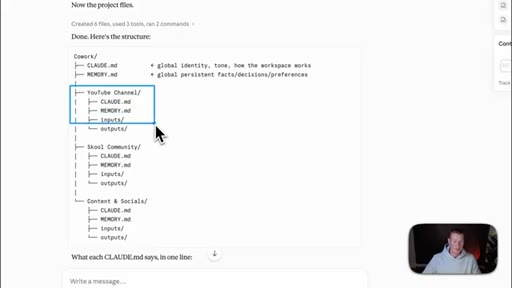
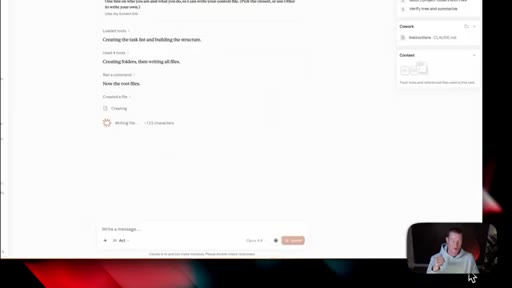
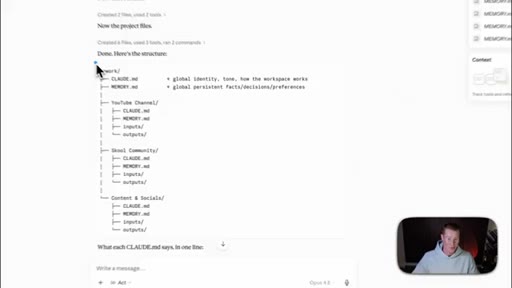
08:00Perfect. And just like that, Claude finished up. Here is the specific structure, so let me just break this down very simply.
08:05We have our normal co work folder here. We then have a couple of things. We have the Claude MD, which is our global identity with our tone and how this workspace works.
08:14Then we have our memory markdown, which is literally just memory on us in our previous conversations. Then we have a couple of different subfolders. We have one for YouTube channels with, you know, again, CloudMD, MemoryMD, inputs, and outputs, and the same thing for both school community, content, and socials.
08:32You'll see this for any of these subfolders that you, you know, specified you wanted to create. Alright. So here's where things really start to feel a little bit magical inside of Cloud Cowork.
08:41Inside of our Cowork folder, you can now see that we have this stuff that was populated. I didn't go and manually add this here. Claude did this for me, but that's the power of Cowork.
08:51So we have a couple of folders. We have our Claude MD file right there. We have our content and socials folder.
08:57We have our memory MD. We have our school community folder and our YouTube folder just like Claude told us it was gonna create. Now if I click on any of these, like, example, if I click on YouTube channel, it will then take us into this inside of this folder with more things.
09:11We have inputs. We have outputs. All those things and same thing for school community.
09:15We have our inputs and outputs. Of course, the inputs and outputs are completely empty because we haven't had it generate anything for us aside from this structure. So now that we have this structure set up inside of our workspace, let's talk about more of the finer details for us to understand how this works.
09:29Congratulations. We have now graduated to section number two of Claude Cowork, and that is the brain. This is going back to the Claude MD, the memory MD, and a couple of other different things that I'm gonna show you.
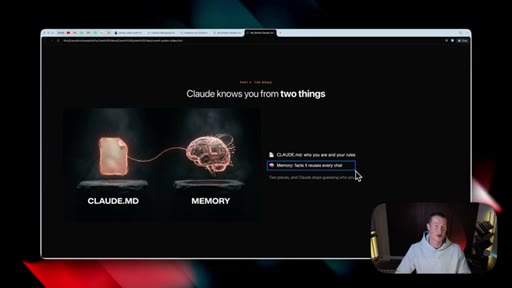
09:42So let's go ahead and break this down right now so literally anybody can understand this. Claude knows us from two different things, so let's break that down right now. We have the Claude MD, which is who we are and our specific rules on how we want Claude to operate.
09:56Then we have our memory, which are basically just facts it uses for every chat or whenever it needs to recall something about you, your business, your professional life, or whatever it is you're having it do. Now let's dive into the structure of a Claude MD and talk about what an MD file even is at its core. If you do not know what a markdown file is, this is basically just a format that is really easy for AI to read.
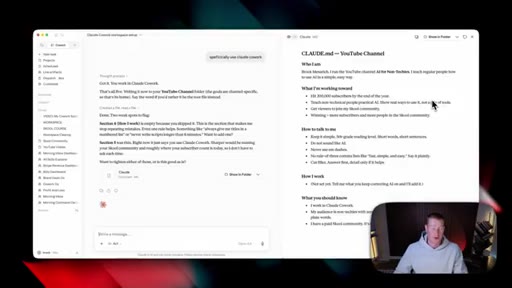
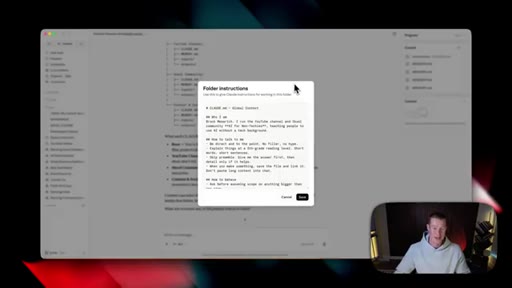
10:18So for example, there is a header that says who am I, and then underneath it, there's a little subheader. And there are a couple of different things that we wanna, like, specify inside of our ClotMD. So if I pull mine up, you could see that this is just structured text in a specific way that makes it really easy for AI to read.
10:33And what a ClaudeMD file is specifically is this is a file. Claude loads every single time that you have a chat with it. So you wanna explain who you are, what it is you're working on, how it's supposed to talk to you.
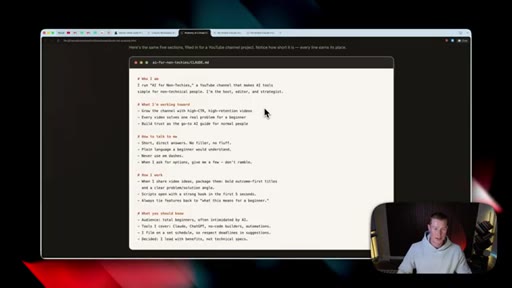
10:45This is how we get Claude to act a specific way and understand things about us. Here is another perfect example. So, again, it's just a markdown file.
10:53It shows who I am, and it explains who I am in a couple of different sentences. It breaks down what I'm working towards in three different bullet points. It then talks about how to talk to me in four different bullet points, how I work, and what you should know.
11:06This is a very simple document just kind of giving Claude a TLDR on who I am. Now there are a couple of different things that really differentiate a good versus a bad ClaudeMD file, so let's talk about it very quickly right now. So if you are too vague, this isn't ideal
11:21to add to our ClaudeMD. So for example, if we say something like be helpful and professional, write in a good tone, help me with content, this really doesn't change anything because you're not specifically telling Claude how you want it to operate. A good example of this would be short direct answers, no fillers, never use em dashes, lead with benefits, and not technical specifications.
11:40Something like that, it's a lot more specific so it really can understand how to get this done. Think of this as, like, your AI employee. You really wanna give it good instructions.
11:48Otherwise, it's not gonna really do what you want it to do, and it's gonna be even more of a pain than if you weren't to use it. So this is probably the point of the video where you're thinking, Brock, this is getting too complicated. Do not worry.
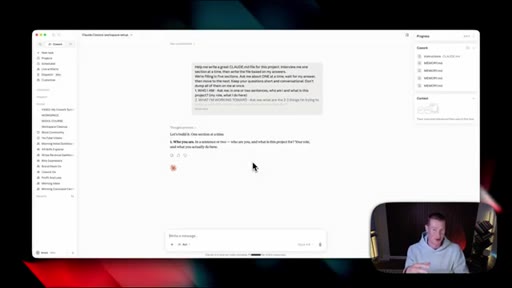
11:58That is exactly what this prompt pack is for. Literally, just take this, copy it, come back into Claude, and inside of that chat that we are working inside of, simply just paste this in, and it's gonna ask you a couple of different questions in order to craft the Claude MD for you. I'm not gonna bore you with me filling this out.
12:15So how about you go fill out your questionnaire? I'll fill out mine, and then we'll revisit once we finish this. Actually, before I let you fill this out, I wanna show you a quick hack that I use, and this saves me so much time.
12:25This is probably the best AI tool that you should be using that's gonna save you the most time. So I use something called Aquavoice where I just hit a button on my keyboard, and I could speak directly into my computer. So let me show you what I mean.
12:35Yeah. My name is Brock Messerich. I have a YouTube channel called AI for Non Techies, and I basically just teach people how to use AI in a very simple, easy to use format.
12:44So this will actually save you a bunch of time when it comes to filling out this questionnaire or using AI or your computer in general. Now let me just go ahead and fill this out myself. Alright.
12:52Great. So I just filled this out. Now I have this new MD file that I could see right here on the right hand side.
12:56We could always click on this, and it will pull it up inside of CoWork, basically breaking down who I am, what I'm working towards, how to talk to me, and what it should know about me. This is something that's gonna be improved over time. This is just a really good starting point if we've never, you know, set up co work before.
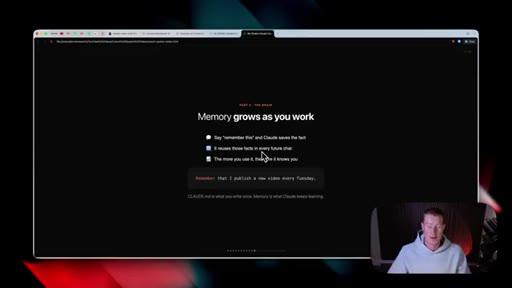
13:10Alright. So next up inside of the brain, we need to talk quickly about memory. This one's pretty self explanatory.
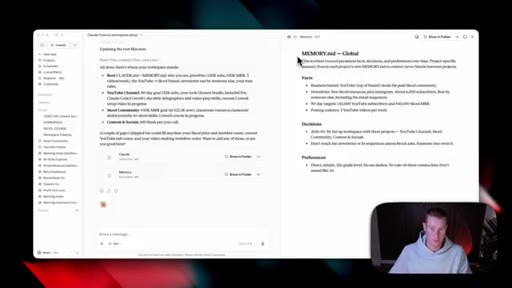
13:16So memory grows as we work. So we're using these memory MD files, and anytime we do something or say something that we want Claude to remember, we could just say remember this, and it will store it in that specific file inside of our folder. This is something that we'll need to trim over time because you could probably imagine something you said six months ago or a year ago might not be relevant to right now.
13:38Moral of the story, this is very easy to use. We just have to say remember this, and then Claude will remember it and store it inside of our workspace. Perfect example is this is my memory MD for my school community folder.
13:50Basically breaks down a couple different things, you know, that I've chatted. This information was automatically stored from Claude when asking me about things related to my school community. And over time, it'll automatically just populate this.
14:01Or if there's something that we really wanted to remember, we could just say, hey. I want you to remember this, and it'll auto store that here. Alright.
14:06We've gone through section number one. We've gone through section number two, and now on to section number three, and that is hands. This is where we're gonna give Claude the ability to act on our behalf.
14:16So I'm gonna show you how to connect this to your different tools and your applications so it could work across the actual apps you use. I'm gonna show you specific skills and commands you could run that I personally use, and then show scheduled tasks as well that really allow Claude to, you know, be an extremely powerful tool when you use it properly.
14:34Now first things first, we need to connect Claude to the different applications we use every single day. So whether that is Gmail, Google Drive, Slack, Google Calendar, basically, any of these tools that you're using on a day to day basis, we can now have Claude go work inside of. Now in order to do this, we're gonna come back to Claude.
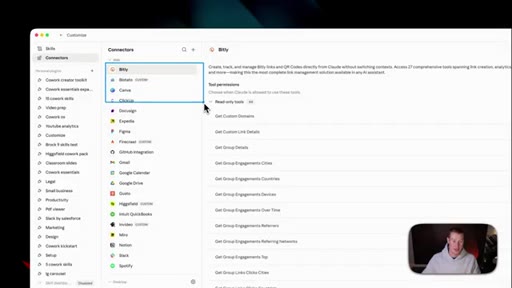
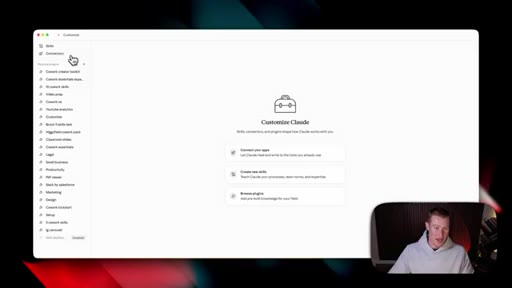
14:51We're gonna come over to the left hand side and click on customize. And then from here, we're gonna see skills and connectors. We're gonna focus on connectors.
14:59Make sure to click that. And for me personally, these are all the different applications that I'm personally using. So I'm using Bitly, Platato,
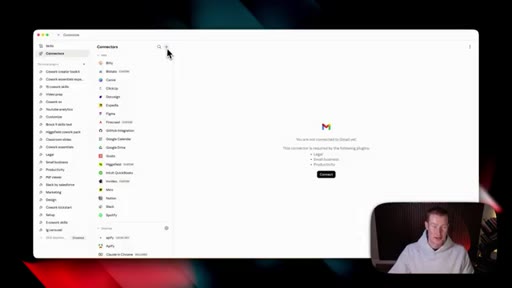
15:06Canva, ClickUp, DocuSign, Expedia, Figma, tons of different applications. These are ones that I use across my business that I pull directly into Claude. So for you to go and add a specific connector, you're just gonna click on this plus button.
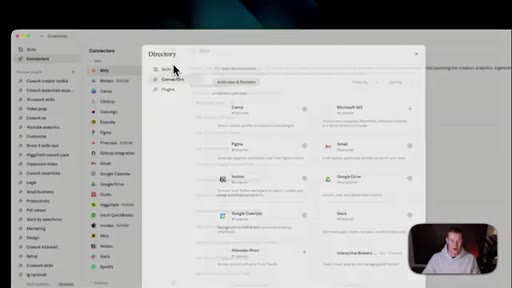
15:21Click on browse connectors. And as of right now, there are hundreds of different apps that you connect to directly inside of Claude. So scroll down.
15:28You'll be surprised at what you could find. For example, Stripe right here. So if you're using Stripe, they also have Ramp, basically countless amounts of different applications to use.
15:37For the sake of this, I'm gonna show you a really practical thing that anybody can start using right now, and it's gonna be helpful for basically anybody that's watching this video. So what I'm gonna connect is Gmail. So I'm just gonna search for Gmail.
15:50You could see it's right here. We're gonna click on the plus button, and let's just walk through how simple this is to do. We're gonna select our account here.
15:58We're gonna click on continue. Select all so it has access to view our emails and respond to our emails. And then we're gonna click this open Claude button.
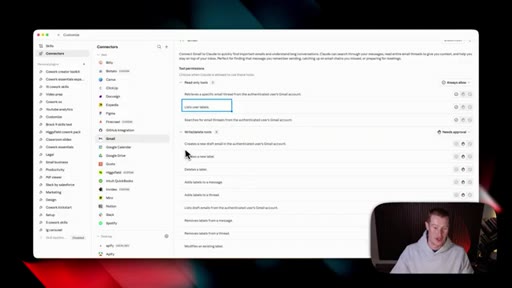
16:06And now on the top right hand side, you could see we now have this thing that says connected to Gmail. Then if I click on Gmail in the list of different connectors I have, you could see everything that it could go and do. It could list users' labels.
16:18It can create a new label, delete labels, and countless other things that we could have Claude, you know, go and perform across that application. Next, what I'm gonna do is I'm gonna click on always allow, so it doesn't always need to ask for my approval in order to do specific things.
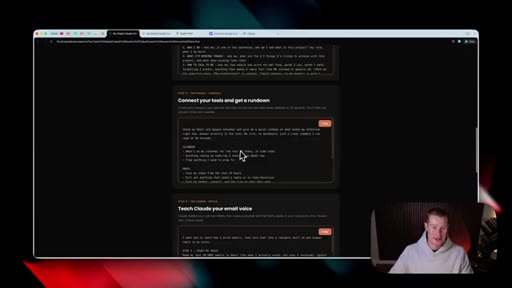
16:32And now let's test this out and see if this is working properly. Let's now come back to the prompt pack that I gave you at the beginning of this video, Come down to step number four and copy this prompt right here. This essentially says, check my Gmail and Google Calendar and give me a quick rundown of what needs my attention right now.
16:48Answer it directly in the chat, and then it breaks down what it's gonna do for both Google Calendar and our email account. And that does remind me we also need to connect to Google Calendar, so we're just gonna come here, click on Google Calendar, make sure to connect it. And then once it's connected, we could come back to this prompt and paste this in.
17:04Now I'm gonna send this off to Claude, and let's let it do its thing. Perfect.
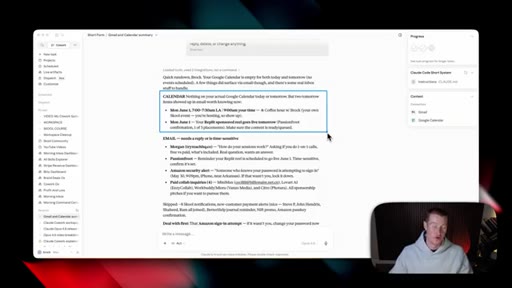
17:08And as you can see right here, it shows it's listing our calendar events in our giving calendar, searching for specific email threads on our Gmail account. So it's going and pulling information from these different apps now. Alright.
17:19So here we go. We can now see that it pulled from my calendar, and this is a very basic task that you could have it do.
17:25But I wanted to lead with this because this is something that everybody can do. They could have it check their Google Calendar. They can create calendar events, and they could have it check their email as well as draft emails for them to reply to.
17:35Next, it breaks down my email and shows me three different ones that are urgent, and it even tells me the first thing that I should deal with inside of my email inbox. So this is how connectors work. And if there is an app you wanna connect to that doesn't natively integrate with Claude, we could use something called the Zapier MCP server.
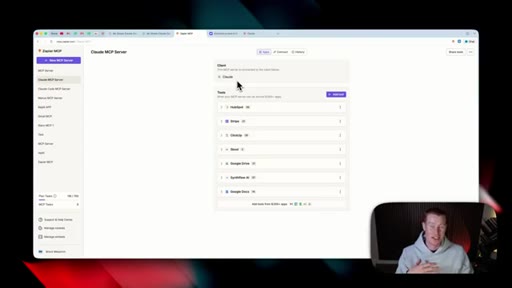
17:52This is what I personally use when there is an app I need to use that, you know, Claude doesn't have on that list. So in order to do this and this is only, again, if you don't have a specific connector you that you see directly inside of Claude. If you come over, click on new MCP server, click on Claude co work.
18:08Then what we're gonna do is we're gonna come and search for any of the different tools that we use that we want to connect to. For example, if I wanna add Zoom, I would click on this, select all tools, click on connect, and we just connect our Zoom account. Then once we add all the tools and the apps we wanna use, we then just click on this connect button, click add to Claude, and then now we could see Zapier connected along with all the different apps that we added.
18:32Alright. So moving on to the next part of the hands, and that is skills. And this is where things get really interesting.
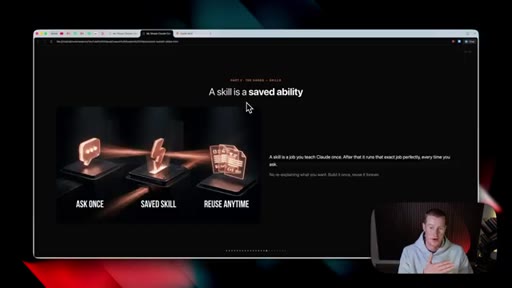
18:38If you've used Claude before, you know this is where it could get really powerful. So if you don't know what a skill is, a skill is basically a job that we can teach Claude to do one single time, and it always knows how to run this specific workflow whenever we trigger it. For example, here are 15 ones that I use every single day.
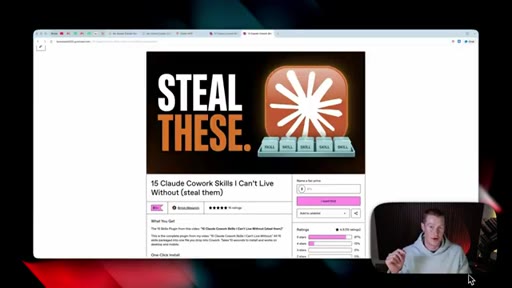
18:55I have an email drafter skill, invoice generator, receipt scanner, budget dashboard, contract review, morning briefing, etcetera. And if you guys wanna use all 15 of these skills, I'm gonna show you how you could download them for free so you could begin running them. Alright.
19:08So if you guys want these 15 different Cloud of CoWork skills, there is gonna be a link in the description. Again, this is completely free. You're gonna see this, and there's a breakdown of all the different skills here, which I'm gonna walk you through a couple.
19:19All you have to do is come here, click $0, say I want this, and then all you have to do is put in your email address, and they will be sent to your email. It's gonna be sent to you in form of a ZIP file, so make sure to save that file.
19:30Then we're gonna come over to customize inside of Claude. We're gonna come down to plug ins. Click on create plug in and click upload plug in.
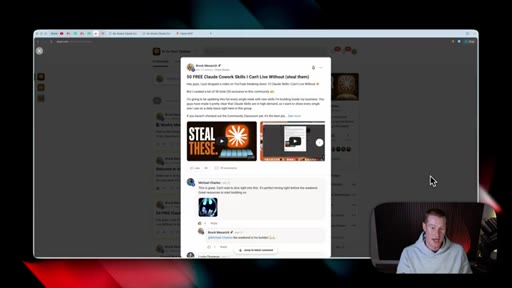
19:38From here, we're simply just gonna drag in that file that you were sent from that Gumroad resource. Click on upload, and then we'll have all of these skills accessible inside of Claude. And if you guys want the 50 different Claude co work skills that I use every single day to run my business, make sure to join my school community.
19:54This is an exclusive resource just for the people inside of that community. Otherwise, you could have the fifteen months for free that I just showed you via the link in the description. Alright.
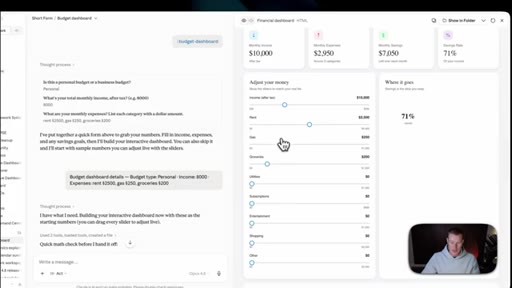
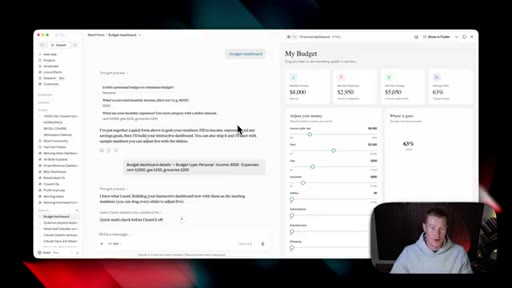
20:02So to show you a skill live in action, this is inside of that plug in that I actually gave you guys earlier on in this video. This is a budget dashboard. What this does is this will ask a couple personal questions about financial stuff.
20:14This, I just, like, gave it some random information in order to populate this. So then what it does is it automatically creates this dashboard on the right hand side that we could see directly inside of Claude. It you know, basically, this is just a slider for us to see how much money that we could actually save in order to adjust our budget.
20:29So let's say that we make $10,000 per month and our monthly expenses are $29.50, then it shows how much money we save.
20:36And we could also come here and, like, adjust our spending. So this is a very simple example of a skill that I've created whenever I wanna run my budget. It'll automatically load a dashboard exactly like this.
20:46Alright. So let's build a skill from scratch right now so that way you guys have one. I wanted to make this video as interactive as possible and actually help you guys build some of these things out.
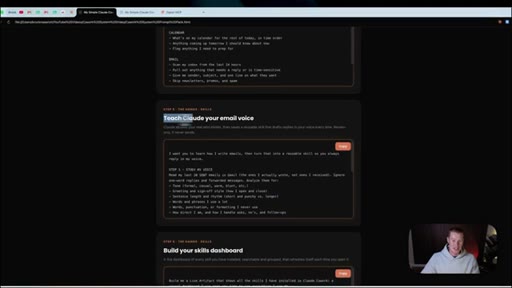
20:54So let's come back to our prompt pack that I talked about earlier on in the video. This one right here is step number five. This teaches Claude our specific email voice.
21:03So I'm gonna copy this prompt. I'm not gonna give you a full rundown on what this does, but it says, I want you to learn how I write my emails. First, what it's gonna do is study my voice by searching through the last 20 sent emails that I have sent inside of Gmail, and then it will come back and then craft a specific style for me.
21:20Then whenever I use this skill, it's automatically gonna use that style for any email that I reply to. So I'm simply just gonna paste that prompt into Claude. That's as simple as it is to create a skill.
21:31You know, you could just, like, say, hey. I want you to turn this into a skill, and then it will automatically save it for you. So first of all, it's gonna pull from my Gmail account since earlier on in this video, I showed you how to connect it.
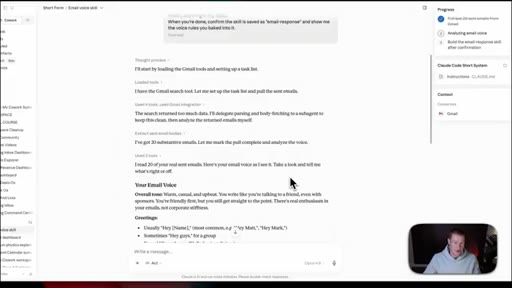
21:42So let's let it do its thing. Alright. So you're gonna get a similar output to this.
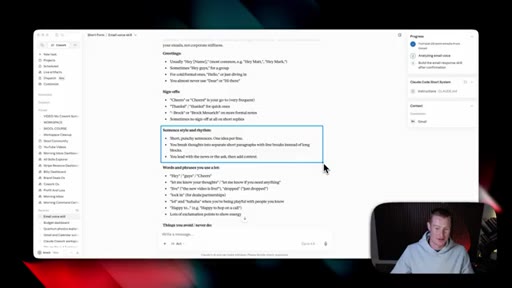
21:46So let me just quickly break this down. So my email voice, it breaks down my overall tone. It shows the specific greetings that I use.
21:53It shows my different sign offs that I use. And if you guys, like, really dissect this, it goes to show just how casual I am in my emails. I really do like to keep it casual.
22:02I hate nothing more than corporate sounding emails. I think it is just such a turnoff. So for example, for my sentence style and rhythm, it's a short punchy sentences, one idea per line.
22:11You break thoughts into separate short paragraphs with line breaks instead of long blocks. You lead with the news or the ask, then add context. Then it even gives me the specific words and phrases I use and the things that I never do.
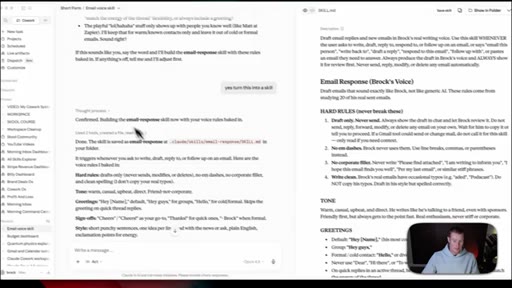
22:23And so now it's asking if it's okay to turn this into a skill. That would then be called email response. So let's say, yes.
22:29Turn this into a skill. And this is as simple as it is. To begin creating your own skills, you could just tell it to go and do something and turn that into a skill.
22:38Or let's say you did something inside of Claude that you really like, and you're like, man, I wanna be able to do that again but not have to give a really long prompt. Then you could just say, hey. I want you to remember how you did that and turn that into a skill.
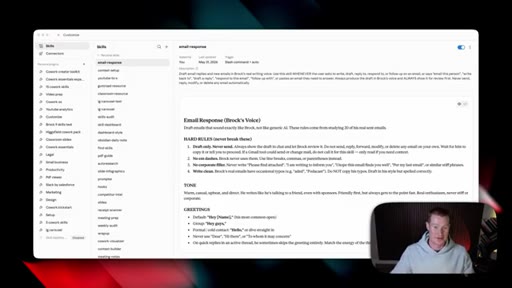
22:49Perfect. And now this skill has been built. We could click on this little markdown file, and it's gonna open on the right hand side.
22:55This is basically just a document or the skill MD file that we're gonna refer to. I mean, it's just a breakdown on exactly, you know, how I do this specific task. So there's hard rules.
23:06It shows my tone, my greetings, sign offs, sentence style, rhythm, all this stuff. So now all I have do is click on save skill. And if I come over to my skills, you could see I now have one called email response.
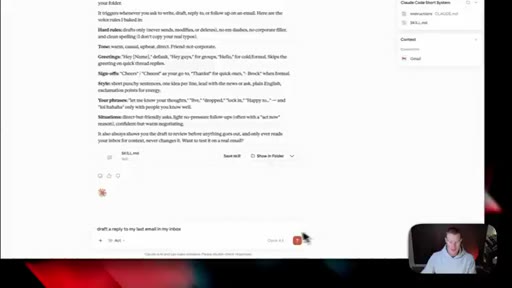
23:17Now what I'm gonna do in order to test this out, and I suggest you do the same to make sure that this is working properly, is I'm gonna say draft a reply to my last email in my inbox, and it's gonna go through, pull my last email, and then use that specific style that we created in that skill to then create a reply. Alright.
23:33And just like that, I now have a response to my last email. You're gonna see the exact same thing if you went through this whole process. That is how simple it is to create a skill.
23:41Alright. So if you're anything like me, you're gonna start accumulating a lot of different skills.
23:46I think I have over, like, 200 at this point that I have saved. So it becomes pretty overwhelming to navigate which ones you have, which ones you should prune out and delete. So this next hack I'm gonna show you is really gonna help you with that.
23:58So come to a new chat inside of CloudcoWork, and then let's go back over to the skill pack. And we're gonna come down to step number six now called build your skills dashboard. So come here, copy this prompt.
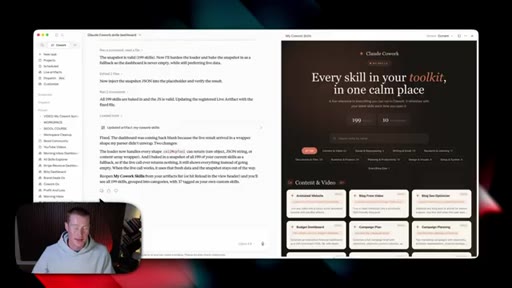
24:11I'm gonna now paste this into Claude. And what this is gonna do is build me a live artifact, which is basically a dashboard that lives inside of Claude where I could see every single skill along with the use cases.
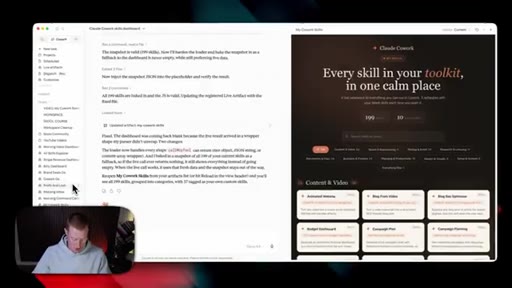
24:22So that way, I could keep track of all the skills I've accumulated over time. And now just like that, we have a live artifact that lives directly inside of Claude where I could see every single skill that I personally have. So with this prompt, you're gonna get the exact same thing.
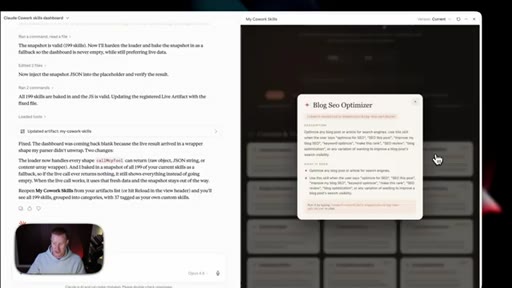
24:36This should show the few skills that you have in your system, and I can break this down real quickly for you. So first of all, we could see all of our skills here. And if I click on each of these skills, we could see exactly the description as well and how to run this.
24:48For example, this one is blog SEO optimizer. It shows the full description as well as what it does. So this is really great for us to be able to, like, see everything that we have downloaded in our system, and we could even break it up based on categories.
25:00So content and video, social repurposing, design and visuals. So this is gonna be a really useful way for you to be able to keep track of all the skills you're building.
25:08And we could always find this. On the left hand sidebar, for example, you could see right here, I have one that's called my co work skills. If I click on it, we could pull it up at any time, um, and it always lives on the left hand side.
25:21This is called a live artifact. So let me quickly break down what this is and how we can begin leveraging live artifacts inside of Claude. So if you don't already know what a live artifact is, this is basically a dashboard that you can use directly inside of Claude that pulls live information across the different apps that we use.
25:37So for example, we could pull our live emails inside of Gmail. We could pull information from our Notion databases. Basically, of the different apps we use that we connected earlier on in this video, we could spin up a live interactive dashboard so that way we could track all of these different things across those apps.
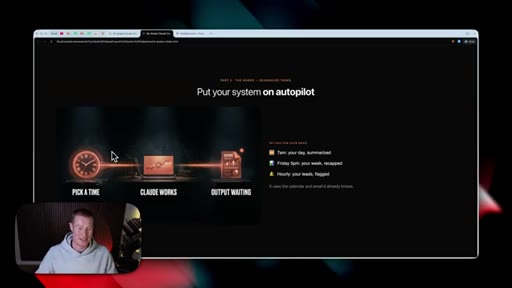
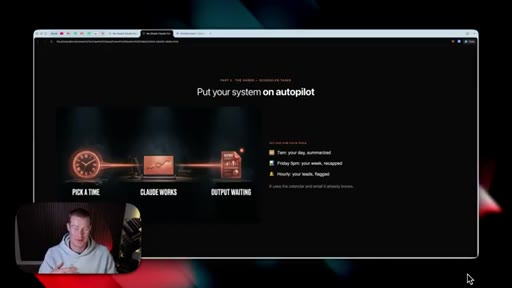
25:53Now moving on, let's talk about scheduled tasks. This is where we take everything we've built so far in this video and turn this into an automatic system that can automatically do things for us without us needing to instruct it to. So a scheduled task is as simple as it sounds.
26:07It's a specific task that we could run inside of Claude where we could just pick a time or a cadence, whether that's every day, every single week on a specific day, etcetera. Claude can then run skills that we built inside of Claude and then generate outputs for us, whether that's a dashboard or just simple text outputs.
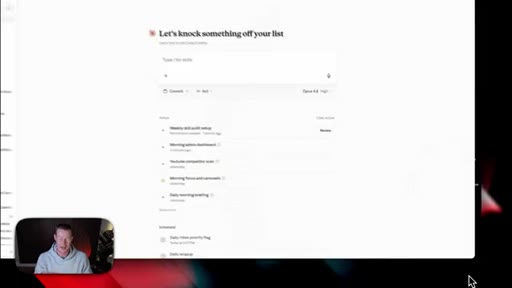
26:25Alright. So now I'm gonna take you through some of these scheduled tasks that I run inside of my Claude, and then I'm gonna help you build out your first scheduled task as well. So in order for us to access these, they live right here on the left hand side bar that we're getting super familiar with under scheduled.
26:41If we click on that, we will then see this. We could create a new scheduled task in here as well as see all the ones that we have running as well as what times that they run. So I have a couple here that I wanna focus on.
26:51So I have a morning briefing skill. And if I click on this, it shows a list of every single time this has run. So I could pull up the one from yesterday.
26:59And what this does is this scrapes my email inbox as well as my Google Calendar. It tells me everything that I need to focus on for the day. So inside of this task that ran yesterday, and, again, this runs every single day at 7AM automatically without me needing to trigger it, it looked at my email, flagged 11 items that I need to reply to, as well as three specific urgent emails as well, and then a breakdown top story for my YouTube channel.
27:22This is included in the prompt. For the scheduled task, I say I want you to do research on what's trending in the AI space. And on top of all of this, it also generates this morning briefing HTML for me.
27:32Think of this as like my morning newspaper that I could just simply pull up inside of Claude and read automatically. Automatically. So So it it pulls from my Google Calendar.
27:40Looks like I have no events today. It also shows the urgent emails that I need to reply to. And then on top of that, it shows me the AI and tech news that I specifically asked it to do for me as well as shows the top three priorities that I need to focus on.
27:54This has been really helpful for me to start my day and really understand, hey. What's going on inside of my business and my email inbox, and what should I focus on to start the day off on the right track? Now I also set this up to every single morning send me a message on Slack breaking down all of this information as well as a link to that dashboard as well.
28:13So this is another thing we could do. We could automatically email this to ourselves or automatically DM us on Slack.
28:18Now all of that is great, but let's build one from scratch. So let's come back to the prompt pack. We're gonna go to step number seven.
28:25Copy this prompt right here, then we're gonna come back to Claude Cowork. Simply paste this in, and it's gonna begin turning this into a scheduled task or automation. Now what we're gonna notice is it's gonna ask if it's okay to schedule this.
28:38So right now, it says at 8AM every single day. I'm just gonna simply click on schedule, and now this should be working properly. Now just like that, this is up and running properly.
28:46In order for us to check and make sure that this is working, we could come over to the left, click on scheduled, come down to our task that we just created, which is called morning admin dashboard on my end, and we could run this right now to make sure that it's working. We can always access this right here.
29:02So if we wanna trigger this manually, we could always do so at any given time. As well as we could click edit and change the frequency of this, as well as we could even change what specific model we wanna use.
29:13So if we have a task that is a bit more complex, we could always choose the newest OPUS 4.8 model, which is the most capable and smartest model from Anthropic. Now here's a scheduled task I highly recommend that you create, and I'm gonna give you the prompt to do this as well. But let's quickly talk about this.
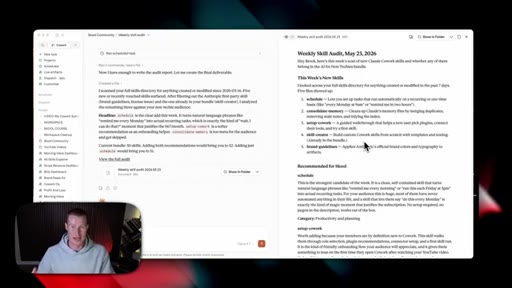
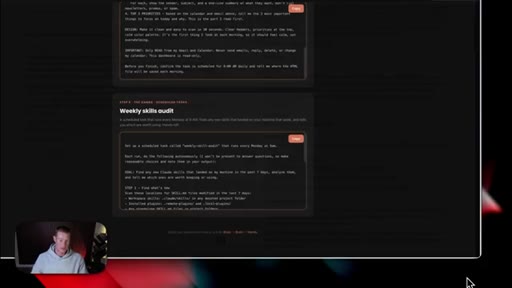
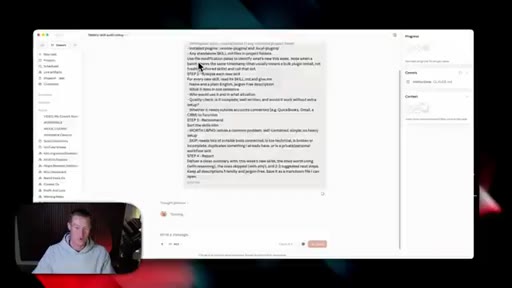
29:27This is my weekly skill audit that runs every single week at the end of the week. And what this does is this looks through my directory of skills that I have, everything that I've created for that week, and it helps me identify which ones are unnecessary. So that way, my directory doesn't become too big and too bloated.
29:44CTATo give you a quick rundown, it creates this markdown file for me to easily read. It shows the new skills that I added. So I added a couple here.
29:51CTAWe have scheduled one, consolidate memory, set up co work, skill creator, and brand guidelines. It then shows me recommendations for my school community for me to actually create.
30:00CTAIt shows the ones that were skipped, and then it even shows me suggested next steps for ones that, you know, we should either add or that we should remove. So in order to recreate a scheduled task just like that, let's come back to the prompt pack that we're so familiar with at this point. I hope this has been really helpful for you guys.
30:15CTAI mean, let me know if I should be doing more of these in the comments. And then just click copy here. We're gonna come back to Claude.
30:21CTASimply just paste that in, and now we'll have a scheduled that every single week at a specific time, we'll do an audit on all of our skills. So the prompt that I gave you in that prompt back says to basically run this every Monday at 9AM. So if you wanna change that, you could always just come here and chat and say, hey.
30:36CTAI want you to change it for a different time or a different day. Now I do wanna give you a quick tip on this. These do use your clawed tokens.
30:43CTASo if you don't wanna waste a bunch of different credits, I highly suggest going and changing the cadence. If you don't need to run it every day, then probably don't do that. And then another thing you wanna do is make sure to toggle this on right here that says keep awake.
30:55CTAThese will not run unless your computer is open, so keep that in mind. If your computer's closed for the night, it won't run. But if you have it open, like I keep mine all the time, then it will run these, um, whenever you're not there.
31:06CTAAnd, guys, there you have it. You now have a setup Claude CoWork system. If you guys want more videos like this, subscribe to the channel.
31:12CTAAnd if you wanna dive even deeper, join my school community. I give away my 50 Claude skills that I use every single day, as well as I have a full Claude co worker course inside of there. With that being said, guys, thank you for staying to the end.
31:23CTAI look forward to seeing you in the next one, and cheers.
— full transcript
§ 05 · For Joe

Five components that turn Claude into a system.

WHAT TO LEARN

Claude Code stays a cluttered chat tool until you wire five components together -- and each one builds on the last.

  • The workspace folder is the foundation: Claude reads and writes real files there, so how you organize the folder is how you organize its context. One folder per project area prevents client work bleeding into personal notes.
  • A CLAUDE.md file is an employee handbook, not a greeting card. Vague rules like be professional do nothing. Specific rules like never use em dashes, lead with benefits, short sentences change every response immediately.
  • Memory grows from use, not setup. You do not fill out a memory file upfront -- you just say remember this and Claude appends it. The only maintenance it needs is periodic pruning when old context becomes stale.
  • Connectors turn Claude into an operator. Linking Gmail and Google Calendar takes two minutes and lets Claude draft replies, summarize your inbox, and create calendar events without you copying and pasting anything.
  • Skills are the compounding unit. A skill saved once runs on demand forever. The value is not the first use but the hundredth, which is why a skills dashboard to track what you have built is worth creating early.
  • Scheduled tasks are the multiplier. A morning briefing that pulls your inbox, calendar, and AI headlines into an HTML dashboard and sends it to Slack at 7AM costs nothing to run after the first setup and it runs whether you are working or asleep.
  • Token cost is the one real constraint on automations. Complex daily tasks burn credits; running a scheduled task too frequently will drain an account. Match cadence to actual need.
  • The keep-awake toggle is the most overlooked setting: scheduled tasks only fire when the computer is on. If your machine sleeps at night, morning automations will not run unless you enable keep-awake.
§ 06 · Frame Gallery

Visual moments.