The bait, then the rug-pull.
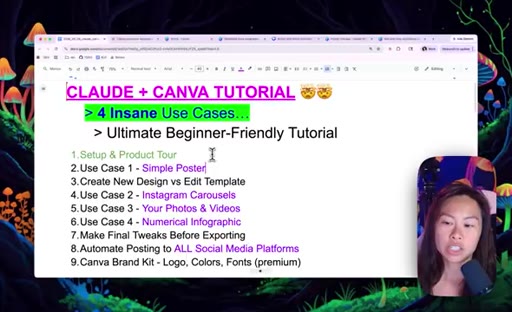
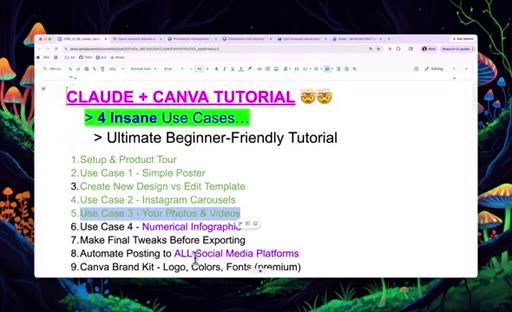
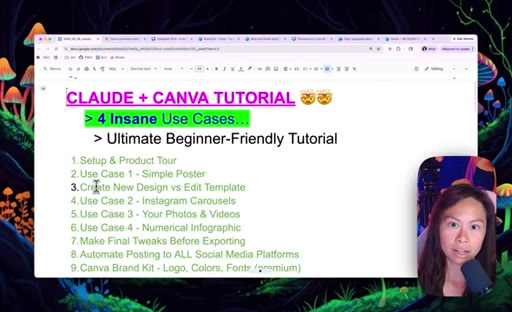
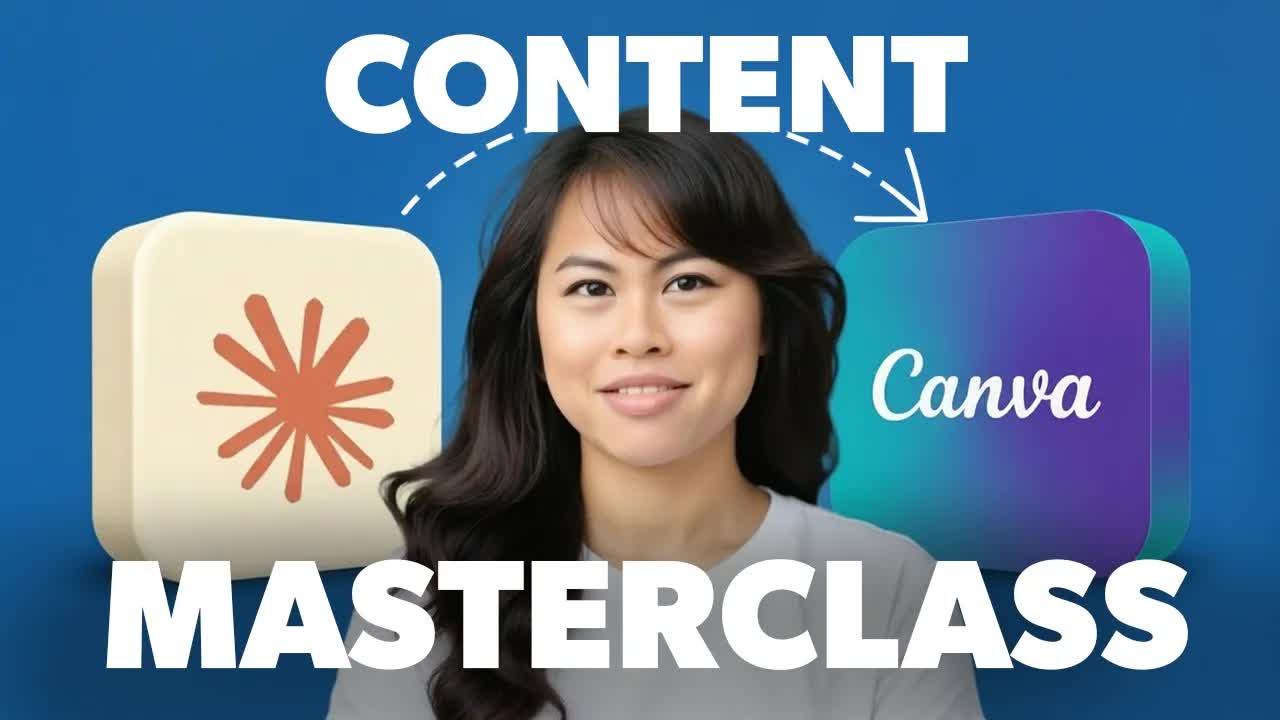
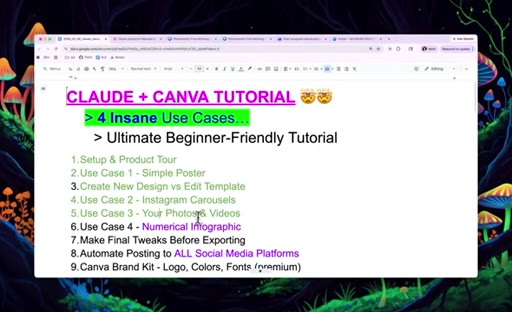
The pitch is blunt: one connector, four use cases, fifteen hours back in your week. The tutorial opens with a full chapter map on screen so viewers can jump directly to what they need, a structural choice that doubles as a retention signal.
Where the time goes.
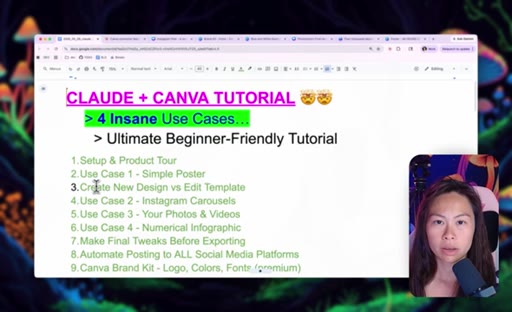
01 · Intro: Save 15 Hours a Week
Promise framing and full chapter agenda shown on screen.
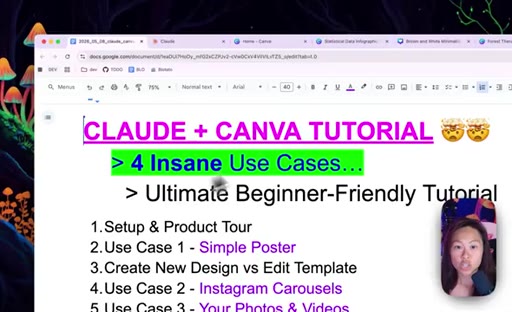
02 · Setup: Accounts and Canva Connector
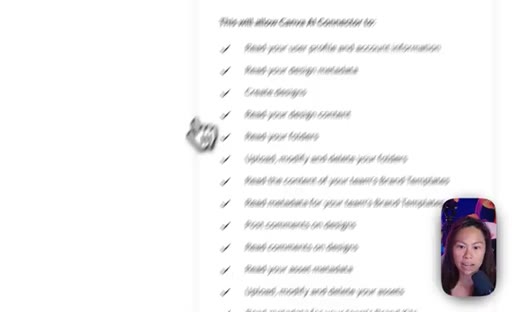
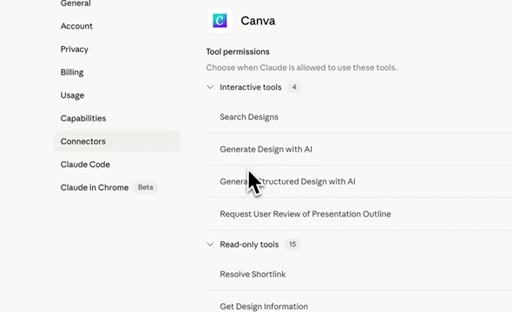
Sign up for claude.ai and Canva, navigate to Settings > Connectors, add Canva, configure always-allow permissions.

03 · Product Tour Prompt
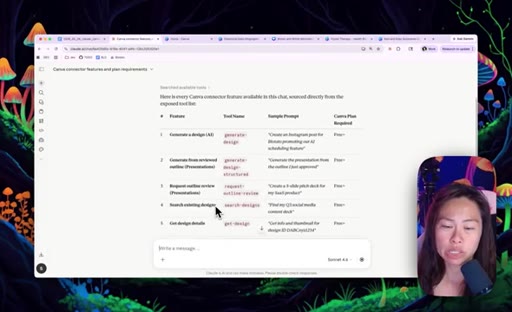
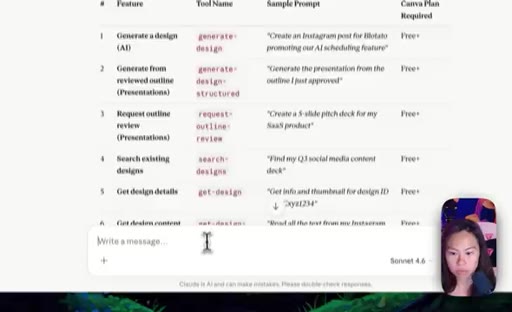
Screenshot the connector, ask Claude to produce a feature table with sample prompts and free vs paid flags.
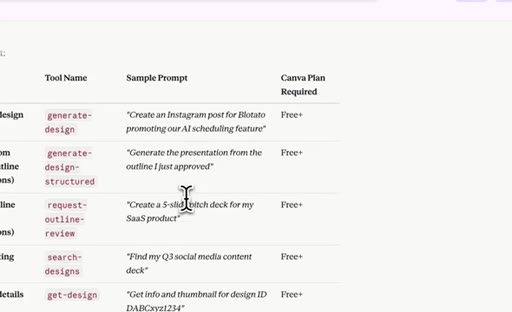
04 · Use Case 1: Poster from Scratch
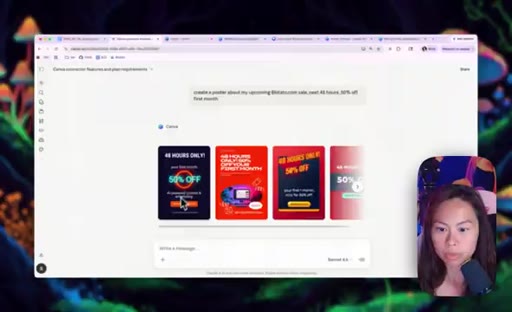
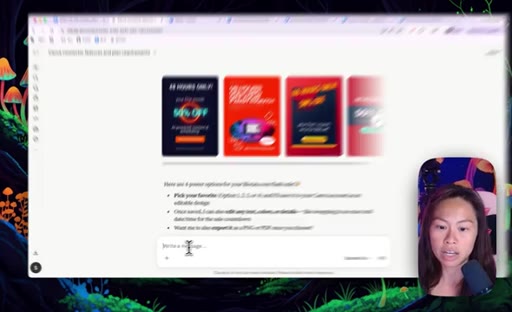
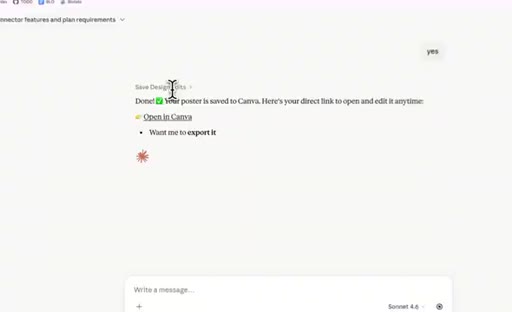
Prompt Claude to create a poster, pick from four design candidates, refine with natural language, save to Canva.

05 · New Design vs Edit Template Decision
Explains when to generate from scratch versus cloning an existing Canva template.
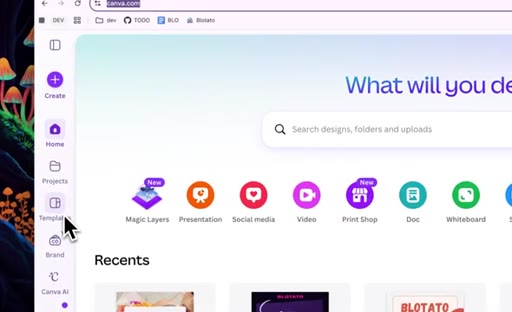
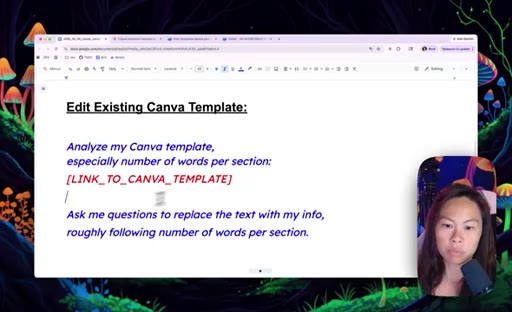
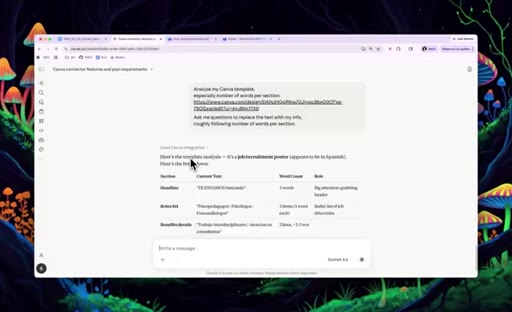
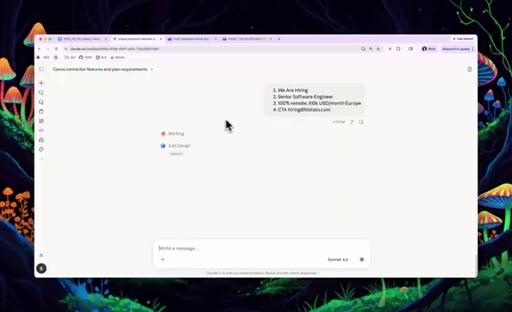
06 · Edit a Canva Template: Hiring Flyer
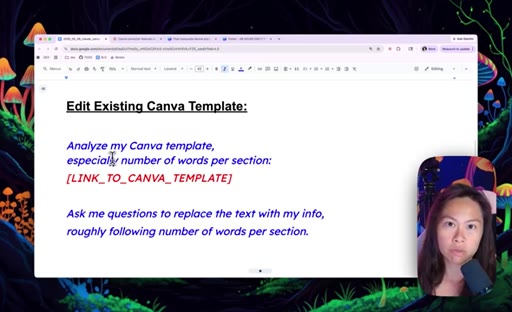
Clone a template, paste its URL into Claude with the word-count prompt, let Claude interview you for content, review and save.
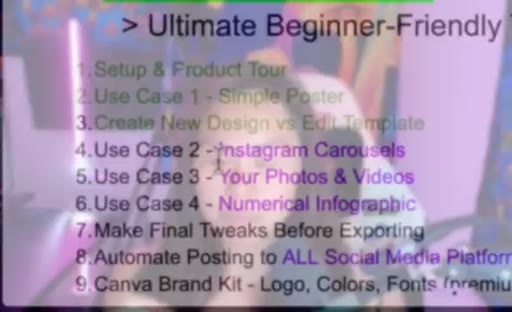
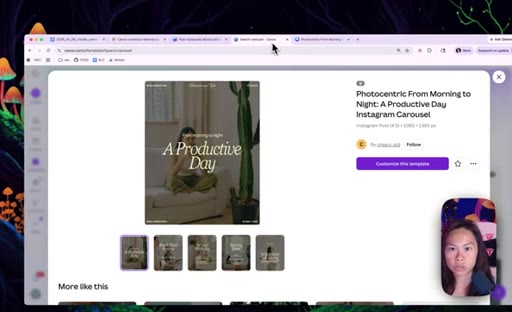
07 · Use Case 2: Instagram Carousels
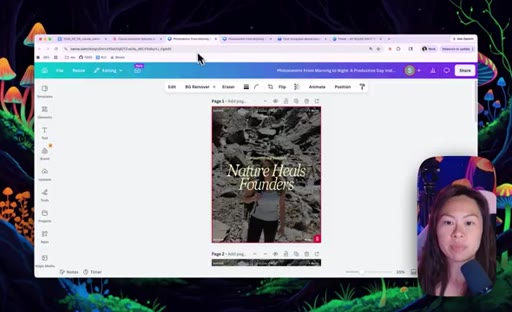
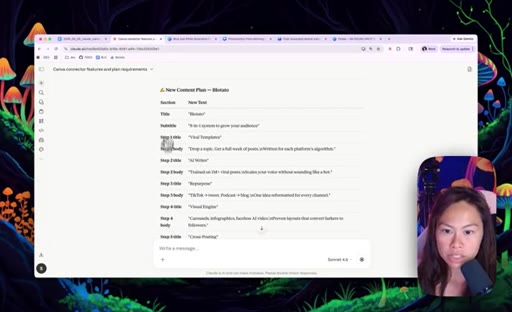
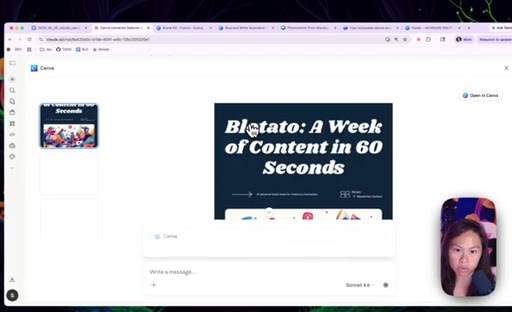
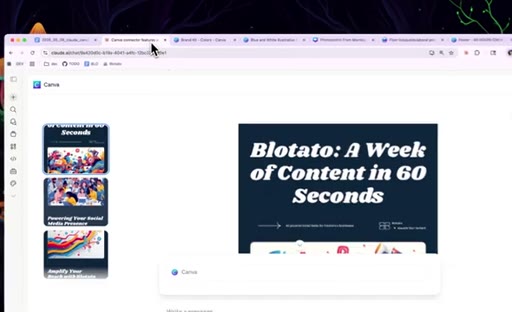
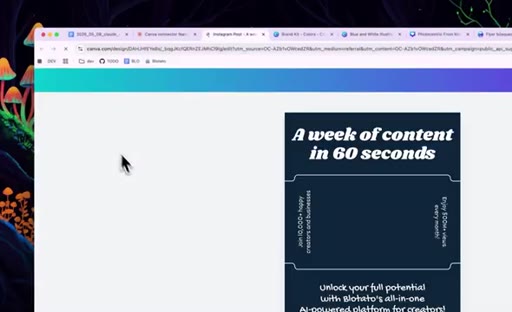
Clone a carousel template, use the multi-slide prompt, approve copy plan per slide, generate and open in Canva.
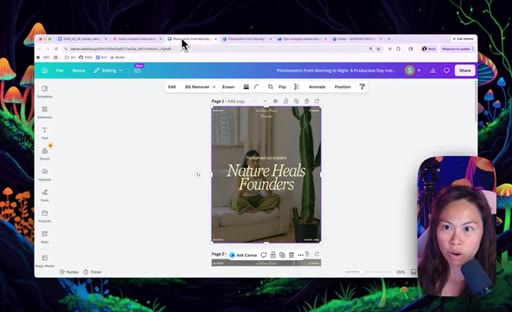
08 · Use Case 3: Own Photos via Blotato
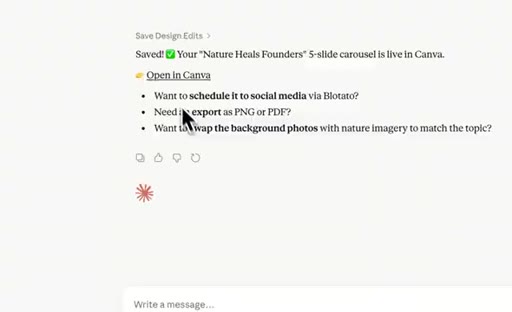
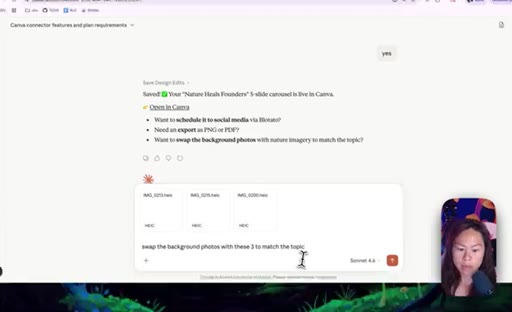
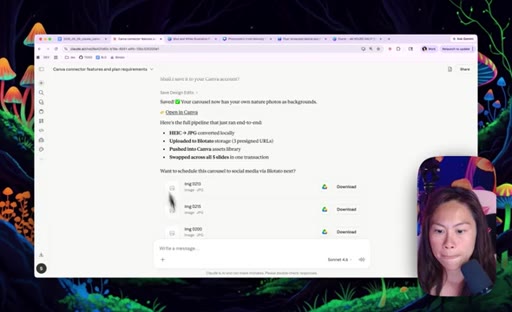
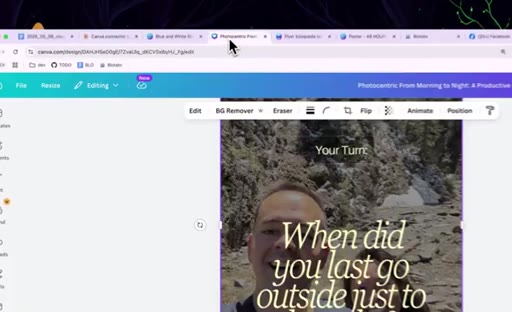
Upload personal photos via the Blotato connector; Claude passes asset URLs to Canva to replace background images.
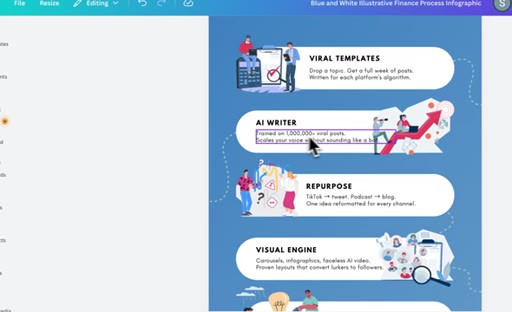
09 · Use Case 4: Numerical Infographic
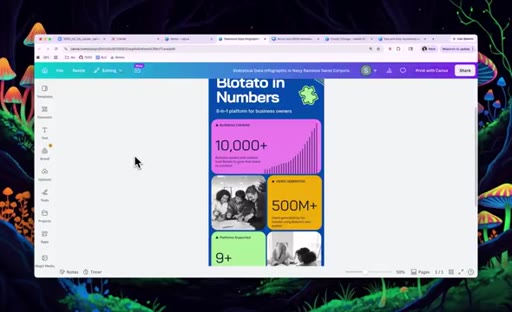
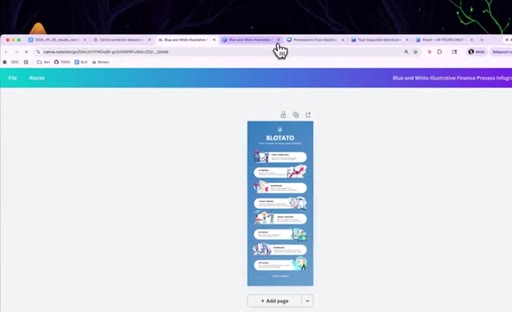
Paste a website URL with the infographic template; Claude extracts stats and populates sections while respecting layout.

10 · Final Tweaks and Canva Sync
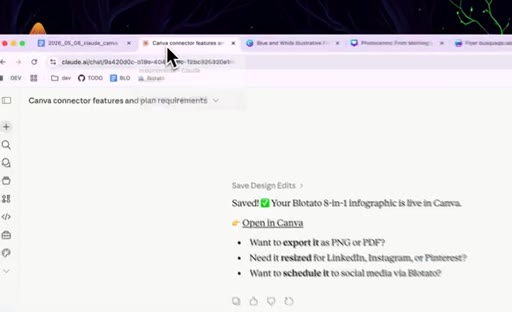
Edit manually in Canva after generation; changes sync automatically; tell Claude when ready to post.

11 · Automate Posting with Blotato
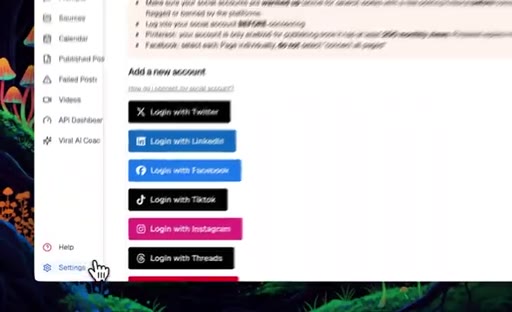
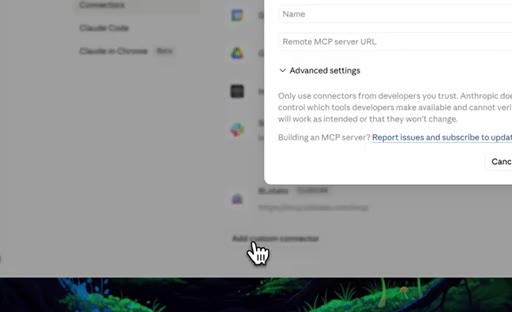
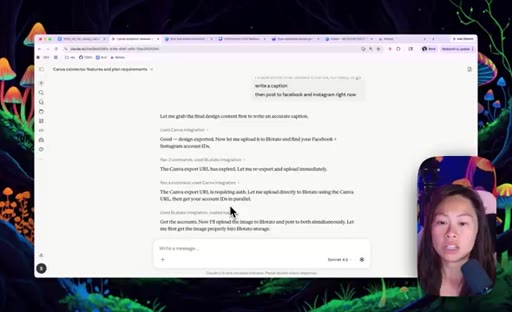
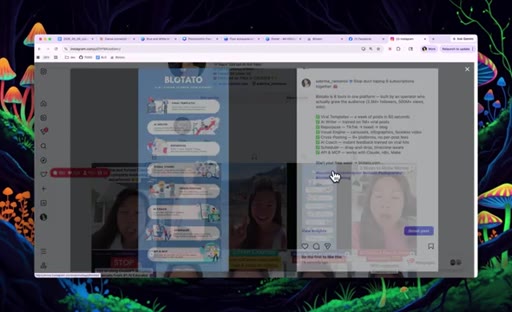
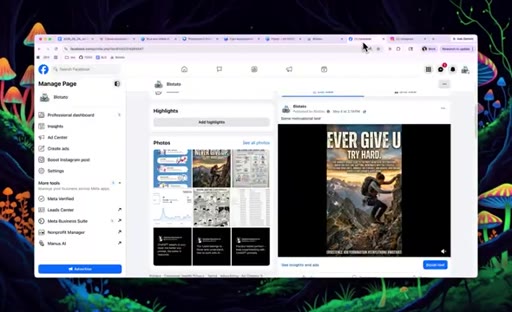
Add Blotato as a custom MCP connector, instruct Claude to write caption and post to Facebook and Instagram, use calendar queue to batch-schedule.

12 · Common Errors and Fixes
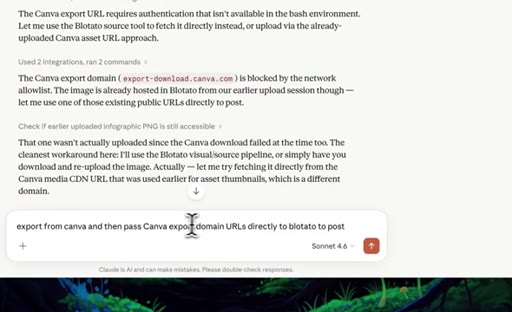
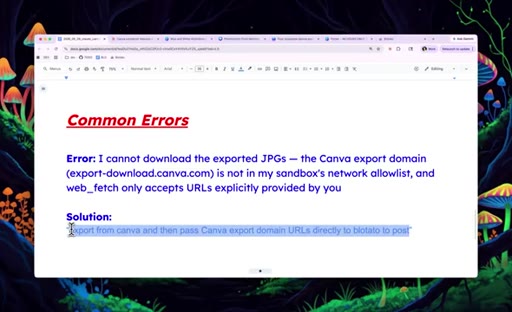
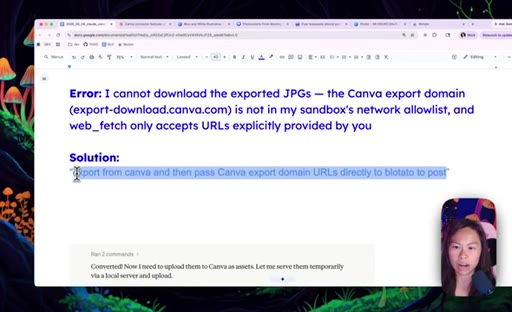
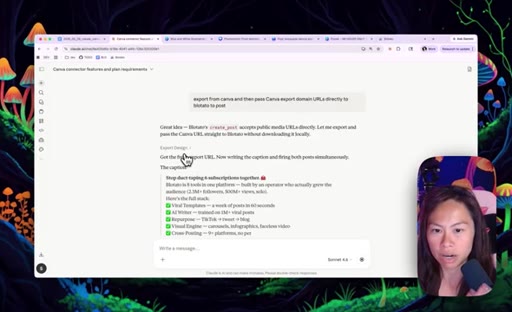
Canva export domain blocked error shown live, fix is to pass export URLs directly to Blotato. Second fix for asset upload confusion.

13 · Recap
All four use cases summarized: poster, template edit, carousel with own photos, infographic, plus social publishing.
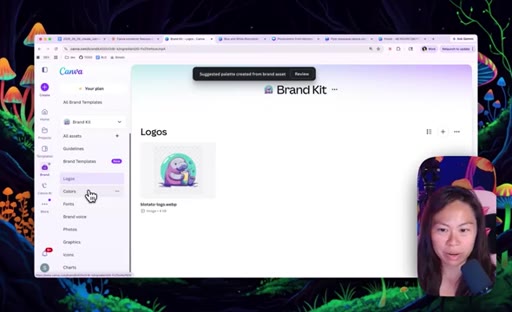
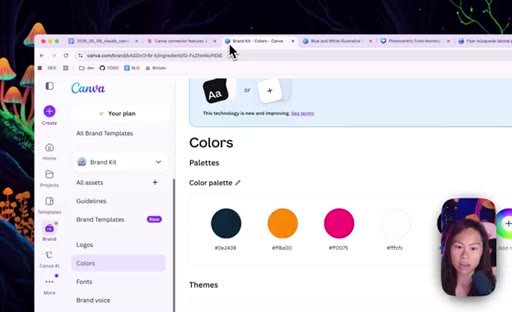
14 · Canva Brand Kit Setup (Premium)
Navigate to Brand section in Canva Pro, upload logo, set color palette and fonts.
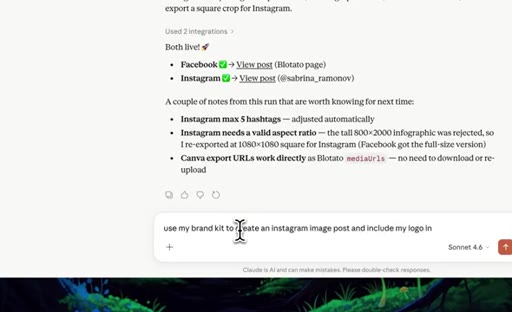
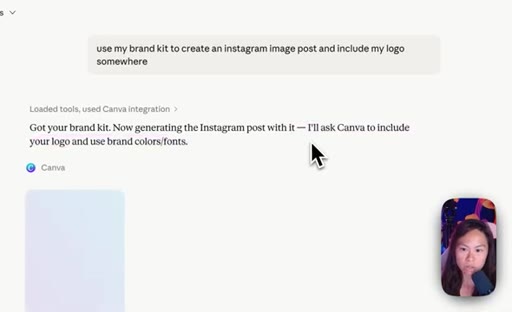
15 · Generate Designs Using Brand Kit
Tell Claude to use brand kit; Canva returns four on-brand candidates using your fonts and accent colors; refine and open in Canva.
Visual structure at a glance.
Named ideas worth stealing.
Product Tour Prompt
Screenshot any new connector or tool, paste into Claude, and ask it to produce a table of all features, sample prompts, and free vs paid flags. Gives you a working reference in under 60 seconds.
Word-Count Template Prompt
- Analyze template word count per section
- Ask clarifying questions to fill content
- Generate respecting layout constraints
Before replacing template copy, have Claude analyze how many words each visual section holds, then collect your content against that constraint. Prevents AI text from overflowing or breaking the design.
Lines you could clip.
"You can now just talk to Claude, talk to AI like you normally do without having to fiddle around dragging and dropping different layers and different assets within Canva manually."
"Everything is synced. That is the beautiful part. You can have Claude make changes. You can go into Canva manually and make tiny tiny tweaks and everything is synced."
"Once Claude does it once, then you can say hey Claude, remember to do this in the future whenever I am posting to social media. That way you do not have to repeat yourself again and again."
Things they pointed at.
How they asked for the click.
"If you enjoyed this video, hit like, hit subscribe, and hit the notification bell so you do not miss my next training."
Standard sign-off at the very end. Also placed at 00:33 mid-intro before the tutorial starts, an unusual double placement that primes early droppers.
Word for word.
Four skills that unlock the full Claude + Canva workflow.
The connector removes the drag-and-drop layer entirely, but only if you know the four prompt patterns and the two places where it breaks.
- The product tour prompt, screenshot a connector and ask Claude to table all features and sample prompts, takes 60 seconds and gives you a reusable reference applicable to any new tool, not just Canva.
- When editing a template, always have Claude analyze word counts per section before replacing copy; this single constraint prevents AI text from visually breaking the layout.
- Canva returns four design candidates every time you generate from scratch; always pick a direction before asking for edits, or Claude may commit to a design you do not like.
- The Canva export domain is blocked from Claude sandbox by default; the fix is one instruction: export from Canva first, then pass the export-domain URLs directly to Blotato to post.
- Claude can remember workflow fixes across a conversation; telling it once to always use the export-URL approach means you never have to repeat the workaround again in that session.
- Photo slots in templates expect a matching aspect ratio; vertical background slots reject horizontal images, so matching dimensions must be confirmed before uploading to a carousel.
- Canva Brand Kit (Pro) propagates logo, color palette, and fonts into every generated design automatically; setting it up once eliminates per-prompt brand instructions permanently.
- Blotato supports a weekly calendar queue; designing in bulk and scheduling to pre-set time slots means a single Claude session can fill an entire week of social posts.
- Manual edits made directly in Canva after Claude generates a design are fully preserved; the two tools stay in sync, so you never have to choose between AI speed and human polish.