
Brock Mesarich | AI for Non Techies · Youtube · 17:52

Anthropic Just Dropped Claude for Small Businesses (31 Skills)

A 17-minute field guide to the new Anthropic Small Business plugin — three live skill demos, connector setup, and Zapier MCP as the escape hatch.

Posted
May 21st 2026
today
Duration
17:52
Format
Tutorial
educational
Channel
BM
Brock Mesarich | AI for Non Techies
§ 01 · The Hook

The bait, then the rug-pull.

Anthropic quietly dropped a 31-skill plugin pack for Claude Cowork, and Brock Mesarich has been road-testing it since day one. Here's the honest breakdown: three skills that actually move the needle, a walkthrough of the connector ecosystem, and the Zapier MCP bridge for everything else.

§ · Stated Promise

What the video promised.

stated at 00:14 "I'm gonna explain what a skill is, show you the ones that I found are the most useful, and even show you how these can work across some of the apps that you might be using every single day." delivered at 14:44
§ · Chapters

Where the time goes.

00:00 – 00:34

01 · Intro & promise

News hook, authority establishment, trifecta promise.
00:34 – 01:29

02 · What's in the Small Business Plugin

31 skills across major business apps. 12 native connectors. Honest caveat: most owners use fewer than 8.
01:29 – 04:37

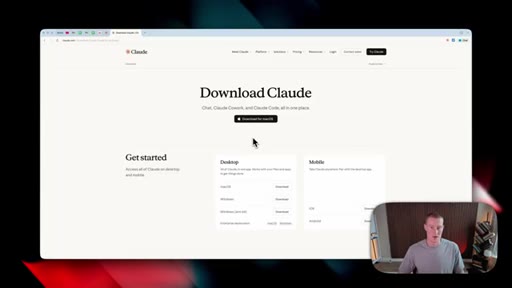
03 · Installing the plugin

Claude desktop download, Cowork mode, Browse Plugins, Small Business plugin (423K downloads), one-click install.
04:37 – 05:30

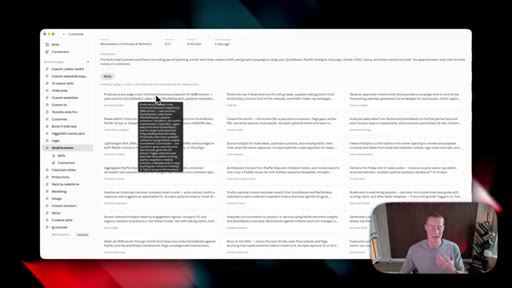
04 · What is a Skill?

Name + description + instructions = reusable workflow invoked by keyword.
05:30 – 05:52

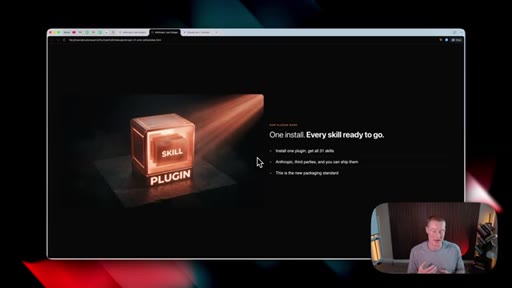
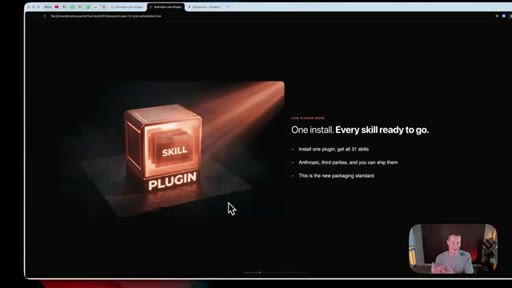
05 · What is a Plugin?

A bundle of skills for easy install or team sharing.
05:52 – 09:31

06 · Skill 1: Business Pulse

Parallel pull from 8+ apps. Surfaces TLDR, top priority, cash snapshot, pipeline, actions. Posts to Slack and HubSpot.
09:31 – 11:36

07 · Skill 2: InvoiceChase

Queries QuickBooks + Stripe for overdue receivables, scores each customer, drafts tone-matched email, approval gate, then sends.
11:36 – 14:44

08 · Skill 3: Job Post Builder

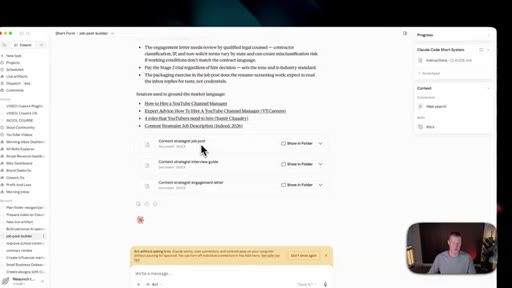
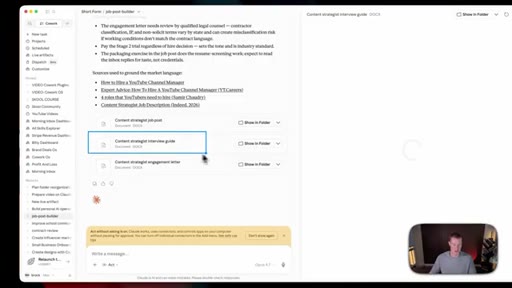
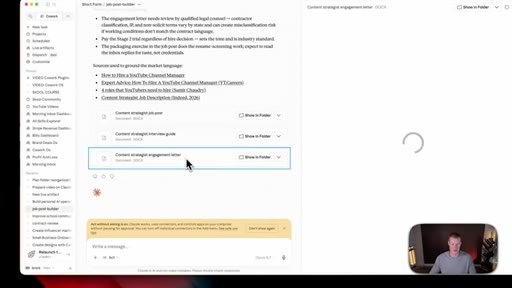
Guided form outputs three files: job post, interview guide with rubric, engagement letter. Optional DocuSign auto-send.
14:44 – 17:34

09 · Connecting Your Apps

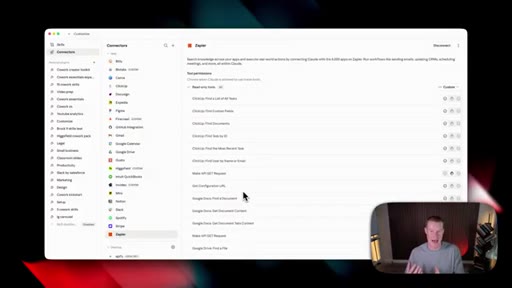
Native connector directory in Claude desktop. Zapier MCP for apps not natively supported (8,000+ apps).
17:34 – 17:52

10 · Outro & CTA

Subscribe, School community CTA, weekly calls.

§ · Storyboard

Visual structure at a glance.

open
plugin overview
business pulse
invoice chase
job post builder
connectors
CTA
§ · Frameworks

Named ideas worth stealing.

04:37 model

Skill = Name + Description + Instructions

  1. Name
  2. Description
  3. Instructions

The atomic unit of Claude Cowork automation.

Steal for MCN+ tutorials on building Claude workflows.
05:30 concept

Plugin = Bundle of Skills

Plugins are distributable skill packs. One install, entire workflow library. Shareable with teams.

Steal for Frame MCN+ skill bundles as plugins, not just prompts.
05:52 model

Parallel Pull pattern

  1. Connect apps as sources
  2. Pull in parallel
  3. Compute metrics
  4. Flag risks
  5. Cross-source synthesis
  6. One-page output

Business Pulse architecture: pull everything at once, surface only what needs attention.

Steal for JoeFlow morning briefing feature.
10:01 concept

Approval Gate

Present a draft and wait for human confirmation before sending. Human stays in the loop without doing the work.

Steal for Any automation that touches external comms.
16:28 concept

Zapier MCP bridge

zapier.com/mcp creates an MCP server connecting Claude Cowork to 8,000+ apps.

Steal for MCN+ connector tutorials.
§ · Quotables

Lines you could clip.

00:14
"Some of these have honestly shocked me at how much they can actually do."
Credibility + curiosity combo. Works cold. → TikTok hook
00:55
"31 skills is a lot. And even if you are a small business owner, odds are you're probably not gonna use even a quarter of these."
Honest framing that builds trust instantly. → IG reel cold open
17:12
"Zapier does allow you to connect to 8,000 plus different apps."
Clean stat, usable standalone. → Newsletter pull-quote
§ · Pacing

How they spent the runtime.

Hook length34s
Info densitymedium
Filler8%
§ · Resources Mentioned

Things they pointed at.

09:31linkBrock's School Community
§ · CTA Breakdown

How they asked for the click.

09:31 product
"If you guys do want access to the 50 different skills that I've built and curated myself that I use almost every single day, they are linked in my school community."

Mid-roll at 9:31, embedded in transition between Skill 1 and Skill 2. Feels like value extension, not a detour.

§ 04 · The Script

Word for word.

HOOK opening / re-engagementCTA the pitch analogy
00:00HOOKAnthropic just released a plug in with 31 skills specific to small business owners, and in this video, I'm gonna break it down. I've been testing these since they released, and some of these have honestly shocked me at how much they can actually do. So in this video, I'm gonna explain what a skill is, show you the ones that I found are the most useful, and even show you how these can work across some of the apps that you might be using every single day.
00:22HOOKAnd if you don't know who I am, my name is Brock Messerich. I teach nontechnical people every single day how to use Claude and specifically Claude CoWork, and I've tested out hundreds of different skills at this point. So without further ado, let's dive right into this.
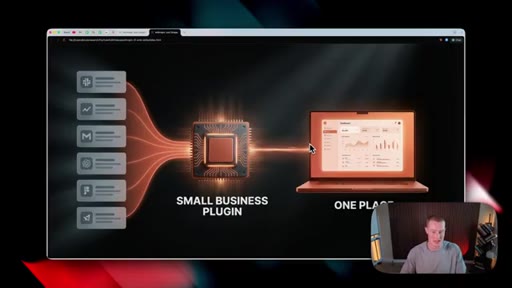
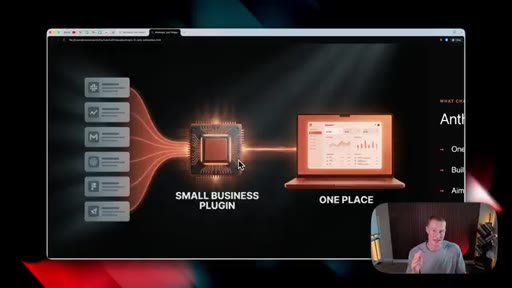
00:34Alright. So let's quickly talk about the structure of this. So inside of this small business plugin, we have 31 different skills across tons of different applications we could begin using inside of Claude CoWork, and we could access all of them directly inside of the Cloud desktop app.
00:48So instead of us needing to go on Slack or Gmail or Stripe or QuickBooks, basically, all these apps that we use throughout our business, we can now install this plug in pack and run all these skills. Real quick, I do wanna preface and say that 31 skills is a lot. And even if you are a small business owner, odds are you're probably not gonna use, like, even a quarter of these.
01:08But in this video, I'm gonna show you what's possible with Claude and specifically Cowork when you create skills around the different apps that you use on a day to day basis. This is a really good starting point for 99% of people to really begin to see what's possible with Claude.
01:24But, of course, you might not use the specific apps that are specific to this plugin. Alright. So first things first, we need to make sure we have the Claude desktop app downloaded.
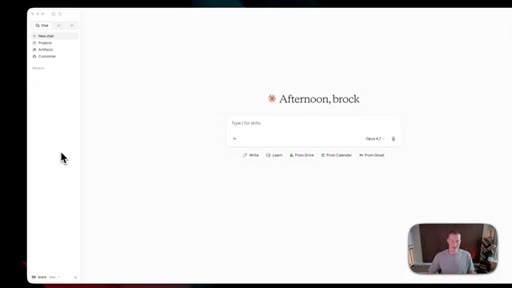
01:33There will be a link in the description to download it right here. Make sure to download it for Mac or Windows, whatever device you're running, and then we'll go from there. Next, once you have that downloaded onto your computer, this is what our app is gonna look like.
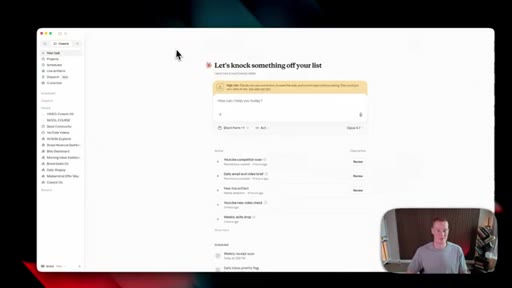
01:45First, we have this chat interface. This is where we're gonna use Claude chat mode. This is not Claude Cowork like we're gonna focus on in this video.
01:52And in order to access Claude Cowork, up here on the left hand sidebar, you can see chat mode. We wanna click on this little checklist, and this is how we access Cowork. So if you've never used this before, let me give you a quick rundown on how this works.
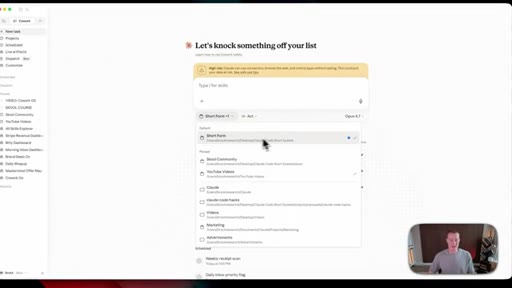
02:04We are working inside of a desktop folder on our computer. So if you don't already have a preexisting folder connected, click on choose a different folder. Either you could open one that you already have or you could create a new folder that we could begin working inside of.
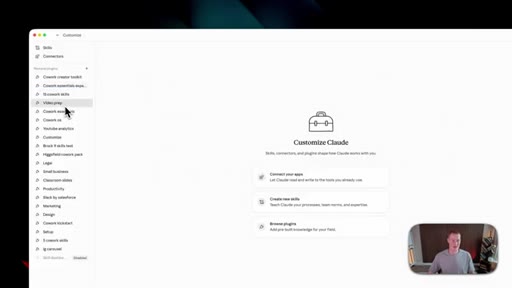
02:17And then once we have that connected, on the left hand side, you're gonna see all of our previous tasks that we have running. Um, you probably wouldn't have any, obviously, if this is if you are new to this. And what we wanna focus on in order to download this plugin is we wanna go over to customize on the left hand side.
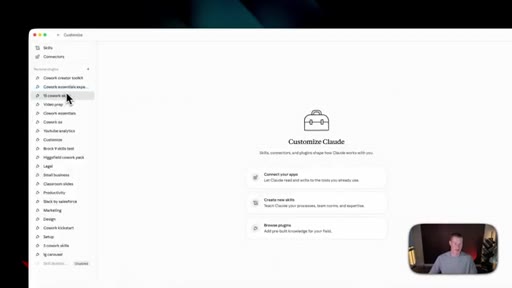
02:33Once we are inside of here, we'll see a couple of different things. We're gonna see skills. We're gonna see connectors and then personal plugins.
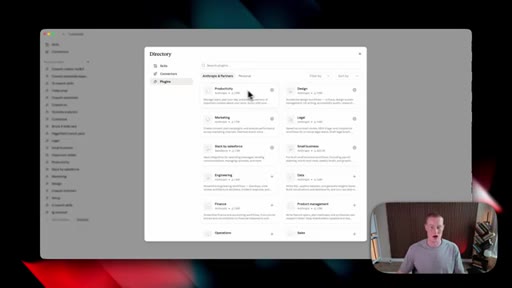
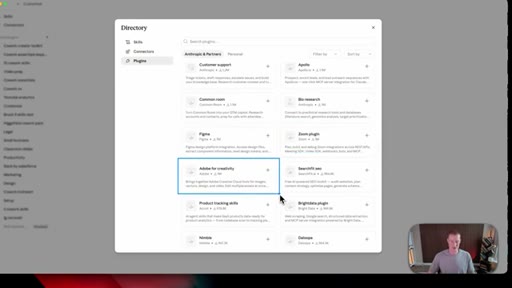
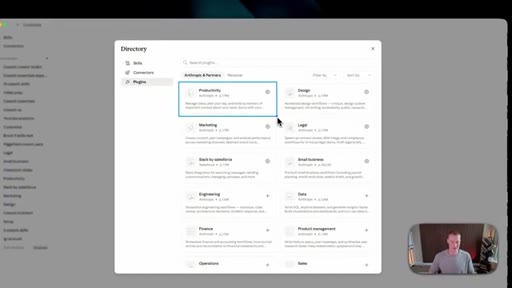
02:39So we want to click on this plus button here, and what we're gonna do is click on browse plugins. And right here is basically an array and a list of different plugins that Anthropic and different partners have created on behalf of them. So if we take a look at some of these, you can notice that some of these actually are created by different companies.
02:57So we have a Figma plug in. We have a Zoom plug in. We have a plug in for Adobe.
03:02Basically, a bunch of different applications and companies that are, you know, bigger are partnering with Claude in order to give you certain skills to perform different actions across those different apps. If you've never used plugins before, they are super helpful. You could go ahead and download any of the ones that Anthropic already has.
03:17So we have some for productivity. We have another one for design. We have one for marketing as well as for legal.
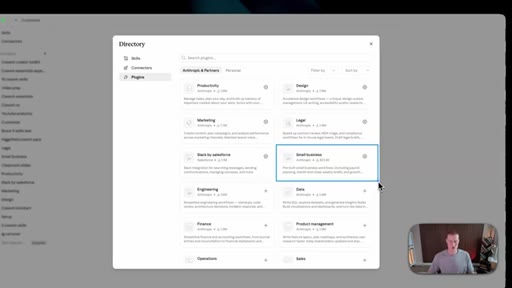
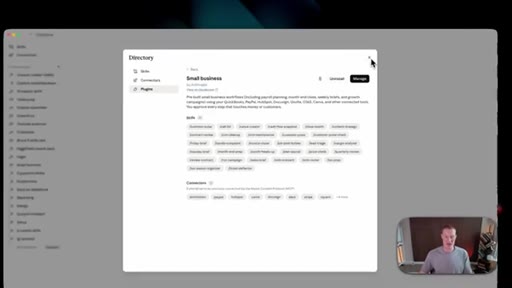
03:22So what I'm gonna focus on now is the small business plugin that they just created. So if I scroll down, we can now see this right here. It says small business, and it already has 423,000
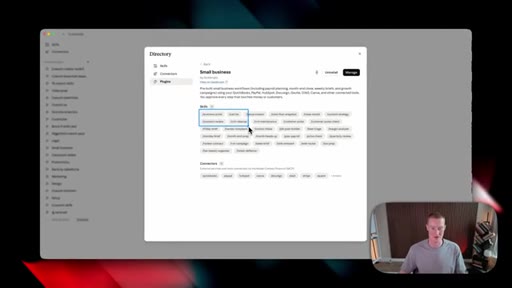
03:32downloads. So we're just gonna click on this. And the first thing that we're gonna notice is there's 31 different skills here, and I'm gonna break down some of these in this video.
03:40But here's a quick rundown on some of them. So we have our business pulse. We have our call list.
03:44We have Canva creator, contract review, CRM cleanup. This is just a bunch of different workflows, so to say, that are directly inside of this plugin for us to install.
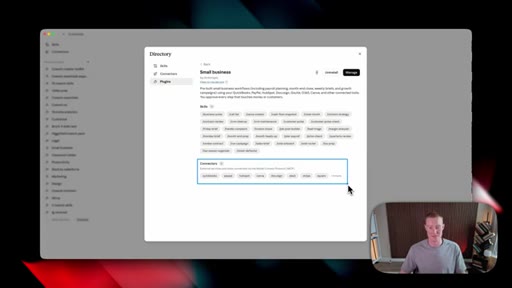
03:53On top of that, we have our connectors. So these are all the different apps that are you know, we're gonna be working inside of. So we have one for QuickBooks, PayPal, HubSpot, Stripe.
04:02Basically, any of the different apps that small business owners are probably gonna be using will be connected here. And it looks like we only have 12, so, you know, there are probably gonna be some that you'll need to connect yourself. So in order for you to download this, you're just gonna click on download.
04:15I already have this installed. It's as simple as that. And then in order to find them inside of Claude, you will see it in your personal plugins.
04:22I have a bunch here, so don't mind me. It's pretty messy. But as you can see right here, we have a small business plugin.
04:29I could click on it. That's gonna pull up all these different skills. I could see the description of this, and now we could begin breaking down each of these.
04:36Alright. So the first concept you need to understand if you've never used Claude before is what is a skill? So let me break that down right now extremely simply.
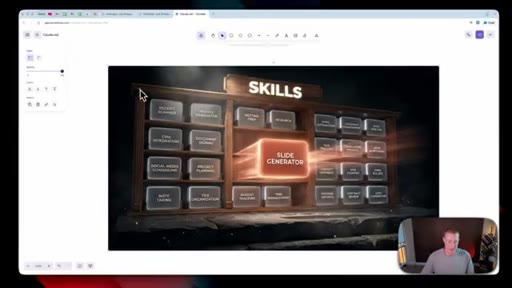
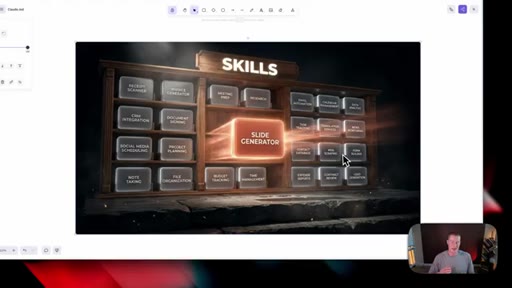
04:45So how a skill works is you give it a name, a description, and specific instructions on a specific workflow inside of your business. This is a great visual of what this actually looks like. We have our instructions, our descriptions, and the name of that skill.
05:00And when you want to run that specific workflow, all you have to do is say a keyword or that skill name, and it will go and run this for you automatically. And once we build out a directory of a bunch of different skills inside of Claude, we could then run these on autopilot just by saying something like slide generator.
05:17It pulls up that specific set of instructions, which is a very detailed prompt and will do that task for us. Here is just an example of a couple of different skills that we have directly inside of our system that you could actually load, um, at any time. Next up, we have something called plug ins, which is what this video is about.
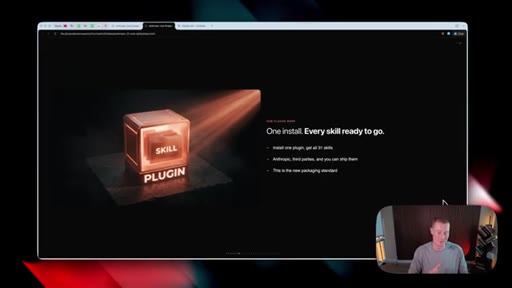
05:33This video is about the small business plug in that Anthropic gave us. And to explain this very simply, because a lot of people in my community get confused about what a plugin is, this is basically just a bundle of different skills that makes it really easy for you to upload them into your system or share with your team or somebody that you wanna share them with.
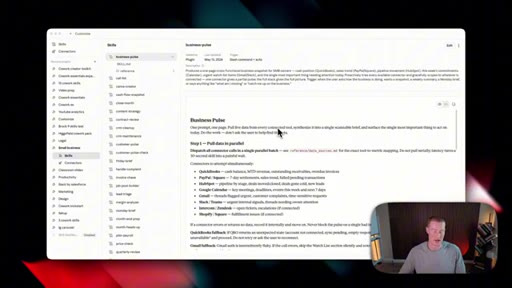
05:52The first skill that I'm gonna demo in this video and break down is called the business pulse skill. So let's talk about this now. If you wanna see the exact structure of the business pulse skill, you could come here and look at this.
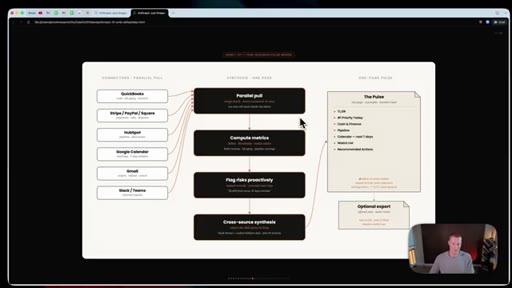
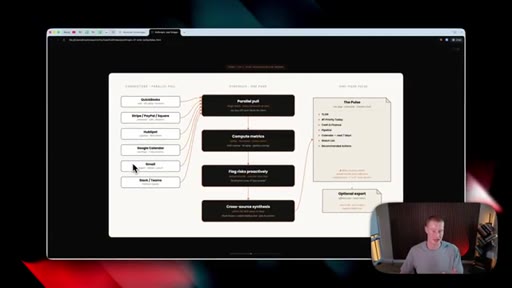
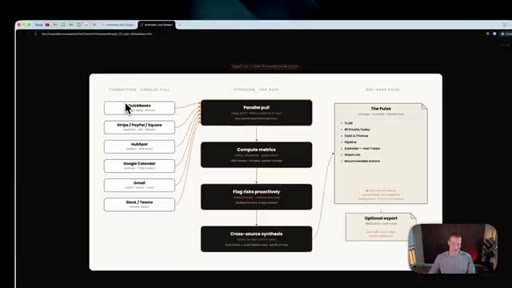
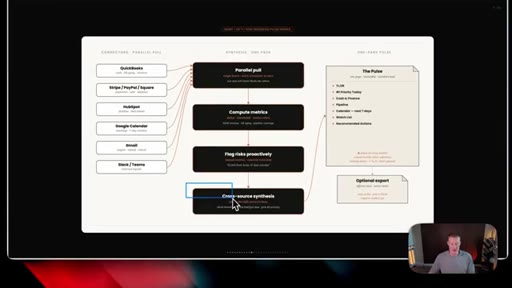
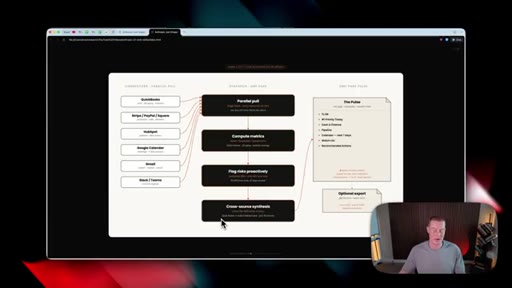
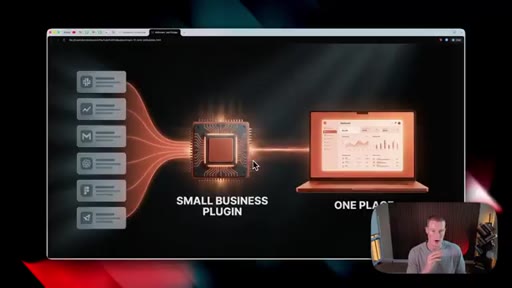
06:03As you can see right here, I could basically see all of the steps on the different apps that it's using. The output style, all this stuff is directly inside of this markdown file stored inside of our skill pack. But I created this visual to break this down a little bit more so you can understand it hopefully a little bit better.
06:18So we have all of our connectors, which are different apps that we connect. So QuickBooks, Stripe, PayPal, and Square. We have HubSpot, which is our CRM, Google Calendar, Gmail, and Slack, and Microsoft Teams.
06:30These connectors right here is where we're gonna be pulling information from in order to get a sense of everything that's going on in our business, hence why this is called the business pull skill. Then this is what the workflow is gonna do. So we're gonna have a parallel pull.
06:42So that is gonna pull from all of these different apps in parallel at the exact same time in order to get any context that we need. Then it's gonna break down our specific metrics that it specifies inside of the skill. Then what it's gonna do is actually flag different risks that we need to be proactive about.
06:58And I'm gonna show you a demo of this, but it's gonna break down, like, how much money a client owes and if I've ever had any problems with that specific client taking a while to pay. Then it's gonna automatically post in a couple of different sources a breakdown of this. It could post inside of a Slack thread, stall the deal inside of my HubSpot CRM, and pick the number one priority that we need to focus on.
07:18Then next up, we're gonna get a one page pulse directly inside of Claude, breaking down the TLDR of what's going on inside of our business. The number one priority that we have today, give me a rundown on the cash and finance part of my business, break down the things in the pipeline, and recommended actions. Alright.
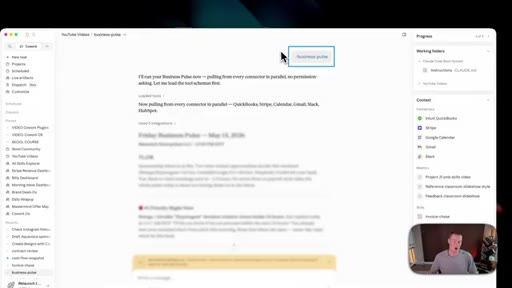
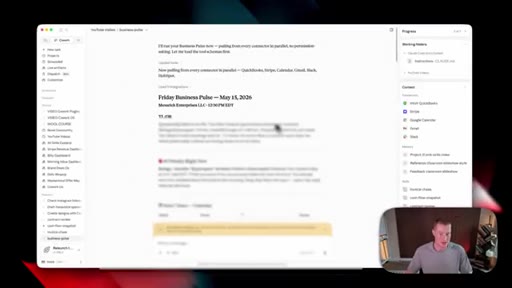
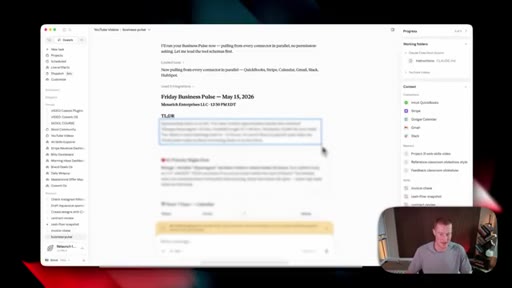
07:32So as you could see here, I ran the business pull skill directly inside of Cloud Cowork, and here is the output that it gave me. So first of all, on the right hand side, you can now see that we have this context from these different applications. We have QuickBooks, Stripe, Google Calendar, Gmail, and Slack.
07:47These are all the apps that it was going and pulling information from in order to run this skill. So here we are. We have a quick breakdown.
07:54It says Friday business pulse. It gives me a TLDR. It says sponsorship inbox is in is on fire, giving me a breakdown on my back to back meetings that start in two and a half hours, etcetera.
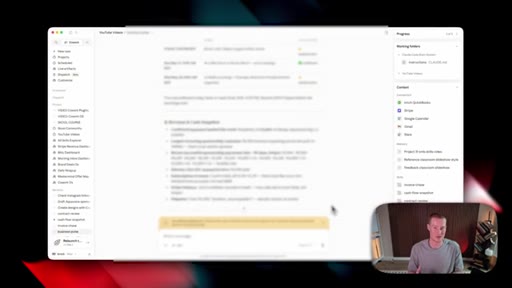
08:03Then it even shows my number one priority on my email inbox. It shows my Google Calendar over the next couple of days, and then it even shows me my revenue in cash snapshot because it's pulling this information from QuickBooks, which is connected to my bank account in order to see every single financial payment that is coming in every single day and every single week.
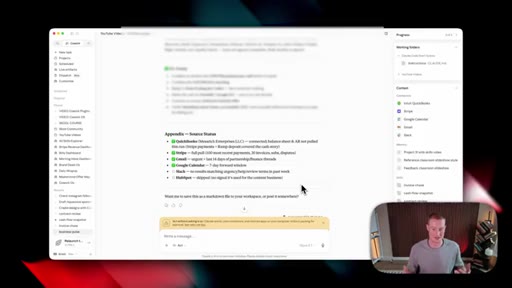
08:22And then at the bottom of this, it shows source status showing if these different apps are working. Looks like I do need to connect Slack and HubSpot right here, and there were no, you know, updates there because it's not connected. But this is what the business pulse will do.
08:34It takes all these different apps, basically runs a pulse, says, hey. What's going on inside of this business? What payments have been collected, and what needs to be followed up on based on email inboxes, Google Calendar, Stripe, and QuickBooks.
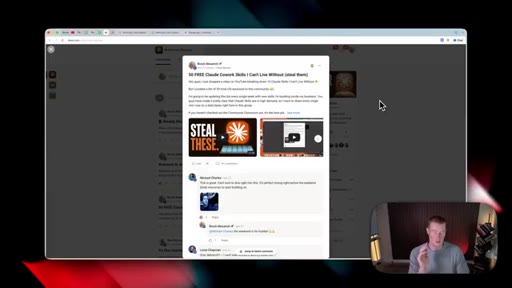
08:45And you could add any of the different apps you use to this to make this business pulse even more tailored to you. Real quick, if you guys do want access to the 50 different skills that I've built and curated myself that I use almost every single day, they are linked in my school community. There is a link in the description to join, as well as I do have an entire course on exactly how to use Claude CoWork as a beginner to an expert.
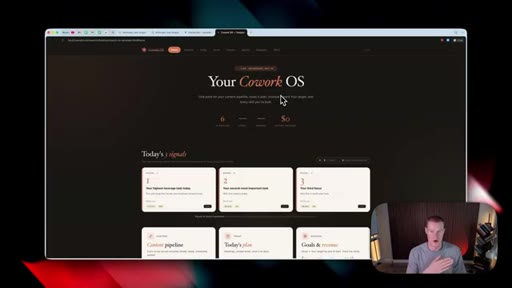
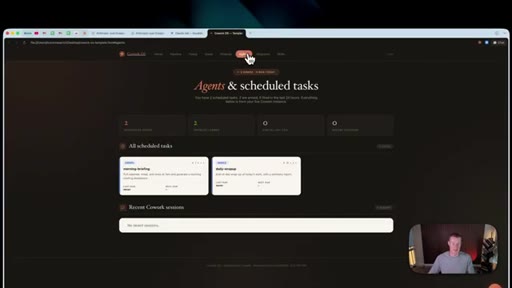
09:06I also do weekly calls in here every single week, so you could ask me questions. We share different use cases we're finding with Claude and different AI tools. On top of all of that, I even share with you my exact Claude CoWork operating system template that I use every single day to help me run my business, breaks down my different goals, it shows all my different emails across my inboxes, and it even shows basically all of the different agents that I'm running across my business inside of one unified dashboard.
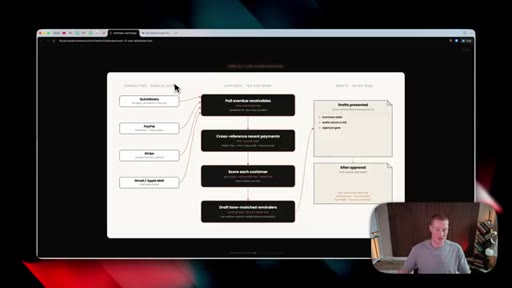
09:29CTASo this is another thing that's included in the school. Alright. So for our next skill, this one is kinda similar because it is using QuickBooks and some of these financial apps.
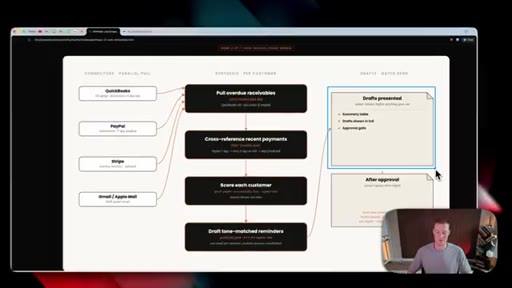
09:36CTAThis one is called Invoicechase, so let me break this down right now. So similarly to the last one, we're gonna be using QuickBooks.
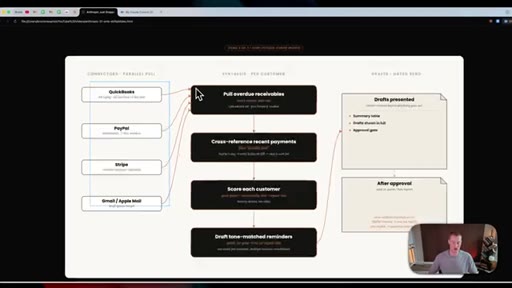
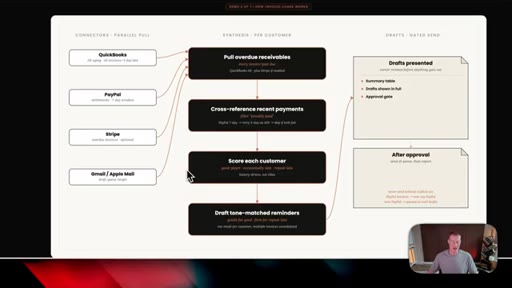
09:42CTAThis could also pull from PayPal if you have this connected. Stripe and then Gmail and Apple Mail depending on which one that you use. So what this is gonna do in a sense is gonna pull overdue
09:52CTAreceivables. So, basically, payments that are owed to us that have not been paid yet. It will then cross reference the recent payments to filter if, you know, they've paid their previous invoices.
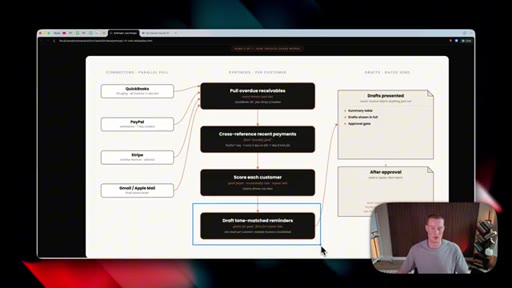
10:01CTAThen this is a cool part. It's gonna even score each of these customers to get a sense of if they're a good payer. And then based on that, it's going to draft a tone matched reminder email for you to send based on the customer score.
10:14So let's say that they're maybe a client that hasn't paid their invoices. It's gonna send a little bit more pushy follow-up email in order to make sure that they do pay this invoice. Then what it's gonna do is it's gonna create the draft and present it to us.
10:27There's gonna be approval gate. So that way, we could approve it. And then once it's approved, it will send that email on our behalf.
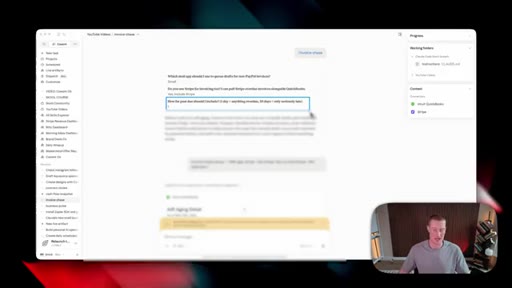
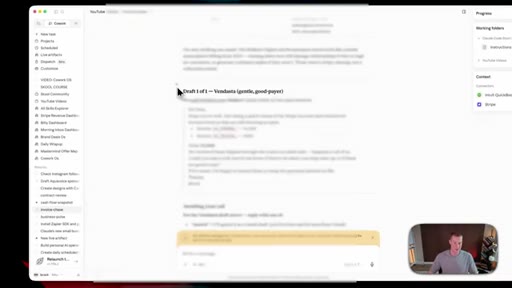
10:33This is a crazy one if you really think about it. Alright. So heading over to Cowork, I just typed in the command invoice chase, and what this did is ask me a couple questions.
10:41It said, which app should I use to queue the drafts? I said, Gmail. Do you use Stripe for invoicing too?
10:46I can pull Stripe overdue invoices along with QuickBooks. I said, yes. That this includes Stripe.
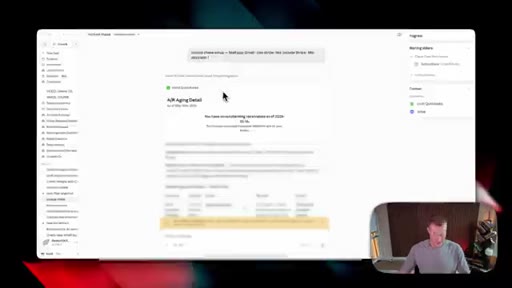
10:51How far past due should I include? If it's overdue one day, that means that this is overdue. Next up, what it did is it pulled up into a QuickBooks.
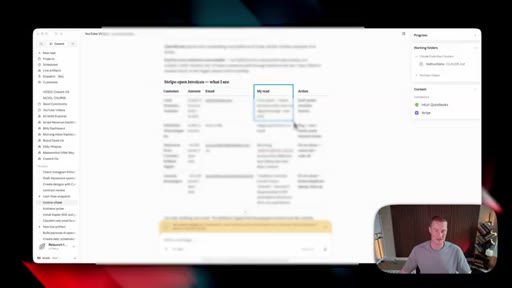
10:57Looks like I don't have any payments that I need to collect there. However, they did pull up some Stripe open invoices that were inside of my account. So it broke down my Stripe invoices that are open based on the customer name, the amount of the invoices, their email.
11:12It gives the read to whether it thinks it's a good payer based on the amount of previous invoices they paid on time, and then it even gives you your action. So this one says draft gentle reminder below, and there's gonna be the email below that shows this. So for example, we have this draft basically breaking down this email that we could send to our clients.
11:29Then it says awaiting your call, so I just have to say whether or not I wanted to send. And if I say send, it'll go and send that email on my behalf. Alright.
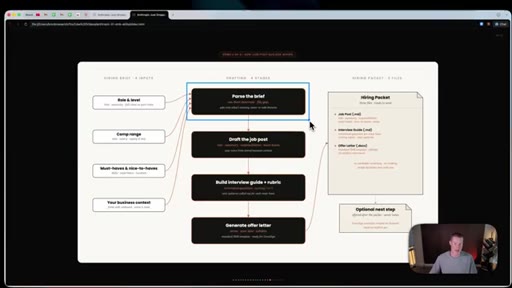
11:36So this next skill that we have here is the job post builder. So let me show you a breakdown of what this is and then show you it live in action so you can begin using this right now. Here is the flow of this.
11:46So there's gonna be four different inputs that we're gonna give it. We're gonna give it the role and level that we're hiring for, the specific compensation range that we are looking to, you know, pay for this role, must haves and nice to haves, and then a little bit of our business context. And then from there, it's gonna create a brief for us.
12:01It's gonna draft the job post. It's gonna build the interview guide and rubric for our team to actually use in order to understand exactly how to best interview this candidate. And finally, it's gonna generate an offer letter that we could send to this candidate.
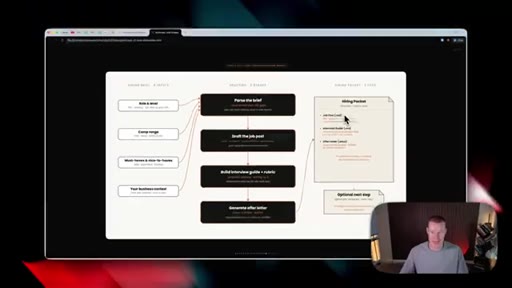
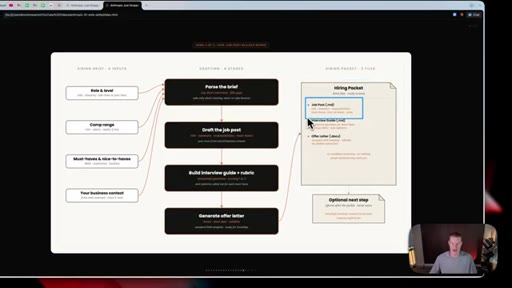
12:15And then the main output here is gonna be this hiring packet with three specific files. We're gonna have a job post markdown. We're gonna have an interview guide for us to use.
12:25We're gonna get an offer letter document. And then the optional next step, and this is a really crazy part, is we could have it automatically upload this to DocuSign and send it to this person's email in order for them to sign this onboarding offer letter.
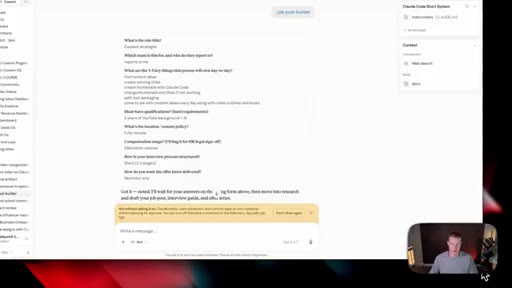
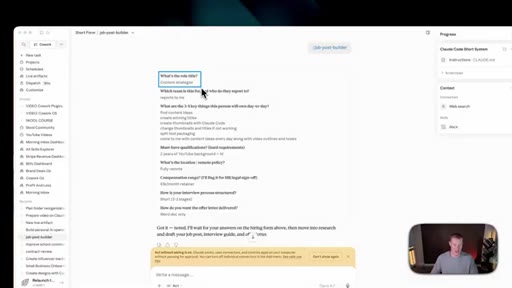
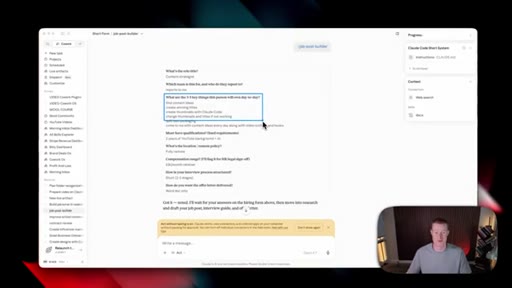
12:37Alright. So to see this live in action, I just sent over this slash command, the job post builder. And what it did is it gave me this form to fill out.
12:44I went ahead and filled it out. So it's basically asking a couple of different questions. What's the role title?
12:49I said content strategist. Which team is this for, and who do they report to? And I answered, they report to me.
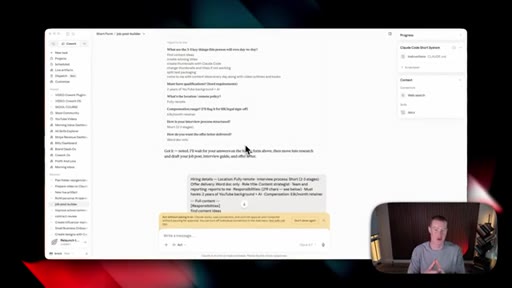
12:55What are the three to five key things this person does day to day? I basically broke down everything content strategist related that they would be doing, must have qualifications, compensation range, interview process structure, etcetera.
13:08And, basically, I also specified how do we want the offer letter delivered, gave me the option to use DocuSign if I have that in order to automatically craft this document to send to them on autopilot. So if you do use DocuSign, this integrates directly with that. However, I personally do not use it.
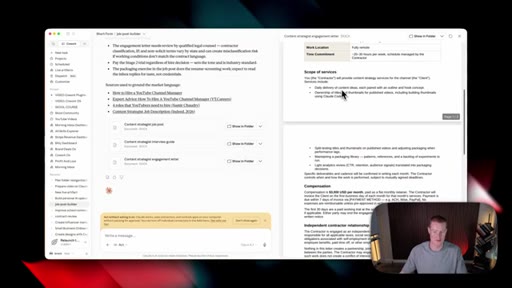
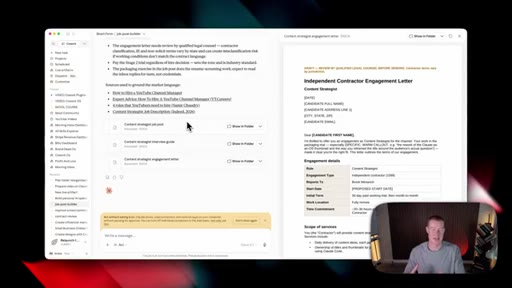
13:24So I basically said, just give me an output of a Word doc. And then here's the final output here. We got this document right here with the job posting for me to, you know, make a post about.
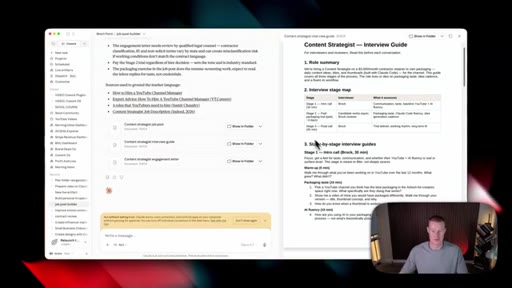
13:35This is a pretty detailed, you know, document here just kinda laying out all the things that we talked about in that form that it gave me. Next up, we have another output. We have our content strategist interview guide.
13:45So this will, you know, be something I could either hand off to my team in order for them to interview this candidate or something I can use in order to prep for the interview. So, basically, it breaks on the role summary, interview stage map, different stages, entry call, warm up, etcetera. Just to give you a sense of, like, alright, how should this look when I go about interviewing these people in order to get the best candidates possible?
14:06Then lastly, we have the content strategist engagement letter, another document that I can open. And, these all live inside of the folders on our computer that we, you know, specify that we're working inside of. So here is the independent contractor engagement letter.
14:19Basically breaks down all of the main details. It shows the scope of service, the specific compensation that we laid out when we filled out that form, shows intellectual property and confidentiality, all these different things.
14:31So from this one single command, we now get these three outputs. And, again, we could automatically have them draft a document to be signed on DocuSign and even send them the email, and that is the power of this job post builder skill. Alright.
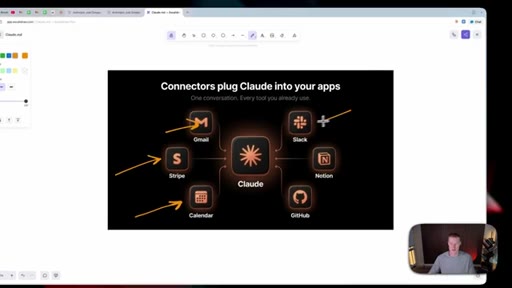
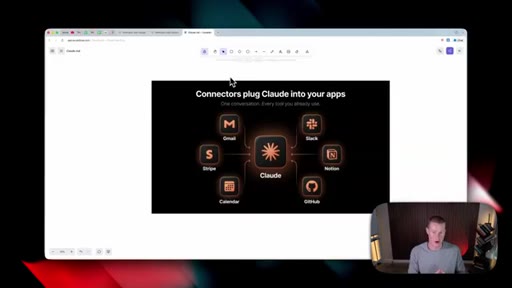
14:44So probably the overarching theme of this video is that Clot is incredibly powerful with these specific skills that either you could create or that Anthropic gives you with this small business plug in, but this is all due to the fact that you can use connectors directly inside of Clot. So you could connect your calendar, apps like Stripe, Gmail, Slack, Notion.
15:03Basically, any of these apps you use, you can now create skills to do things across those apps, and and that is where this gets incredibly powerful. Alright. So now I'm gonna show you exactly how you can begin connecting these different apps so that way we could run our skills across them.
15:17And this small business plugin can actually be useful, so you could use things like DocuSign, QuickBooks, Stripe, Gmail, kind of any of these apps you use on a day to day basis. So on the left hand side, we wanna focus on this customize button. This is where we are going to find connectors.
15:30And directly under skills, we will see this connectors icon. We're gonna select that. And from here, I have a couple that are preconfigured and set up myself.
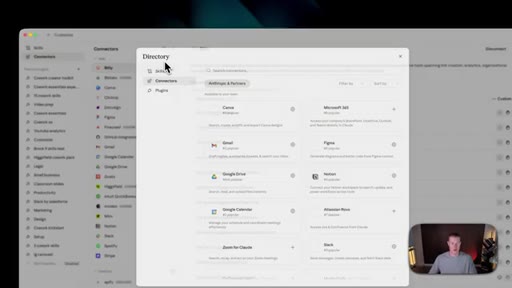
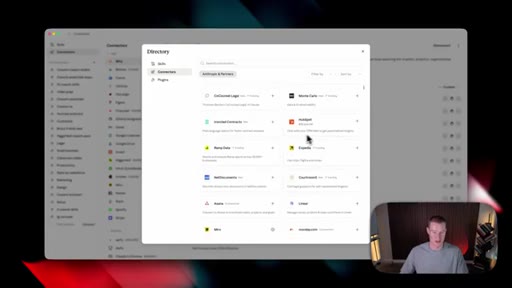
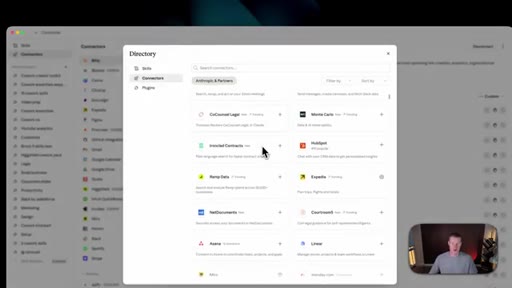
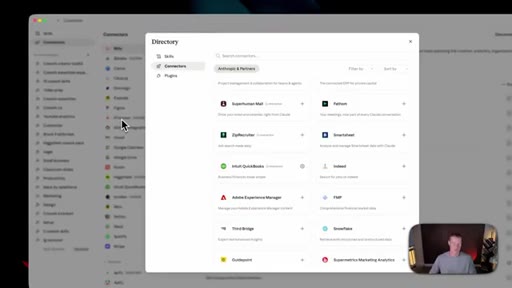
15:39So let me show you exactly now how you could set some up yourself as well. So you're gonna click on plus, click on browse connectors, and from here, we have countless amounts of different apps that we could use.
15:50So we could use Canva, Microsoft three six five, Figma, Notion, kind of any of these tools we could automatically connect to. And in order to connect them, all we have to do is click on this plus button. It's gonna take us to that web app, and we just need to grant access.
16:03And now you could see that I actually have Expedia directly connected to Claude. Yes. There are quite a few different connectors we can, you know, directly integrate into Claude right here that Interopulate gives us.
16:13There's honestly, at this point, like, a couple of 100 different connectors. But if there is an app that you cannot connect to, odds are using something like the Zapier MCP might solve this problem for you. So let me break down how to set this up extremely simply.
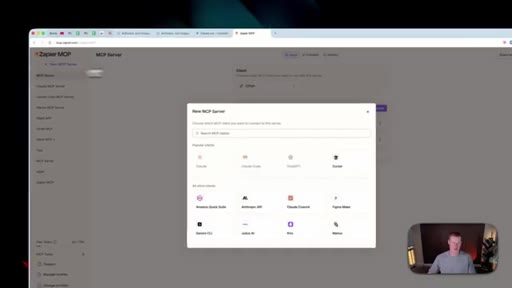
16:25So first of all, you'll come to zapier.com/mcp. And, guys, this is only necessary if there is an app that Claude doesn't natively integrate with. Next, what you could do is just click on new MCP server,
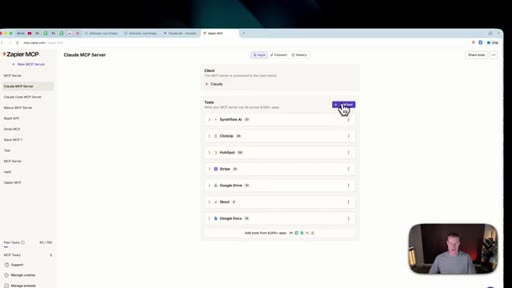
16:36and you're gonna select Claude Cowork. And you could see I personally have a couple of these different tools configured, some of these of which, you know, Claude doesn't directly integrate with, like SynthFlow, for example.
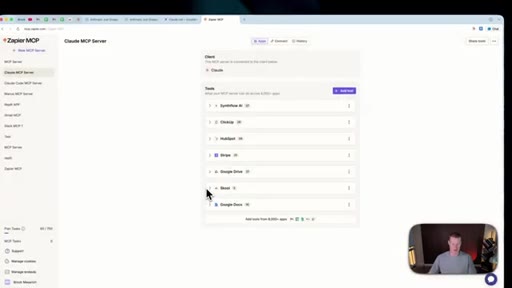
16:46And in order to add specific apps you wanna add, just click on add connectors. And let's say I wanna add school, for example, because school does not have a direct connector inside of Claude. I just click on this, click on select all tools, click on add tool, and then we will now see this directly inside of this MCP server.
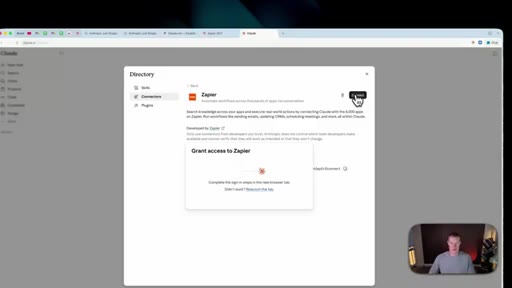
17:04Now in order to basically bridge this gap between Claude, we'll just click on connect, click add to Claude, click this connect button, and now we'll have access to this. Now once this is connected, we'll see Zapier right here in our list. And, basically, now here are all the different things that it could do.
17:20It could use ClickUp. It could use Google Docs. It could use school and actually do things across that app.
17:25CTAAgain, guys, you don't need to use this, but this is a hack that will help you if there is an app you wanna connect to that Claude doesn't connect to because Zapier does allow you to connect to 8,000 plus different apps. Alright, guys. If you guys got some value from this, leave a like.
17:36CTASubscribe to this channel for more free content like this that I'm posting every single week. If you guys wanna dive a bit deeper, make sure to join my school community. Otherwise, if you wanna continue with the free content that I put out on YouTube, just subscribe to the channel.
17:48CTAThank you so much for staying to the end. Hope you have a great day, and I'll see you in the next video.
— full transcript
§ 05 · For Joe

The plugin format is the offer.

MCN+ / JoeFlow playbook

Brock didn't just teach skills. He packaged them as a plugin, and the plugin IS the product demo.

  • Frame MCN+ skill bundles as plugins, not just prompts. Installable plus shareable raises perceived value.
  • Lead with the three universal small-business pain points: cash visibility, collections, hiring.
  • The Approval Gate pattern makes automation feel safe. Any skill touching external comms must pause and show a draft first.
  • Zapier MCP is the connector unlock for power users. Teach native connectors first, Zapier MCP as the advanced track.
  • Mid-roll CTA works when it is positioned as more of the value, not a detour.
  • The Parallel Pull pattern is a reusable template for any morning briefing or daily digest feature.
§ 05 · For You

What you can actually do with Claude today.

For small business owners

Claude Cowork can pull your financial data, score your late-paying clients, and draft follow-up emails before your first coffee.

  • Install the Small Business plugin in one click from Claude's Browse Plugins menu.
  • Start with Business Pulse: connect QuickBooks or Stripe and see your cash and top priority in under 30 seconds.
  • InvoiceChase shows you the draft email before it sends anything. You stay in control.
  • If your app is not in Claude's native connector list, Zapier MCP bridges the gap for 8,000+ apps.
  • You won't use all 31 skills. Pick the two or three that match your biggest daily time drains and start there.
§ 06 · Frame Gallery

Visual moments.