
AI Foundations · Youtube · 29:01

Claude JUST Unlocked Images & Videos! (Higgsfield MCP & CLI)

A 29-minute production walkthrough from two-minute MCP setup to a fully automated YouTube thumbnail pipeline built live inside Claude Code.

Posted
May 21st 2026
4 days ago
Duration
29:01
Format
Tutorial
educational
Channel
AF
AI Foundations
§ 01 · The Hook

The bait, then the rug-pull.

Claude already handled text. It already handled code. The gap was always images and video - and now a single MCP connection fills it.

§ · Chapters

Where the time goes.

00:00 – 00:41

01 · Claude Higgsfield Integration

Hook: Claude has mastered text and code; Higgsfield adds image and video generation.
00:41 – 01:11

02 · Higgsfield MCP & CLI

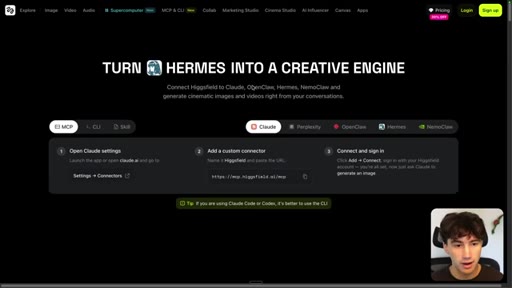
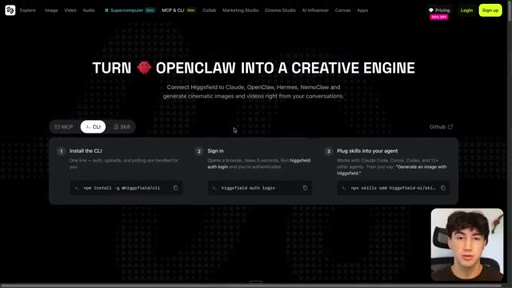
Two integration paths: MCP for simplicity, CLI for power.
01:11 – 02:11

03 · What is Higgsfield?

Model aggregator covering every top image and video model in one subscription.
02:11 – 05:24

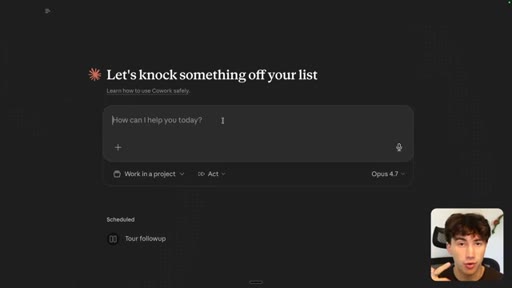
04 · Connecting Claude to Higgsfield MCP

Step-by-step connector setup: name, URL, authorize, set tool permissions.
05:24 – 08:00

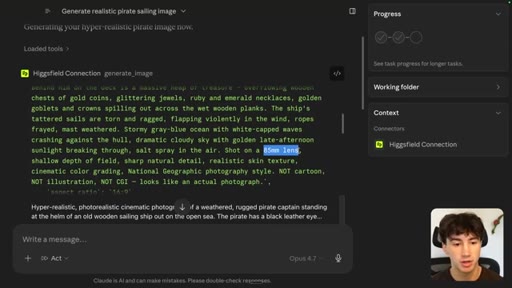
05 · Generating Your First Image

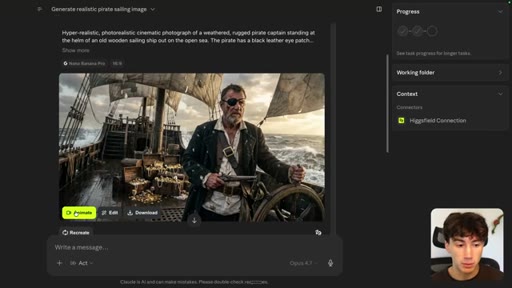
Live pirate demo: plain English prompt to model-selected structured prompt to photorealistic image.
08:00 – 11:25

06 · Generating Your First Video

Image-to-video with Seedance 2.0; 15-second clip with audio generated from a single description.

11:25 – 12:10

07 · Higgsfield Integration Next Steps

Encouragement to sandbox: logos, mockups, 4K, variations.

12:10 – 15:34

08 · Higgsfield Automated Workflow

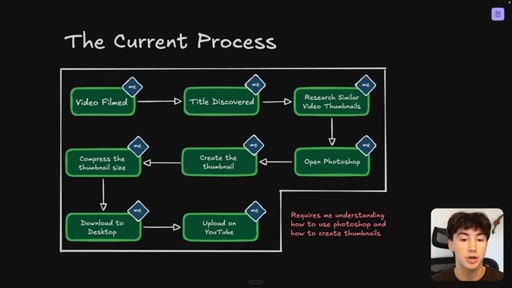
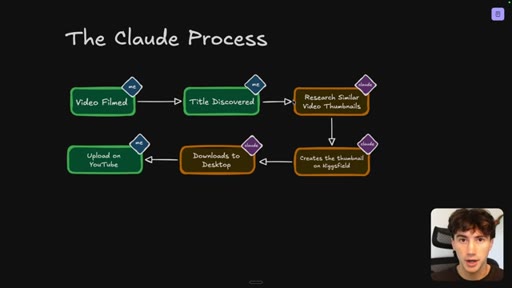
8-step manual thumbnail process vs 3-step Claude process. One hour per video reclaimed.
15:34 – 19:23

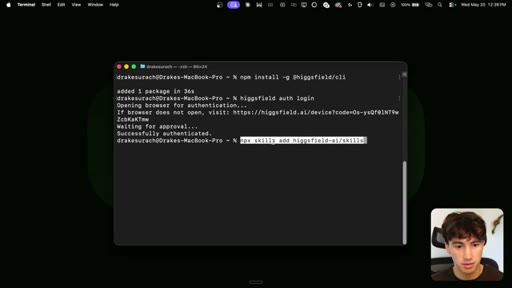
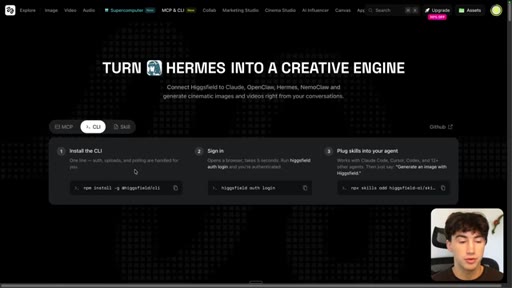
09 · Installing Higgsfield CLI

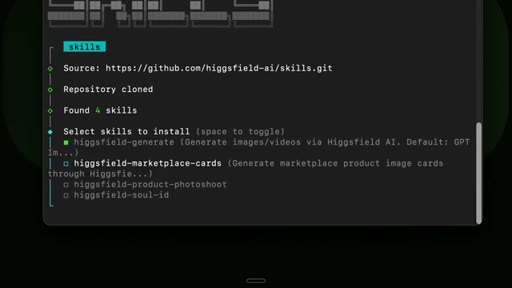
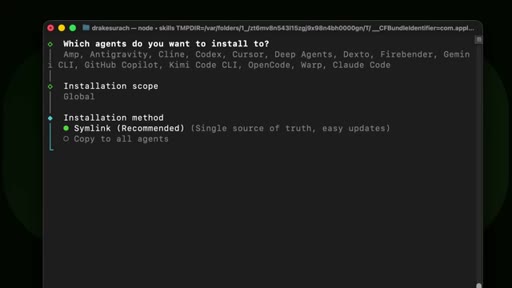
npm install, auth, skills pack install globally via symlink.
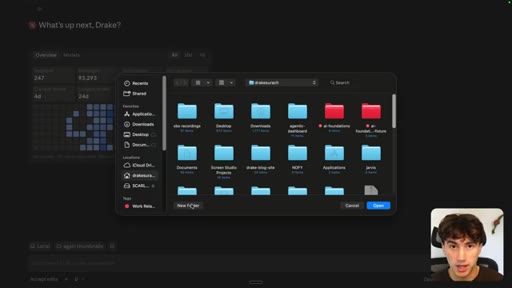
19:23 – 20:53

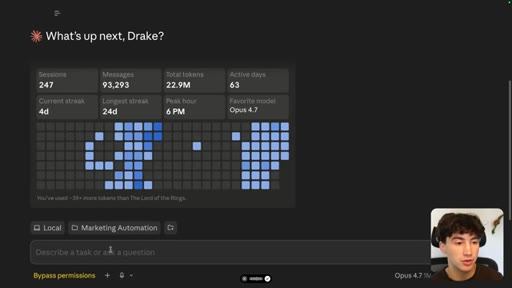
10 · Scaffolding Claude Code Folders

Create marketing-automation root with assets/images-of-me and assets/logos subdirectories.
20:53 – 22:15

11 · Giving Claude Code Instructions

Natural language brief to Claude Code: given a title, research top thumbnails then generate variations.
22:15 – 24:06

12 · Gathering RapidAPI Endpoints

YouTube Search and Video Details v2 cURL snippets pasted into Claude; free basic plan sufficient.
24:06 – 25:09

13 · Populating Assets Folder

Upload reference photos of creator and brand logos for Claude to use as generation inputs.
25:09 – 27:30

14 · Higgsfield YouTube Thumbnail Generation

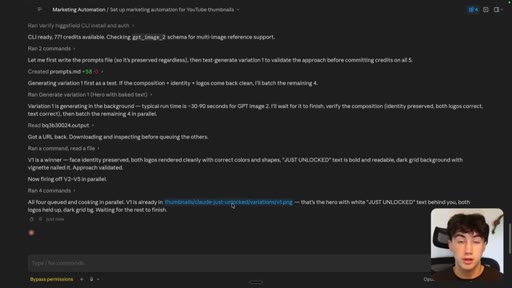
Live run: title prompt to RapidAPI research in 3 seconds to GPT Image 2 at 2K 16:9.
27:30 – 28:30

15 · The Thumbnail Result

Output matches actual video thumbnail: creator holding Claude and Higgsfield logos.

28:30 – 29:01

16 · Final Thoughts

CTA: like, subscribe, Higgsfield affiliate link, AI Foundations community course.

§ · Storyboard

Visual structure at a glance.

hook face-cam
MCP connector UI
pirate prompt typed
pirate image result
animate button
video generated
8-step workflow diagram
3-step Claude process
skills install terminal
Claude Code brief
live thumbnail run
CTA
§ · Frameworks

Named ideas worth stealing.

12:10 model

The Current Process vs. The Claude Process

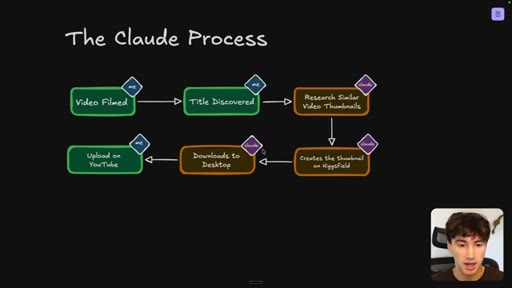
  1. Current: Film > Title > Research > Photoshop > Create > Compress > Download > Upload (8 steps, 1 hr)
  2. Claude: Film > Title > Claude researches + generates + downloads > Upload (3 steps)

Visual flowchart comparing the 8-step manual thumbnail workflow to the 3-step automated one.

Steal for any automation pitch showing before/after process complexity
§ · Quotables

Lines you could clip.

00:00
"Claude just unlocked images and videos, and I believe this is one of its most powerful integrations yet."
clean standalone claim, works as cold open → TikTok hook
08:00
"I just tell Claude exactly the thing on my mind - I do not need to know how to type in an image prompt."
universal pain point resolved in one sentence → IG reel cold open
14:13
"I have been making thumbnails since I was 14. It has taken me almost ten years to perfect it."
credibility plus stakes for the automation payoff → newsletter pull-quote
27:24
"All I would need to do is type in a YouTube video title, and it would create a thumbnail for me."
one-sentence distillation of the entire build → TikTok hook
§ · CTA Breakdown

How they asked for the click.

28:30 link
"Use my Higgsfield link in the description - that tells Higgsfield and myself people like this style of video."

Soft sell framed as feedback signal. Affiliate link plus community course mention.

§ 04 · The Script

Word for word.

HOOK opening / re-engagementCTA the pitch
00:00HOOKClaude just unlocked images and videos, and I believe this is one of its most powerful integrations yet. It's already mastered text. It's already mastered code generation.
00:11HOOKAnd now with the new Higgs Field integration, it is mastered image and video generation. In today's video, I'm going to be showing you how to connect Higgs Field to Claude,
00:21HOOKwhich is the tool making all of this possible. I'm going to show you how to generate your first image, even your first video. And then I'm going to walk you through a fully automated marketing setup using Claude Code and how you can actually use this integration and how I'm going to be using it every single day to save myself hours per week.
00:40HOOKLet's get into it. How do we connect Claude to Hicksfield? Well, the setup is super easy, and they have multiple ways of going about it.
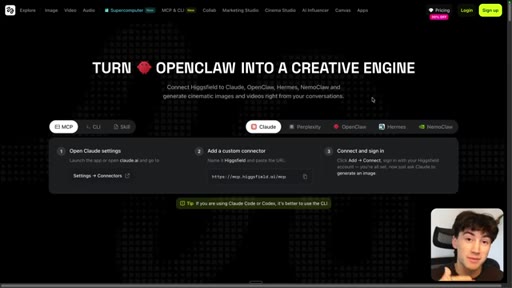
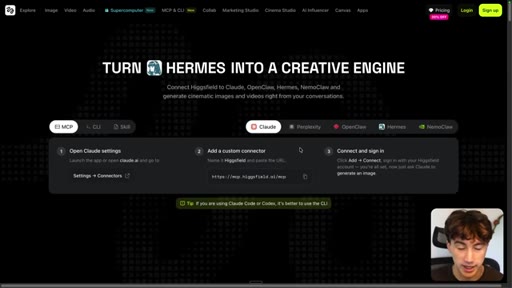
00:46You can connect to the MCP in things like Claude Chat and Claude Cowork, very simple setup that I'm going to show you today, and also the CLI, which is much more powerful than MCP. It does take a little bit more technical experience in order to set this up, but I mean, at the end of the day, they give you copy and paste commands that you can just plug into your terminal,
01:05and everything is going to be super easy, especially with this video because I'm just going to walk you through, hold your hand through the entire setup. Now what is Higgs Field? Before we get into it, before we learn how to set it up, first, let's learn a little bit about what Higgs Field is.
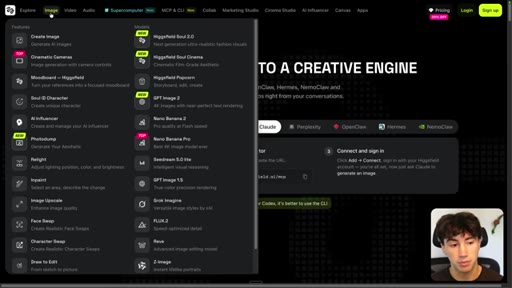
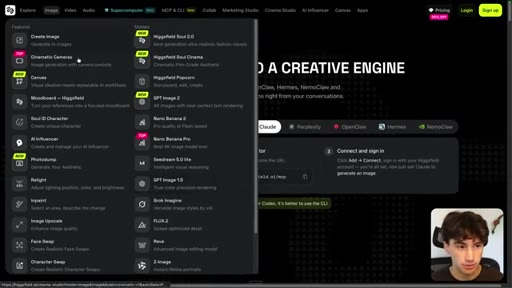
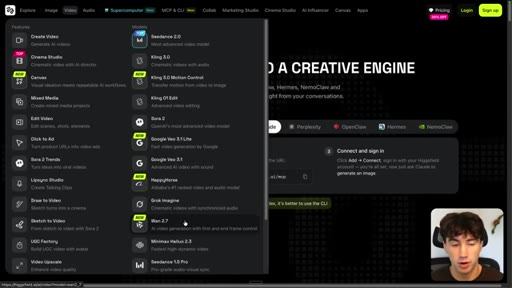
01:17Higgs Field is a spot where you get every image model pretty much on the planet that's worthy of using. So you have top tier models like Nano Banana two, you have Seadream five point o, you have GPT Image two, you have the Higgs Field models themselves, you have a Grok Imagine, Flux two.
01:36Any image model you can really want or would actually want to use, they have in here. So I hover over video. You can also see they've got the best video models in here too.
01:44I mean, look at this. They've got Cdance two point o, Cling three point o, Sora two, Google VO 3.1, Grok Imagine,
01:52WAN or WAN 2.7. And so they've got pretty much every video model you can think of, every image model. And the nice part is is I'm not somebody who likes having a bunch of different subscriptions.
02:01Right? But I am someone who likes versatility. Because some of these image and video models, you don't just wanna use one.
02:07You wanna access what those models do best, and Higgs Field allows you to do that. So let's learn how to set that up right now. In order to get to this page to follow along, I left my link in the description.
02:17Higgs Field is a sponsor of today's video, but I'm telling you right now, I've been using them for four months already. They wanted to be a sponsor after I already signed up and got using it and loved it. So I wouldn't be recommending this if I didn't absolutely
02:30believe in it and if I wasn't using it myself. But you can use my link in the description in order to get to this page, and then we can follow along together. So first, we're going to learn how to set it up with the MCP.
02:42And you can honestly just follow their instructions, and then you can just watch me and watch where to click on the screen in order to access everything. So first, we need to open up our Claude settings. So you can do this on Claude web or Claude desktop.
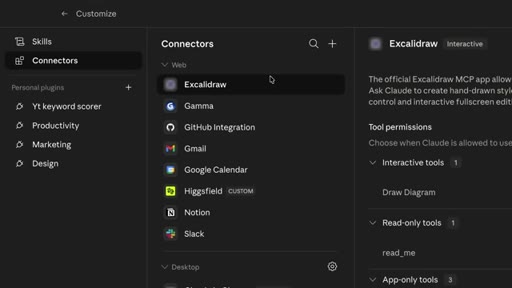
02:55I always prefer Claude desktop. What I'm going to do is open up my sidebar, but you wanna find the customize tab. Once you select customize,
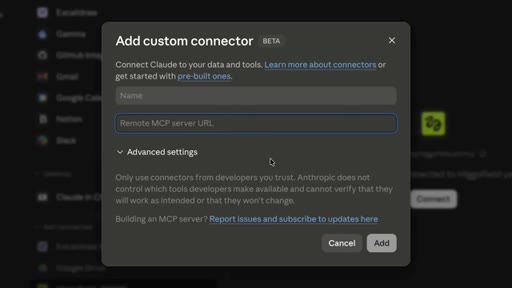
03:03it's going to take you to a screen where you can access something called connectors. So in the upper left hand corner, hit the connectors button. Now you can hit this plus button at the top of the connectors panel,
03:15and then you can select add custom connector. As you can see, I already have Higgs Field activated down here, so let me just disconnect that so I can show you how to set it up.
03:24And like I said, you just wanna hit add custom connector. And here, you get this screen where you can give it a name, and you can give it a remote MCP server URL, which is the URL Higgs Field provides you with in order to access the latest and greatest models and all of the prompting techniques. So I'm just going to name this Higgs Field connection.
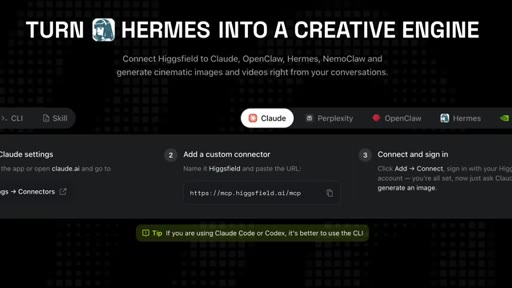
03:43You can name it whatever you'd like. I recommend naming it Higgs Field something, though, so you understand what it is. And then if you use the link in the description, you can get to this page where you can copy this URL right here, and you can actually see everything that Higgs Field has to offer.
03:57So I'm going to copy this add a custom connector URL right here, and then I'm going to paste it in. And then I'm going to select add. And as you can see right now, it's in my not connected section because what we need to do is we need to actually sign in to our Higgs Field account.
04:11So I'm going to select connect, then and it's going to take me to a page where I can actually sign in to my Hicksfield. So if you don't have a Hicksfield account right now, this is what it's going to look like. You can just continue with Google, create an account with an email.
04:23I'm just going to select continue with Google and sign in to my account that I have a paying subscription on. Alright. So I've selected my account,
04:31and now it says Higgs Field wants to access higgsfield.ai. This is just with the Claude integration.
04:37So right now, this box is connecting Claude to our Higgs Field account. I can select allow. This makes it super easy just to get up and running with Claude.
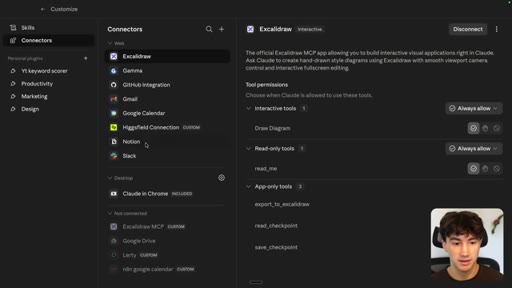
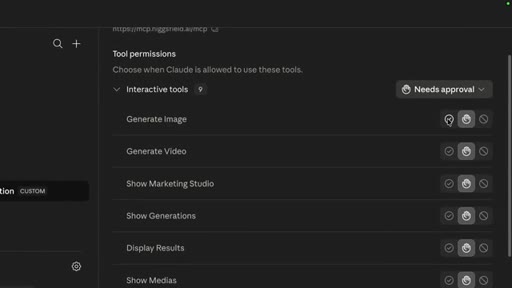
04:46So now when I go back to the desktop app, as you can see, we are connected right here. Now this part is very important because over here on the right, you can see all of the tool permissions that you give Claude access to use from Higgs Field. You can go through here and you can decide which tools Claude either gets some access to or no access to by using the approval selections over on the right hand side.
05:09So if you want Clawd to always be able to generate images, for instance, and you don't even want it to ask you if it's okay to generate an image, you can just select always allow. You can select needs approval. If you didn't want it generating images, then you could select blocked, but I don't think any of us want that right now.
05:24Okay. And now that we are all connected, the first thing to do is just to generate your first image in Claude chat. So it's going to use Higgs field.
05:32It's going to make the prompt for you. It's going to select the best model for whatever image you want, and then it's going to generate that in the chat. And so whatever's on your mind in terms of a vision that you have, a visual idea that you have, a comic book idea you have, a character that you have in your mind,
05:49a thumbnail that you want, anything at all, Just tell to generate that image, and it can generate that out of thin air and turn your messy thoughts into structured image props that create beautiful visuals. I could just say,
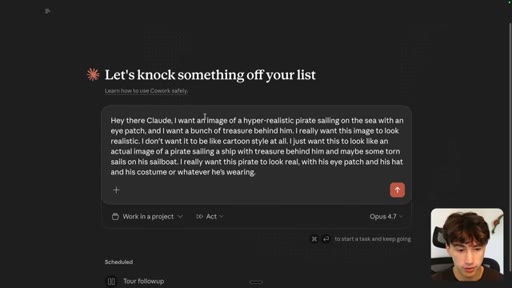
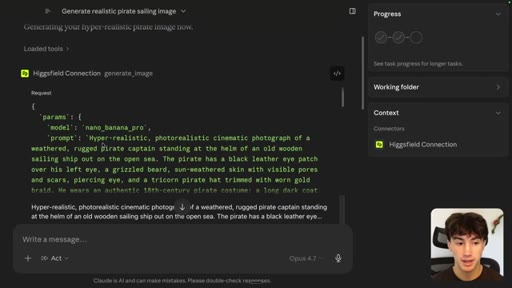
06:03hey there, Claude. I want an image of a hyper realistic pirate sailing on the sea with an eye patch, and I want a bunch of treasure behind him.
06:13But I really want this image to look realistic. I don't want it to be cartoon style at all.
06:18I just want this to look like an actual image of a pirate sailing a ship with treasure behind him and maybe some torn sails on his sailboat. And I really want this pirate to look real with his eye patch and his hat and his costume or whatever he's wearing. Okay.
06:35So I don't need to know how to type in an image prompt. I just tell Claude exactly the thing that's on my mind. Maybe I want an image of a hyper realistic pirate for whatever reason.
06:43I can send this off, and watch what it's going to do. It already knows that it has access to Higgs Field because we've connected it. And you can check to see if it's truly connected by hovering over your connectors
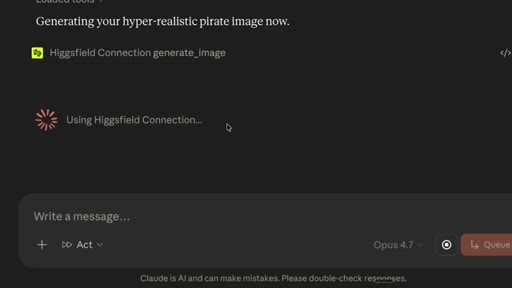
06:54and ensuring that it's turned on. But look at this, Claudia's working right away. It's loading the tools that it has access to, and then it's using that Higgs field connection in order to generate this image.
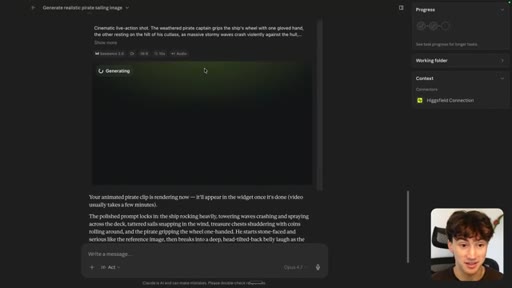
07:06And it's not going to use this prompt in the image model, but what it's going to do is create its own prompt. And as you can see, it's generating the image for us in line, and this is very quick.
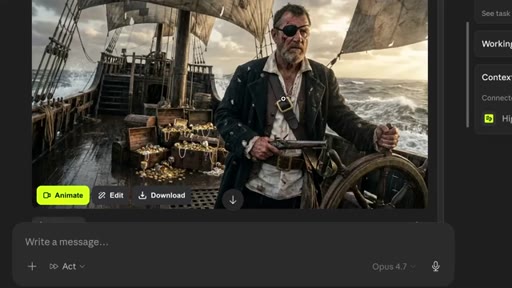
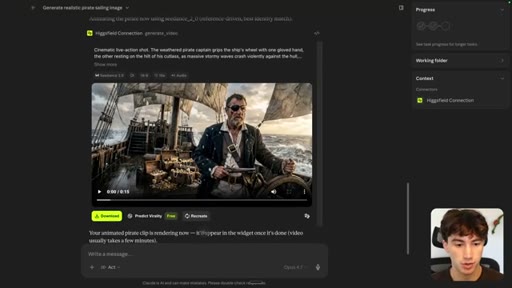
07:16It went very fast, and it generated this image of a realistic pirate. The thing I want you to understand is it chose the model for us, the best model for the job, and then it also created the prompt for us.
07:28So it turned my messy idea into a structured image prompt. Hyper realistic, photorealistic, cinematic photograph of a weathered, rugged pirate captain standing at the helm of an old wooden sailing ship out on the open sea.
07:40And then it gets into the description, which we could mess with if we wanted to create a character. But let's look at this huge prompt that it created.
07:47It's even talking about like 85 millimeter lens, shallow depth of field, cinematic color grading, not CGI. It looks like an actual photograph.
07:55And so it's getting into all of these, uh, technical image prompting terms, and it does the same thing with video. Now let me try animating this image and creating our first video. You can create videos out of thin air just like we did with the image, or you can take an image and make a video out of the image.
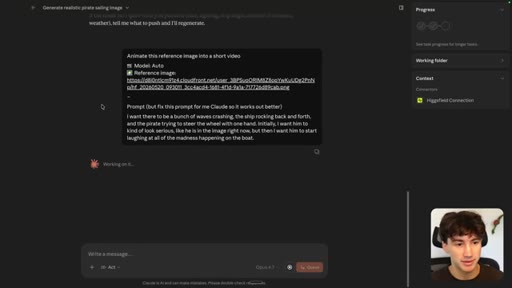
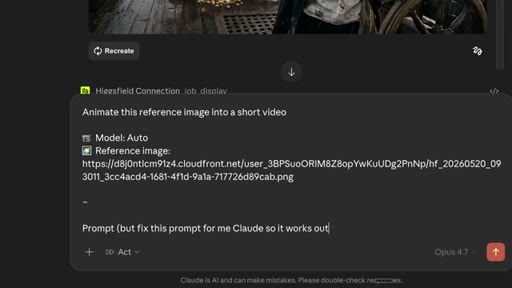
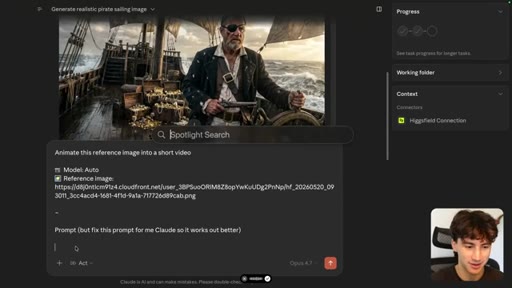
08:12And so I'm going to select this animate button down here in the bottom left hand corner, and I wanna show how you can animate this. So these buttons auto fill a prompt for you. It says, animate this reference image into a short video.
08:26And then instead of prompt, I'm going to say, uh, prompt, but fix
08:32this prompt for me Claude, so
08:37it works out better. What I can do is kinda type in what I want.
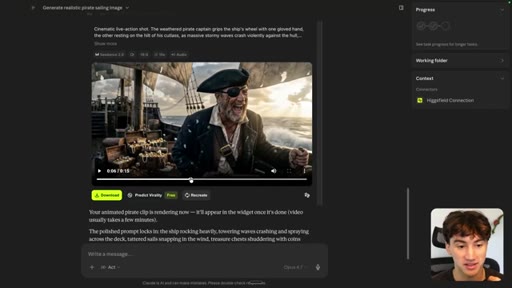
08:42I want there to be a bunch of waves crashing, and the ship rocking back and forth, and the pirate trying to steer the wheel with one hand. And initially, I want him to kind of look serious,
08:54like he is in the image right now, but then I want him to start laughing at all of the madness happening on the boat. Okay? So I can
09:05send off something like that, and Claude's going to help fix my prompt, and then animate this into a video. So now we are creating our first video with the Higgs field integration.
09:16And our second image looks like it's still generating. Sometimes I've noticed it gets stuck in this generating loop with image number two, if it's trying to generate two images. I haven't really figured out why, but I'm just going to keep on prompting,
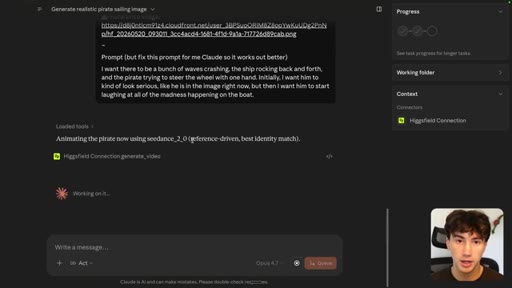
09:29and I'm telling Claude to animate this reference image into a short video, and it auto linked that image. And so as you can see, I want you to notice what it just did here. And this is one of the benefits of using a tool like Claude
09:41with Higgs Field, because it's selecting what is best for the job that you want to accomplish. It says, animating this pirate now using Sea Dance two point o, which I'm not in the image and video space much, so I don't really know what is the best video model. But Claude does because Higgs Field tells it what the best video model is for the job.
09:59So it says reference driven, best identity match. And so if I would have said something else, maybe it would have picked a different video model. But I said, I want this pirate in the video.
10:08This is going to be a fifteen second video, which is pretty insane. And it even has audio too. So you can tell it like, hey, I want this video five seconds.
10:17I want there to be no audio, but I'm really interested to see how this entire thing turns out. Okay. So Higgs Field just generated the video.
10:24That did take a while, but it is a fifteen second video with audio. So this isn't seven twenty p, which is not the best quality. You could generate this in a higher quality, but it is good to test on the lower quality so it doesn't take up more of your credits to see if it's the actual style you want.
10:39And then you can generate another one in the high quality once you find that style. But remember, we're just testing things out. We're generating the image.
10:46We're creating a video from the image. So let's just see how it did.
11:06Wow. Okay. Honestly, that was that was hilarious the way the hat flew on his head, and there was even a sound effect with that.
11:13But this video is actually insane. Like, for one prompt, this is all AI. This is not real.
11:19HOOKThe music, the laughing, all the sound effects, literally everything is with AI. This is just insane.
11:25HOOKAlright. So we've played around. We've generated our first image.
11:27HOOKWe've created our first video, which I recommend you do once you get this connected. Just mess around for a little bit. Get acclimated to how Claude actually creates image prompts, how it selects models.
11:37HOOKTry different things and even tell it different things, like generate two variations, three variations, uh, make this four k, maybe edit the image that you generated a little bit. It doesn't have to be so cut and dry, but just have some fun with it and generate images and videos, get a feel for it, generate logos, designs.
11:54HOOKIt doesn't have to be, uh, crazy things like I was generating, but try generating a design with your word mark or your business name. Try to create house architecture mock ups.
12:06HOOKWhatever's like an actual use case that you could think of for image and video, try it out. But now I wanna show you how to set up an even more powerful version of Higgs Field through the CLI and how to connect it to Claude Code, and I'm going to be setting up a marketing automation
12:19live that creates YouTube video thumbnails for me. The exact same thumbnail that you're seeing on this video or a variation of it is going to be one that I generate with Higgs Field. So I want to actually use what I'm preaching, and that's how I'm going to be using it.
12:34So if you clicked on this video, chances are maybe the thumbnail pulled you in, which was created with Higgs Field. How about we get into it? I'm going to show you the entire setup, the entire workflow of how I would use Higgs Field in a production
12:45environment, not just playing around with and Claude CoWork. Alright.
12:49So let me just break down the project brief for this YouTube thumbnail automation. Now the current time spent per video for me is one hour per video. And if I wanna be uploading three videos per week, that's three hours per week of me physically creating
13:04thumbnails. Now I could delegate this to somebody, but that would cost a lot of money compared to what Higgs Field and Claude cost me. So let's take a look at the current process of how are things currently getting done.
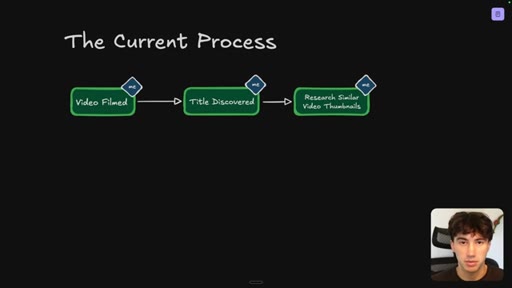
13:14Now this is going to be a knowledge transfer from me to you about how I think about automating certain processes of my business. So my current process
13:22is I film a video, which obviously is done by me. I discover which title I wanna use for that video, and once I discover the title, title and thumbnails go together. So I research similar video thumbnails
13:34that people are using based on the video idea. So I'll literally go on YouTube and kind of see what other thumbnails people are having, so I can replicate success. And then I have to open up Photoshop, which takes time.
13:44I have to create the thumbnail by myself. I have to compress the thumbnail size to make sure that it can do okay on YouTube and doesn't hit its upload limit. Then I've gotta download it to my desktop, and only then can I upload the thumbnail on YouTube?
13:57So there are multiple steps that go into me creating a thumbnail. And the thing I want you to keep in mind is all of this requires me understanding how to use Photoshop in the first place, how to understand that there is a thumbnail compression size that needs to be met. I need to understand all of the domain expertise that's required for creating successful thumbnails that work, which took years of practice.
14:18Like, I'm not kidding. I'm 22 now, and I've been making thumbnails since I was 14. So it's taken me almost ten years to perfect it, and find a style that works for my channel.
14:28And so when you compare this to the Claude process of what we're going to be building together today, it's much, much simpler. I go from having one, two, three, four, five, six, seven, eight steps, to having one, two, three steps. And these steps aren't even the most time consuming ones.
14:45The ones that Claude can handle are. So now, all I wanna do at this step right here, in between my title discovery and the research, is prompt Claude
14:56exactly what my video title is and the idea of the thumbnail that I want. And so what Claude can do with my idea is it can take my title along with the idea, and it can actually go search YouTube and go find the top videos for me.
15:10It can then download the thumbnail images of those videos, perform a research analysis on it, and then with all of its research, with my idea injected, my image assets that I have, my logo assets that I upload, what it can do is it can create the thumbnail for me on Higgs Field in the background.
15:27I don't even have to be there. Once I type in my title and an idea, I can just go about my day and do whatever high leverage work I need to be doing.
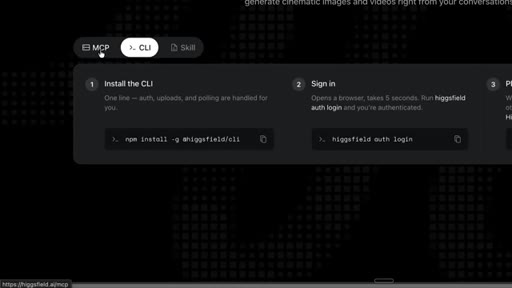
15:34You can use my link in the description in order to get to this page, and it's going to help the channel a lot, so I would appreciate it if you did. Uh, and next, we need to go to instead of MCP, we need to click on CLI. And what this is going to allow us to do is install
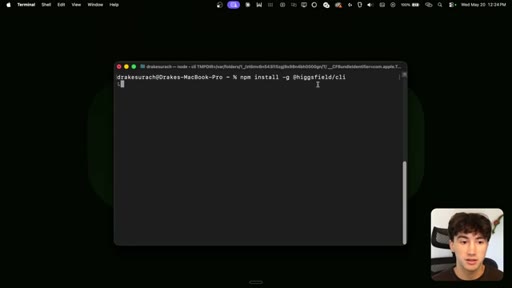
15:48Higgs field through our terminal so we can use it with something like Claude Code, which is much more powerful than Claude Cowork. So what I'm going to do is step one, I'm going to install it. So I'm just going to hit this copy button, and then I'm going to go and open up a terminal.
16:01You can just paste in that command to your terminal, and then you can hit enter. And then it's going to install the Higgs Field CLI right on your computer.
16:08Now NPM install might not work. You might need something else installed on your machine first in order to run these NPM commands. But if you do, just copy and paste what you need into Claude, and Claude will help give you the commands you need in order to install everything,
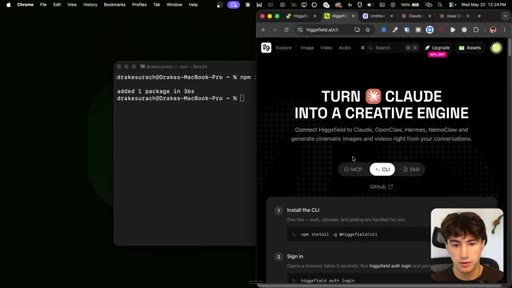
16:23uh, that's a prerequisite to being able to do Higgs Field CLI. But this is only going to take a couple of seconds. As you can see, added one package in thirty six seconds.
16:33And after it's added that package, what we need to do is we need to go back and we need to copy the other command. And so we need to do the authentication.
16:41So basically, when we copy this and we paste it into our terminal, what that's going to do is ask us to log in to our Higgs Field account.
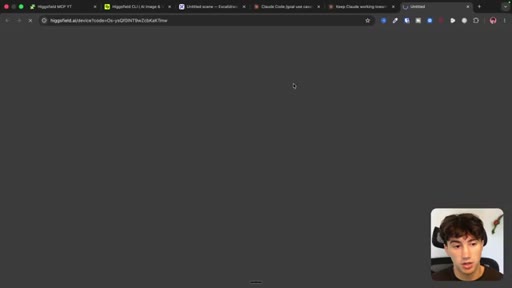
16:50So if I send off Higgs Field auth login after we have it installed, it opens the browser for us. And what we can do is hit connect, very similar to the MCP server, and it says device authorized.
17:02You can close this tab. So when I go back to my terminal, you can see waiting for approval, successfully authenticated.
17:08Perfect. Now what we can do is we can install the skills. The skills are what makes Higgs Field super powerful.
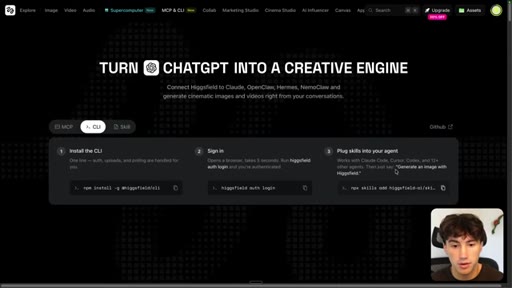
17:15It's what gives Claude access to all of the internal knowledge created by the Higgs Field team in order to turn Claude into an actual professional Higgs Field user. And so I'm going to go back to this page, and I'm going to copy this terminal command right here, and this is going to plug skills into your agents. So ensure that you have ClaudeCode desktop installed,
17:35which if you have the Claude desktop app, and you have ClaudeCode over here, then you are good to go. And this is super easy to use. You don't have to use ClaudeCode in your terminal.
17:44You don't have to be a developer. The word code is intimidating, but don't worry about it. Um, just make sure you have Claude desktop, and then you can go back to your terminal.
17:53You can paste in that third command, the skills command on that page. And when you hit enter, it's going to open up this nice looking window where it says skills, and you're going to be able to install all of these skills into your ClaudeCode agent.
18:06In my opinion, you wanna be selecting all of these skills. So you can use your arrow keys on your keyboard,
18:13and you can hit space bar in order to select a skill. So hit space bar on that first skill, I'm gonna arrow down, hit space bar on the second, space bar on the third, and space bar on the fourth.
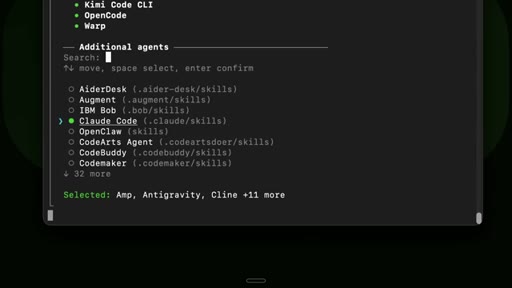
18:24And so we want all of these skills installed, I'm going to select enter, now that we have those. And here, I mean, if you have other agents, you can select them. Right?
18:33If you have it set up with Hermes agent, you can do that. If you have, uh, Open Claw, you can set it up there. I'm just going to want to select Clawed Code.
18:41And so I'm going to hit space bar on Clawed Code in order to select it, and then hit enter. And now it's asking where do you want to install this? Do want to install it in your current folder that you're opened up in in your terminal, or globally?
18:54I want to install this in my home directory. So whatever project I'm in in Cloud Code or Cloud Cowork, it can just access this wherever, because I wanna be versatile. I wanna be able to do that.
19:04So going to select global, and then hit enter. And then I will just do the recommended installation method,
19:11which is SIM link. So I will hit enter, proceed with installation,
19:15I will select yes. Just like that, the installation's complete. It walks you through nice and easy.
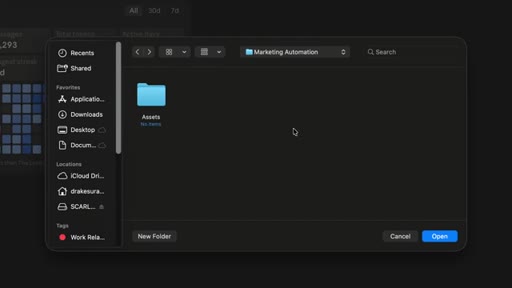
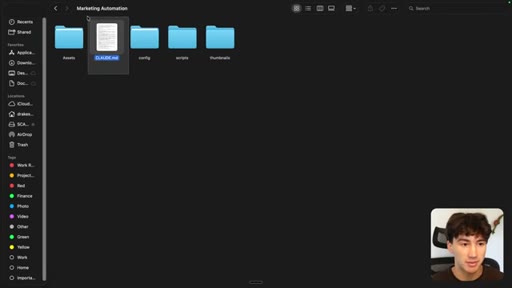
19:21All you're doing is just basically confirming some things. So now what I'm going to do is I'm going to make sure after I've been installed that I go over to Claude Code. And then I can create a new folder, and this is going to be the folder that Claude Code is working out of in writing thumbnails to or images or videos to.
19:36So it's important that you organize this correctly. I'm going to create a new folder and call this marketing
19:43automation. I'll hit create, and then I'm going to select a new folder,
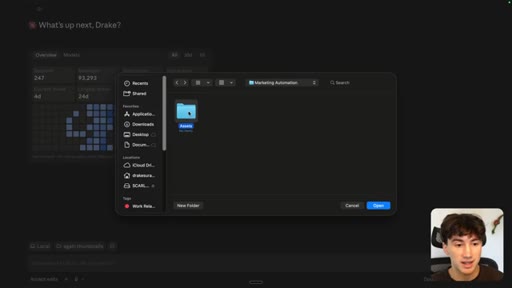
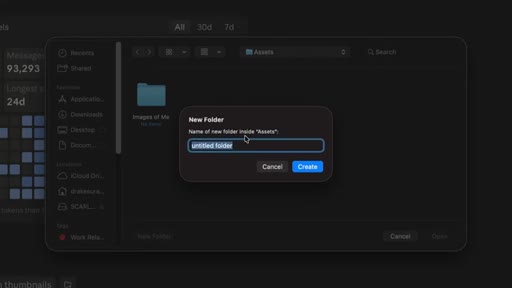
19:48and then I'm going to call this assets. When I'm creating these folders, I'm trying to keep in mind what would I need in order to create successful thumbnails.
19:58I would need an assets folder for things like images of me so it can use me as a reference image, and also logos that I wanna use for certain videos. So I can start developing this logo library, this image library of myself.
20:11I just wanna give Claude access to certain elements that it can use in order to create the best looking thumbnails possible. So I'm going to select in this assets folder, and right now I'm just like scaffolding my Claude code folder environment.
20:24Right? This isn't something that you have to do. Claude code can do this for you, but I just like doing it as good practice.
20:31So within my assets folder, I'm going to create another folder called images of me, and then I'm going to go back, and then create another folder in assets called logos,
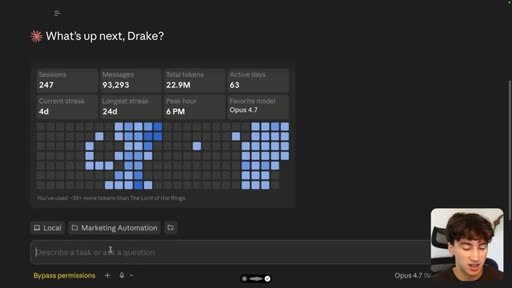
20:44And I will hit create. And so now what I can do is I can work with Claude Code in my root marketing folder, and then I can hit open.
20:53And as you can see, now we are working in this marketing automation folder. So I can say to Claude, hey there, Claude.
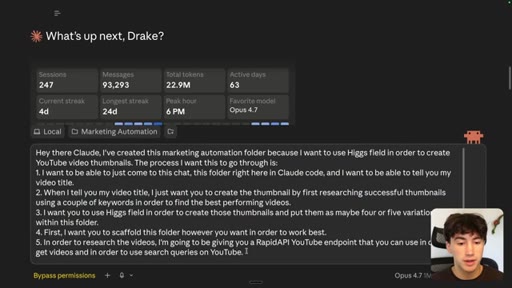
21:00I've created this marketing automation folder because I want to use Higgs Field in order to create YouTube video thumbnails.
21:07And the process I want this to go through is I want to be able to just come to this chat, this folder right here in Claude Code, and I wanna be able to tell you my video title. When I tell you my video title, I just want you to create the thumbnail by first researching other successful thumbnails using a couple of keywords in order to find the best performing videos,
21:28and then I want you to use Higgs field in order to create those thumbnails and put them as maybe four or five variations within this folder. So first, want you to scaffold this folder however you want in order to work best.
21:43And in order to research the videos, I'm going to be giving you a rapid API YouTube endpoint that you can use in order to get videos, and in order to, uh, use search queries on YouTube.
21:56And so what I did right there was I basically just told Claude everything that I wanted it to do. And so I told it the process that it's going to be going through, and then I told it another tool that I'm going to give it so it can actually use YouTube programmatically,
22:09and it doesn't need to be online in order to run it. And so I'm just going to send this off, and now I'm going to go fetch that RapidAPI
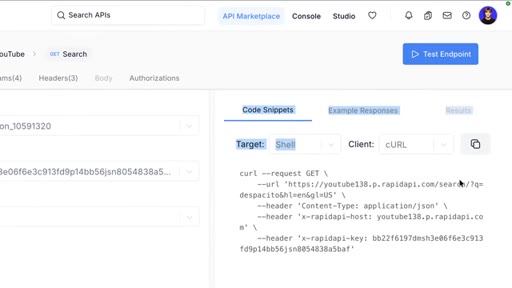
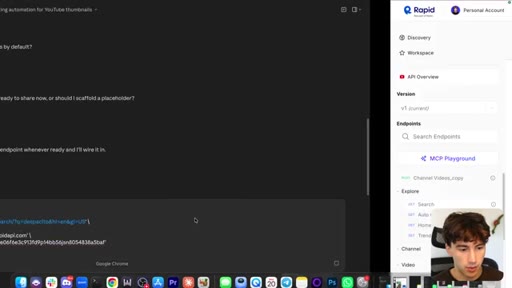
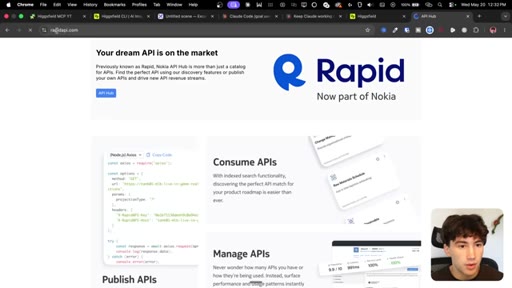
22:17YouTube endpoint. So I'm on rapidapi.com, and what I'm going to do is go to the API hub.
22:24I've already signed in, and they've got a ton of different APIs you can use here, like LinkedIn profile data, real time LinkedIn scraper, uh, Twitter API. But they also have this YouTube API, which I've hearted because I use it all the time.
22:37So if I select this for exploration on YouTube, like just like typing in a general YouTube search query, they have that. And all you need to do is give this code snippet to Claude. You can copy that and give it to Claude,
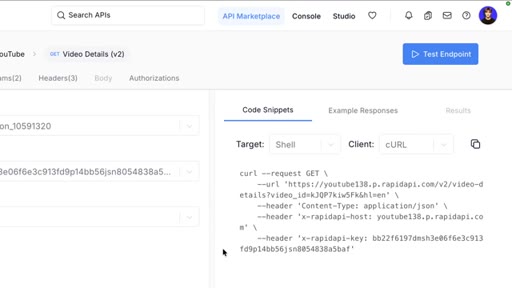
22:50and you can use your, uh, Rapid API key here. Then we can give it another endpoint, which is get video details.
22:58And what this endpoint does right here is it allows Claude to select a specific video from the searched videos on this search endpoint, and pull in and download the thumbnail of the top performing videos.
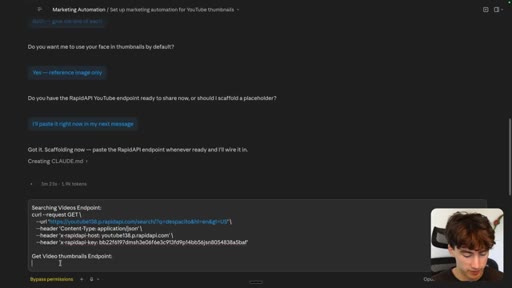
23:12So it's super easy to get set up. I'm just going to go give Claude all of these, uh, code snippets here. I'm just going to hit copy on the search code snippet.
23:21I'm going to go over to Claude, and while I have some questions to answer, I'm going to type in searching videos, endpoint,
23:30enter down, paste it in, then I'm going to put get video thumbnails
23:36endpoint, and then I can go get that one from rapid API as well. I'm going to do get video details v two, then I'm going to copy this request.
23:45Now in order to use something like this, you do have to be subscribed to it. I'm on the basic $0 a month plan, and it's been working out pretty nicely for me.
23:53But if I ever need to upgrade, I will. You get some decent usage actually on the basic plan, which is great. So now I'm going to paste that endpoint in there as well.
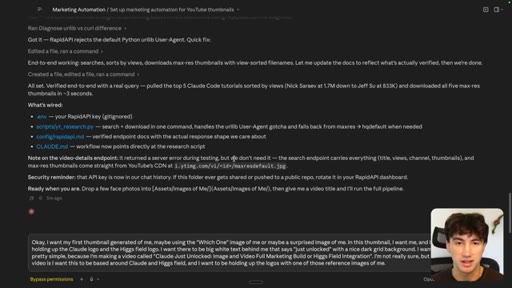
24:00You can just queue up this message and send it off, and now Claude can use this whenever it's ready. Right now live, Claude is scaffolding this automation environment. As you can see, Claude is just going to work with creating its own little system here for marketing.
24:15It even created a Claude MD file, which are instructions for how it should perform
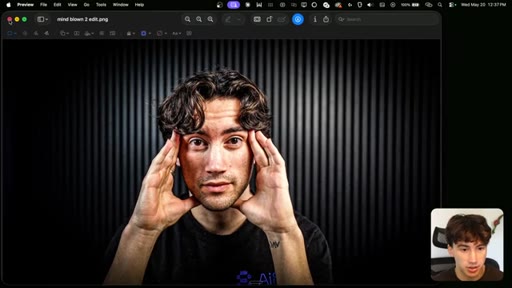
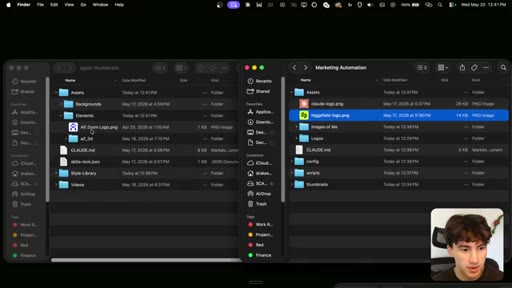
24:21when it's within this folder. For assets, I can upload the images of me while we wait and the logos.
24:28These are all the images I have of me. As you can see, if I go to the mind blown one, and then I go to edits, I have this mind blown photo of me that it can use, maybe if something crazy happened in the AI world.
24:39Because remember, Claude is working out of this folder, so it can actually go in here and grab those images of me, upload them to Higgs Field as examples, and say, hey, want you to use this guy, this character in this YouTube video thumbnail, and it can prompt it however it needs to. And so now for logos, I'm going to go upload some of those, maybe a Claude and a Higgs Field logo to start, Maybe even my AI foundations logo, I can drag that into the assets just in case I ever need to use that.
25:03And so now Claude is going to have access to its own logo, Higgs Field logo, and my company logo. And so now that I have Rapid API connected, allows me to search YouTube and get YouTube video thumbnails, now that I have images of me, now that I have the logos uploaded, Higgs Field connected through the CLI,
25:19Claude can use all of that stuff. So let me just test this out. I can say,
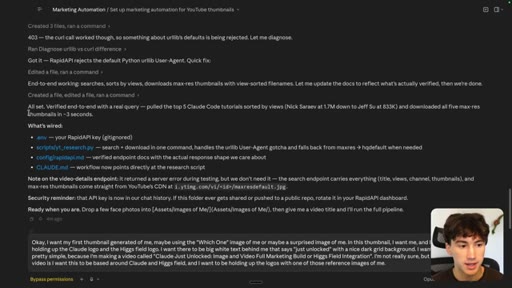
25:23okay. I want my first thumbnail generated of me. And in this thumbnail, I want to be holding up the Claude logo and the Higgs Field logo,
25:32and I want there to be big white text behind me that says, just unlocked, with a nice dark grid background. And I want this to be pretty simple, because I'm making a video called Claude
25:45Just Unlocked Image and Video Full Marketing Build, or Higgs Field Integration. Um, I'm not really sure, but the idea of this video is I want this to be based around Claude and Higgs field, and I wanna be holding up the logos with one of those reference images of me.
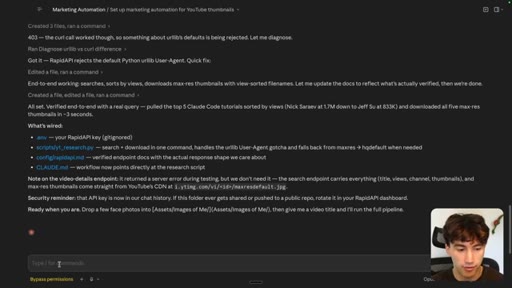
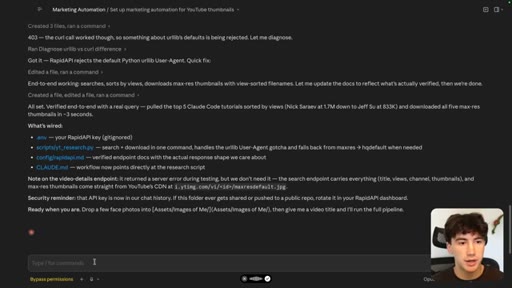
26:00And so I just gave it that natural language prompt. And as you can see, it's already pulling in top Claude code tutorials, which is great.
26:07And it's pulling in the thumbnails in under three seconds with that rapid API key, which is beautiful. You should probably type that in a little bit different rather than just pasting it in. It's probably not best practices.
26:17And if you wanna learn more about Claude code and all of this stuff, this automation, we have a full course on it in our AI foundations community. I'll leave that in the pinned comment below or in the description.
26:26You can check out our community as well where we teach you how to automate your entire business using Claude Code. But let's send this off and see how it does. So as you can see, it's pulling in the images of me that I put in the folder, and it's, uh, showing me which one it's picking here,
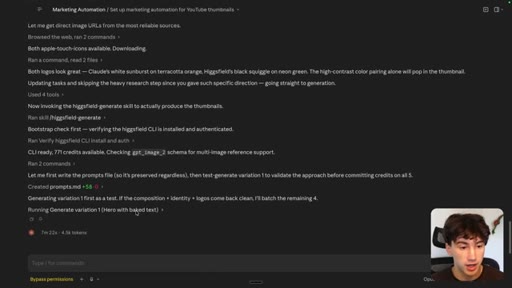
26:42and then it says which one is the clear winner. Both hands are already raised in perfect holding logo pose. And then it says checking GPT image two schema for multi reference
26:53support, and now it's starting to write prompts and generate that variation. So you can see the prompt in here. You can see the resolution's high quality.
27:01It's two k quality. You could even go four k if you wanted. And the aspect ratio, 16 to nine, is the exact aspect ratio needed
27:08for a good thumbnail. And so it's trying to use GPT image two. It's selecting the model for us.
27:13It's creating the prompt for us. All I had to do was gather the assets together, which Claude can even give you the assets,
27:20but then it does everything for you. So technically, all I would need to do is type in a YouTube video title, and it would create a thumbnail for me.
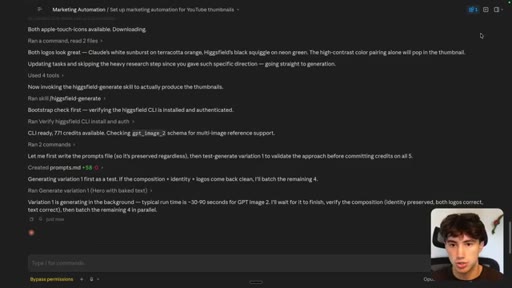
27:27Okay. And so variation one just got created,
27:31it says it's already a winner. Let's check it out. So if we click this link, this is a link that's actually on our desktop.
27:37If you're not familiar with Claude Code or Claude Cowork and the way these tools work, they work from your desktop. So they're actually downloading things and completing tasks, and then uploading them to your computer, your local machine. So now
27:48I have a thumbnails folder that I can go to, and after I type in my title, that's it. That's all I need to do, and it will create those for me. So let me click on this and see how it did.
27:57Okay. So this is thumbnail variation one. I mean, this looks identical to me.
28:01It kept exactly what I look like, especially when my hair gets longer. It starts parting down the middle like that.
28:08Has the Higgs Field logo, the Claude logo, and it says just unlocked. I don't know if I'll use this one for the video, but this actually looks sick, and this would have taken a long time to get me holding these logos in my hands.
28:21CTAThis is not something that's like a beginner level thumbnail creation. So this was the Claude X Higgs Field integration. It's an insane integration.
28:30CTAI was using Higgs Field before, but now I'm going to be using it even more considering upgrading my plan and developing my entire automated marketing and graphic design agency. So if you did enjoy this video, please drop a like and subscribe.
28:44CTAI would highly appreciate it. If you wanna see more content like this in the future, let me know in the comments, and make sure you use my Higgs Field link, because that tells Higgs Field and myself people like this style of video.
28:55CTAAnd so I will replicate this style of video in the future. Alright. I'll see you in the next video.
— full transcript
§ 05 · For Joe

One title prompt is all it takes to get a thumbnail.

WHAT TO LEARN

Higgsfield model aggregation plus Claude built-in prompt rewriting removes the skill gap between having an idea and having a professional image.

  • Claude rewrites your natural language into a structured technical image prompt automatically - you never need to learn prompt engineering syntax for image models.
  • Model selection is handled by Claude reading Higgsfield capability descriptions; knowing which model is best for a given task is no longer a prerequisite.
  • The Higgsfield CLI skill pack installs prompting expertise into Claude Code globally, so every project benefits without per-project configuration.
  • Competitive thumbnail research via RapidAPI runs in under 3 seconds - Claude searches YouTube programmatically, pulls top-performer thumbnails, and uses them as creative reference before generating.
  • Uploading reference photos of yourself to an assets folder is the unlock for AI-generated thumbnails featuring your own likeness, replacing the need for manual Photoshop compositing.
  • An 8-step Photoshop workflow collapses to a single title prompt when Claude handles the research and generation steps.
  • Generated video inherits the identity of a reference image automatically when Claude selects a reference-driven video model - character consistency across image-to-video is a solved problem with the right model routing.
§ 06 · Frame Gallery

Visual moments.