Ben AI · Youtube · 43:17

Every Claude Cowork Feature Explained for Normal People

A 43-minute numbered walkthrough of all 34 Claude Cowork concepts across memory, automation, connectors, and team rollout, framed as a business operating system not a chatbot.

Posted
May 20th 2026
today
Duration
43:17
Format
Tutorial
educational
Channel
BA
Ben AI
§ 01 · The Hook

The bait, then the rug-pull.

Ben Van Sprundel opens with a credential drop and a blunt promise: every Claude Cowork concept explained clearly in under ninety seconds each. What follows is 43 minutes of tightly structured slides that treat the app not as a chatbot upgrade but as a full business operating system that gets sharper the longer you run it.

§ · Stated Promise

What the video promised.

stated at 00:06 "I will break down every concept and feature clearly in less than ninety seconds." delivered at 43:17
§ · Chapters

Where the time goes.

00:00 – 01:22

01 · Intro and 3 Categories Overview

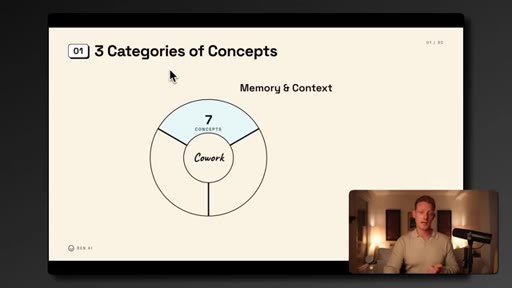
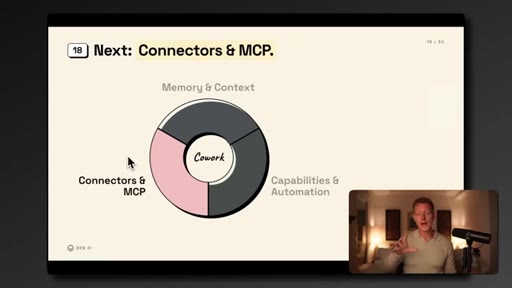
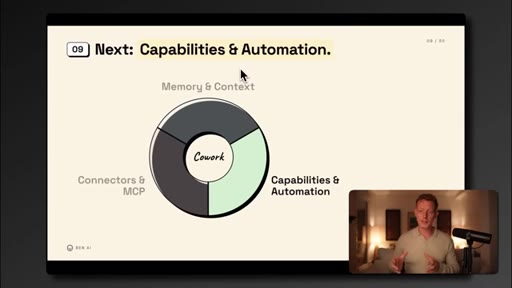
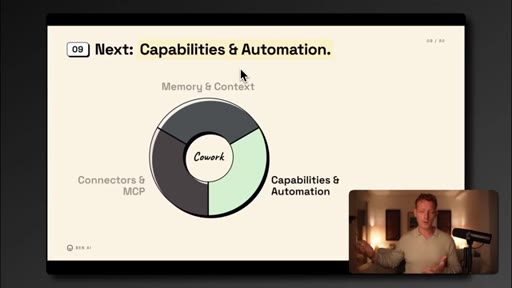
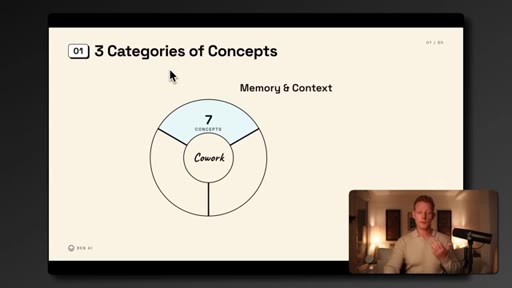
Pattern-interrupt open, structured promise, and the three-ring diagram: Memory and Context, Capabilities and Automation, Connectors and MCP.
01:22 – 10:57

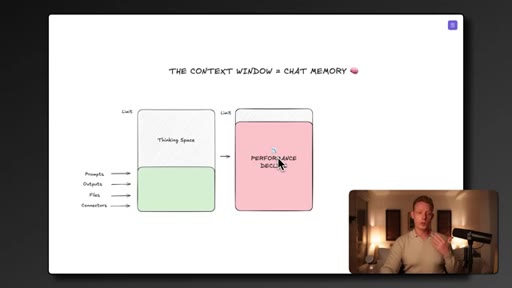
02 · Memory and Context (7 Concepts)

Context window, global instructions, built-in memory, file access, CLAUDE.md as routing map, Projects, and the Second Brain with Obsidian as visualization layer.
10:57 – 22:45

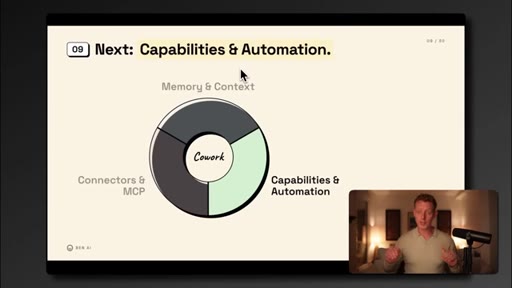
03 · Capabilities and Automation (8 Concepts)

Code execution as foundation; Skills as saved how-to files; Skill Evals; Auto-Research Loop; Scheduled Tasks; Routines; Sub Agents for bulk parallel work; Dispatch for mobile trigger.
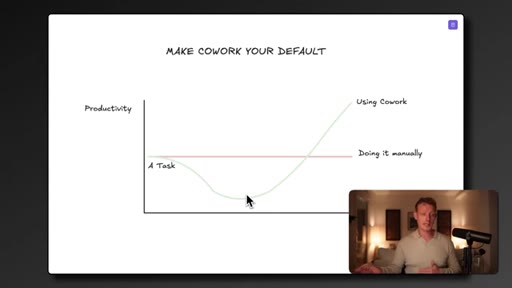
22:45 – 30:55

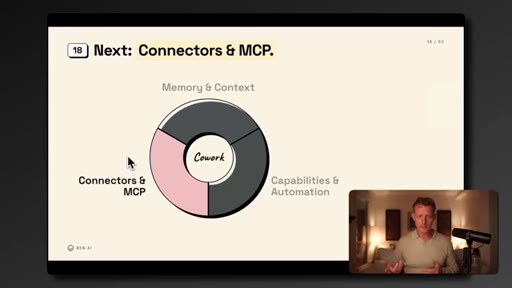
04 · Connectors and MCP (6 Concepts)

Prebuilt connectors; Plugins; MCP as universal software bridge; Browser Use and Computer Use as costly last resorts; Live Artifacts for real-time data dashboards.
30:55 – 36:58

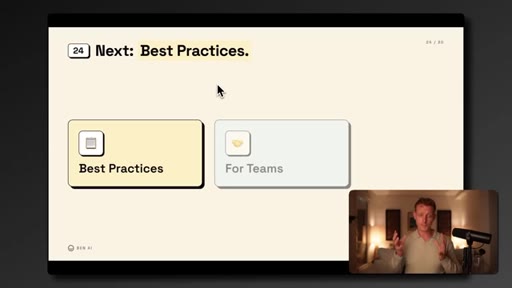
05 · Best Practices

Make Cowork the default OS even when inefficient at first; manage token cost; pick the right model tier; know when to switch to Claude Code.
36:58 – 43:17

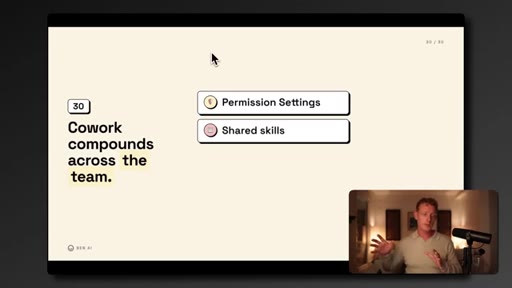
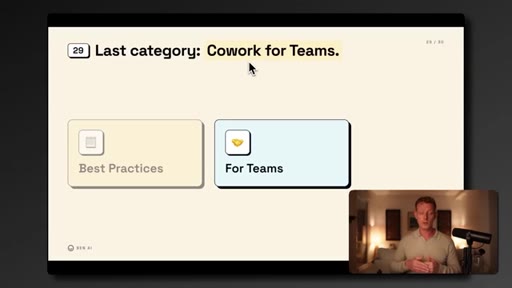
06 · For Teams

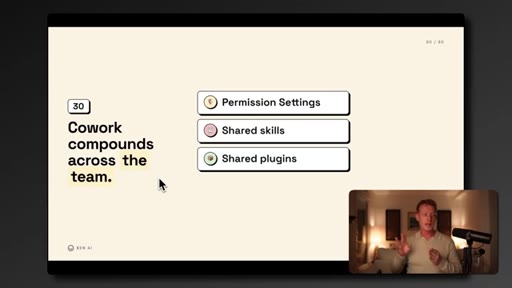
Permission and control settings; shared skill library; shared plugins per department; shared Second Brain via Obsidian and Relay plugin for real-time sync.

§ · Storyboard

Visual structure at a glance.
open
3-category ring diagram
File Access slide
Obsidian Second Brain graph
Capabilities and Automation intro
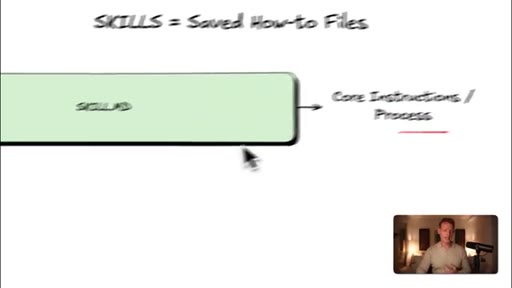
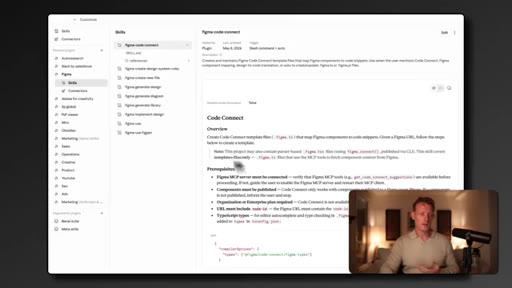
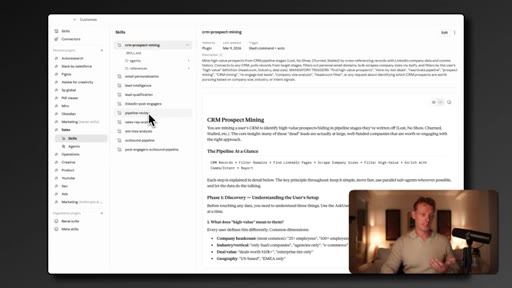
Skills inside Claude Cowork
Auto-Research Loop infinity diagram
Scheduled Tasks slide
Sub Agents diagram
Connectors and MCP intro ring
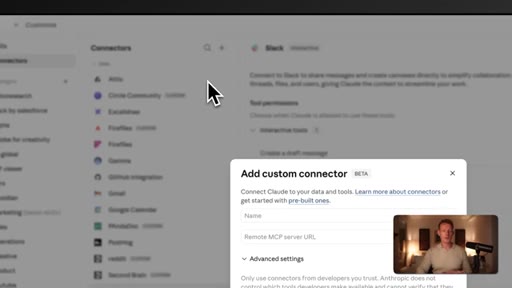
Add custom connector dialog
Live Artifacts gallery
Best Practices intro
How to Manage Token Spend
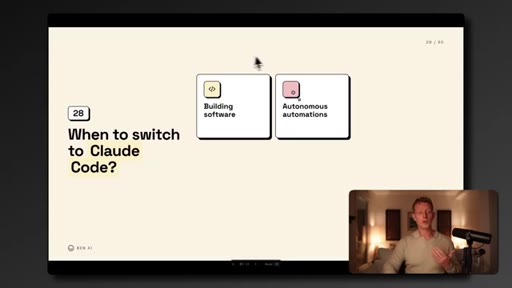
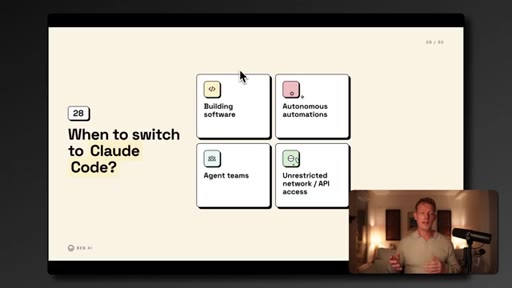
When to switch to Claude Code
Cowork compounds across the team
Shared skills screen recording
Second Brain OS website CTA
§ · Frameworks

Named ideas worth stealing.

00:25 list

Three Categories of Cowork

  1. Memory and Context
  2. Capabilities and Automation
  3. Connectors and MCP

The organizing spine. Memory is the foundation; capabilities execute on it; connectors extend it to external software.

Steal for Any AI onboarding curriculum or product positioning
12:10 model

Skills to Evals to Auto-Research Loop

  1. Build a skill
  2. Test it with Evals
  3. Auto-optimize with the Research Loop

A three-tier skill optimization stack. Skills replace prompts; Evals catch broken skills; the Research Loop improves them autonomously.

Steal for JoeFlow Sessions panel framing: skills as templates, evals as QA, loop as the chef that self-improves
26:00 model

MCP-First Connector Hierarchy

  1. 1. Native connector
  2. 2. Third-party MCP
  3. 3. Build your own MCP
  4. 4. Browser Use (last resort)
  5. 5. Computer Use (last-last resort)

A five-level escalation for connecting Claude to any software. Key insight: if it has an API build an MCP, never waste tokens on browser control.

Steal for Teaching MCN+ members how to connect Claude to their tool stack
34:36 list

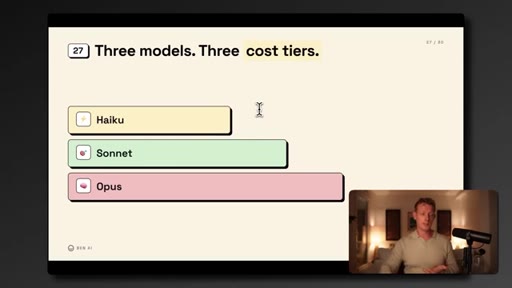
Haiku Sonnet Opus Cost Tiers

  1. Haiku: simple high-volume no reasoning required
  2. Sonnet: all-rounder daily tasks
  3. Opus: deep thinking complex strategy

Model selection as a cost lever most users ignore.

Steal for Any BYOK pricing explainer or MCN+ model-selection guide
35:06 concept

Cowork vs Claude Code Decision Rule

Cowork equals run a business. Claude Code equals build software.

Steal for Positioning JoeFlow as a Claude Code product while Cowork is the daily-driver for MCN+ members
§ · Quotables

Lines you could clip.

12:10
"Skills are basically the way Claude remembers how to do work for you."
Punchy one-liner that reframes skills from a feature to a memory system → TikTok hook
28:00
"Browser use is very token heavy, costly, and also error prone. So you really only wanna use this as a last resort."
Contrarian warning that saves people money → IG reel cold open
10:27
"This context compounds, and the earlier you start with this, the better your coworker will be in a couple of months."
Emotional urgency plus compound growth framing → newsletter pull-quote
31:18
"The mindset is really to force yourself to use Cowork on almost every task even when it might seem a bit more inefficient at the start."
Counter-intuitive advice with a clear payoff → TikTok hook
§ · Pacing

How they spent the runtime.

Hook length82s
Info densityhigh
Filler5%
§ · Resources Mentioned

Things they pointed at.

08:00toolObsidian ↗
16:01toolApify ↗
40:00toolRelay (Obsidian community plugin)
§ · CTA Breakdown

How they asked for the click.

42:40 product
"If you wanna get access to all of the skills and plugins that I have covered in this video, you can check out my AI accelerator."

Soft CTA repeated 6+ times throughout, each tied to the concept just explained. Final hard CTA adds agency booking link.

§ 04 · The Script

Word for word.

HOOK opening / re-engagementCTA the pitch metaphor analogy
00:00HOOKCloud Cowork has transformed the way me and my team operate. With so many features and new updates, it can become overwhelming and hard to know how to actually use it efficiently.
00:09HOOKSo in this video, I'll break down every concept and feature clearly in less than ninety seconds, show you what to actually use and when to use it, and show you how to approach using this tool for yourself or across a business. Now I'll cover all the concepts and features that you need to know in Cowork through three main categories.
00:25HOOKFirst, memory and context concepts, and this is really a foundation you need to know and apply well because these are what give Plot the context around you and your business. So instead of getting generic outputs, you actually get relevant ones, and this is also what makes the next category of concepts far more powerful, which are the capabilities and automation concepts.
00:42HOOKAnd then thirdly, we have connectors and MCP concepts. And then when we've covered all the concepts you need to know and when to use them, I'll also cover a few best practices on how to use all of this efficiently. And then lastly, I'll cover how to actually roll co work out across a team, which can really change the way a business operates.
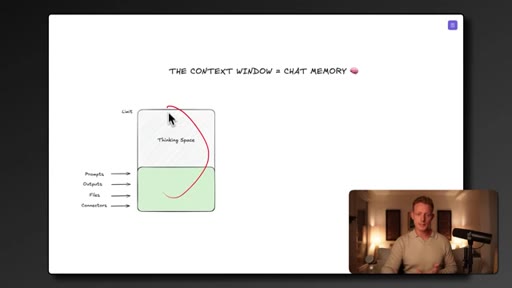
00:57HOOKNow before we get into the memory features, you have to understand the one problem they're all trying to solve, which is the limited context window. And what the context window basically is is Clot's short term memory inside of a single chat. So every message is sent, every response Clot writes, every file it reads, all of that lives in that context window.
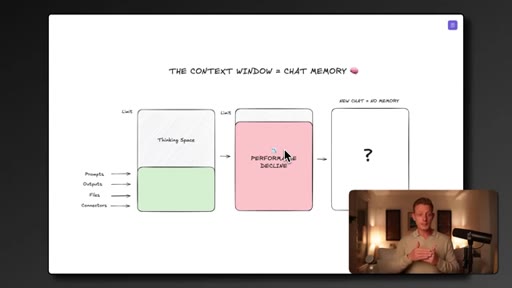
01:15HOOKBut there are two big limitations with this. Firstly, it has a limit, and this means that the more you chat, the more context piles up and the worse the performance get because it starts forgetting details and also outputs get worse and you start burning more tokens. And this is called context route, and this is why we wanna start a fresh chat for each new task and why Cloth starts compacting your chat when your thread is getting too long.
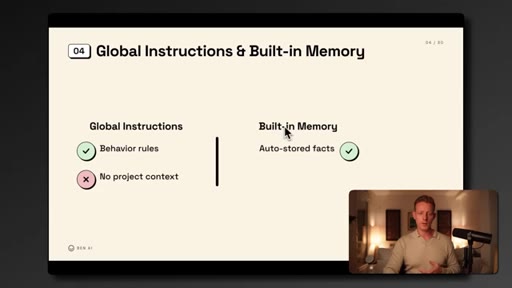
01:37HOOKBecause in the back, it's basically just summarizing the chat and starting a new context window. And because this context window is, of course, limited to one chat only, Cloud has no memory or context of what you did in any other chat. So Cloud has built two native features that try to fix some of these limitations and carry some context across chat, global instruction and memory.
01:57And global instructions is basically a text field in your Cloud desktop settings where you can write rules for how Clot should behave across every chat. You can find it by going to your settings and clicking on co work here, and then you have an option called Glovo instructions.
02:11Now this could be good for general preferences like never use ham dashes, respond in English even if I write in Dutch, or be direct and skip the fluff. But this doesn't really work, of course, for specific project context as it applies it to all the chats.
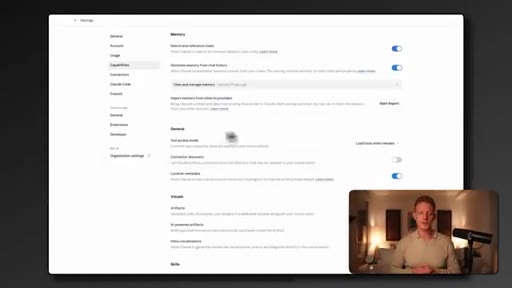
02:24And then Claude has its second feature, which is a built in memory, which is auto generated by Cloud, and it basically checks your chat history and remembers some general facts about you, like your role, what you tend to work on, and some of your preferences. You can find your memory in the capabilities tab, and there you have an option, view and manage memory.
02:42And you can see this is what Cloud auto generated. You can also import it from any other AI provider by just clicking this button here. But as you can see, this memory is extremely limited.
02:51It's usually limited to just some personal, uh, facts about you and limited to to one document. So it's by far not enough context to actually help you do your work better. So the real solution to persistent context is to make it live outside of Claude in your own files on your computer, and that's what the next concepts in memory start doing.
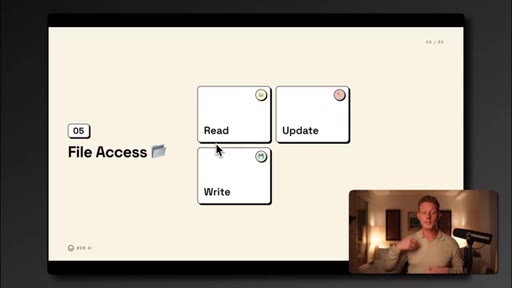
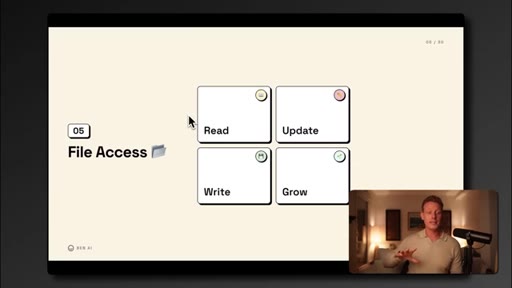
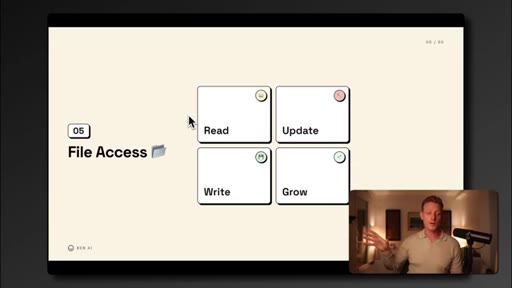
03:09And it's what makes Cowork and Claude code so much more powerful than classic ChatGPT or Cloth. And the foundation of this is file access. With file access, we let Cloth read, update, and write files in a folder on our computer.
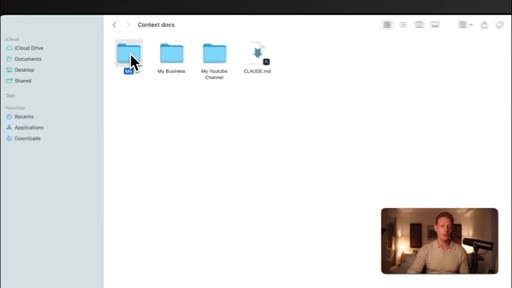
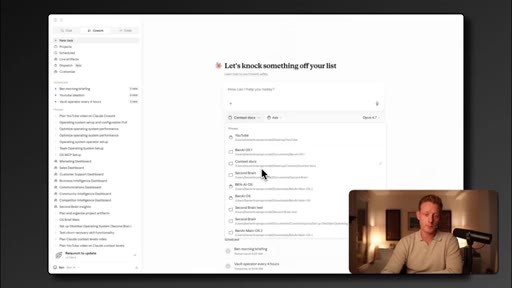
03:21So in any new chat we start, Cloth can pull that context from that same folder whenever it needs to. So, for example, here I have a folder on my computer with context docs. It has a folder with some information about me, a folder with some information about my business, like my brand, my ICP,
03:35my services, and my business strategy, and a folder on my YouTube channel with some old transcripts and my YouTube strategy. And now every time I open a new chat, I just point Claude to that same folder on my computer here to instantly have relevant context about me.
03:49And then when I'm, for example, ideating on a new YouTube video, Clot can just read those files in that folder and give me a far more relevant output. And you'll be surprised how much this changes things. With good context, your outputs in Clot get far better and more relevant.
04:03I also have a free resource in the link in the description below with some example of good initial context docs that you can customize for yourself when you get started with this to make your outputs become more relevant for you. But besides this reading of context, Cloth can also update and write new context in the folder.
04:18So you wanna keep this rule in mind for yourself. If you want Clot to remember something, this could be a resource, a framework, a fact, a new decision, or anything, just ask Clot to save it inside of your folder. So if you're new to Cowork, the one thing you wanna get in the habit of is to always select a folder when opening a new chat.
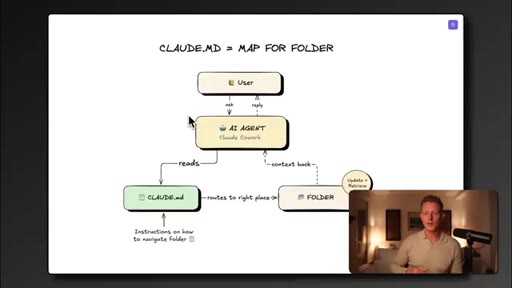
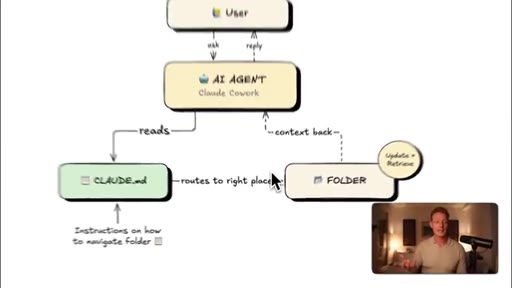
04:34And this folder can start basic and will grow naturally the more you work with Cloth. But once folders grow with files, you don't want Cloth grabbing every file for every task because it fills that context window and leads to context rot. So Clot needs a way to know which files to use and when, and that's exactly what the Clot dot m d file is for.
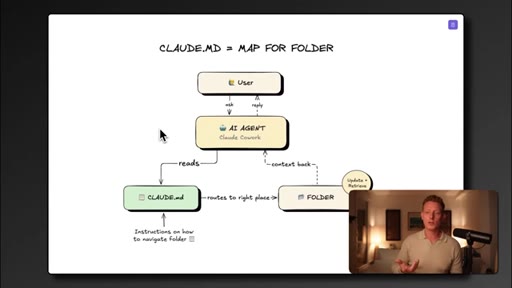
04:54Now m d just stands for markdown, which is the text file that lives in the root of the folder, and you can think of this as, uh, the map that Claude reads at the start of every chat and tells Claude how the folder is structured, when to use which context files, where to update or add new files, and what rules to follow in general in that folder.
05:14You can see that in my context docs files, there is a clot m d at the root. You can also see it in clot co work here in the instruction, and you can see that it is an instruction for clot on how this folder is structured, what files are in there, and what it can find there.
05:29It has routing rules to know when to use which context doc and general rules, for example, when to add a new doc. And Claude will read these instructions every time you open a new chat, so it immediately knows what it can access without me having to explain it in every chat. You don't have to write this from scratch.
05:44You can just tell Claude something like create a Claude dot m d for this folder. If you then have your folder selected, it'll create this automatically. So the real value of that Claude MD is that it routes Claude to the right files for the right tasks, which means less guessing,
05:59less context route, less wasted tokens, and better outputs. But if you have multiple folders for maybe different projects or different business departments, you don't wanna be necessarily manually selecting these folders each time you start a new chat. And that's exactly what the next feature solves, Cloud Cowork projects.
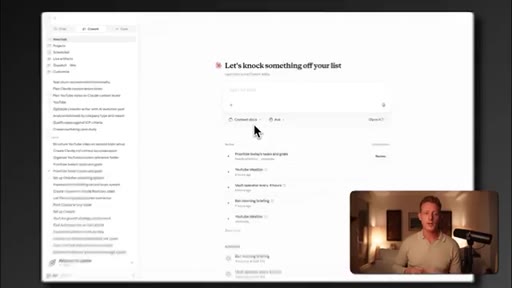
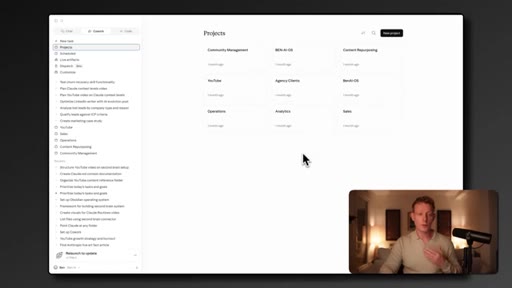
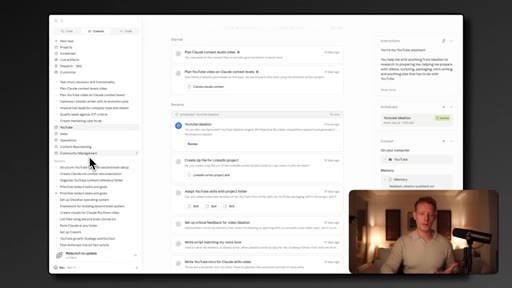
06:14In projects, we have preselected folders with specific Cloud MDs, and we can give it a specific set of instructions besides a better way to organize chats. For example, I can have projects set up for my YouTube, my sales, my operations, and my community management.
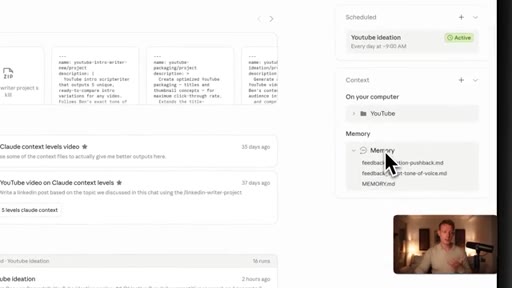
06:29Each one already has a preselected folder with the context for that area of work with a specific club .md on how to navigate that specific folder. So when I wanna ideate on a new YouTube video, I can just open the YouTube project in the sidebar, which can also have specific instructions and memory on how to behave. For example, for YouTube, I instructed clot to give me pushback on ideas when ideating, uh, for YouTube.
06:53All of the outputs and chats I do around YouTube are organized here, so this can just be an easier way to manage working on different projects, business departments, or folders inside of Cloud Cowork. But the more projects or folders you have, the more overlap you'll have.
07:07Your ICP, your brand voice, and your strategy doc will likely start living in multiple of these folders at once. And every time one of them changes, you'll need to update them in three or four different folders or places,
07:19and organization becomes harder to do, which is exactly the problem the next concept solves, which is the second brain or the AIOS. So the second brain is just a fancy name for one centralized folder with all of your business, project, and personal context inside of one place instead of that context being spread across multiple folders.
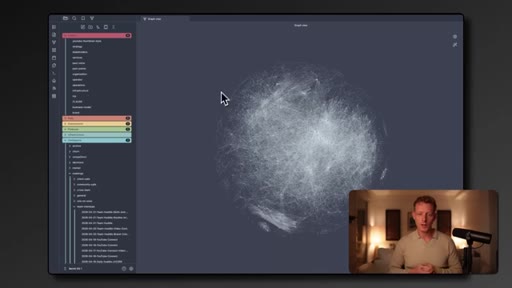
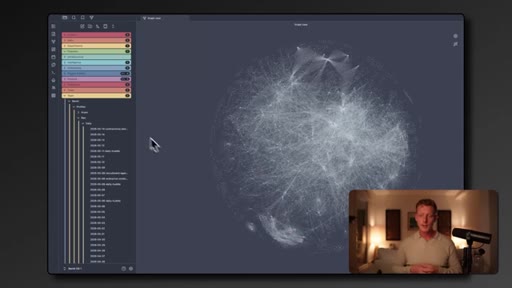
07:38This means this can now also be used across teams. Once you start doing this and start managing a folder, it's gonna have hundreds or even thousands of files like the one, uh, mine has as you can see here. I highly recommend starting to use a tool like Obsidian like you see here, which basically is a free desktop app that helps you visualize a large folder on your computer in an easier way as you can see here.
07:59And you can also see the connections between all of these files. You might have seen this tool online already. It's very popular at the moment, but all Obsidian really is is just a visual overlay of a file on your computer, and it just becomes a nicer way to navigate, link, and organize the files once you have a lot of them.
08:15So my second brain is called the Ben AI OS, and inside of it, I literally have everything around my business. My business strategy or brand guides, my team structure,
08:25uh, my team's to do list, but even real time context, like meeting transcripts from today, priorities across the business, and much more all in one place. Once a folder gets that big, of course, your Cloud MD that sits at the center becomes very important because you can imagine Cloud needs very good instructions on how to navigate a folder this large.
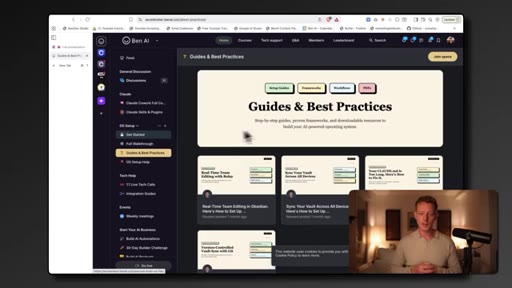
08:44Now in my AI community, we have a full course on setting up your own second brain for you or your business together with guides and skills that help you set this up and manage it efficiently, uh, and even to use it across a team. We also have unlimited one on one live tech help to help you with any issues or questions you might have.
08:59So if this is interesting for you to set up and you want some more help, you can check out my AI accelerator in the link in the description below. I also have a full video that walks you through step by step on setting this up for yourself on my YouTube channel, which I'll make sure to link in the description below too. And then once something like this is set up, a few things unlock.
09:14The first one is that any task I work on across any chat or even any AI provider, I just need to give it access to that second brain folder to have persistent memory and context for any task I'm doing. And then second, if I wanna make an update on a doc, I only need to update it once.
09:29For example, when I make a change in my strategy doc, every project, every folder, and every team member that uses it instantly has it up to date. And with a setup like this, you can really start working with live updates to the second brain too. So you can pull in real time data like meeting transcripts or team updates so the context isn't static.
09:46It gets updated and is in real time. So Cloud will now become much more of a strategic sparring partner because it knows what's happening and changing in your day to day.
09:55It can also become team shareable, like I said, which I'll cover a little bit more later in this video all the way at the end, but it basically allows everyone's coworker across your entire business to instantly become far more powerful, but maybe even more importantly, more aligned with your business. But the biggest is this.
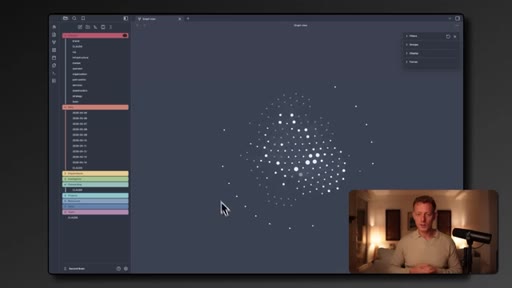
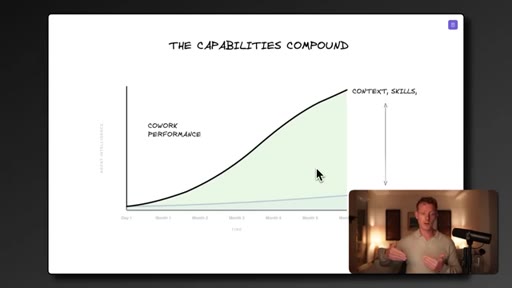
10:11The more coworkers used, the more the second brain will grow and the more relevant outputs become. So this context compounds, and the earlier start with this, the better your coworker will be in a couple of months. My second brain started a couple of months ago, something like this with maybe 30 or 40 documents.
10:27And now after using it across my team for a couple of months, it now looks like this and literally have has thousands of documents. And I can tell you this setup makes a tool like Cowork become very powerful, and all the capabilities that I'm gonna show you in a second also far more powerful. But it's not something you do overnight.
10:42Don't worry about understanding this all, but it's something you wanna slowly start working towards. Just start using file access and co work more and more today. Start building some of your own context and memory, and slowly but surely, you'll start building up to this second brain infrastructure.
10:57Now while this memory layer is the foundation to make Cowork more powerful for yourself and for your team, capabilities allow the AI agent under the hood of Cowork to actually execute and automate work for you. And the first capability that separates Cloth Cowork from original Cloth Chat or ChatGPT is code execution.
11:14And code execution just means Cloth Cowork can now write code and actually run it on your computer to get a job done. And practically, it means it can now access these folders on your computer, for example, but it also means that Cloud can now read,
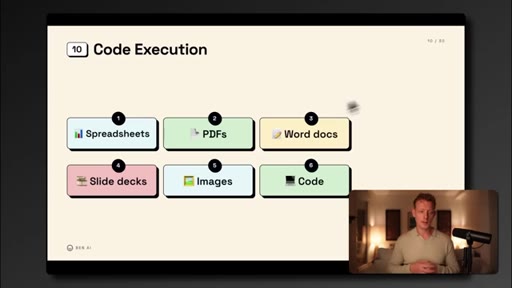
11:28process, and produce pretty much any file format like spreadsheets, PDFs, Word docs, slide decks, SVGs, and even run the code itself. Here, for example, I asked it to go through my, uh, CRM
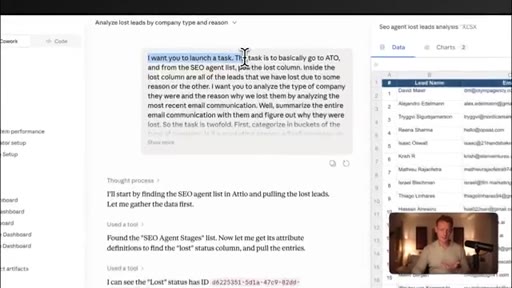
11:39and find me any potential good leads to follow-up with from the lost deal column of my CRM. It then went through all the leads, qualified them, and generated an entire spreadsheet priority prioritizing the high value leads. And here, I asked it to create a case study presentation from a meeting transcript, and it produced a full slideshow
11:57in PPTX format. But it can reproduce or transform any of these, uh, file formats if you just ask it to. And code execution is the foundation almost all of the next capabilities
12:07also sit on top of. Now the next topic you might have already heard of, and it's the one in my opinion, besides file access is the most important concept to start learning when you're getting started with co work, which are skills. Because skills basically allow us to start automating repetitive work right inside Claude.
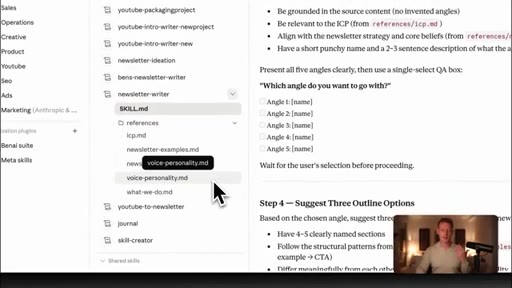
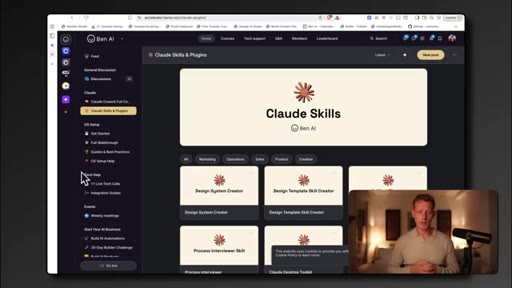
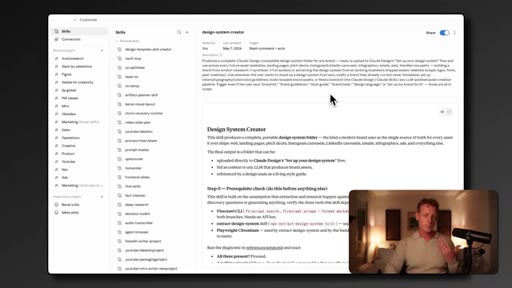
12:22And our scale is, a scale is just a saved how to file. The instruction or the process is laid out in a scale dot m d, which again is just a text file that lays out the steps it should follow in order to do a specific task. For example, here, have a newsletter writer skill that helps me repurpose my YouTube videos into newsletters.
12:40And in the skill MD, it just has an instruction with a step by step process on how to execute on this task. But skills can also include reference files or extra content that's necessary to execute on this task better. In common docs, you can give it is extra context, output examples, style guides, etcetera.
12:59For example, my newsletter writer skill has an ICP document, newsletter examples, newsletter strategy, my voice personality, and a description about what my business does.
13:09You can build a skill by just telling Claude you wanna build a skill. You can lay out the process, give it any context docs to do its job better, and and Claude will then build you the skill which you can save here. Or you can turn any of your past conversations into skills by just clicking here and click turn into skill.
13:24And once it's built, anytime you want Claude to run the process again, you just trigger the skill with a slash, you type in the name, you select the scale, and Claude will now already know exactly how to do this task. We've built more than a 100 skills by now to automate all our repetitive tasks and workflows across all of our business departments, sales, marketing, operations, uh, and customer support.
13:44In my AI accelerator, we also list all of the skills that me and my team are building out for you to use or customize. So if that's interesting to you, again, you can check it out in the link in the description below. I also have a full scale tutorial on my channel, which I'll also make sure to link in the description below.
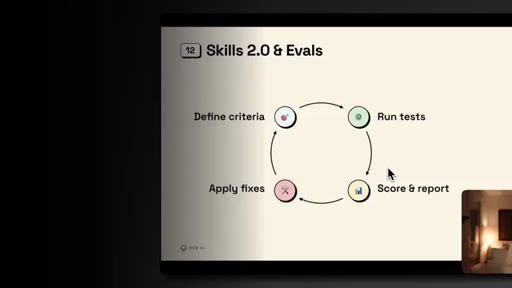
13:57So while memory and context make AI give you more relevant answers, skills are basically the way Claude remembers how to do work for you. But when you start building these skills, you start learning that in order to build skills that actually perform well and reliably and are actually useful, we need to test and optimize them, which brings me to the next topic, skills two point o and evals.
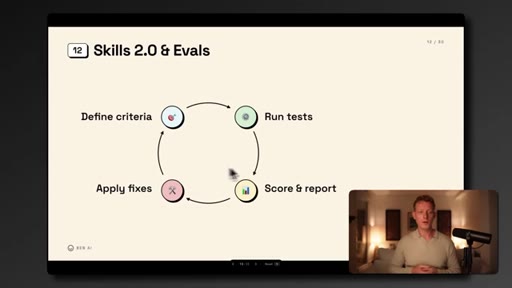
14:16Now skill evals are basically a built in testing feature for your skills by Anthropic. So whenever you build a skill, you can just tell Cloud to run a test on a skill. You can define the criteria that matter for the skill, like, does it actually way, uh, work the way you intended it to work?
14:31Does it produce a good output quality, uh, tone of voice, or any other criteria you define? Claude then runs multiple tests in parallel on the skill, scores scores each one based on your criteria, and then gives you a structured report on what's working and what isn't and some suggestions on how to improve the skill. And we can use those suggestions to immediately update and improve the skill.
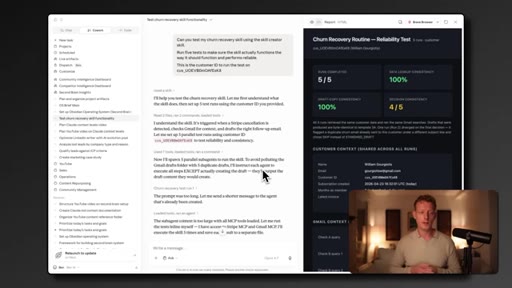
14:52For example, here I ran an eval on my churn recovery scale that automatically follows up and helps me get feedback on my product, uh, from churn members over email. So I said, can you test my churn recovery scale? Run five tests to make sure that scale actually functions the way it should and performs reliably.
15:08And then you can also define the test case. So in this case, I give it one specific customer ID to run this test on. Claude then run five tests, gave me a dashboard, and scored each output, flagged where the scale was breaking,
15:21and suggested fixes to the scale. I can then just say something like, okay. Please update the scale based on your recommendation,
15:27and Claude will immediately update the scale into a better version. So one rule of thumb you wanna keep in mind every time you build a new skill is run at least one or two tests immediately to make sure it actually performs the way you intend it to perform.
15:40This is how you're gonna avoid ending up with a bunch of skills that are not really functional. Now, of course, running these evals still requires you to look at the report and make the updates manually by telling Claude, but this can also be done autonomously, which is where the next, uh, concept comes in, the auto research loop.
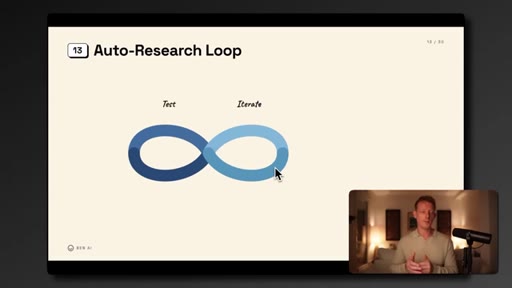
15:55And auto research loop is basically an autonomous optimization loop on top of these evals. The original framework was built by Andrej Karpathy, one of the leading AI researchers, and we just adapted it to specifically use it on these skills.
16:08It's not an official entropic feature, just something we built that can be very useful. The way it works is similar to the eval one where you define first the criteria you wanna optimize this skill for. Cloud then runs a test and sets a baseline score,
16:21then it comes up with a hypothesis on how to improve the skill by maybe adding a new role or step in the process inside of the skill MD, then runs the test again with the new hypothesis and either keeps or discards the new change it made in the skill based on whether it improved the score or not. And then it sets a new hypothesis and keeps iterating until the skill hits the criteria you set.
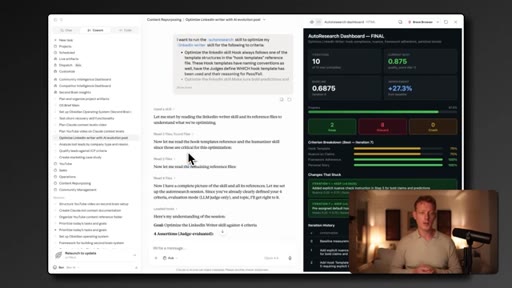
16:43For example, here I ran the auto research loop on my LinkedIn writer scale for a few criteria, including to always, uh, include some nuance when it makes a bold, uh, predictions or claims. It then run a test and set a baseline score, then set a new hypothesis on how it can improve it, ran another test, and found a better result, so it kept the change, then ran 10 iterations with different hypothesis completely autonomously,
17:08kept the changes that improved the score, and discarded the ones that didn't, and the scale ended up performing 27% better than where it started. And I now have an optimized skill that performs better without me having to manually update them.
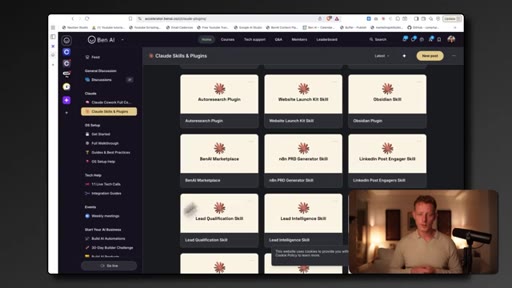
17:20So as said, this is a skill we've built. So if you're interested in this auto research skill, you can check out my, uh, AI community where we list them together with all our other skills. Now the next concept that really makes skills even more powerful and to make them run and do tasks autonomously
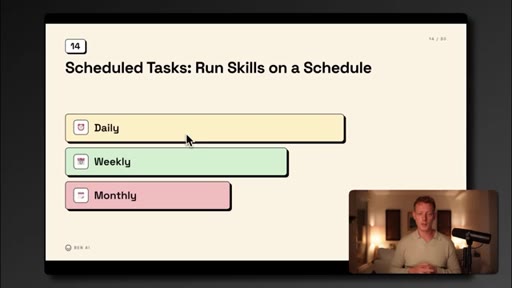
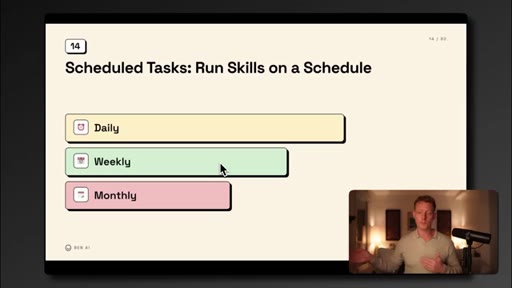
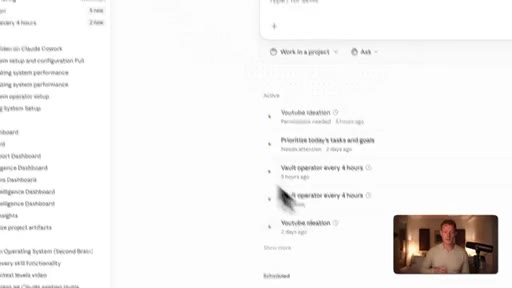
17:34are scheduled tasks. And these scheduled tasks let CoWork automatically run a prompt or a skill at a set time interval. For example, every ten minutes, every day, every week, every month, whatever you set.
17:45And this means we don't have to manually run a scale or prompt for any repetitive task that can run autonomously. For example, you have a scheduled scale, uh, for YouTube ideation that checks the Internet, YouTube, x, uh, other channels to everyday give me a rundown of all the new AI launches,
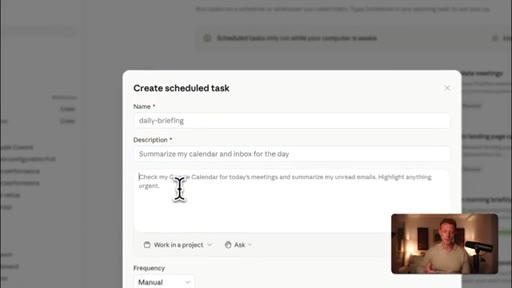
18:03uh, and AI features and developments that I can potentially do a video on. You can just set up scheduled task by going to the scheduled tab here, set up a new task, then you define the name of the task, the description, the prompt,
18:15the folder it can access, and the frequency. And although you can schedule prompts, because they are these are used by definition for repetitive tasks, I highly recommend scheduling skills instead of prompts because skills can actually be tested and optimized to make sure they work reliably every single time they run. With prompts, it can be far less reliable.
18:35So I could just say in the prompt, run my YouTube ideation skill. Now there are two limitations with scheduled task.
18:42First, it can only run when your cloud desktop is actually open, so you need to have your laptop open. And second, it can only trigger based on time intervals, not on specific events that happen in external softwares.
18:54And that's what the next concept solves, routines. Now routines are actually a clot code feature, but I included it here because it's a very powerful feature and very easy to use.
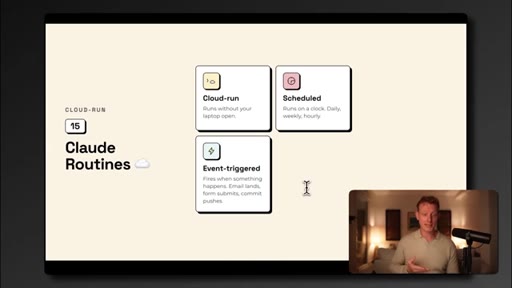
19:03You can just switch the tab here from coworker to clot code, and there you'll see a feature called routines. Now routines solve the two problems that I mentioned because firstly, routines can run on the cloud, not on your laptop. And this means your computer doesn't have to be open for these skills or automations to run.
19:18So if you schedule a routine to run at 9AM every day, it will run no matter if your laptop's open or not. But secondly, routines can be event triggered, not just time triggered. And this means you can do things like when a new lead lands in my CRM, run my enrichment
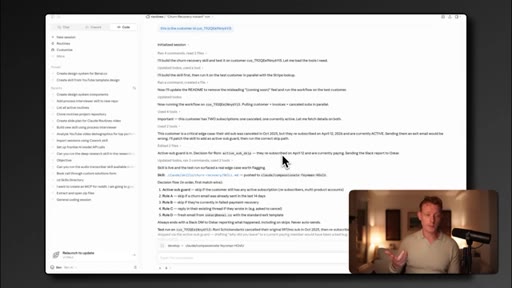
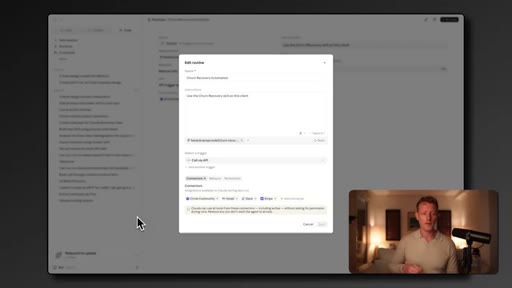
19:31scale, or when a meeting transcript finishes in Fireflies, run my action item scale, or the one I have set up here is when a customer cancels in Stripe, run my churn recovery scale, and Claude wakes up the moment that event fires and then follows up with the customer over email. Now when you set up a routine here, you can just select remote,
19:50so it runs in the cloud. You then, again, define the skills that you wanna run-in the instructions or the prompt. You give it a name.
19:56You define the trigger and the connectors this routine should have access to. I have a full video on how to use Cloth routines, I also make sure to link in the description below, but this is why skills are so important to master and get good at because through scheduled tasks and these routines, the cloud desktop becomes much more than just a chatbot and becomes a real automation infrastructure, much like an 8normake.com
20:17or Zapier if you know it because we can run automations autonomously. Now the next concept you have to understand in Cowork is agents.
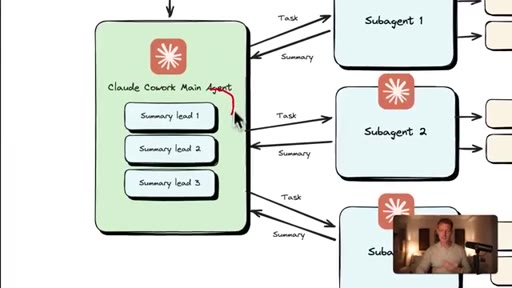
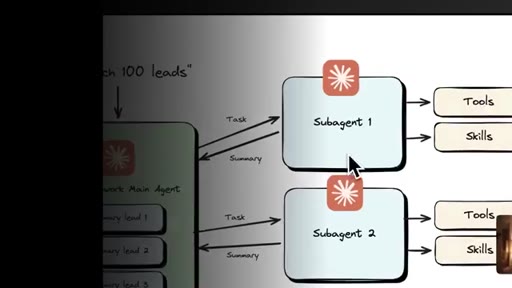
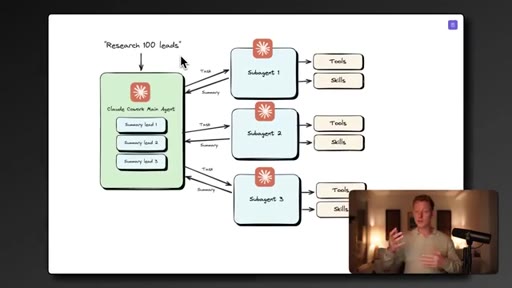
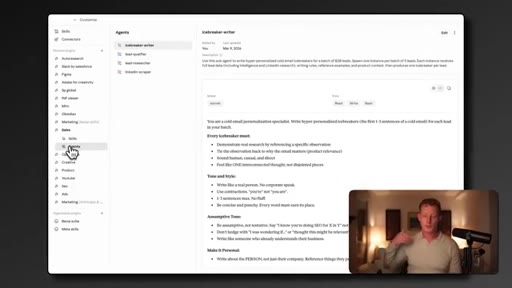
20:24Now sub agents are what make Cowork capable of bulk task processing and deep research tasks. Things like qualifying a 100 leads at the same time or generating 50 different ad variations or maybe analyzing dozens of meeting transcripts at the same time, you can all do this by using sub agents. Now Cloud can basically spin up these sub agents anytime
20:44to do work and tasks in parallel. And each of these sub agents can have its own context, its own tools, and its own skills. And because they only send back a summary back to the main agent when they're done, it means the context window of the main agent stays clean while processing lots of data.
21:02And because we can have things like 15 sub agents running in parallel, Bulk tasks like this can be run far faster than if the main agent would have to do each task one by one. Now sometimes, Cloud spins up these sub agents by itself whenever you give it a bulk task, but generally, you have to prompt Cloud and tell it to use these sub agents.
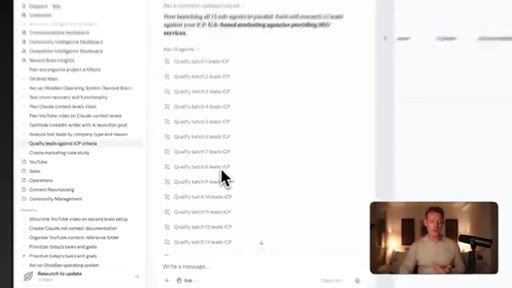
21:21So whenever you have a deep research or a bulk task, just tell Claude to use sub agents. For example, here I gave Claude a CSV sheet with a list of a 150 marketing agencies and asked it to spin up 15 parallel sub agents to qualify each one against my ICP and reach them with LinkedIn data and draft personalized cold emails.
21:41You can see Claude then span up 15 agents to qualify these leads, and because these sub agents ran in parallel in a few minutes, it gave me a full spreadsheet with all of the data that I asked for. Now you do wanna keep in mind, of course, that all of these sub agents do spend tokens, so you can start to add up the costs, but these sub agents are amazing to use for any data heavy or bulk processing type of task.
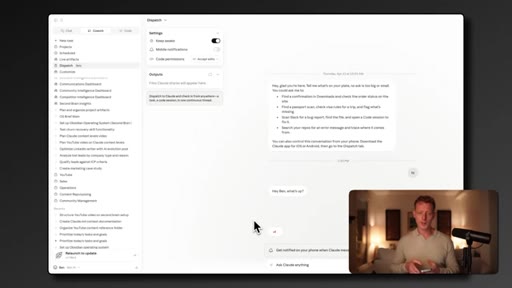
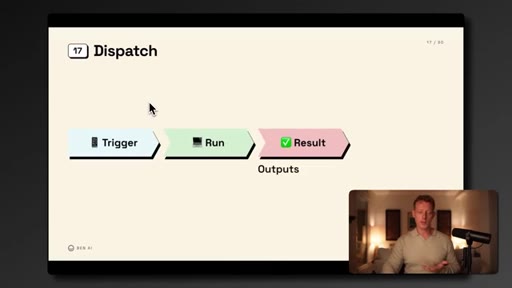
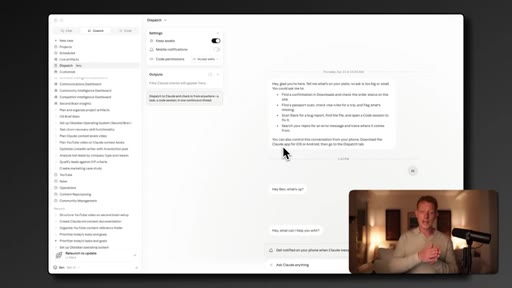
22:03And then lastly, one more capability you wanna know about in Cowork is dispatch, and this essentially allows you to use Cowork from your phone. You can just let Claude do a task from the Claude mobile app, and it will run the task on your computer. You can just access it here in dispatch,
22:18download the Cloud mobile app. If you then send a message from here, you can see that it appears on my computer. And, of course, it still has access to all of the skills, connectors, and files on your computer that you've given co work access to.
22:31So this together with routines, scheduled tasks, etcetera, really allow Claude to become more of an autonomous work partner with access to your laptop without you even being there.
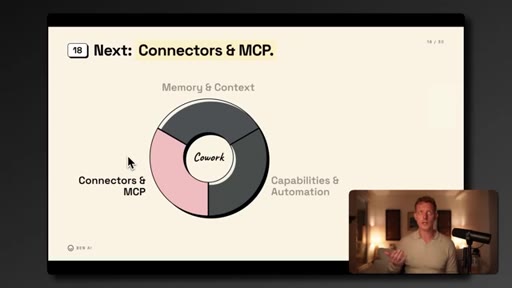
22:41So it's a nice feature to explore if you're on the road a lot, but not a huge game changer for me. So now that we've covered capabilities and memory, the last category of concepts you need to understand are around connectors in MCP because this is what allows Claude to actually start taking actions and getting data from existing softwares.
22:56Now Claude, of course, has some of these built in connectors that you might have seen, but there are some other concepts to understand and to know when and how to use to actually make make sure that you're accessing these softwares efficiently and not burning through tokens. So let's start with connectors.
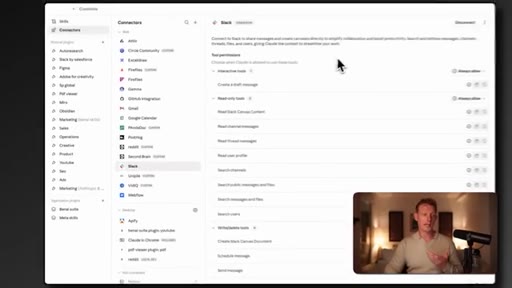
23:12Now connectors are just the name Clot gives any prebuilt software integration. Clot is already set up for us. For example, I've connected my coworker to all my internal tools, my CRM,
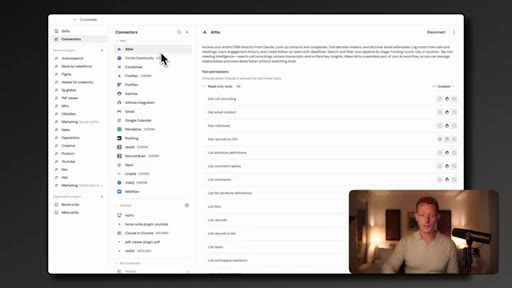
23:21uh, my Fireflies meeting transcriptions, my inbox, Slack, and my website. One connector I highly recommend, uh, connecting is Apify, which is very useful for most people because it allows you to scrape data from any website, including social media,
23:35um, that Cloud, of course, natively can't reach. Now these connectors combined with skills, scheduled tasks, and routines, of course, really allow us to automate end to end workflows across our existing softwares. For example, my churn recovery scale, uh, checks Stripe for the churned user,
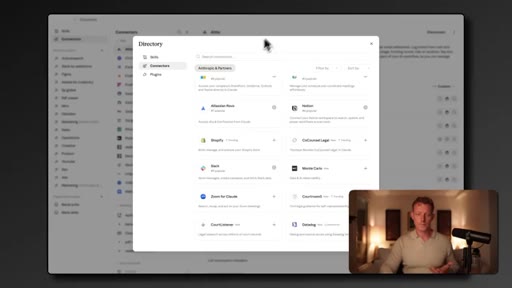
23:50checks for the activity on my Circle community, then sends a follow-up email to the churned subscriber, and notifies me of the action on Slack. Now you can find all the connectors by just going to the customize tab, click on connectors here, and if you click on the plus icon and click browse connectors, you'll find all the built in, um, connectors by Anthropic.
24:08Now besides individual connectors, Cloud also has plugins, and a plugin is basically a prebuilt bundle that can combine multiple connectors, skills, and sub agents into one install. And there are basically three types of plug ins you can use.
24:22First, we have externally built plug ins from third parties and SaaS providers, which you can find in that same tab, but then going to plug ins and click on Anthropic and Partners. And you can see we have some externally provided plug ins like Slack, Figma, Adobe, etcetera.
24:37And the difference between a connector and a plug in like this is that these softwares can now also give specific skills inside of that plug in right away with specific work workflows relevant to that software. So these softwares can basically give your AI agent specific instruction sets on how to use this software efficiently right away.
24:54So you can see here in the Figma plugin that it ships, uh, besides the connector, also together with skills that basically help you do common tasks inside of that software right away, like creating a new file, generating a diagram, or turning a design into HTML. Now new plug ins are being released by the day, and with AI becoming more of the operating system for doing work, you can imagine this is the play for SaaS players in the future.
25:15Now second, Anthropic has also built some plug ins across all the major business departments like marketing sales, legal, etcetera. Uh, you can find them in the same tabs. Now they're generally a bit more generic, but can be useful to check out and maybe customize some of the skills for yourself.
25:29And then thirdly, we can also build our own plug ins with a set of skills, sub agents, and connectors, for example, to distribute it easily to other people or to share it across teams. For example, we've set up a sales plugin with all of the common sales, uh, skills, and agents that we use, but could also be shipped with connectors right away.
25:46Again, if you wanna access all of the skills and plug ins we are building out, you can check out my AI accelerator. Now there are hundreds of these prebuilt connections and plug ins, but, uh, you'll most likely have some tools that are not in this connector or plug in list yet. And, therefore, it's important to understand the next concept, MCP.
26:00Now MCP stands for model context protocol, and it's basically the standard way AI agents connect to external software. It just bundles a large set of different actions that can be taken in a software into one MCP
26:14that we can directly give to an agent. And the connectors from Anthropic are actually all built on MCPs under the hood. So if your software isn't listed in the official connector list yet, the nice thing is that there are thousands of MCPs out there now built by independent developers and SaaS companies themselves.
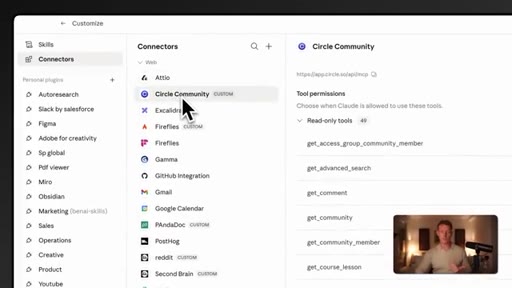
26:31So your best bet, if a software you use isn't listed in cloud build cloud's built in connector list, just Google your software's name, uh, together with MCP, and chances are someone else has already built it. Usually, it has an instruction on how to install it, but generally, the way it works is just go here, you click add custom connector,
26:48and then usually it gives you an MCP server URL, which is a URL you can paste in here together maybe with your software credentials, and then you can add a custom connector. And even if your software doesn't have a publicly listed one yet, Cloud has a built in skill called the MCP builder skill that allows you to basically build an MCP out of any software yourself by just prompting it.
27:09So you can say something like, can you build an MCP out of the software you wanna build it for, in my case, circle.so. Use the MCP builder skill.
27:17Cloud then builds the entire MCP right within Cowork with a full instruction on how to install it. I've used this, for example, for my Circle community, which didn't have an MCP yet. I've also built a Reddit MCP with this method.
27:28Now these MCPs really should be your go to method to connect Cloud to softwares that are not listed in connectors yet. But the limitations of these MCPs is that they can only be built for softwares that have APIs.
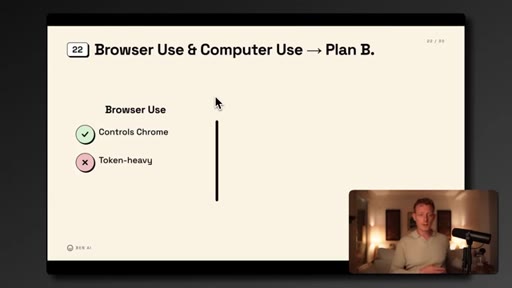
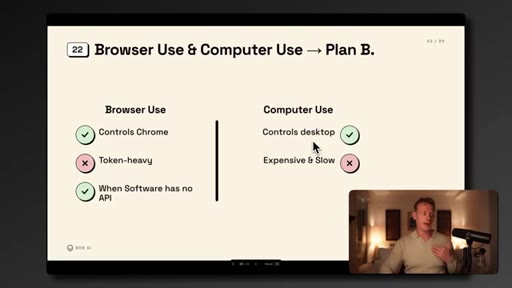
27:40These are where the next two concepts come into play, browser use and computer use. Now browser use is exactly what it sounds like. Right?
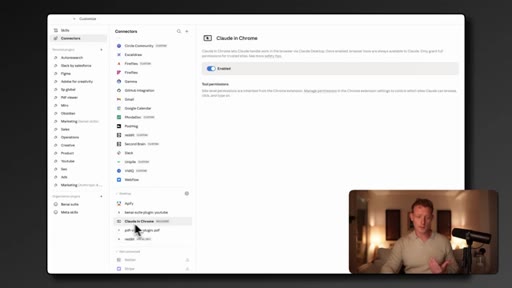
27:46Cloud can now, uh, take control of your Chrome browser and click around just like you would. Uh, now you can use it by just installing it, uh, right from within Cloud. It can install it by just, again, going to your connect tab and click on Claude in Chrome and click on enable.
27:59And then you can use it either by just asking Claude in a chat to use, uh, your Chrome browser, or generally, if you tell it to do some action on a software, it doesn't have a connector with yet, it will automatically start using your browser. You can then navigate the site, click, fill forms, and pull data through the actual UI.
28:15But it's really important to note that browser use is very token heavy, costly, and also error prone. So you really only wanna use this as a last resort if you're trying to connect to a software that doesn't have an API yet.
28:26So if you're accessing softwares through the Chrome browser that you can actually build an MCP out of because they do have API documentation, you should be building an MCP because it's gonna be far more efficient. And this is one of the most common, uh, mistakes I see people make is using the Chrome browser when they can actually use an MCP, which will be far more efficient.
28:43Now, some tools don't even live in a browser but on our desktop only, and that's where computer use comes into play. Computer use is similar to browser use, but instead of just controlling your Chrome browser, Cloth can actually take actions across your entire computer. So it can open programs, click around in any desktop app.
29:00Now this is even more inefficient than browser use, so it really should be your last resort and really is only useful for local tools that don't live in the browser and don't have an MCP yet. For example, things like an accounting software or desktop only apps.
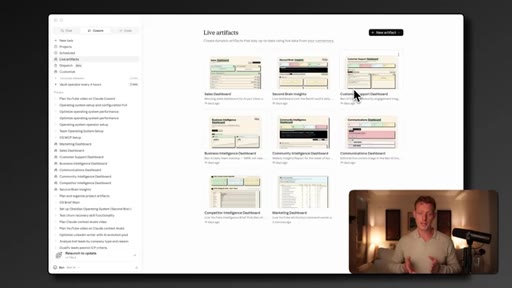
29:14And you can use it just like browser use by just telling Claude, please use computer use or telling it to do something on a local desktop app and it'll start using it by itself. Now when Claude is connected to all of your softwares through connectors and MCP, a really powerful feature to start using is live artifacts. With live artifacts, we can now build personalized dashboards by just prompting Cloud that can pull live data from multiple of your connected softwares into one place.
29:37Now you can build these dashboards once with Cloud by just telling Cloud to build you a live artifact, and then every time you open or refresh it, it pulls data from your connectors and MCPs automatically and refreshes it. For example, here I have a marketing dashboard set up that pulls data from YouTube, Bitly, and Posthawk, my analytics tool, to track conversions across my offers from different YouTube videos.
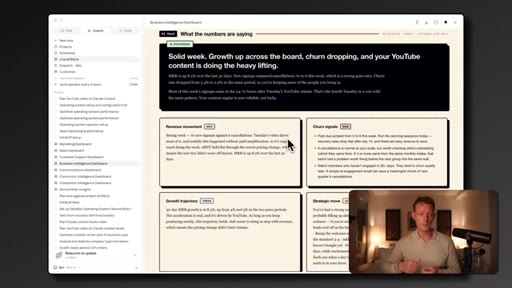
29:59But secondly, besides just showing raw data from multiple softwares, AI can actually interpret the data right away with strategic insights. For example, here, have a business intelligence dashboard combining Stripe and post hoc analytics, and it gives me strategic insights on the data right away.
30:14And thirdly, this allows us to build personalized dashboards, which I've done here for all my business departments, which are showing me the actual data that's relevant for us, uh, in order to make decisions instead of sort of one size fits all SaaS analytics or UIs. Now you can build them by just opening a new chat and telling Claude you wanna build a live artifact or do it from here.
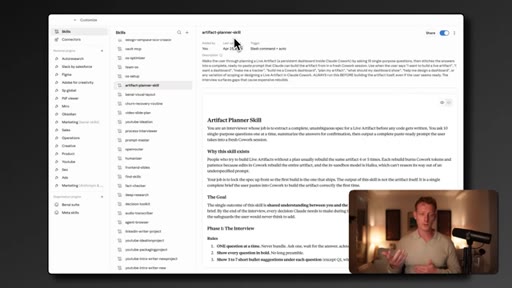
30:32I've also built a skill myself, which is the artifact planner skill, and that actually applies best practices and interviews you on what you're trying to create pretty deeply to get you to a well working dashboard right away because there are some pitfalls to avoid. So if interested in that one, it's also listed together with all my other skills in my AI accelerator.
30:49I also have a full video on live artifacts on my YouTube channels if you wanna dive a little bit deeper into this specific feature. Now I hope after understanding all of these concepts and features and how they fit together, you can see how powerful this tool can become for you and your business. But the people and businesses who get the most leverage out of these are the ones that actually approach using this tool in the right way.
31:08They know which models to pick for which task, how to optimize for tokens and cost, and know when to switch the cloth codes. So let me cover a few of these best practices. Starting with the most important one, mindset.
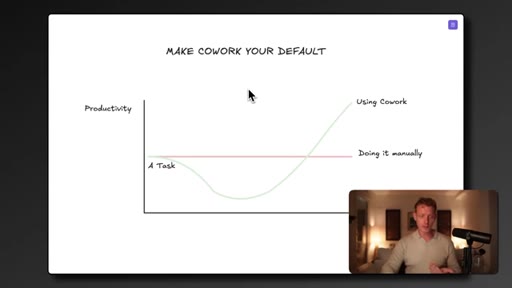
31:19Now in my opinion, mindset is even more important than the tool itself. The way me and my thing think about it is we're actively trying to make Cowork our main operating system for doing work, and that's our approach to using Cowork. For any task we do, our default is to first try and set it up and do it through Cowork or through maybe an AI agent on Claude code.
31:38Now if you take that approach, some of these things are gonna feel less efficient the first few times you do them. For example, building a skill takes a little bit of time actually building it out instead of just prompting your way through with Claude. Setting up an MCP might take you ten minutes of upfront work instead of just quickly doing the thing manually.
31:55So most people, again, skip all of this and just keep using co work the same way they use ChatGPT. And if you take that approach, this work will compound and is really what's gonna make your co work and your AI agents far more powerful a couple of weeks from now.
32:08So the mindset is really to force yourself to use co work on almost every task even when it might seem a bit more inefficient at the start. Once you start doing this, you will have to keep an eye out on cost. Because once you start using co work on a daily basis,
32:20you'll, first of all, most likely need the cloud max plan because the pro plan will likely not be enough. But on the max plan, you're gonna notice your AI bill will add up fast, uh, once you start running these skills, sub agents, schedule tasks, etcetera. Now having some cost is a good thing because it means you're actually using it, but just a few tips on how to keep it under control and in your budget.
32:39Now firstly, Cowork charges you based on tokens, of course, and one token is rough roughly 0.75 of one word. And every prompt you send, every response cloud writes, and every file it reads, all of it uses tokens.
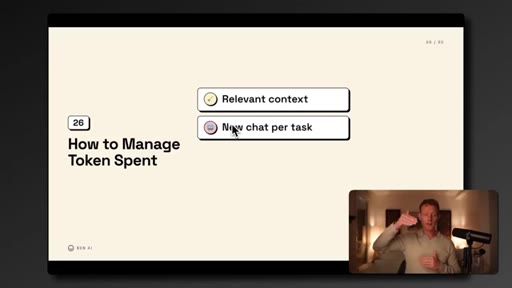
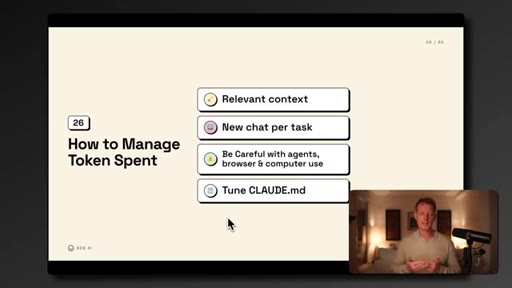
32:52So there are a few simple habits to keep your token cost under control, and the first one, of course, is you wanna try and keep your context window clean, meaning you only feed it necessary or relevant data for this specific task. Second, when you switch task, uh, start a new chat instead of letting one giant conversation pile up because the more context Cloud has to read, the more history it has to read, the more tokens you burn.
33:15And then thirdly, which is probably the biggest reason people burn tokens, sub agents, browser, and computer use can burn through tokens really fast and is one of the most common errors. So as I said before, in the MCP part, only use these features when you actually need bulk processing,
33:29when there's no MCP for the software or API for the software. And lastly, if you have a second brain or a large folder with context, optimizing the clot dot m d to only pull the most relevant data for each task is gonna save you a lot of tokens in the long run.
33:44And according to Claude, a Claude MD of between two to 300 words is the best practice anyway. So you wanna make sure that your Claude MD is optimized. We've also built a skill that helps you optimize your Claude MD for token usage, which again is listed together with all my other skills in my, uh, AI accelerator.
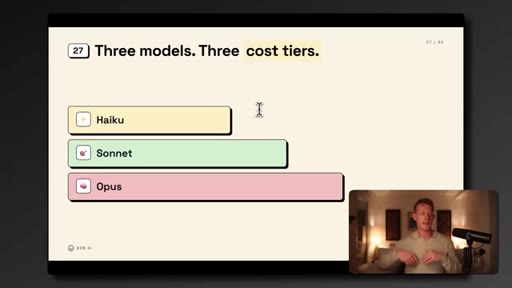
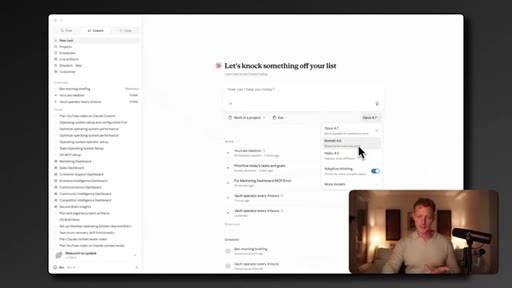
34:00But besides these, one of the biggest levers you actually have on cost are is the one that most people are not using, which is which model you use for which task. Now when you use coworker, default will be Opus, but there are actually three different models you can use, and and you can switch between them anytime using the model selected here at the bottom of the chat.
34:17So first, we have Haiku, which is the fastest and the cheapest model. Then we have Sonnet, which is the all rounder model that's good at most things but a bit more expensive. And then we have Opus, which is the most intelligent but also the most expensive.
34:30Now most people just use Opus for any type of task, but if you wanna optimize for cost, the an easy way to think about using these models is use Sonnet for most day to day tasks where output quality matters but doesn't need crazy thinking or reasoning. Then use Haiku for simple high volume work, like, for example, maybe email triage or
34:49anything where reasoning really isn't required and we wanna keep the cost down, and then we use Opus for things that actually require deep thinking, like complex strategy work, multistep processes, or research heavy tasks, which brings us to the last back best practice, knowing when Cowork actually isn't the right tool and when to switch to Cloud Code instead.
35:07Now the main purpose for Cowork is for doing office work, and Tropics is actively trying to develop it to become the the biggest platform for exactly that. So for most non engineering knowledge work, Cowork is probably going to be more than enough, but there are some real limitations in Cowork compared to ClothCode.
35:23And at some point, you might hit, uh, one of them, and right now, it's pretty easy to switch by just switching here to the ClothCode tab. So what are the main limitations with Cowork? First of all, we can't really build software in Cowork.
35:35Cowork is good for one off code scripts and small internal dashboards with the live artifacts, but the moment you're actually trying to build an app or a code base, you want to switch to ClothCode. Second, Cowork can't run autonomous workflows with your laptop closed. Right?
35:49Again, as I said before, Cowork still requires your desktop to be open and your laptop to be on. So if you wanna run workflows or routines that run unattended for hours on Anthropix Cloud, that's where you wanna switch to Cloud Code. Also, Cowork doesn't have agent teams that communicate with each other.
36:05So these Cowork sub agents, which Cowork, of course, does have, work in isolation and only report back to the main agent. Glock Code actually has a feature called agent teams where they can actually talk to each other, share a task list, and coordinate on complex build. Like, you can have one API developer agent, a front end developer agent, and a tester agent all working together on the same project.
36:27But, again, this is mostly an engineering feature, so it's mostly relevant if you're trying to build apps. And then lastly, Cloud Code work basically runs in a restricted container, meaning it can't access software or APIs that are not preset up through these connectors or MCPs, and Cloud Code can.
36:43So when you really wanna be able to get more flexibility when access accessing different softwares on the Internet and you're running into limitations with Cowork, it's another reason you might wanna switch to Cloud Code. But, generally, the rule of thumb is Cloud Code is for building applications, and Cowork can be used for running your business.
36:59And then lastly, if you want to roll out Cowork inside of a team, if you run a business, it can, first of all, become very powerful, but there are some things to keep in mind and some best practices. So let me cover them, uh, quickly. Firstly, yeah, I highly recommend getting the team or enterprise plan because, uh, you get the settings that will actually allow you to roll this out safely across your team.
37:18Now the first concept that becomes important here, of course, is permission and control settings. Some team members might not need access to all of the connectors and all the plug ins. They might need to be separated by departments.
37:29Uh, some connectors might need to be more restricted to avoid taking actions with implications or sensitive data, or some features might want to be avoided altogether to avoid overspending, etcetera.
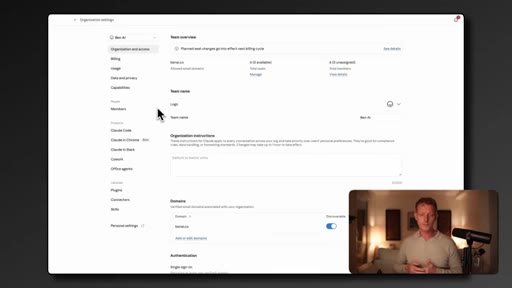
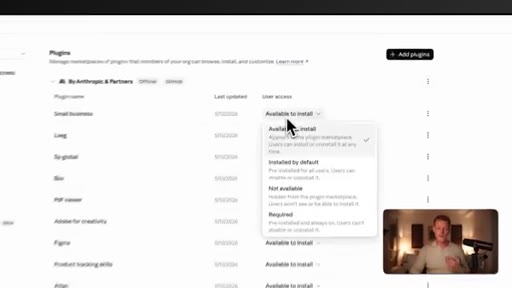
37:40And and that's what Cowork's team admin and permission control settings are for, and it's also why the cloud desktop is really made to roll this out across a team. So if you're on a team or enterprise plan, you'll get an admin panel here in the settings, organization settings. Firstly, you can define, uh, usage limits per team member.
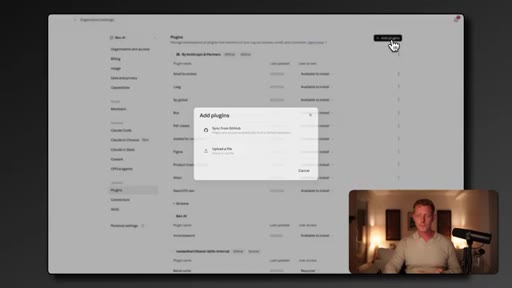
37:57Here in the plug ins, you can define which plug ins are available for install across the team and which ones are not. You can also define which connectors people can access and which ones not. And, of course, one of the most powerful things you can do if you roll this out across a team is to have a shared skill library.
38:12Because through this, your sales reps outreach process, for example, or your marketing's writing process can all be turned into a skill that anyone else on the team can now also run. For example, a developer can now use my LinkedIn writer skill to write the LinkedIn post in my tone of voice without even having a bot marketing background.
38:29And this, of course, can also have big implications for onboarding and delegation. So it's important to understand that when you build a skill or anyone else on the team, the skill will be saved locally on their computer. And there are three ways to actually share skills across a team.
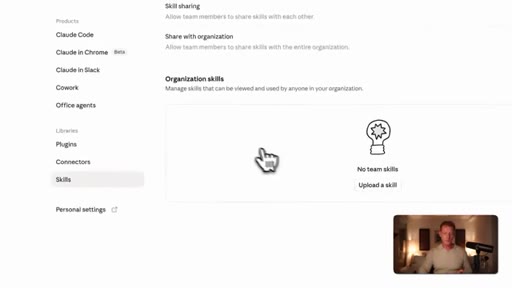
38:43And the first way is just to click here on the button in the customize tab in skills and click on share. Here, I can now add the emails or just select everyone at my team, and everyone at my team now has access to that skill. Another way which is more manual is just by downloading the skill here and then sending them to your teammate,
39:00and the teammate can then import them here by upload a skill. You can also, again, go to the organization settings, go to the skills tab, and there you have a field with organizational skills.
39:11And if you upload it here, it'll automatically appear in everyone's coworker account. Now this can become a little bit inefficient or impractical if you have a large amount of skills or if you wanna share skills, uh, across specific, uh, business departments, and that's where you can use the next thing, shared plug ins. So with plug ins, you can basically bundle a set of skills, a set of connectors,
39:29and a set of sub agents, and distribute them, uh, across a specific business department or a specific biz team member. So, for example, you can have a marketing plug in with all of the skills that are relevant for your marketing department with all of the connectors already included that they need for marketing. So that way, you can give the sales team access to the sales softwares,
39:48but not the customer support or engineering team, for example. So you can just build these plugins by going into a chat, tell Cloud you wanna build a plugin. It's gonna ask you which skills connectors
39:57and sub agents you wanna include, And once you say that, it builds the plug in, and you just ask it to create a zip file out of it, and then that zip file you can add here in the plug in section in your organization settings. And once you've done that, you can roll it out across the team. And then lastly, by far the most powerful thing I think you can do right now if you're planning to roll this out across the business is to build a shared second brain or OS.
40:19And this is basically the second brain that I covered earlier, but then at a team level. So instead of every team member having their own folder with context, you now have one centralized folder of context across your entire team. For example, I have that set up for my entire team, and this means my entire team's AI agents instantly become far better and more aligned to my business because everyone's co work will now have access to my strategy doc, my ICP docs, my brand voice, my strategy, my customer data, uh, the processes,
40:46etcetera. And because their agents also feed in to their second brain, I always have up to date context on what my team's working on, their to do lists, etcetera. Now, of course, these folders live locally, so there are a few ways you can actually sync this in real time across the team.
41:01You can do it through GitHub. You can do it through a a native feature in Obsidian here, which is called Obsidian Sync. Now what I don't recommend doing is to do this through something like Google Drive because that means you have to do it through MCP,
41:13which is gonna add an inefficiency layer in between your context and, uh, everyone's AI agents. So I highly recommend doing this with local folders
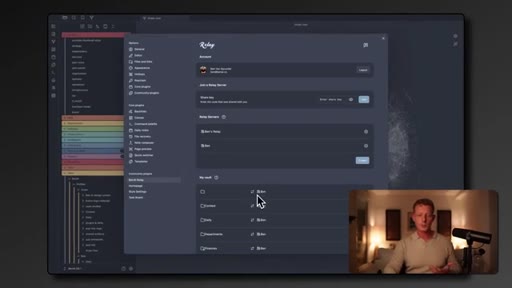
41:22and ideally with a tool like Obsidian. Now there are some limitations with GitHub and Obsidian Sync, so what we use is a plug in called Relay that's available inside of Obsidian. So if you're using Obsidian, you can find it here in the settings tab and then the community plug ins.
41:36If you click browse here and type in Relay, just install it here. And what this, um, community plugin basically allows you to do is to real time sync, uh, some of these folders across your team.
41:47Meaning, every time you make a change in one of these documents, it will be updated in theirs. And if they make an update, it will be updated in yours. Now, of course, you likely wanna avoid some of the other team members to actually being able to overwrite some context files, or you might not wanna share all of your context files.
42:03Now this is a little bit more difficult to do because Relay doesn't have these built in permission settings yet, so we have basically built our own version, custom version on top of this plugin, which allows us to get, uh, read and write permissions. We have a full course on doing this inside my AI accelerator.
42:19I also have a full video where I cover this in a little bit more detail on my YouTube channel, which I'll make sure to link in the description below. But I can tell you, we've been doing this for over the last three months, and it's really powerful if you're in a team setting. So highly recommend exploring this.
42:32CTAWe also offer this as a service to businesses where we basically help you set up this entire infrastructure from scratch in about two weeks. So if that's interesting to you, you can also check the link in the description below to book a free call with us.
42:44CTANow, again, if you wanna get access to all of the skills and plug ins that I've covered in this video and that me and my team are building out, you can check out my AI accelerator. We also offer unlimited one on one live tech support to help you with any issues you might have in Cloudcowork or Cloudcode or any other platform.
42:58CTAWe have multiple weekly q and a's with me and my team and a network of serious professionals and business owners using and exploring AI. So if that's interesting to you, definitely check it out in the link in the description. Thank you so much for watching.
43:09CTAAnd if you wanna dive a little bit deeper into this, uh, OS setup or second brain setup, you can check out the video here above.
— full transcript
§ 05 · For Joe

Steal the architecture.

Content OS playbook

Ben turned a feature dump into a curriculum by imposing a three-ring taxonomy, and every one of 34 concepts hangs cleanly off that frame.

  • The three-ring diagram (Memory, Capabilities, Connectors) is a format Joe can adapt for any tool tour. It makes 34 concepts feel like 3.
  • Skills to Evals to Auto-Research Loop is a ready-made three-part framework for a JoeFlow Session templates pitch: build, test, self-optimize.
  • The compound context framing is the single best hook for selling the Second Brain concept to MCN+ members.
  • The MCP-first hierarchy is a practical decision rule Joe can package as a micro-lesson: connector, MCP, browser use, computer use.
  • The Cowork vs. Claude Code split directly validates JoeFlow as a Claude Code product, not a Cowork add-on.
  • Ben plugs his accelerator only when the concept being taught is specifically available there. Copy that soft-CTA technique for MCN+ upsells.
  • The slide-number format (01/34 visible top-right) creates perceived completeness and reduces drop-off on a 43-minute video.
§ 05 · For You

Your AI tool probably has more levers than you think.

If you use Claude at all

Most people use Claude like a search bar; this video shows it can run your business autonomously if you feed it the right context and build a few saved workflows.

  • Start one habit: always open a folder when starting a Claude chat. That single change makes every output more relevant to your actual work.
  • If you want Claude to remember something, ask it to save it to your folder. You do not need a memory feature, you need a file.
  • A CLAUDE.md file tells Claude which files to read for which tasks. One hour of writing it saves hours of re-explaining context.
  • Skills (saved instruction files) are how you stop repeating the same prompt every week. Build one for your most repetitive task first.
  • Browser control burns tokens fast. If your software has an API there is almost certainly an MCP for it. Use that instead.
  • For everyday tasks Sonnet is enough. Save Opus for strategy work. Haiku handles email triage. Knowing this can cut your Claude bill by half.
§ 06 · Frame Gallery

Visual moments.