Riley Brown · Youtube · 49:34

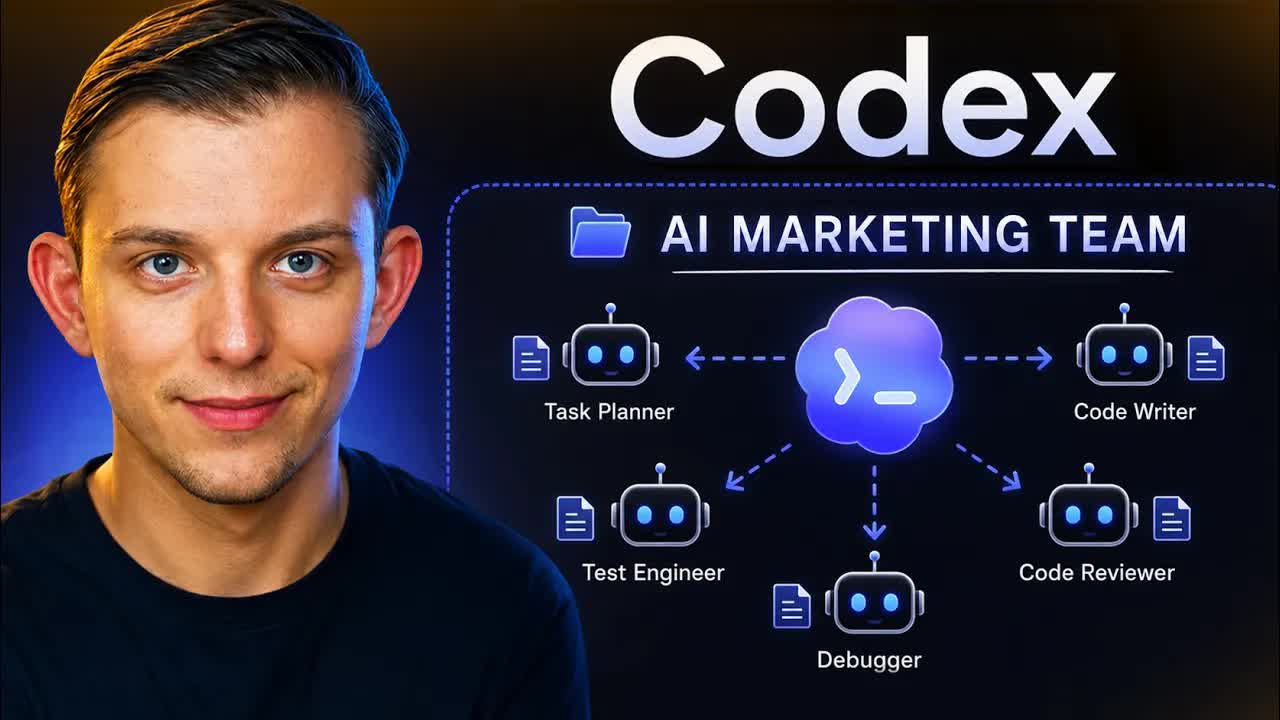
Codex: Build Your Full AI Marketing Team (Agents + Skills)

A 50-minute live walkthrough of the 8 Codex skills Riley Brown uses daily to run his entire content and marketing operation.

Posted
May 18th 2026
today
Duration
49:34
Format
Tutorial
educational
Channel
RB
Riley Brown
§ 01 · The Hook

The bait, then the rug-pull.

A quiet confession delivered cold: ninety-five percent of his entire computer workflow runs through one app. No disclaimer, no soft open, no intro card. Riley Brown drops the number at second eight and dares you to doubt it. The next fifty minutes are the proof.

§ · Stated Promise

What the video promised.

stated at 00:38 "I guarantee you, you will get value from this video. You are going to learn a marketing skill that will impact your business or your personal brand." delivered at 05:59
§ · Chapters

Where the time goes.

00:00 – 05:59

01 · Intro: What Codex is and how skills work

Overview of Codex as a super-app, plugin vs skill distinction, slash vs at-sign syntax.
05:59 – 11:43

02 · Skill 1: YouTube Researcher (Grounding)

Pull any creator transcript via SupaData to generate content in their voice. Also used to learn topics in Karpathy style.
11:43 – 17:54

03 · Skill 2: Readwise CLI (Second Brain)

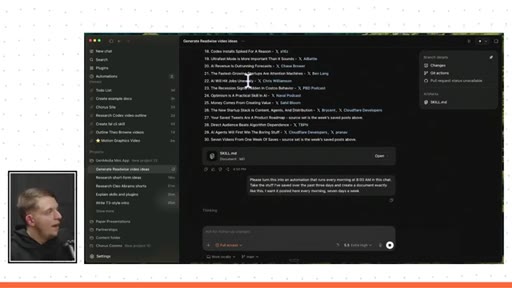
Bookmarked tweets sync to Readwise. Codex generates 30 content ideas and automates the output at 8AM daily.
17:54 – 22:11

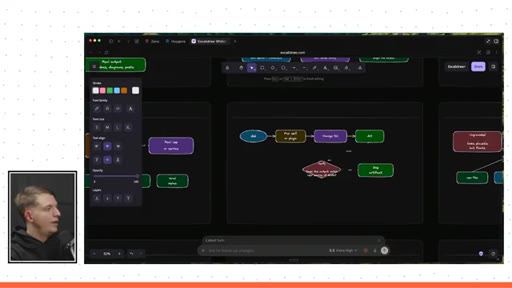
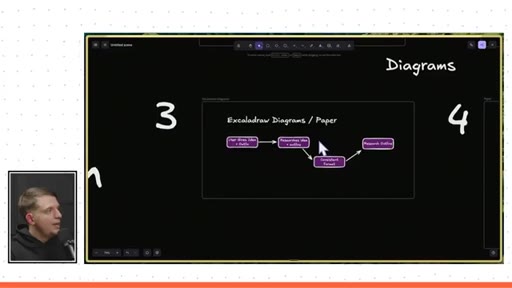
04 · Skill 3: Excalidraw Diagrams

Auto-generate visual outlines using parallel sub-agents. Edit directly on Excalidraw canvas.

22:11 – 27:10

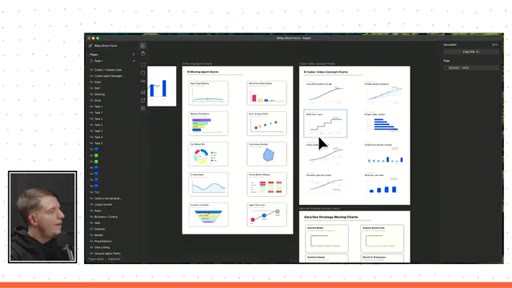
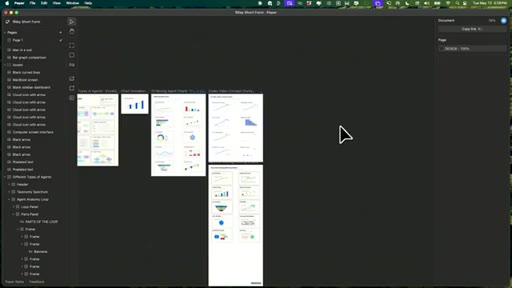
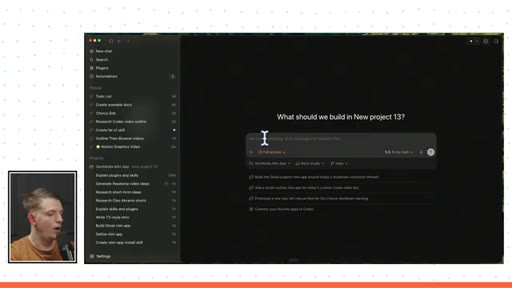
05 · Skill 4: Paper

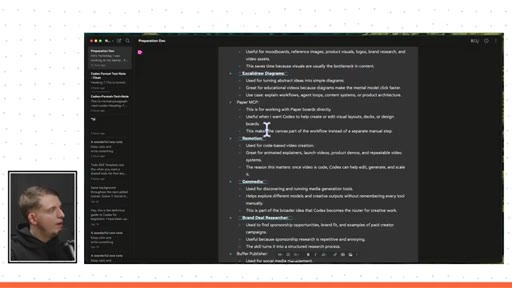
HTML-based MCP tool for animated explainers, landing pages, lead magnets, and thumbnails with live MCP steering.
27:10 – 35:12

06 · Skill 5: Remotion and Hyperframes

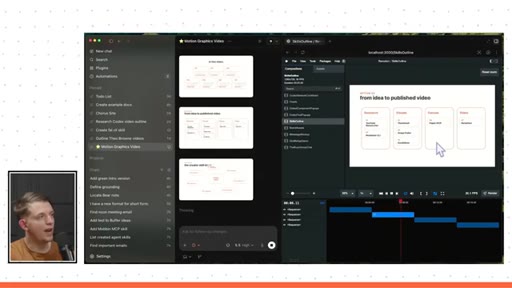
Code-driven motion graphics for YouTube overlays. Time-coded edits, reusable compositions, 4-scene variants.

35:12 – 40:49

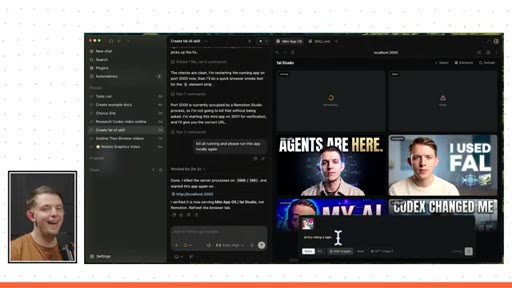
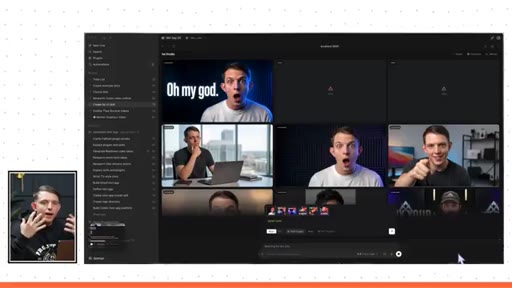
07 · Skill 6: Gen Media (FAL API mini-app)

App wrapping every FAL model. Both human and agent drive it. Agent generates; human edits the final 10 percent.
40:49 – 45:38

08 · Skill 7: Email Manager / Brand Deal Researcher

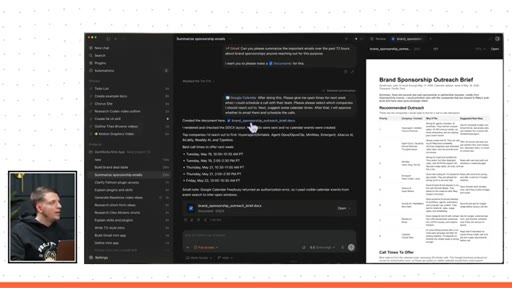
Gmail plus Calendar plus YouTube Researcher combined. Scores brand deals, builds priority table, suggests meeting times.
45:38 – 49:34

09 · Bonus: Buffer Publisher and Chorus tease

Codex scans its memory and pushes 5 ideas to Buffer. Soft pitch for Chorus cloud agent.

§ · Storyboard

Visual structure at a glance.

open cold confession
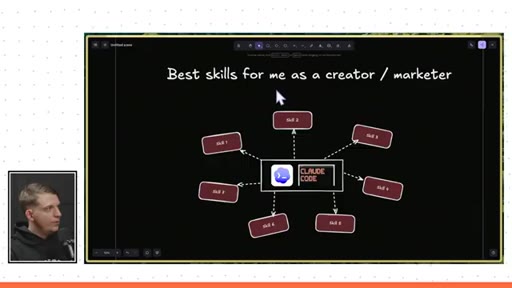
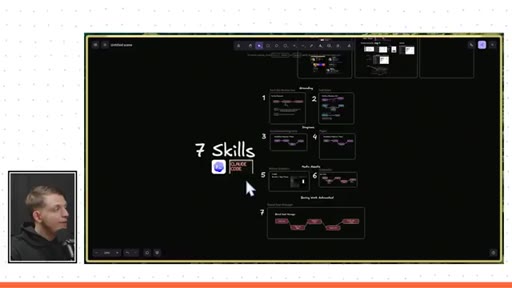
skills mind map
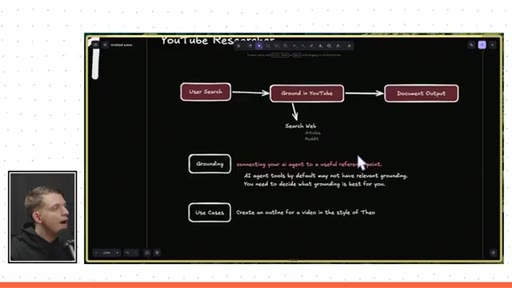
YouTube Researcher diagram
Readwise 30 video ideas
Excalidraw skill intro
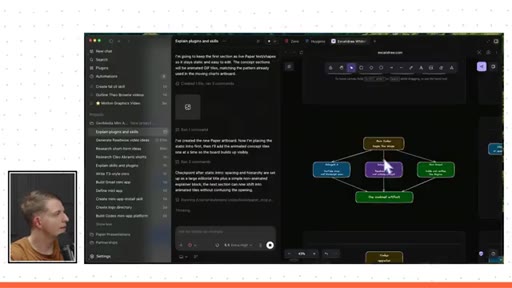
Paper animated diagram
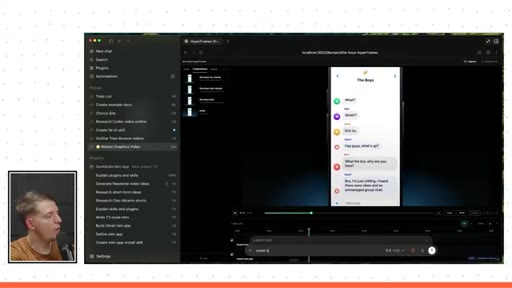
Hyperframes phone animation
Gen Media FAL thumbnails
Brand deal priority table
Buffer ideas uploaded
§ · Frameworks

Named ideas worth stealing.

05:59 concept

The Grounding Stack

Before generating content, point the AI at a high-quality reference: a creator transcript, your bookmarks, your past videos. Output quality jumps because the model is calibrated to a specific taste.

Steal for Hook writing, outline generation, style matching
17:20 model

Skill-First Automation Loop

  1. Run the task manually until you love the output
  2. Tell the agent: turn this into a skill
  3. Iterate until repeatable
  4. Then automate it on a schedule

Never automate before validating the output. Build the skill first, then the automation.

Steal for Any repeatable content or admin workflow
37:00 concept

Mini-App Architecture

Build apps both the human and the AI agent can drive. Agent generates into a shared grid; human does final selection and polish.

Steal for Thumbnail pipelines, video overlay creation, any generative media workflow
13:20 concept

Skill Stacking

Combine multiple skills using sub-agents in one chat. YouTube Researcher feeds Excalidraw; Readwise feeds hook writing. Skills compound.

Steal for Multi-step research-to-creation pipelines
§ · Quotables

Lines you could clip.

00:08
"95% of the tasks that I do on my computer for content and marketing is inside Codex."
Strong specific claim, no setup needed → TikTok hook
13:13
"Do a useful thing, and once you create an output that you like, say please turn this into a skill. Once that happens, say I want you to do this every day at x time."
Actionable two-step framework, tight delivery → IG reel cold open
37:00
"What separates an app that you create and a mini app is that the agent can also use it."
Clean one-line concept definition → newsletter pull-quote
40:17
"I wanted to create a bunch of options, and then take it the final 10% because that is where all the value is."
Contrarian but credible AI philosophy → IG reel cold open
§ · Pacing

How they spent the runtime.

Hook length38s
Info densityhigh
Filler8%
§ · Resources Mentioned

Things they pointed at.

10:20toolSupaData ↗
11:43toolReadwise ↗
22:11toolPaper
27:10toolRemotion ↗
27:10toolHyperframes
35:12toolFAL API ↗
45:38toolBuffer ↗
45:38productChorus ↗
§ · CTA Breakdown

How they asked for the click.

46:33 link
"All of these skills can be found on chorus.com/skills. You can use them in Codex or Claude Code."

Soft and brief, mentioned twice, no hard sell. Also teases a free Chorus cloud trial.

§ 04 · The Script

Word for word.

HOOK opening / re-engagementCTA the pitch analogy
00:00HOOKYesterday, I was working on my laptop, and I realized that 95% of the tasks that I do on my computer for content and marketing
00:08HOOKis inside Codex. And Codex is OpenAI's
00:12HOOKbrand new super app. And the reason I'm able to use AI agents for almost all of my marketing tasks is because I've built a layer of skills around Codex. These are repeatable workflows that I use every single day to help me go from 1,500,000
00:29HOOKfollowers to hopefully 10,000,000 followers by the end of next year. In this video, I'm gonna walk through the top seven plugins and skills that I use every single day inside Codex.
00:42And if you are a Claude Cowork or Claude Code user, these skills will work in the exact same way, and you can use them. And I guarantee you, you will get value from this video. You are going to learn a marketing skill that will impact your business or your personal brand.
00:58Let's not waste any more time. Let's dive into the video.
01:03Okay. So today, we're gonna be talking about the best skills that I use as a creator and marketer. And again, this works inside Claude Code and Codex.
01:13So before we dive into the seven skills that I use basically every single day for marketing, I do wanna discuss the basics of Codex, and I also wanna talk about what a skill is. Alright.
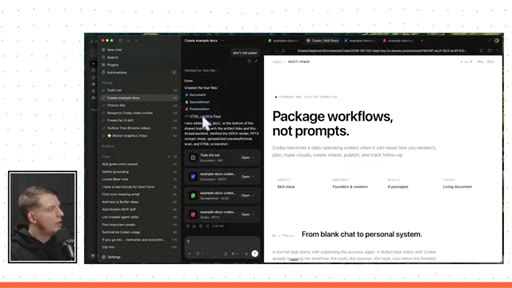
01:25So this right here is Codecs, and Codecs is somewhat similar to Claude desktop app, which has chat, co work, and Claude code. The reason I use Codecs is they basically combined all of them into one experience,
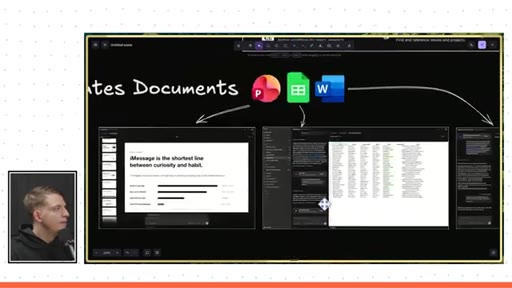
01:41and it's just Codecs. And on Codecs, you can generate slide decks, you can also generate spreadsheets, and you can work directly in the spreadsheet.
01:50You can generate full documents, and you can also generate any type of app or web page. When you use Codex, you're basically prompting an AI agent and you can select your model, and this AI model has full control over your computer.
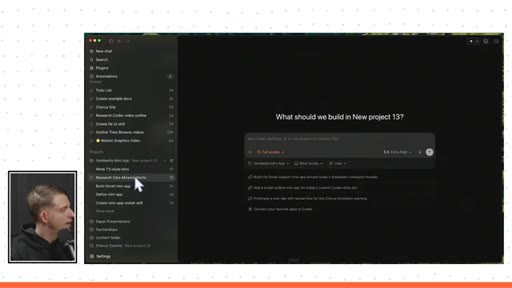
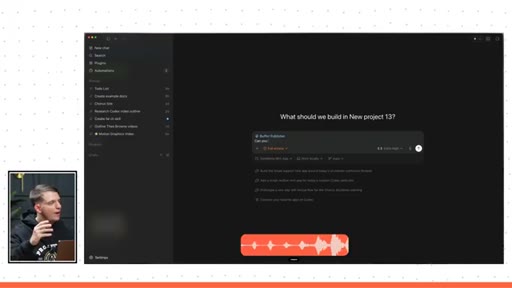
02:04It can edit, delete, and create files on your computer. Basic overview of how the app is kind of organized visually, you have your agent chats here on the left side.
02:15Up top on the left, you have kind of your different features. In this middle column, you have your agent conversation,
02:23and then you have your preview, and this will be a preview of an app if you ask for an app. It'll be a preview of a browser if you ask to navigate to a certain website.
02:31It'll be a preview of a spreadsheet if you ask it to create a spreadsheet, and it will be a preview of a presentation if you ask for a PowerPoint. And so that's what makes this a super app is depending on the task, it'll open up a preview, and this preview is very dynamic. It can be many different things.
02:50And so, of course, you can create many type of documents, you can create any type of app. They have skills and plugins, which we're gonna be talking about today. This is gonna be the most important part, and today we'll also touch on automations because automations can actually be used
03:05with skills and plugins. They kind of go together because you can see here, this is actually a good example of an automation that I've created, and this Google Calendar and this Gmail are plugins. And so we're gonna talk about that today.
03:18And the final thing I will say about super apps is they're getting better at controlling your computer. They have computer use, which allows you to fully control your computer, and it also has browser use. And so remember, we talked about this in app browser here.
03:31The agent can actually control your browser, and you can see the mouse moving around controlling your browser. Every single month that goes by, it'll get better and better at controlling your browser. And so while you're using Codecs, there's two commands that you should be aware of when using skills.
03:46The first one is a skill. So if you want to use a skill that you've already created, you can press slash, and we can you can see here, I can type YouTube researcher skill,
03:55I can use the Excalidraw diagram skill, I can use the Remotion
04:01best practices skill. These are all skills that I've added in the past.
04:05I can also use plugins by pressing the at sign, and here we can use computer use, which is a plugin. I can use Gmail, which is a plugin.
04:14I can use Calendar, which is indeed a plugin. In order to access plugins and skills, go up to the top left and click plugins. And so you can think of plugins as bundles of skills and abilities, and you can think of skills
04:28as instruction files for an AI agent. Just to show you an example, I use Vercel very often to deploy the apps that I create inside Codecs on the Internet so I can send them to other people. If you click on the Vercel plugin,
04:42you'll see that this includes many skills. You can see one, two, three,
04:47all of these different things are skills. So these are all bundled together into a plugin. And when you go on Codex, if you were to type in at Vercel,
04:58this points to the plugin. And so it'll usually understand what you mean, and it'll actually choose the right skill to use. And then I can also do slash
05:07Vercel, and if I wanted to tag a specific skill within the plugin, I could go to Vercel sandbox, and that would actually spin up one of the Vercel sandboxes.
05:18But again, the at sign allows you to at mention a plugin, and the slash symbol allows you to access a specific skill.
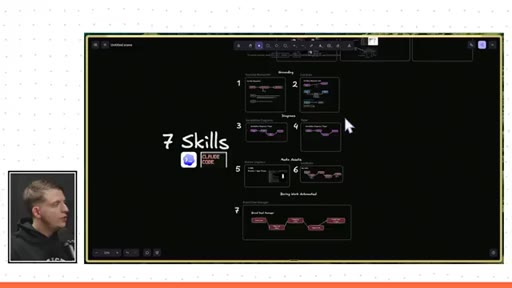
05:28Okay. So now that you have some of the context and you understand what Codex is and how it's a kind of a super app that can use plugins and skills, let's dive into these seven skills. And these are gonna be a mix of plugins and skills.
05:41And all of these skills are gonna be available if you go to chorus.com/skills. By the time this video is done, you can find all of your skills here, and in one click, can use this on Codecs, you can use it in Claude Code, or you can use it directly inside Chorus. Alright.
05:57So now let's dive into skill number one for content creation inside Codecs. Alright.
06:04So skill number one and skill number two have to do with a concept called grounding. So what grounding is is basically connecting your AI agent to a useful reference point.
06:16And so if you've used ChatGPT before and you ask it to create content or come up with an outline for a YouTube video or ask it for a short form script, it's not grounded in anything useful for you. If you think about it, OpenAI is a company, and they train their model on a vast amount of data.
06:34And when you ask it to create a script for Instagram or TikTok, it's they are the ones who train the model. And they use reinforcement learning, and they basically looked at the outputs, and they said good job or bad job or good job or bad job, and they train these AI models to create a script based on their opinion of what good content is.
06:53Well, depending on your niche or depending on who you are, you might have a specific taste that you like. And so what you wanna do is you want to actually ground the model or point your AI agent at a place where they can find a high quality example. And the best way to do this, in my opinion, is to give it access to YouTube.
07:13And so the first skill that we can use inside Codex is YouTube Researcher. So, again, all of these skills can be found on the skills page in the description.
07:23But whenever I say slash YouTube researcher, please can you generate an intro for this video in the style of Theo Brown.
07:35I forget the name. T three chat guy. The topic
07:38is, and then we'll just say, this video, and I'm gonna give it the outline. And so here's where I'm writing my content script, and if I just paste this in here, now if I press enter and I wanna create an intro for this video in the style of Theo, this will allow it to go to YouTube, pull the transcript immediately,
07:58and I could ask it to say, please can you pull his latest 10 videos and figure out which one best fits your idea, and then I want you to come up with five hook options or intro options. And so now what it's doing is it is going off, going to YouTube, pulling all of these different transcripts, and then it will come up with a good intro grounded in his examples.
08:22And one of my favorite things about Codecs is I can actually multitask. So if I press command n, I can immediately switch chats and I can say, please,
08:31can you find Cleo
08:34Abram on YouTube? I want you to look at the transcripts
08:40for her shorts. Please come up with five options for short form content.
08:48And I can paste that script in, and we can run it. Another thing that I really like to do is if I'm trying to learn a topic, and by the way, we'll come back to these, they're still loading, right? We can see down here,
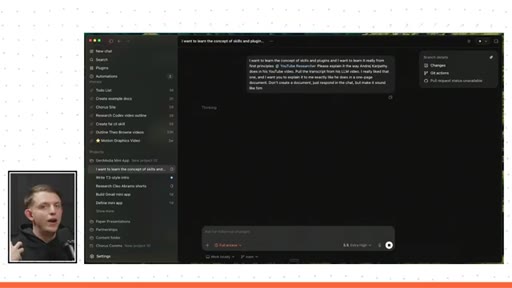
08:58we see that they're, these both are working, and you can see which one's working. You can see that this one just finished because it's a blue dot, and this one's still working. I want to learn the concept of skills and plugins, and I wanna learn it really from first principles.
09:12And I can say slash YouTube researcher.
09:15I want you to explain it in the way that Andre Carpathi does in his YouTube videos, so please pull the transcript from his LLM video. I really like that one, and then I want you to explain it to me exactly like he does in a one page document. Don't create a document, just respond in the chat, but really make it sound like him.
09:30Right? Now we're just using it to learn. We're having it explain it in Andre Karpathy's voice, and now it's grounded in YouTube, and this is just one really cool way that I can use it.
09:40So here, we have some options in the style of Theo. Codex is starting to get really weird for me. Classic Theo at Hook.
09:48A few months ago, it was the thing that I opened when I needed help with code. Now it's where I do almost everything. Research, docs, content, planning, emails, scripts, thumbnails, publishing, all of it.
09:58And the funny part is, I can actually picture him say it, uh, like, and it is genuinely in his voice, and so that is really why I like to use this skill. Here is the Carpathi style for skills, and this sounds exactly like him. Think of Codex as a little operating system around a language model.
10:14At the center, there is the model. The model can read text, write text, reason, and decide what to do next. But by itself, it doesn't know your personal workflows.
10:22It does not automatically know that when Riley says research YouTube, the right move is to use supadata, pull transcripts, compare hooks, and synthesize patterns. That knowledge has to live somewhere, and that is what a skill is. And this really does sound like Andre Karpathy.
10:38This is kind of exactly how he would explain it if he were to be making a YouTube video on this topic. So in order to pull these transcripts, you actually will need access to one external tool, and this is actually called an API.
10:52And an API is basically like a password so that you can use certain technologies, and you can basically pull information from certain software. And in order to get that, you need to go to SupaData.
11:05Can just Google SupaData, and here you go. And this actually works for Instagram,
11:10YouTube, and TikTok, I believe. And you can pull the transcript from any video, and I believe it actually works on X as well.
11:17Alright. So that's a pretty simple skill. YouTube Researcher allows you to ground whatever task it is that you're trying to create in YouTube transcripts,
11:27which allows you to pull any data immediately, and you can use this with any AI agent, and I really love this one. The next one is somewhat similar, and it also has to do with grounding except it's in your own second brain. This is the second useful skill for content creation, the Readwise
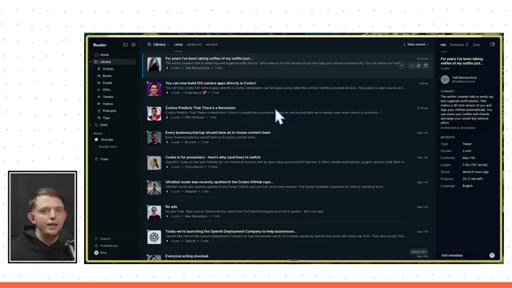
11:44CLI skill. Many of you have likely heard of Readwise, and maybe you think of it as a way that you can, like, highlight things in a Kindle or on the Internet, and you save it to a central database. And that's partially what it is.
11:58But basically, I use it on Twitter. I I'm I'm in the AI space, and Twitter is where so much is happening, at least a massive part of the conversation around AI topics happen on Twitter. And so let's say I find something interesting.
12:12All I have to do is bookmark it. On Readwise, I can automatically sync my bookmarks to Twitter, and this will automatically
12:21send this to Readwise. Now, this only happens once per day once you set up this integration, but in order to send it right away, you can just use the Chrome extension. So this is Arc browser, but you can use the Chrome extension,
12:34and you can just press this button right here, and you can automatically save it. And you can even add a note here, and you can say this should be used in my next video. And you can save this, and this will automatically get saved to your Readwise.
12:49You can see here what we just saved gets saved to your Readwise. But here we have just all of the interesting tweets that I've bookmarked or manually saved on my computer or on my phone, then you can share it to this central database. And because Readwise
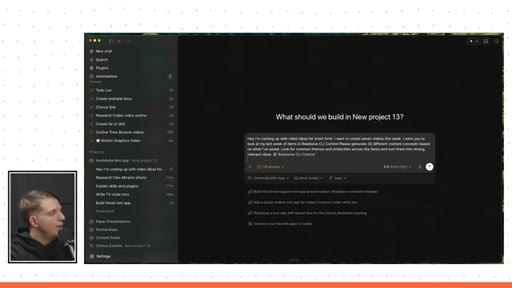
13:07has a CLI tool you can use, you can create a skill that accesses all of this information. So what I can do is I can go to Codecs, and I can say, hey, I'm coming up with video ideas for short form. I wanna create seven videos this week.
13:22I want you to look at my last week of items in and I can do slash read wise slash read wise CLI control.
13:32Please come up with 30 different concepts that I could do based on the content. Look it for for commonalities
13:40and similarities between the items that I've saved and really come up with good content ideas. And so I can run that prompt.
13:47You know, the next level of this might be something like, might be an identical prompt, and remember I was gonna say read wise by control. I'm gonna say please make sure to look at my content for the past week on YouTube. Right?
14:04And then we can use another skill, which is YouTube researcher, so we can ground it in my YouTube. And so now we're saying, look at my previous content. Also,
14:13look at all of the things that I find interesting. Now come up with 30 ideas. And so we can run both of those at the same time.
14:20Alright. So the first one is done, and so this is the one that didn't reference my YouTube videos. But you can see here that it went through all of my
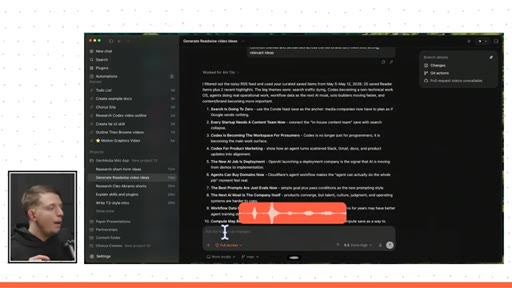
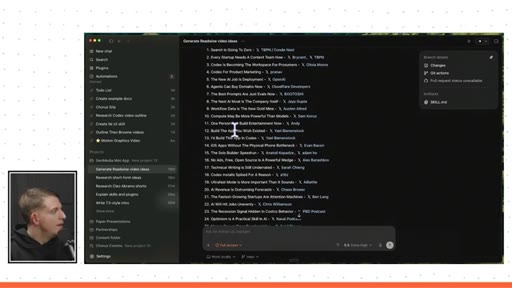
14:29different things that I saved inside Readwise, and it came up with 30 different ideas. And here you can see search is going to zero,
14:37every startup needs a content team now, Codex is becoming the workspace for prosumers. These are all tweets based on on things that I've saved to my second brain. One thing that I just realized
14:49is I wish there was actually a link a link to the original post that I could click on. And so what I can do is I can say, can you please add the link
15:01to the original post where, like, whatever your idea is, I want a link to the original post.
15:09And then I want you to update the skill so that you always include that. You should never not include the original link. And so this is a skill that I've created that uses Readwise
15:23CLI control, and the way that you edit a skill is just by telling it to edit the skill. You say, from now on, whenever I use this skill, I want you to do this. And it will just immediately edit the skill.
15:35Like, I'll update the Readwise skill so future content idea outputs always include the original source URL when Reader exposes it. And so that's all it takes.
15:45And there you go. We now have a list of all of the things that I've saved. These are video ideas that I can use.
15:52And if I want to reference the original tweet and look, some of them even have two. So every startup needs a content team.
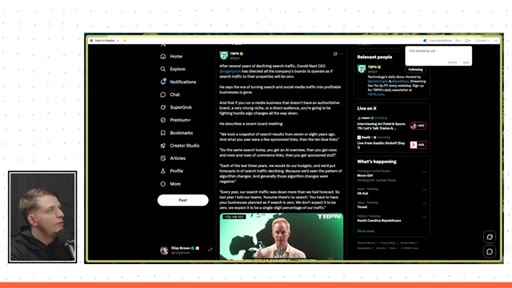
15:59Now there's two tweets, so one and two, and we opened the two tweets that it referenced. So this one, every business should have an in house content team, and this is the one from TBPN saying the days of turning search and social media traffic into profitable businesses are gone and saying that you need to have an authoritative brand.
16:18So they are relevant. For the video idea, every startup needs a content team. And so I really like this.
16:24In fact, I might actually use this to help come up with content ideas. And maybe, let's say I wanted to see this every single morning. Well, it's as easy as this.
16:35Hello. I want you to turn this into an automation. Every single morning at 8AM in this chat, I want you to take the stuff I've saved for the past three days and create a document exactly like this, And, yeah, I want that to be in this chat and every single morning,
16:54seven days a week. So now this will actually create an automation. And so it will automate the use of the Readwise skill,
17:02and it will create a document just like this. And I tell people that's how you should create skills and automations. You should do a useful thing,
17:10and once you once you use the tools in the right way to create an output that you like, say, please turn this into a skill called blank. Once that happens, then you could say, okay. I want you to automatically do this.
17:21Like, after you test your skill and iterate and make it better, you could say, I want you to do this every day at x time. And so here it says done. I created a daily automation for 8AM every morning in this chat, and you can actually click on this directly or you can come up to automations and you can see that it's the morning Readwise short form ideas,
17:40and there we go. We are using the Readwise Reader CLI workflow, and we are sending them some video ideas every single morning.
17:48And that is skill number two. Let's move on to skill number three. Alright.
17:54So for skill number three, we have Excalidraw diagrams.
17:59I've talked a little bit about this before. This right here is Excalidraw. I literally use Excalidraw for all of my content.
18:06And whenever I'm trying to create a visual diagram of anything, I use the Codex Excalidraw diagram skill. And I can do this by going to Codex, command n.
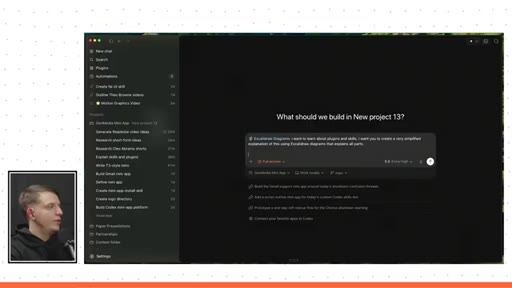
18:17I can do slash Excalidraw. And remember, all of these skills you can find in the link in the description, and you just go Excalidraw diagrams. I want to learn about plugins and skills.
18:26I want you to create a very simplified explanation of this using Excalidar diagrams.
18:33I'm gonna use this for my video. And as we go along, I'm gonna use these skills together. Right?
18:37So I I wanted to create an Excalidar diagrams. Please do it in my voice, and you can use the YouTube Researcher skill to find my voice about codex.
18:48You're explaining this in context of codex, and if you need to reference some of the tweets that I've saved in the past to get some, like, outside perspective, you can do that as well. Alright.
18:57And we can use the Readwise, which is I should probably call this second brain. That would be a better and easier one to use than the Readwise CLI control. We're basically just using our second brain.
19:06We're just giving it some context. But again, I really want you to create it in the format that is outlined in the skill, because there's an exact format that's outlined in the skill, and it will it should follow those design patterns.
19:19This one might take a little bit longer because it has a lot of steps. It knows it needs to create a diagram, but it also has to get some context from YouTube. Oh, watch this.
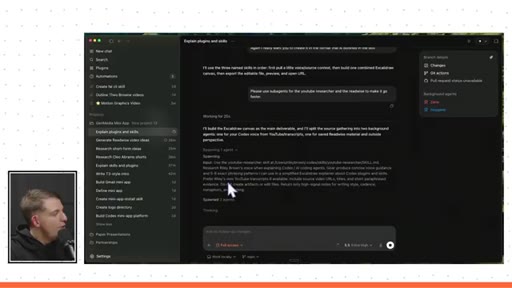
19:28So I can actually stop this, and I'm gonna say please use sub agents
19:33for the YouTube researcher and the Readwise to make it go faster.
19:39And sub agents are where the main agent that you're talking to can spin off little sub agents, and they can work at the same time. And this allows it to go much faster. And you could see here, it says spawned two agents.
19:52And look at this, it says it created Xeno and Hygens.
19:57And so we can see these sub agents working in the background, which is really fun.
20:02And they work at the same time, so it's just way more efficient time wise to spin up sub agents. Alright. So after around ten minutes and fifty seconds, we are done.
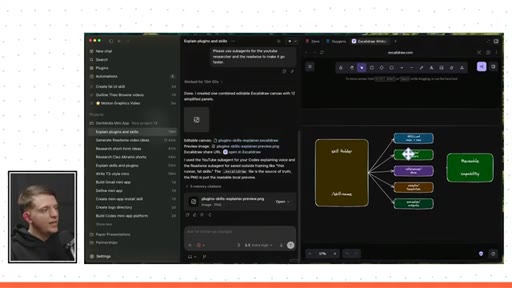
20:12And the sub agents completed, and this is what we got. So you could see here that it says Excalidraw
20:19share URL. Part of the skill that you'll see when you download the skill, which is in the description, remember, you can just right click this and you can say open in browser.
20:30And what this will do is it'll load a screen. It looks kinda scary, but then you just hit replace my content. And there you go.
20:36It created these diagrams right here.
20:40And so you can see here that in the skill folder, we have the skill name, we have a skill dot m d, scripts, helpers, references, assets, examples, and outputs,
20:49and it creates this document in this format. I like this format because it kind of just looks like a presentation.
20:56It's really easy to follow. There's not a lot of text. I don't like a lot of text.
21:00I want the visuals. I can add the text. And so I just wanna create a general outline.
21:05When you create these diagrams here, I like to full screen this, and then you can even remove the side panel so you can kind of go full screen. And now we can
21:16just really analyze what we have here, and you can edit it directly. So, like, here, we can say, like, change this. Right?
21:23You can change these things, and you can create these outlines to your videos.
21:28And I think videos that use mind maps or Excalidraw diagrams are incredibly engaging. By default, it will use too much text.
21:38And so that is just my preference, but you can edit these however you like. With if you download this skill and use it within Codex, you could say, hey. Can you please update the skill so that it includes more text?
21:49Maybe you want to have two or three lines of text beneath the diagram to explain it more, and that's perfectly fine.
21:56You can customize it however you want. Alright. So that is the Excalidraw
22:00diagram skill. It's relatively simple. Now what if you wanted to create more interactive diagrams
22:07that's a little bit more professional? And that's what brings me to Paper. Now Paper
22:13is just like Figma, except it's made specifically for AI agents. This is HTML based, and it allows you to create really cool diagrams
22:24with AI agents. And they have a really good built in MCP tool, and you can connect it to Codecs. So we could actually go to the same chat here, and I'm gonna say, can you please
22:39make an animated, high quality diagram
22:44on paper that explains these concepts?
22:48Can you please focus on the topics surrounding skills and plugins? So now I can scroll down, I can do this slash,
22:57and I can type in paper, and I can use this paper MCP tool. Please look at the canvas that I have open, put it there.
23:06And also notice how I'm kind of creating those animated charts. I want those to be animated as well. So make the first intro section not animated, and then make the rest of it, which goes through each concept, animated.
23:18So now we're using the Paper MCP, and this one is connected to a tool that is outside of Codecs. And I would actually prefer if it opened up in this browser.
23:27I want everything to open up in this browser, but this is a little bit more heavyweight of a tool. Right?
23:33It's a lot like Figma. It looks like Figma. It's just kind of the AI version of Figma.
23:37You can edit things directly on paper. Like, can come in here and change this to banana, and you can edit it directly,
23:46website. And you can fully design websites, and then you can say, okay, turn that design into a website, and Codex will just do that. The cool part about Paper,
23:54which you'll see in a second, is it updates it live. I'll show you. And this is really cool.
23:59You can actually see the AI is present right here, and it's actually analyzing these right now. It's not gonna change these, but you can see that it's analyzing these to kind of get a style reference, and then it is going to generate some new slides.
24:14So it's just begun working on this skills and plug in animated explainer, and we can see it work live.
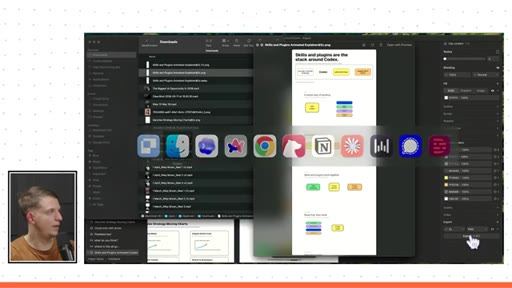
24:22Skills and plug ins are the stack around codecs, and we can see it design in real time.
24:33Oh, look at this. So this one's animated a little bit. I don't know how animated this needs to be.
24:45And we can actually give feedback in real time. Right? We can just screenshot this and since it has steering,
24:53right, since it has steering, what we can do is we can go to Codecs and say fix this overlap.
25:00Also, put all of these on their own row instead
25:07of too wide, they're scrunched.
25:11And since I have steering on by default, I can just inject my prompt directly into Codex and we can steer it back so that everything fits perfectly. Right. You can see here it's kind of fixing its formatting in real time.
25:25It made everything wider, and that's why you always want to steer it when you see it's going wrong, and now it's much cleaner. Right? We gave it a lot more room to operate, and I think this is a pretty good start.
25:37And it is finally done. And so this is what it created. Kind of a nice little animated diagram here showing the full process
25:46of how skills work with inside codecs.
25:50And if you wanna use these images anywhere, it's really easy to just click on this right here. You can scroll down and you can export it. So we can export this as a PNG,
26:00and it gets automatically saved to the downloads. We can click on this. We can open this up.
26:05We can make this a little bit wider, and you can zoom in and you can see all of the images that it creates. And some use cases that I've personally used it for is just ideation,
26:16you know, whether I'm ideating something for my Instagram or if it has something to do with brand, it's really good for ideation, similar to Excalidraw. I use it a lot for website creation, so I'll just have it generate 10 different options for a landing page. I also use it for lead magnets.
26:32And then also thumbnail creation, which I'll get to later. We're about to get to the coolest skill, number six, which is gen media, which is actually insane.
26:40I'll get to that in a second. And we're actually gonna come back to the paper skill, and that that will be the coolest use case for paper. And then also just general brand planning,
26:49and you can use this in tandem with image generation, which is incredibly interesting. So that's kinda how I use skill number four, which is paper. Alright.
26:58So now it's time to dive more into more immersive assets that you can create for marketing. And the next one is kind of a duo.
27:08Two skills or two plugins in one, and that is Remotion and Hyperframes.
27:14So if you create a new chat on Codex and you type at Remotion, you can reference Remotion.
27:22This is a plugin. Remember, at is plugin, and you can find this in plugins.
27:26So the plugins we're talking about is Remotion, and we're also talking about hyperframes. They are both built into
27:33codecs, but you do need to enable them. And so you can do at Remotion or at Hyperframes. Now, I've heard many people say that Hyperframes is slightly better.
27:45It's just a different technology. I haven't done enough research to figure out what is the difference. I like the Remotion Editor.
27:53It's been around for longer, and it feels more professional, but hyperframes can do more advanced
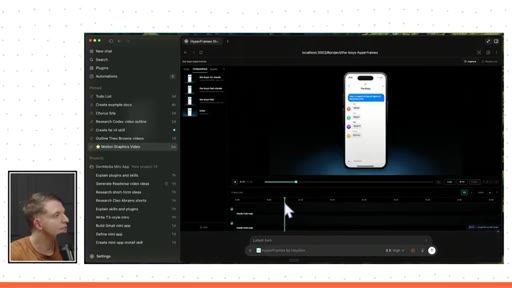
28:00motion graphics. And so, for example, I've created a video in the past. This is with hyperframes, and so I created this animation of this phone,
28:09and we can actually play this. And here's just a live demo of me putting an AI agent in a group chat,
28:16and I wanted to create it, and look at this. It it basically created this in two prompts. It created the phone border,
28:24and it just created these text animations inside. And so just like, you know, Premiere Pro or something, right, you have these different timelines.
28:34So you have a timeline, and you can scroll to the exact second that you want, and you can reference it. You can say, at eight seconds, I want you to zoom
28:44in on the phone. And so if you work for a company and you wanna sell your software, whether that is a a app on the computer or if it's an iOS app, this is a really good way to do it.
28:56You can show a demo, and you can add a screenshot, give it to Codex, and say, I want you to create a demo of this user interface. Alright. So it just finished.
29:04It says done. I added a zoom at eight seconds. So we can go see, we're at six, five, and we can let's go down right here.
29:11We can go to eight seconds. You see? It zooms in at eight seconds
29:17now.
29:20See that? It zooms in, and you can get super granular. So I can say zoom out at eleven seconds.
29:28At the beginning, so zero seconds, I want the phone to fly in from the left, a little bit more animated. I want the gradient to turn red at ten seconds. Once the phone leaves the screen or on the way out, I want it to, like, do a full three sixty spin.
29:42When the agent types a chat, I want it to, like, splat onto the screen or, like, be a little bit more animated when the message comes onto the screen, right, because it's just pretty boring when the agent types something. I want it to be a little bit more animated, and so, yeah, we can run that. And this actually goes pretty quickly, right?
29:59They make these changes pretty quickly, And here we can see it zooms in. Oh, wait. It should fly in from the left now.
30:06See it flies in from the left. Oh, it's nice and animated. Let's see when the agent
30:14kinda zooms in.
30:18It does kind of animate a little bit more when the text comes in. Let's see what happens when it comes out.
30:30Let's see if it's let's see. And there we go.
30:35It slides out. That's pretty good. I will say the physics on hyperframes is a little bit better than Remotion,
30:43but you can try out both. And so this is really good for launch videos. It's also really good for b roll or on screen overlays for your YouTube video.
30:51For example, in one of my videos recently, uh, that got a 120,000 views, we used this in the intro. In this video, we're gonna be breaking down the seven core capabilities of Codex, OpenAI's AI agent super app, each with real world view And just something simple like that that, like, really gets the viewer, right, they just see.
31:11They can see a clear outline of the video. I use Remotion for this all the time. And what's cool about this is we can actually reuse these templates.
31:22For instance, now I'm running Remotion. And remember, I don't fully understand the difference. I just know that I've used Remotion a little bit more.
31:31And in Remotion, I've created these different graphics. You can see, remember that graphic I was just showing you?
31:37Here is the example of one. Right? Here is the video that I've created that shows the seven different capabilities.
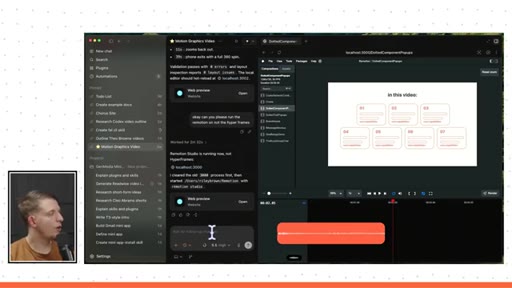
31:44They pop up on screen. Now what I can do is I can say, okay, I wanna create another one except for the seven skills that I'm mentioning in this video here. Please make a new composition
31:54called skills outline. And what I can do is I can go to our script that we've created,
32:00I can copy this, use the seven, just pick seven of of these and put them in this outline, create a new composition. I actually want you to create the first one exactly like the dotted components composition,
32:13and then I want you to create three more that are like different variations. This should be all on one composition, have four different scenes. That's how I want you to make the options.
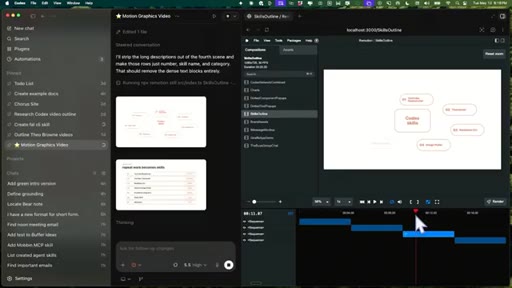
32:22And so just some vocabulary here. So it's gonna create a new composition, and it's going to have multiple scenes on that same composition, and I'll be able to choose which one I like most, and then I can I can render that one and put it as an overlay in my video?
32:37And so it's still working, but you can see that it did create skills outline. In fact, I think what it's doing right now is taking screenshots of it in the background to try and get an idea of what it looks like.
32:48So this is the first one. And remember, we referenced this dotted tool pop up, which looks exactly like this. Right?
32:55And so this one's gonna be very similar. But I told it to be creative for the next one, two, and three. So let's give these all a try.
33:03So this is the first one. Looks very similar to the original. The next one oh, so they have them divided by category.
33:09That one's kinda cool. Here, they kind of go around the circle. And here, if we wanted to make a change, all you need to do is come up here, click take a screenshot, paste it in.
33:21Please fix the overlap.
33:24No need for heading on this one. Alright.
33:27It's really easy to just copy the screenshot, give it to the agent. Let's view number four.
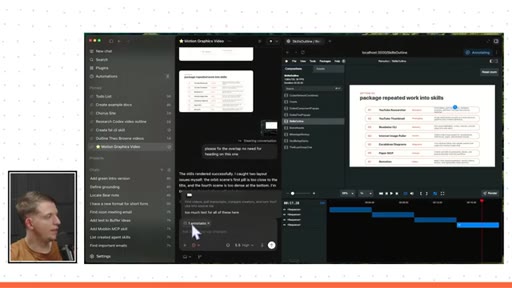
33:34And this one, a little too much text again. We can I can select this part?
33:40Too much text for all of these here.
33:45And you can see that this has one annotation, and we can just say fix.
33:51Right? Because the annotation is part of the context. So that's another hack, is you have this annotation,
33:57you can annotate directly, or you can just take a screenshot and paste it in.
34:03Those are kind of the two ways that you can edit it. So I'm gonna wait for it to finish here just to show you that we made some edits. And here we are.
34:10We see that it made the change. It got rid of the heading for this one, and I believe it made some less text on this one.
34:18So you can see here, we made we have some options. And then once you're done with the video that you're creating, whether it's with Hyperframes or Remotion, you can just click Render and then Render, and this will actually save it directly
34:32to your computer. And so this right here, this whole thing on the right is like a little mini app that runs locally on your computer. And we can open this up, and I can see right here we have this skills outline.
34:44We can open it up, and here we have the actual video exported. I could put it in Premiere Pro or any video editing software, and this is super useful for launch videos and for on screen overlays.
34:58Okay. So that concludes number five, which is remotion and hyperframes. I've created a full video on, uh, using codecs to make remotion videos that goes much further in detail, so that'll be in the link in the description.
35:10The next one is the one that I just started working on, and it takes further this idea of mini apps. Let me show you. So if you guys have been following my content for a while, you know that I vibe coded this app that uses the FAL API and allows me to generate images.
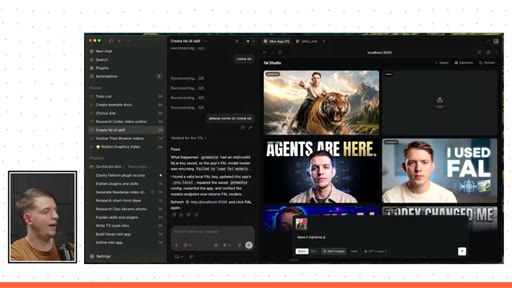
35:28So I can generate an image of at Riley. I can go at Riley riding a tiger.
35:35And what this does is this uses the FAL API. And the FAL is just a
35:41platform that hosts all of the different creative AI models, every single one. And so what I did is I said, I want you to create a an app, except I had added a local database, so all of these images are stored on a local database.
35:57And so the FAL API allows you to just use any of the different image or video models. And if I change it to FAL mode, I can click on this, and I can choose from any model.
36:08Here's image to video, video to video. We have Topaz video upscale. Literally any type of asset
36:17that you can create on FAL is available in this app. And I created the first version of this app in one prompt, And it took forty minutes to go through all of FAL's image generation and video generation APIs, and it added all of it.
36:31And it spun up this app right here. So not only can I generate an image of me? Right?
36:36I generated an image of me on a tiger, and then I can very easily just drag it oops.
36:43I can go to basic mode. Basic mode just uses the GPT model, and I can just drag this down here, and I can say, make it nighttime
36:51and make the tiger pink. So I basically vibe coded this app. What separates an app that you create and a mini app is that the agent can also use it.
37:04So if I were to ask the agent, can you please generate
37:09four photos of Riley for YouTube
37:13thumbnail and add them to the grid? I'm not actually using the app.
37:17The agent is gonna go through and use the APIs. I don't know which API it's going to use. I don't know if it's gonna use GBT image or one of the FAL
37:26APIs. The agent has access to all of them. It can use any technology that it wants, and then it's just gonna put them in the Alright.
37:33So it's done. And as you can see here, not only can I generate images right here, I can type in man, and it will generate within the grid, but the AI agent just generated one, two, three, and four? So the same APIs that I can use within this app, the AI agent can also use those same APIs.
37:52I control the app, and the agent controls the app as well. And so I think this is a massive opportunity right now in the market is to create skills that have apps within them. Right?
38:04There's a gen media skill, and within this skill dot m d, it teaches the agent how to use the APIs, specifically the FAL
38:14API. And so it can use any image or video model or sound model, etcetera. And within
38:20that skill, the agent can use the FAL API, but it also includes an app where the human right? A human can use the FAL API. And so when the AI agent uses this FAL API,
38:33it actually just places the images in the app. So anytime I ask the agent to generate an image or a video, it'll just give me a link to the app. I can open the app and I can see all of my images or videos in the grid, and then I can immediately edit it.
38:47The agent generated these right here. The agent generated this, and so I can very easily just drag this into
38:56here, and I can say, please add a white text on screen that says, oh my god. Dim the background and make it look a little bit more cinematic. And now it's generating.
39:06AI generates something, places it in the app. The purpose of the mini app is so that I can immediately open it up and make some changes. And look at that.
39:14It's done. So AI generated a bunch of images. I found my favorite one.
39:18I immediately edited the image, and here we have this YouTube thumbnail. And the AI
39:25has what I call elements. So it has photos of me in the app. So if I ask for a photo of Riley, it has Riley
39:34as an example. Right? It can use Riley
39:36as an example. And then I had it scrape YouTube to grab some thumbnails from other creators. And so I can very easily just say generate a bunch of thumbnails of Riley in the style of Matt Wolf.
39:48And since it has the elements, it's able to do that. Both the agent and I can use that feature. The agent can go into the database and see all the elements and I can also see the elements and use them manually.
40:01Like, I can just say Matt Wolf. Right? And it'll insert all of those thumbnails
40:05into the image reference, and then I can generate photos of me in the style of Matt Wolf. And so this one is a little bit more confusing, and it's one that I'm just working on now. But if there's one thing I want you to get from this, it's I'm ideating
40:17around how do I create this little mini app that I can use and the agent can use. And the purpose of the mini app is for the agent to be able to to cook, do whatever it wants, and then I can go in at the end and make some final changes until I really like the final output. Right?
40:33That's how I like to use AI. I don't like to rely on AI to do everything for me. I wanted to create a bunch of options, and then I wanna take it the final 10% because that's where all the value is.
40:42Finally, the seventh way that I use AI agents for content creation, the seventh skill that I use is my email manager. And so I have one skill that's a little bit less autonomous than the next one.
40:54I wanna first go over the less autonomous one, which is the brand deal manager. So what happens is is it's gonna search the inbox, It's gonna filter paid offers, and it's gonna look for companies likely to pay a high amount. Right?
41:07We wanna filter out the low amounts, and then we wanna get rid of duplicates, and then we wanna research whether it's a fit or not. It's gonna look at my YouTube.
41:15Right? It's gonna use the YouTube research skill. It uses some other skills within this skill,
41:20and it is going to create a priority table or sheet. It is going to create a table of the best brand deals or best companies for brand deals for my content. So I'm gonna run a couple of chats in parallel because that's how I normally work.
41:37I literally have so many chats over the last few days just firing them off. And what I do is is I'm I'm gonna first say, please run Brand Deal Researcher and make a table for the past week. I can run this.
41:49And it already knows how to do it. We can click on this and see the skills specifically, and that's one thing that you can do with a skill is you can view the skill very easily here on the right here. And as you can see here, we have, like, established the scope, search the email more broadly.
42:04To break this down, I'm gonna run a new chat, and I'm gonna show you the plugin that this skill uses. And it's just the Gmail skill or the Gmail plugin. And I can say, can you please
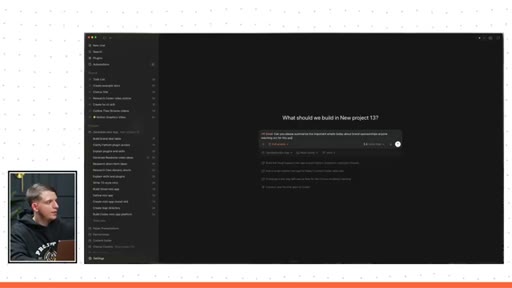
42:15summarize the important emails today
42:19about brand sponsorships? Anyone reaching
42:24out for this purpose over the past seventy two hours, I want you to please make a document for this.
42:33I'm just trying to generalize it a little bit because this Gmail skill is incredibly useful. You also have a calendar skill. So you can say, look at calendar.
42:41After doing this, please give me open
42:46times for next week when I could schedule a call with their team.
42:53Please select which, uh, companies I should and then I want you to suggest some calendar times and then I will give you approval after that on whether to email them and actually schedule those calls.
43:06And so now it's gonna go through all of my emails. It's gonna it's gonna summarize all of my emails for brand deals. And then it's gonna look at my calendar and decide what are some good times that you I we could schedule calls with these brands.
43:20And then it's going to suggest the times, and then I'm going to approve them. This is a very easy process. Right?
43:26Most of my time on email is filtering out and reading the bad ones. Based on its memory of me, it knows what I want and what I don't want. So I can get so much of that work done just with an AI agent.
43:38And then this is how you kind of, like, skill stack here, and we're able to just, like, schedule all the meetings. I can say, okay. I wanna schedule all my meetings during this time, this time, and this time.
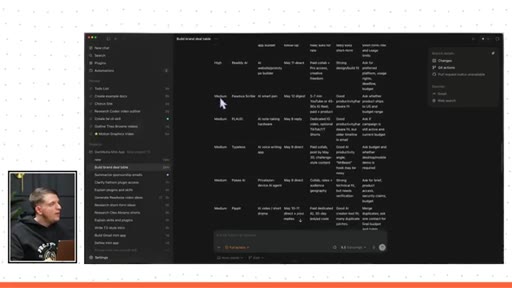
43:48And if you want to further automate it, of course, you can add automations which we talked about earlier. And look at this. So we have a table of every single person who's reached out to me,
44:00HyperAgent, Airwallex, Minimax, Hub Spot, Cursor,
44:04Canva, OpusCliff, Abacus, GenSpark,
44:09all of these companies have reached out, and we have this massive table. These are all, like, high quality companies here in the high priority. And as we move down to the medium, these are ones I haven't heard of as much.
44:20Right? The AI knows exactly what we're looking for, and it put it into this table. And I could literally ask it, like, hey, can you please respond to this company, this company, and this company?
44:30This is just a really good overview. Also, the summarized sponsorship emails, the one where I did the Gmail then the calendar, this one worked for seven minutes.
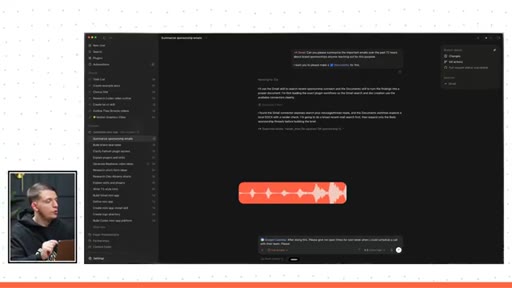
44:39And it's like I created a document here because we asked it for a document. If we click on this, this opens up and it created this very clean document, brand sponsorship outreach.
44:49And here, it shows some spare time that I have, and it gave us some suggested times to set up meetings. I could very easily ask it, say, yep. Set it up during this time, this time, and this time, and it would absolutely do that.
45:03And this is actually how I schedule my meetings. And regarding the, uh, automations, I do have an automation set up that does that first thing, which it creates a table of everyone who's reached out for the day. I check it every single morning, and it also emails me the same table that I can check on email.
45:20So if I don't see it within the Codex app, I get it sent to my email. It just sends it from me to myself, and it's incredibly useful.
45:28And, yeah, I get it every morning, and it gives me a nice overview of everything. I just use AI to organize all the information so I can make really, really quick decisions. And finally, we actually have an eighth skill.
45:40Consider this a bonus. This is one that I almost forgot about. I just realized that I have a buffer skill.
45:46So on codex, I have a slash buffer publisher.
45:51And I'm gonna say, can you please take all of the research that I've done recently? Look at the memory. Look at the chats.
45:57I want you to analyze it, and I want you to add five ideas to buffer based on this information.
46:03I know we've talked a lot of, uh, a lot today about some things. So, uh, look at your memory. I want you to pick the five ideas that you think I should make content about and add it to Buffer as an idea.
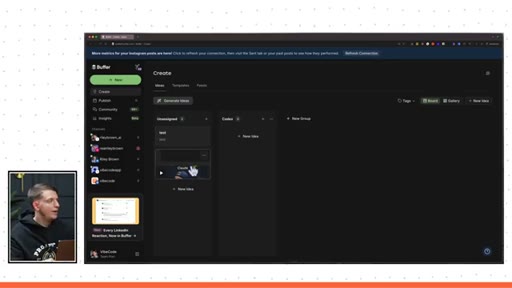
46:14And so Buffer is just my social media scheduler. So I can very easily upload a draft and I'm able to post this across every single channel that I have and I can post short form content. And what they just released a brand new API
46:29CTAthat I can give access to Codex. And so now Codex has the ability to create drafts. So if I were to give it a video, it could create a draft for me.
46:38CTABut I think the most useful thing is I can very easily just store ideas. And what it's gonna do here, you see only two ideas right now. I've kind of cleared these out every day.
46:47CTAI take all my ideas that I save here and either put them in motion, so I start creating content, or I just remove them. A lot of ideas I don't end up actually using. And now Codex
46:56CTAcan actually take a look at all of the memory and look, it's looking through all of its memory files on things that we've done, and it's gonna upload those ideas to buffer. And then I will be able to see them in buffer, and this is where I look for for all my ideas in publishing. And would you look at this?
47:12CTAIt added them directly to Buffer. This one's not anything special. I do just like to be able to upload my ideas and make sure they don't get lost, and this is a good way to just unload all of the things that I've been working on every single day in Codex and upload them to Buffer as ideas.
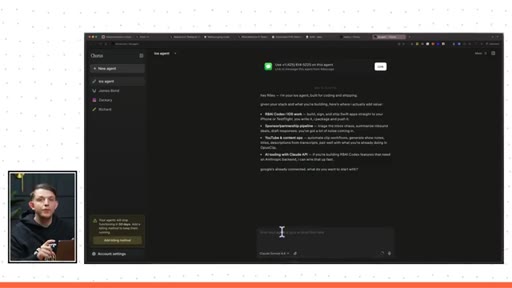
47:29CTASo all of these skills can be found on chorus.com/skills. I will have all of those skills updated, you can try them in Codex or Claude Code. If you wanna test them out for free, you can test them in our new experimental AI agent
47:42CTAproduct that we're releasing very soon. We've been working on this for the past few months, and I'm really excited about it. I can click try for free, and it will spin up an AI agent, and this is the iOS app skill.
47:55CTAAnd so this is a virtual computer running in the cloud, and it's running quad code. And you're soon gonna be able to run quad code and codex and sign in with your codex account, and this will never die.
48:08CTARight? With Codex, your computer dies. This will never die.
48:10CTAThis is running in the cloud and it is a full computer. In fact, you can see all of your files. You can see all of your skills,
48:17CTAall of your channels. I can very easily connect it to iMessage, and I can connect it with all of my tools just like you can in Codex,
48:25CTAexcept it never dies. And you can use it directly in iMessage, and you can add it to your group chat. So you can add this agent to your group chat, and you can use it with a friend.
48:35CTAAnd so all of these skills, we're actually gonna call them agents. You can, with one click, test these skills slash agents in a little virtual computer that never dies, and you can message it through iMessage, and it's running the best AI models in the world. And yeah.
48:50CTAAnyway, let me know what you guys think of this product. We're trying to get, uh, to gather early feedback. We just launched it a few days ago silently.
48:57CTAWe didn't really announce it. It's just something we've been working on. So if you guys could give us some feedback, that would be amazing.
49:02CTAI'm super excited about it. I'll definitely talk about it more as we build it out. We have a lot of features we want to get out before we do our full release.
49:11CTABut anyway, thank you guys for watching. Chorus.com/skills, and you can find all your skills.
49:16CTAYou can use them in Codex, Cloud Code, or Chorus. Anyway, thank you guys so much for watching. I'll see you here in the next video.
— full transcript
§ 05 · For Joe

Build a team, not a chat window.

AI stack playbook

Every skill is a job description for a specialist, and specialists compound when you stack them.

  • Pick one repeatable task and run it in Claude Code until you love the output.
  • Tell the agent to turn the output into a skill file: one .md per workflow.
  • Set an 8AM automation for your highest-value daily task.
  • Once you have 3 skills, run them together using sub-agents in a single chat.
  • For media generation, build a mini-app both you and the agent drive. Never let the AI be the last hand on the output.
§ 05 · For You

How to get real value from an AI agent today.

If you want to try this yourself

The secret is not the AI. It is the instruction file that tells the AI exactly what to do and where to look.

  • Start with one thing you do repeatedly: writing emails, coming up with content ideas, researching a topic.
  • Do it once in Claude Code with a detailed prompt. When you like the output, save that prompt as a .md file.
  • Add an instruction that tells it where to look: your bookmarks, a specific creator transcript, your past work.
  • Once the output is consistently good, tell the agent to run it every morning at 8AM.
  • You now have a specialist. Add another. Let them work in parallel.
§ 06 · Frame Gallery

Visual moments.