Content Creators · Youtube · 21:16

How to Film YouTube Videos on Your Phone (Start to Finish)

A 21-minute field manual covering composition, lighting, audio, and camera settings — all the proof shot on the phones themselves.

Posted
May 18th 2026
today
Duration
21:16
Format
Tutorial
educational
Channel
CC
Content Creators
§ 01 · The Hook

The bait, then the rug-pull.

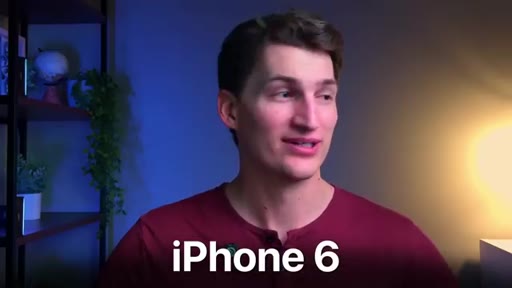
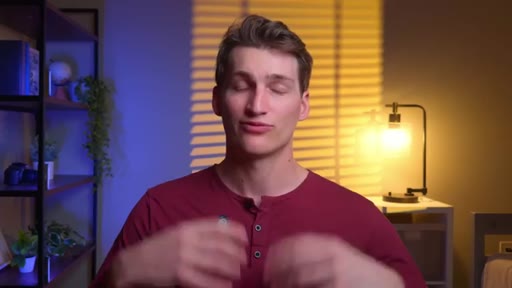
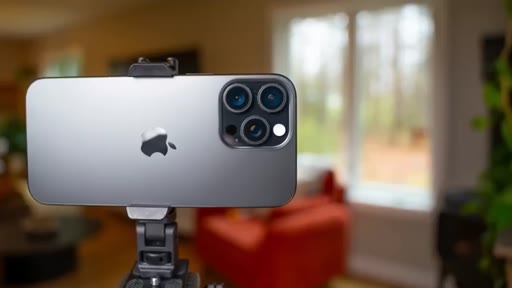
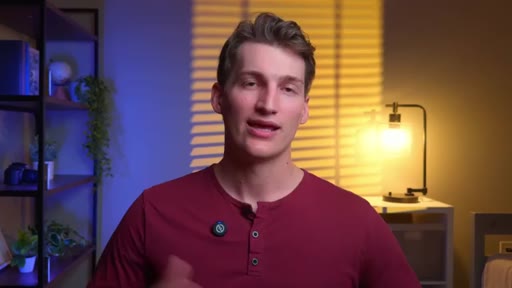
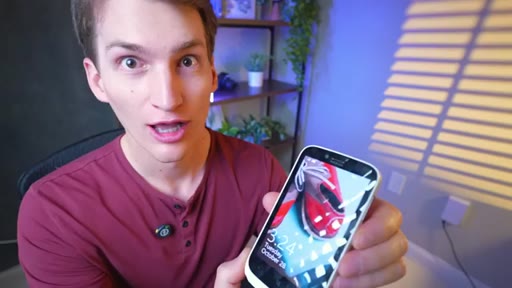
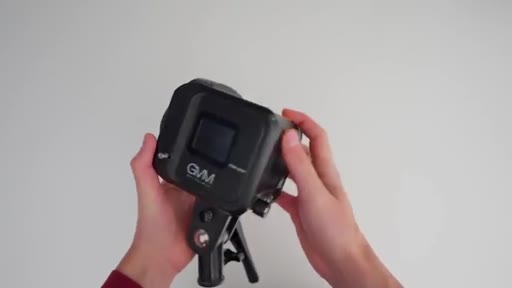
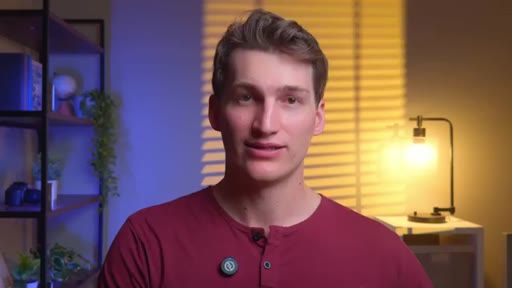
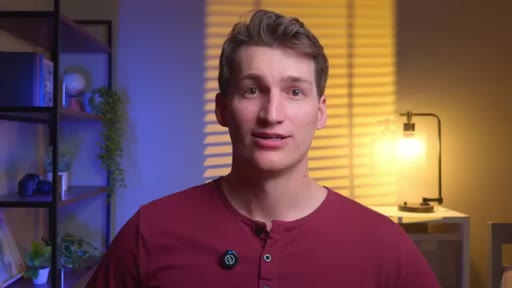
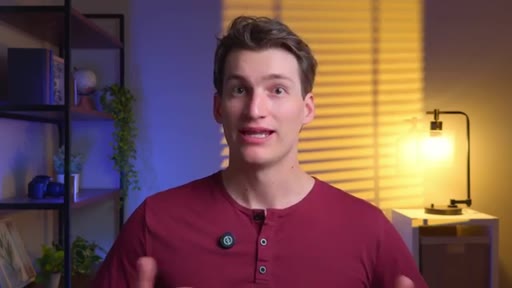
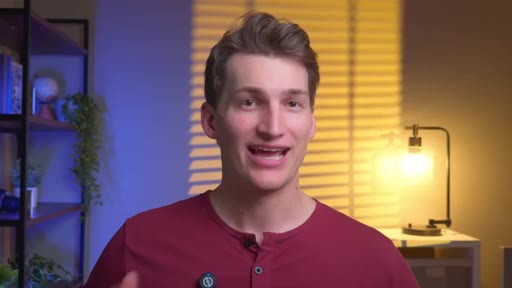
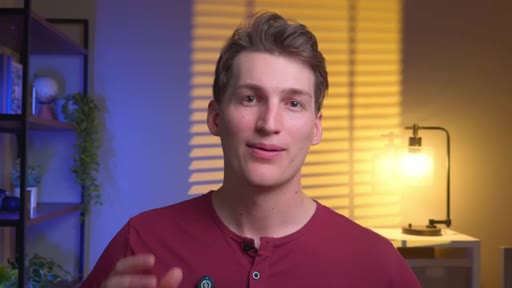
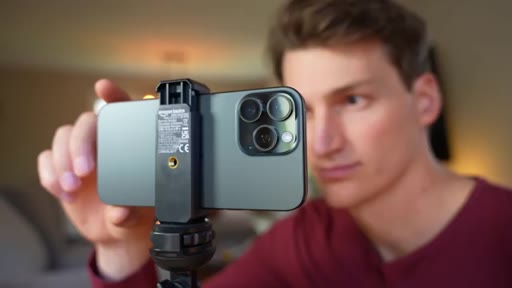
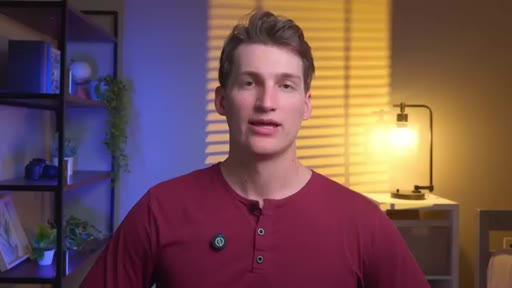
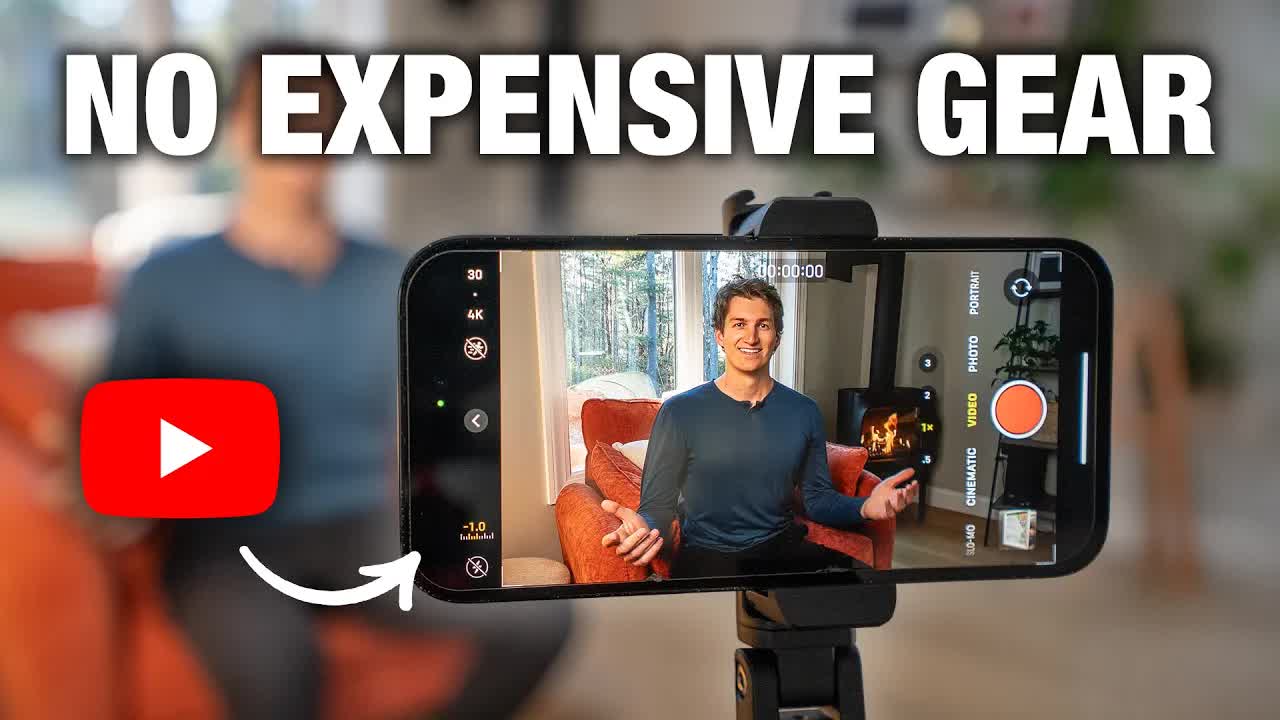
Connor Smith opens by dismantling the gear excuse in fifteen seconds flat. The proof is the video itself — shot on an iPhone 15 — and he immediately holds up an iPhone 14, Galaxy S24 Ultra, and a twelve-year-old iPhone 6 to prove the method transfers to any phone in any pocket.

§ · Stated Promise

What the video promised.

stated at 00:34 "There are four fundamental components to film a YouTube video on your smartphone. And by the end of this video, you'll be a master at every single one." delivered at 19:43
§ · Chapters

Where the time goes.

00:00 – 01:12

01 · Hook + phone comparison

Stated premise: any phone works. Holds up iPhone 15/14/Galaxy S24 Ultra/iPhone 6. Promises four components.
01:13 – 04:44

02 · Component 1 — Composition

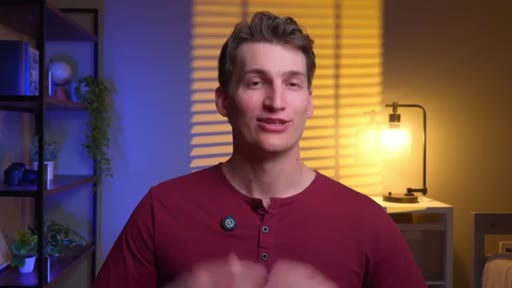
Three elements: simple background, stability (tripod/flex/gimbal), framing (rule of thirds, grid overlay).
04:45 – 10:29

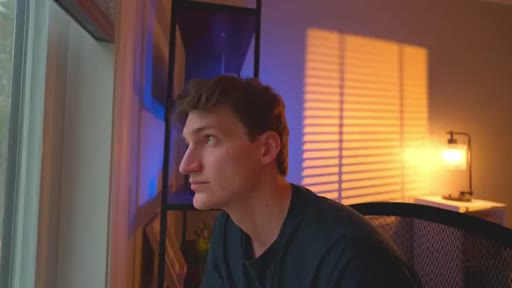
03 · Component 2 — Lighting

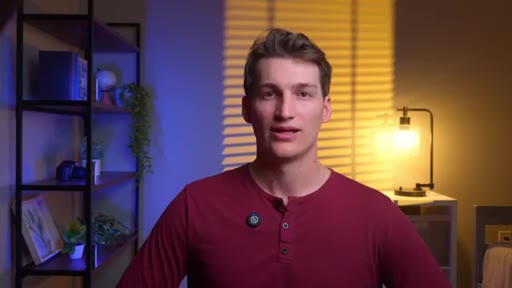
Four boxes: get light on face; diffuse it; 45-degree angle; optional accent. Key demo: $5K Sony in bad light vs 2012 Nokia in good light.
10:30 – 13:57

04 · Component 3 — Audio

Wireless mics only. Hollyland Lark A1 vs M2. Avoid cheap wired Amazon mics. Giveaway mid-roll.
13:58 – 19:43

05 · Component 4 — Camera Settings

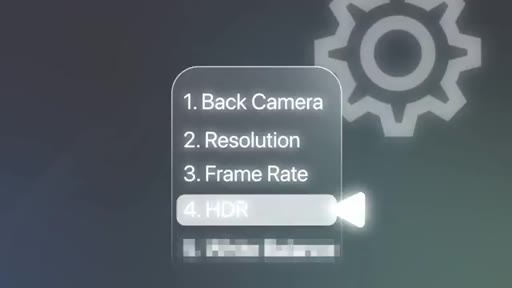
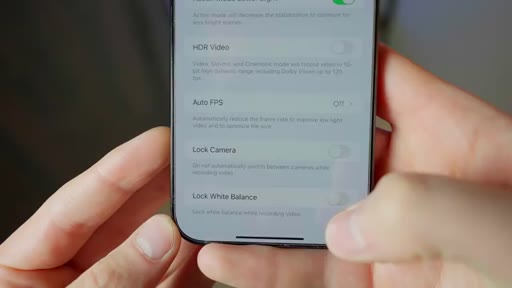
Rear camera. 4K. A-roll 24/30fps. B-roll 60fps. HDR off. Lock white balance indoors. Teleprompter bonus.
19:44 – 21:16

06 · CTA — 14-Day Filmmaker

$48 one-time. 150+ tutorials. Lifetime access. Weekly live Q&A.

§ · Storyboard

Visual structure at a glance.

open
promise
composition
lighting
$5K vs Nokia
audio
wireless demo
cam settings
CTA
§ · Frameworks

Named ideas worth stealing.

00:34 list

4 Components of Smartphone YouTube

  1. Composition
  2. Lighting
  3. Audio
  4. Camera Settings

The spine of the entire video — each component gets its own motion-graphic section card and internal checklist.

Steal for Any beginner-guide format. Drop in '4 components of X' and build one section per component.
01:13 list

3 Elements of Composition

  1. Background
  2. Stability
  3. Framing

Background: simple beats cool; distance from wall adds blur. Stability: tripod/flex tripod/gimbal. Framing: rule of thirds with phone grid overlay.

Steal for Composition quick-guide short or carousel post.
05:25 list

4 Lighting Boxes

  1. Get light on your face
  2. Diffuse it
  3. Position at 45 degrees
  4. Accent lighting (optional)

Box-check structure makes abstract lighting advice concrete and actionable.

Steal for Lighting setup checklist for any beginner creator guide.
16:36 model

A-roll vs B-roll Frame Rates

  1. A-roll (talking head): 24fps or 30fps
  2. B-roll (general): 60fps
  3. B-roll (slo-mo): 120fps or 240fps

Simple two-group mental model that demystifies frame rate decisions.

Steal for Camera settings explainer for new creators.
13:58 list

Camera Settings Checklist

  1. Use rear camera
  2. Film in 4K
  3. Set correct frame rate
  4. Turn HDR off (iPhone)
  5. Lock white balance indoors

Five settings in order covering the most common beginner mistakes.

Steal for Pre-recording checklist short or pinned comment template.
§ · Quotables

Lines you could clip.

00:04
"You don't need an expensive camera to make a YouTube video anymore."
Cold-open premise buster — no setup needed → TikTok hook
04:45
"Lighting is hands down the most important factor that will have a massive impact on how your video looks."
Strong declarative, punchable as a standalone claim → IG reel cold open
05:01
"I'm using a $5,000 Sony a7S III, but the lighting is terrible. Now compare that to this. I'm using a 2012 Nokia smartphone, but I'm using professional lighting."
Visual proof, dramatic contrast — most memorable moment → TikTok hook or IG reel
10:26
"Having great audio is so important. This secretly makes up half of the viewing experience."
Surprising framing of audio as 50% of experience → newsletter pull-quote
§ · Pacing

How they spent the runtime.

Hook length34s
Info densityhigh
Filler8%
§ · Resources Mentioned

Things they pointed at.

04:19productAmazon Basics Tripod
04:30productFlexible Tripod ($12)
05:20productSmartphone Gimbal
07:27productMountDog Softbox Lighting Kit
07:40productTorjum 12-inch Light Kit
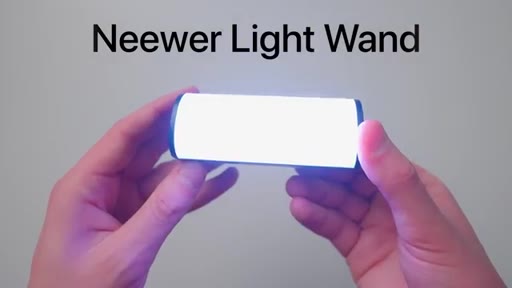
09:46productNeewer Light Wand
10:07productNeewer Light Tube
12:10productHollyland Lark A1
12:30productHollyland Lark M2
§ · CTA Breakdown

How they asked for the click.

19:44 product
"You get access to all of this for a small one-time fee of $48."

Brief, low-pressure, well-earned after 20 min of genuine value. No countdown, no scarcity — just a clean offer and a subscribe ask as backup.

§ 04 · The Script

Word for word.

HOOK opening / re-engagementCTA the pitch analogy
00:00HOOKYou don't need an expensive camera to make a YouTube video anymore. Now all you need is the one that's in your pocket every single day. And in this video, I'm gonna show you exactly how to do that step by step.
00:11HOOKSmartphones have gotten so good. It's almost impossible to tell the difference between a super expensive DSLR and your phone.
00:20HOOKThe video you're watching right now was shot on the iPhone 15. That's not even the latest model. This is the iPhone 14.
00:27HOOKThis is the Galaxy s 24 Ultra, and this is my iPhone six that came out twelve years ago. This still looks pretty good. What you're about to learn will work for any smartphone you own.
00:39There are four fundamental components to film a YouTube video on your smartphone. And by the end of this video, you'll be a master at every single one. So without further ado, let's dive right in.
00:53Now a quick little disclaimer before we start this video. Each of these four components has a massive effect on the quality of your video. If you skip one, you might be disappointed with how your video looks because it'll be missing a fundamental layer.
01:06You can't build a house without a foundation and you can't a YouTube video on your smartphone without composition.
01:13Now, when it comes to composition, we're gonna focus on three very important elements. Starting with number one, picking a background. To pick a good background, we first have to understand what a bad background looks like so we can avoid it.
01:26A common mistake is choosing something that looks really cool instead of something that's functional. For example, check out this shot. The background is pretty simple.
01:35Now compare that to this shot where the background is much cooler, but it's also way more complicated. The reason this doesn't really work is because it's confusing to look at and it takes away from the viewing experience.
01:48All of these lines, crosses, and zigzags actually distract from what actually matters, and that's you. Now this doesn't mean we need to use a blank white wall in every single shot.
01:59We still wanna add some personality, but in general, simpler backgrounds tend to work better. Another reason we wanna choose a simple background when filming with a smartphone is because smartphones have a very deep depth of field, which essentially means objects in the background are going to look more in focus
02:16than a professional DSLR. So when you can, an easy way to solve this is to put as much distance between you and the background as possible. This will add more blur to your background
02:27and make your shot look more professional. Now that we know how to pick a good background, let's move on to element number two, stability.
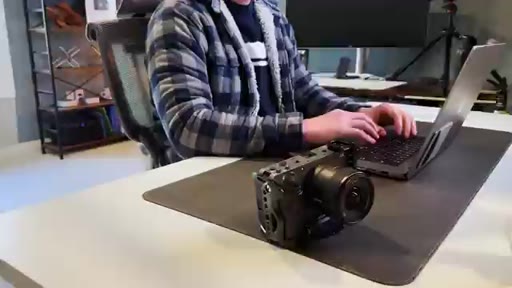
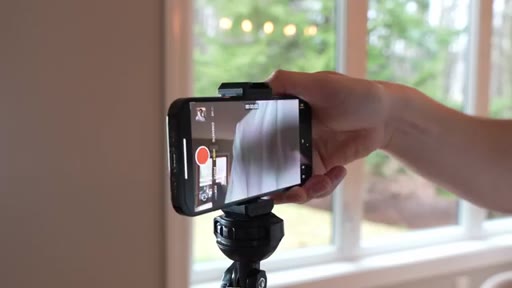
02:34There are really three main tools that you can use to stabilize your The first one is a classic and that is a tripod. You can grab something like this Amazon basics tripod for around $16.
02:46Also, a quick note, we're not sponsored by any of the companies or brands that you'll see in this video. Bezos isn't paying me to say any of this. The second tool you can use to stabilize your shot is a flexible tripod.
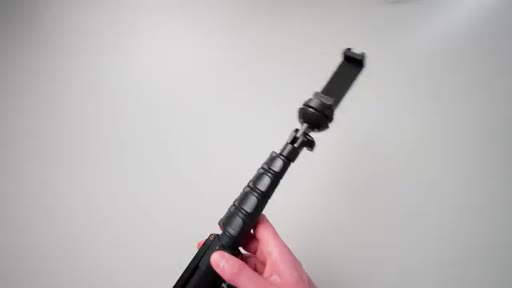
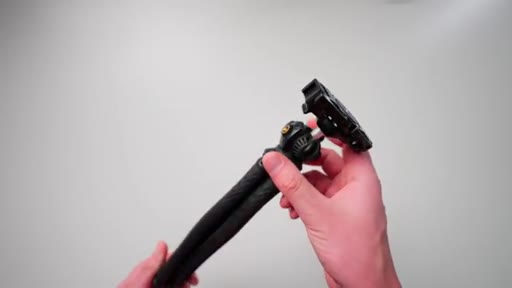
02:58It works pretty much the same way. The legs actually bend and flex like this. This is super useful for getting creative different looking angles.
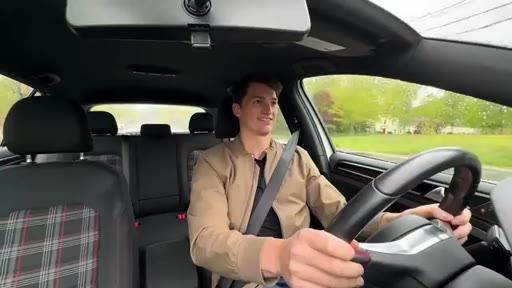
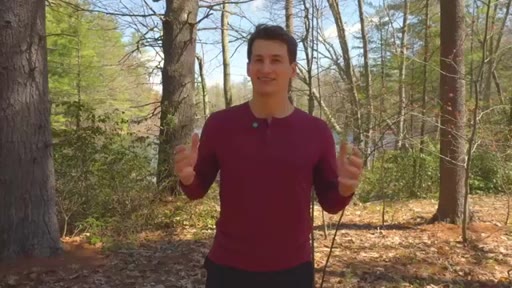
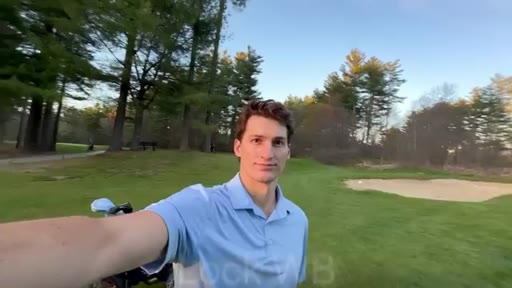
03:07For example, with this shot, I wrapped the legs around a tree branch. You could also mount this to a golf cart, stick it on your car dashboard, or even use it as a small selfie handle.
03:18You can pick one up for around $12. Honestly, it's perfect for vlog style content, traveling, or just having a more mobile setup. The last tool that could be helpful is a smartphone gimbal.
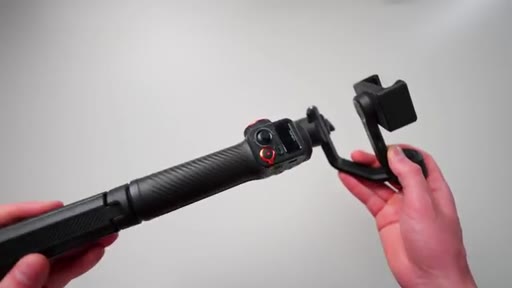
03:29The point of a gimbal is to help stabilize your footage when you're filming handheld. Now, if you've got some extra cash to spend, could be something to consider. But to be honest, recent smartphones have gotten so good.
03:42This is kinda becoming less and less necessary. New smartphones have incredible built in stabilization,
03:49which basically moves the camera sensor around like a chicken's head to keep your footage smooth while you're moving. Check it out. No joke.
03:56This is how a chicken's head moves, and then this is how a gimbal moves. Honestly, crazy. If you've got some pretty steady hands, save the $100.
04:04Now that brings us to the last part of composition, which is framing. When it comes to framing, we wanna follow a technique called the rule of thirds.
04:12This is when you break your frame up into three sections and position yourself in the middle frame with your eyes on the upper third line. You can actually turn this grid on in your phone so you always have those reference lines while you're filming.
04:27If you're filming on an iPhone, you can go into your camera settings and then toggle on grid. If you're on an Android, open up your camera settings,
04:36scroll down, and then toggle on composition guide. Alright.
04:40HOOKNow that our composition looks amazing, let's move on to component number two, lighting. If there's one part of this video that you should pause,
04:48HOOKrewatch, and really experiment with, it's this one. Lighting is hands down the most important factor that will have a massive impact on how your video looks. Check this out.
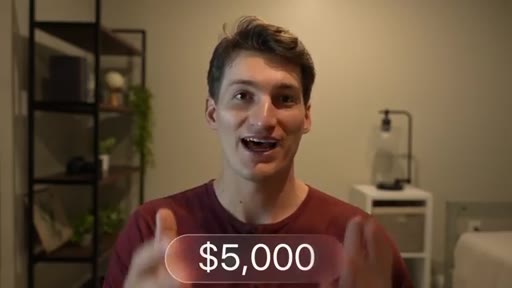
04:59HOOKI'm using a $5,000 Sony a seven s three camera, but the lighting is terrible.
05:05HOOKNow compare that to this. I'm using a 2,012 Nokia smartphone,
05:11but I'm using professional lighting. And, honestly, I think this looks really good. I'm shocked that this phone still works.
05:17First time trying to turn this on in thirteen years. I just took it off the charger. Let's see if it fires up.
05:24Alright. To land somewhere in the middle, let's switch back to the iPhone. Now do you need an expensive lighting setup for your YouTube videos?
05:32Absolutely not. Learning what to do with your lights will give you far better results than buying the most expensive lights and not knowing how to use them. So in this section, we're going to check off four lighting boxes.
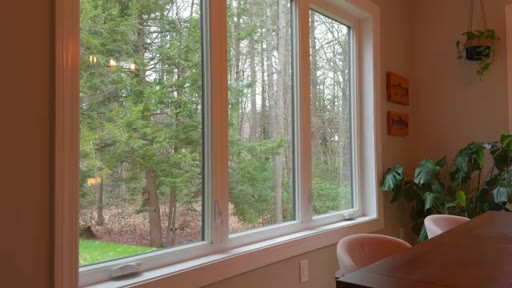
05:45Starting with number one, getting light onto the front of our face. Now maybe you're just getting started and you don't have any lights yet. The first thing that you wanna do is find a natural light source, like the sun or a window.
05:57Then position that light source in front of your face. The reason why we don't want the light behind us is because it will cast a massive shadow on your face, make it very hard to see you. Now let's move on to box number two, which is diffusing the light.
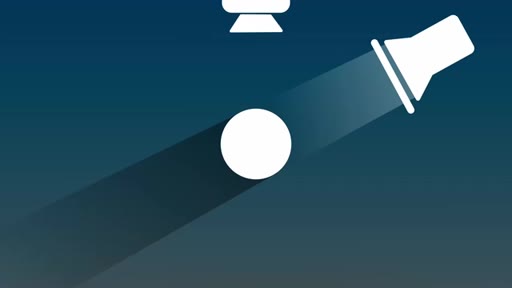
06:12The light source is definitely important, but what's equally, if not more important, is the ability to diffuse the light. In simple terms, diffusing light just means making the lights were softer and more spread out.
06:24If you've ever been at a wedding and it's cloudy out, you might hear the bride say, oh my god, I'm so mad. It's cloudy. And then the photographer goes, no.
06:32No. No. This is perfect.
06:33The photos are gonna look amazing. And that's true. That's because the clouds are basically the earth's way of diffusing the light.
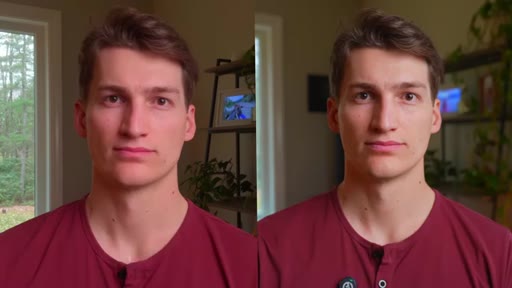
06:40When light becomes larger and more spread out, it gets softer. And softer light makes your face look way better on camera. For example, this shot on the left was filmed on a cloudy day.
06:51Even though it's overcast, look how soft the light looks on my face. Now compare that to this shot.
06:57There are no clouds. It's super sunny, but the light looks really harsh on my face. Now if you're indoors, there are a few easy ways to diffuse the light.
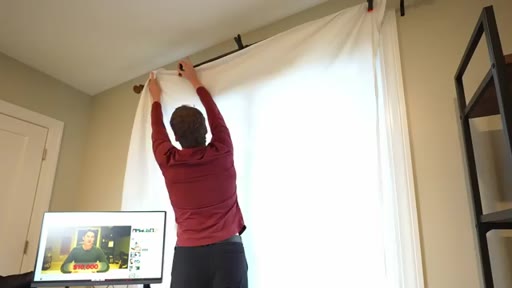
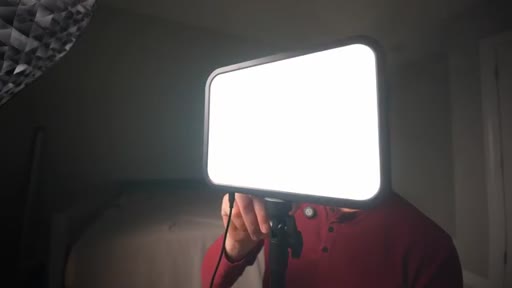
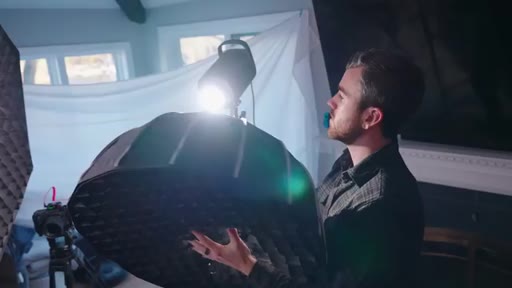
07:06If you're filming next to a window, one simple trick is to put a white curtain over the window. Now instead of light coming straight through the window, it passes through the curtain, which spreads it out and softens the light. Now, if you wanna spend a little bit of money on lights, which I think is a fantastic investment, a solid option is the MountDog
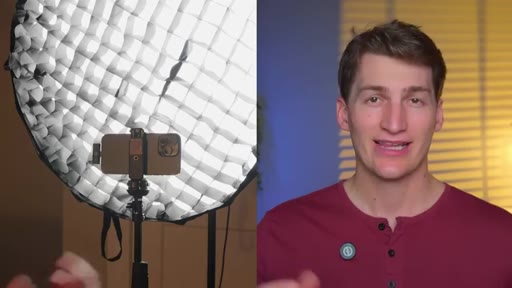
07:27softbox lighting kit. The reason I like this one is because it comes with a 19 inch by 27 inch softbox diffuser. If you wanna spend a little bit less, you could go with something like the Torjum 12 inch light kit.
07:40It's solid, but the diffusion won't be as good because it's quite a bit smaller than the MountDog. So to get the best results with this torsion light kit, you need to buy a separate diffusion panel to put in front of the light. That's gonna make the light source a lot bigger.
07:55Those are pretty affordable. You could pick one up for about $24, but at that point, you're spending close to $75
08:01in total. So it kinda just makes sense to invest in the mount dog setup. So now that we have our lights, what do we actually do with them?
08:09Well, that brings us to our next checkbox, which is direction and position. Notice how this shot looks a little bit different than the last one.
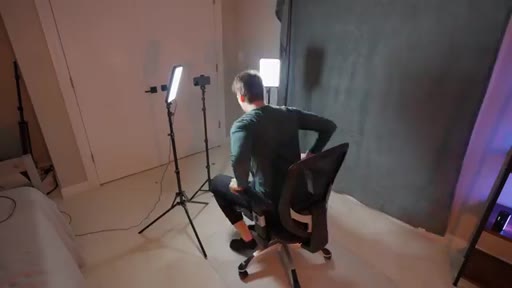
08:17That's because the light is directly in front of my face, and it kinda washes out the details and makes it look flat. Now compare that to this, where the light's off to about a 45 degree angle, which instantly looks more cinematic. That's because shadows create dimension, and we actually want a little bit of shadow on our face.
08:36We don't want the light directly to the side. That creates a little bit too much shadow. So placing it at around a 45 degree angle gives us just enough shadow to get that cinematic look.
08:47If this still feels too shadowy, you can move the light slightly closer to the center. Just avoid putting it directly in front of your face.
08:55Now when it comes to light position, we wanna keep the light pretty close to our face. Whatever light you end up purchasing, make sure you have the ability to adjust the brightness.
09:05This is very important because to get the softest light, you actually want the light source as close to your face as possible and as large as possible. But of course, as you move the light closer, it gets brighter on the face.
09:18So we need the ability to be able to turn down the brightness to avoid overexposing our shot. What you don't wanna do is move the light further away from the subject and then crank up the brightness.
09:31That actually makes the light harsher on the face. This is because as you move the light further away, you're making the light source smaller. The smaller the light source, the harsher the light.
09:41Alright. Moving on to the final box, accent lighting. Now this is optional,
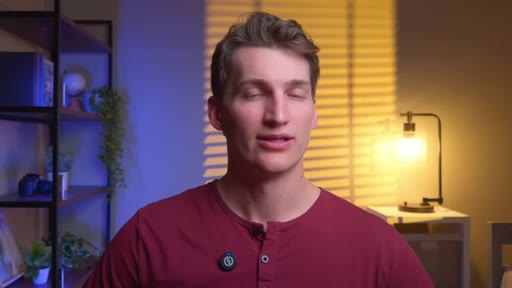
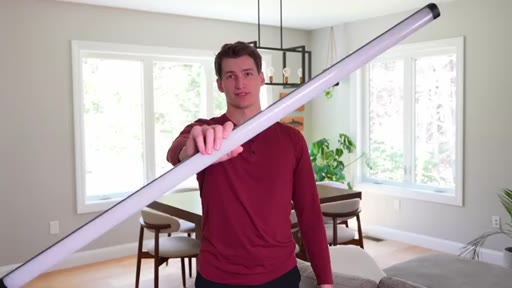
09:46but for not a ton of money, it can have a massive impact on your video. By adding some color in the background, you can completely change the look of your shot. My favorite piece of gear to do this is the Neewer light wand.
09:58You can place these pretty much anywhere behind you. And for about $20, I think they're totally worth it. Now, if you really wanna ball out, you could go after the big Bertha,
10:07the Neewer light tube. This thing is massive, but also pretty sick.
10:12This thing puts out a ton of light. So if you want a fully colored background, it definitely gets the job done.
10:18Also, with both the light wand and the light tube, you can do some pretty cool effects like lightning, police sirens, or you can start an artificial fire.
10:28Alright. That wraps up lighting. Now let's move on to component number three, audio.
10:32When filming a YouTube video, having great audio is so important. This secretly makes up half of the viewing experience. This shot has great lighting.
10:42It was filmed with the iPhone 15, but the audio sounds terrible. Now compare that to this.
10:48Same lighting, but it has incredible audio. The only catch is this was filmed on a slide phone that I had in middle school. Now if you had to watch a thirty minute version of either video, which one would you choose?
11:00I'm actually very curious. Drop your answer in the comments below. Now when it comes to recording high quality audio, we wanna record audio directly into the smartphone,
11:09but we don't wanna use the built in microphone. Just so you can get a sense of what that sounds like. This is what the built in microphone on the smartphone sounds like.
11:18Not that great. When it comes to YouTube, you might find yourself on the go filming in different locations and not always in the same spot. Because of that, we want to use a wireless microphone.
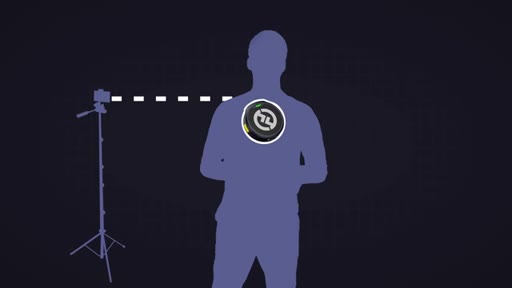
11:28These are great because they allow you to move around freely while still recording directly into your camera. It's honestly pretty crazy. I can set the camera up on a tripod and get clean audio from here, from over here, from over here, and even over here.
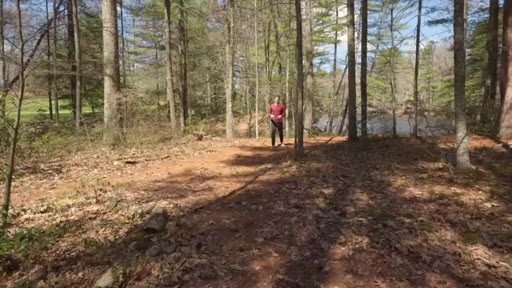
11:43Oh, hey. Look. A frog.
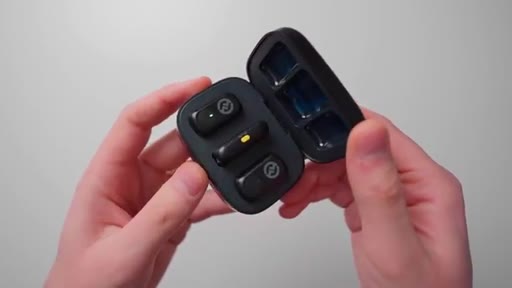
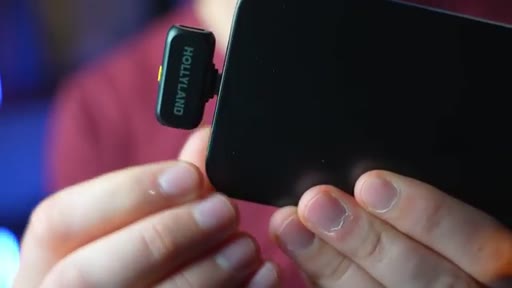
11:44Now, of course, there is a distance limit before the signal drops, but it is so much better than having to be stuck right next to your camera. For microphones, a great budget friendly option is the Hollyland Lark a one. It's a super simple mic to set up.
12:00All you have to do is plug the receiver into your phone and turn on the microphone. It also has built in noise cancellation. So if you're in a noisy environment, you can turn that on, and it'll help block out any background noise.
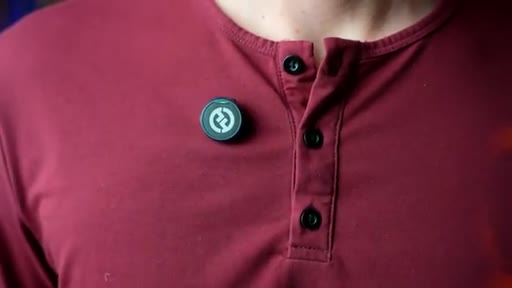
12:12If you have a little bit more budget and you wanna get a little better sound quality, you can step up to the Hollyland Lark m two. I think it sounds a bit cleaner than the a one. It's actually the microphone that I used to record this video.
12:24Here's a quick sound test comparing the a one and the m two. This is what it sounds like using the Hollyland Lark a one microphone. And this is what it sounds like using the Hollyland Lark m two microphone.
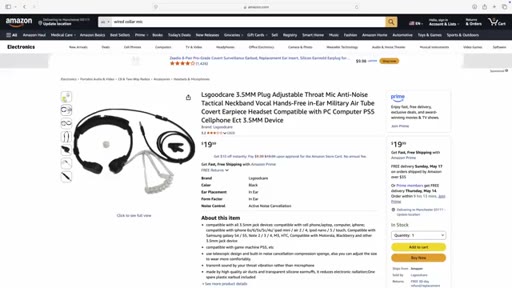
12:36Both are super solid. Honestly, I don't think you can go wrong with either one. Now a couple of mics that I would stay away from are those cheap wired mics that you would find on Amazon or some random sketchy brands.
12:48When it comes to microphones, I think it's best to stick with trusted brands like Hollyland, Rode, or DJI. Now I didn't mention this at the beginning of the video, but if you're seeing this, you're a real one.
13:00Because I'm actually going to be giving away a YouTube studio kit to one lucky viewer. This studio kit includes the Hollyland Lark a one microphone, the MountDog softbox light, and the Amazon Basics tripod.
13:13Absolutely insane. So if you want a chance to win this gear, you've gotta do four things. First, like this video.
13:20Second, drop a comment below. Third, subscribe to this channel. And then fourth, click the giveaway link in the description of this video.
13:28Enter your email, and then boom, you're good to go. Two weeks from the posting date of this video, I'll randomly select someone and then email them to get a shipping address. And to make this even better, whether you win or not, right after you submit your email, you'll automatically get our social media and YouTube video editing template pack.
13:46It's packed with awesome stuff like color grading LUTs, sound effects, graphics, and more. So go pause the video and knock out those four steps if you want a chance at winning the YouTube Studio Kit.
13:57HOOKAlright. Moving on to component number four, camera settings. Unfortunately,
14:02HOOKyou can do everything right up until this point. You picked an awesome background, lit your scene perfectly,
14:08HOOKand you sound amazing because you're using a microphone. But if you don't use the right camera settings, your video ends up looking like this when it could have looked like this. I've seen this happen way too many times.
14:21HOOKYouTubers film their videos with the wrong settings, upload them, and then live in regret because their video could have performed better if they just got this part right. So let's get it right and fix that now.
14:34Step one, film with the camera on the back of your phone. I know it's tempting to use the front camera so you can check the framing, but the rear camera almost always has better resolution in overall quality. It also gives you more background blur, which makes your shot look more cinematic.
14:50That's because the rear camera has a larger sensor and a lower aperture. We could go really deep into what all of that means. Long story short, it's just a better camera for filming.
15:00Now to solve the problem of not being able to see yourself, we've got a couple different options. The easiest is picking up a selfie monitor.
15:08You can attach it to the back of your phone and see exactly what you're filming. Another cool option if you're using an iPhone and you have an Apple Watch is using your watch as a monitor. Once they're connected, your watch will show a live preview of your camera.
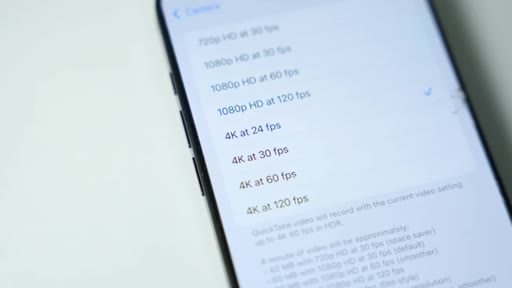
15:22It's a smaller screen, but in a pinch, it's a great way to your composition without constantly getting up, filming a test clip, checking it, and then repeating that process over and over again. Now as far as resolution goes, we want to film in four k if our phone allows it.
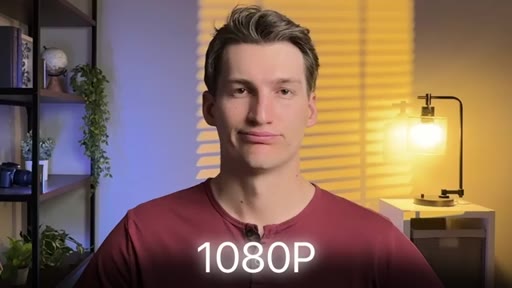
15:39Four k is essentially four times the resolution resolution of ten eighty p, which gives you a much sharper image on YouTube. Another big reason YouTubers shoot in four k is because it helps with editing, especially if you need a crop in on your footage. Since four k is so much larger than ten eighty p, it gives you the ability to zoom in without losing a ton of quality.
16:01Now, as far as frame rates go, there are really two groups that apply to us. I'll call them a roll frame rates and b roll frame rates. A roll frame rates are what we use for talking head content And b roll frame rates are what we use for b roll.
16:15Pretty straightforward. For a roll, you want to use either 24 frames per second or 30 frames per second. So when you're filming the talking parts of your YouTube video, set your phone to four k, then choose either 24 or 30 frames per second.
16:29For reference, I chose 24 frames per second for this video. Either one works. 24 frames per second will generally look a little bit more cinematic.
16:38So if that's the vibe that you're going for, go with 24. And our second group of frame rates is b roll frame rates. This consists of 60 frames per second and 120
16:48frames per second. You might also see 240 frames per second, but that's pretty rare.
16:53The reason why you'd film your b roll in one of these frame rates is because the higher frame rates let you slow footage down and create super smooth slow motion. Since more frames are being captured, the more frames you have, the smoother it looks when you slow it down.
17:09If you want super smooth slow motion, that's when you would use 120 frames per second or 240 if you have that option.
17:18Now if you're not going to slow down your footage, you can film your b roll in the same frame rate as your talking head footage. But if there's even a 5% chance that you might wanna slow down that footage, I highly recommend shooting all of your b roll in 60 frames per second.
17:34Only use 120 frames per second if you want that super epic slow motion shot. All other b roll can be filmed in 60 frames per second.
17:44Now I've got two iPhone specific settings that I wanna share with you. The first one is actually something to avoid and that's HDR footage.
17:52I would recommend turning HDR off. This is one of those things that sounds better on paper, but usually makes your video look worse in real world situations. HDR is constantly trying to automatically
18:05adjust brightness and colors while you're filming, which can cause weird shifts in lighting and color. It can also make your footage look a little bit different when you go to edit. That's because not every single app displays HDR footage properly.
18:19Instead, I'd focus on better lighting and proper exposure. Now if you're filming indoors and using studio lighting like this, I'd recommend turning lock white balance on. When you turn this on, you're telling your phone to not change the color temperature while you're recording.
18:34This is great because the last thing that you would want is to get everything set up perfectly, hit record, turn your face, and then have the iPhone change the white balance, and suddenly your shot looks orange or green. But if you're filming outdoors, I'd actually recommend turning this off.
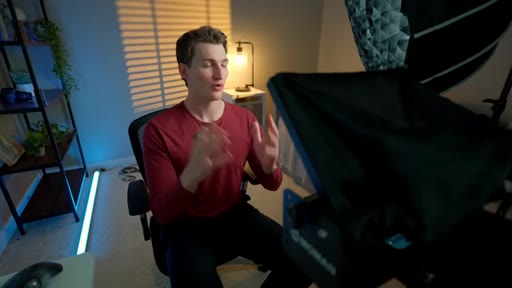
18:50The lighting is gonna change a lot and honestly, the auto white balance on smartphones is really good. Now a quick little bonus. One piece of gear that I could not live without when it comes to filming YouTube videos is my teleprompter.
19:03Teleprompters are great because they display the YouTube script that you wrote over the camera lens so you can read the script while still looking directly into the camera. It's like magic. It's crazy.
19:15If you plan on scripting your YouTube videos, this is a really efficient way of recording them so you don't have to memorize each line. I'd be here all day. Now as you've learned, there's a lot that goes into making content.
19:28And honestly, in this video, we were just scratching the surface. Learning these skills and actually practicing them is what's gonna allow you to make amazing content. The problem is mastering all of this can take years.
19:40CTAYou can spend hours on YouTube jumping from one creator to another, piecing together random bits of information, trying to find all the answers that you're looking for.
19:50CTAAnd that massively delays your goal of making YouTube videos in the first place. That's exactly why we built a streamlined program called fourteen day filmmaker. This step by step program contains over 150
20:02CTAstep by step tutorials walking you through every single aspect of the content creation process. From the technical side of what gear to use, the right camera settings, how to light like a pro, capture cinematic movement, record and edit high quality audio, how to tell captivating stories, and an insane amount of editing training that will take you from beginner to absolute ninja.
20:25CTAIncluded in this course are individual bonus courses that cover mastering the process of shooting and editing on your smartphone, a deep dive into professional cameras, and an entire curriculum on mastering YouTube, including how to get tons of views and build an amazing subscriber base. You get lifetime access to all of that, plus bonus sound effects,
20:47CTAediting cheat sheets, and access to our weekly live q and a calls where you can hop on and ask Anthony any filmmaking questions you have. You get access to all of this for a small one time fee of $48. If you're interested,
21:01CTAmaybe you wanna enroll, all you have to do is click the link in the description of this video. Also, if you found this video helpful, be sure to hit that subscribe button, and I'll see you in the next one.
— full transcript
§ 05 · For Joe

Steal the four-component spine.

Structure playbook

Any beginner tutorial can be built as four numbered components — the structure sells the completeness before the content earns it.

  • Name your four components in the hook. Promise mastery. The list creates an implicit contract that keeps viewers watching.
  • Lead each section with the most surprising proof, not the definition. Connor leads Lighting with the Nokia-beats-Sony demo, not with 'lighting is important.'
  • Split-screen before/after is the fastest trust-builder in production tutorials — two frames, no voiceover needed.
  • The mid-roll giveaway is a low-cost lead-gen play: require email entry, auto-deliver a freebie, now you have a list regardless of who wins.
  • The $48 one-time course is the 'own your tools' positioning worth stealing — no subscription, lifetime access, single low-friction price.
§ 05 · For You

Your phone is enough. Here is the actual order of operations.

If you want to start filming YouTube videos

Gear is the last variable that matters — fix your lighting first, your audio second, and only then think about camera settings.

  • Start with a simple background. Put distance between yourself and the wall to add natural background blur.
  • Find a window and face it. A white curtain over the window gives you free professional-quality diffused light.
  • A $50-100 wireless clip mic (Hollyland Lark A1 or M2) plugged directly into your phone eliminates the single biggest viewer complaint.
  • Film with the rear camera in 4K at 24fps. Turn HDR off. Lock white balance if you are indoors under artificial light.
  • A selfie mirror attachment ($15) or an Apple Watch shows your framing without constantly stopping to check — no second person required.
§ 06 · Frame Gallery

Visual moments.