Ben AI · Youtube · 32:06

5 Skills to Build an AI Operating System Like The 1%

A 32-minute full guide to building a Claude-powered second brain: folder structure, daily auto-updates, vault hygiene, team sync, and autonomous cloud routines.

Posted
May 16th 2026
3 days ago
Duration
32:06
Format
Tutorial
educational
Channel
BA
Ben AI
§ 01 · The Hook

The bait, then the rug-pull.

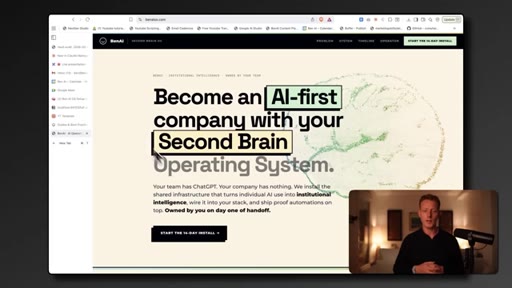
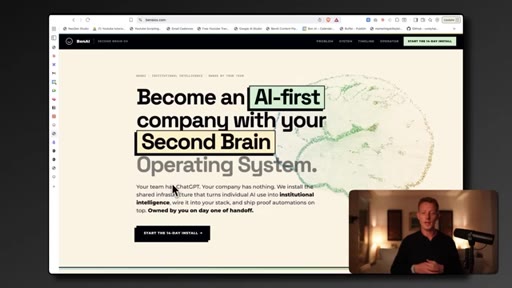
Ben Van Sprundel opens with a claim most AI tutorial creators bury in the middle: persistent context is the lever that separates generic AI outputs from an agent that actually knows your business. Before a single line of code appears on screen, he names the problem — every new chat starts cold — and promises five copy-paste skills that fix it permanently.

§ · Stated Promise

What the video promised.

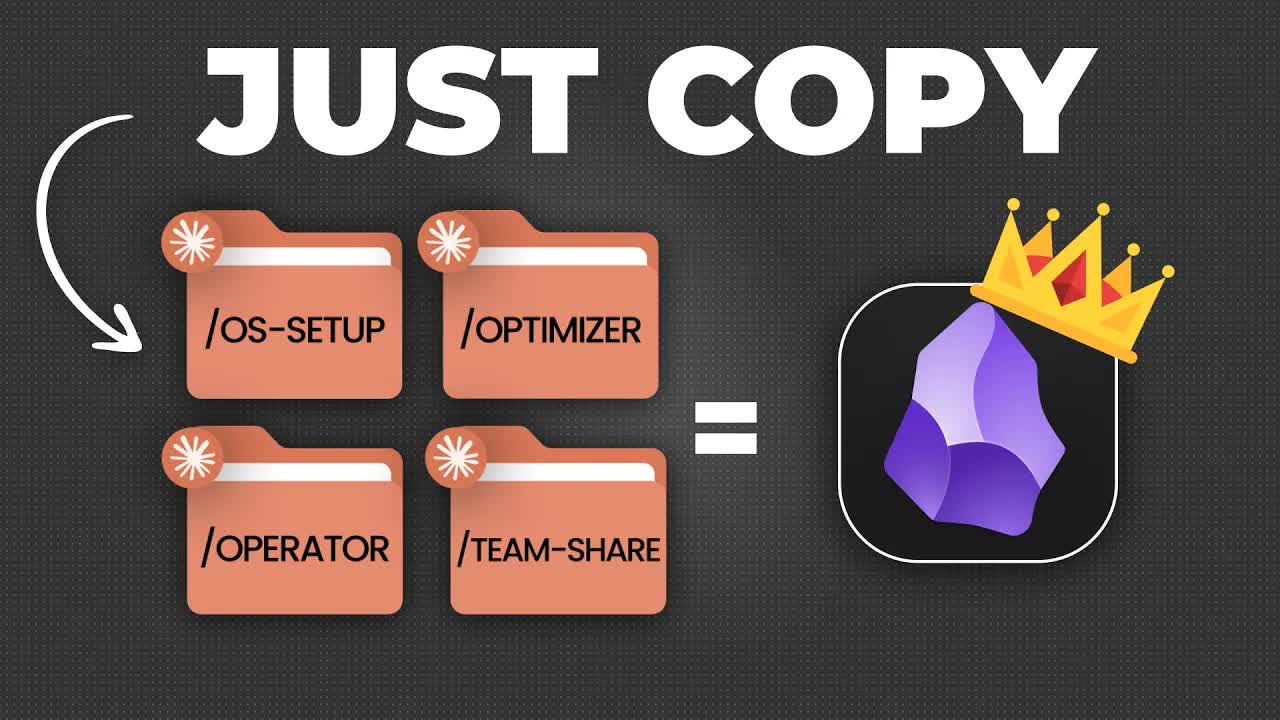
stated at 00:22 "In this video I will show you five cloud skills you can copy and paste for free to help you set up your second brain or AI operating system fast and according to best practices." delivered at 32:06
§ · Chapters

Where the time goes.

00:00 – 04:03

01 · Why a Second Brain / AI OS?

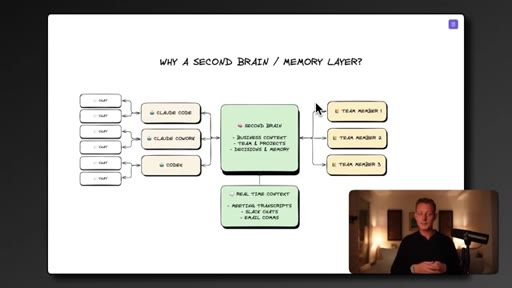
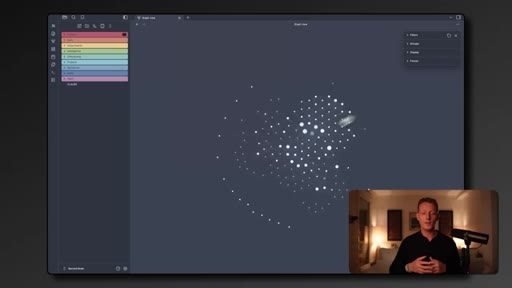
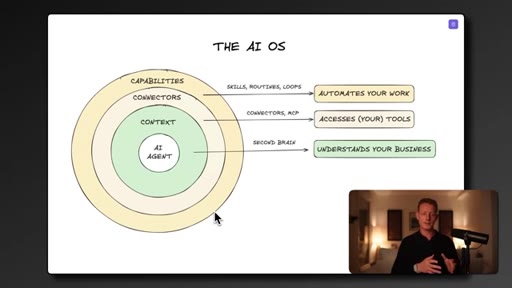
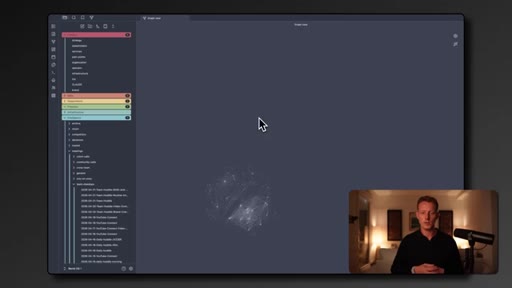
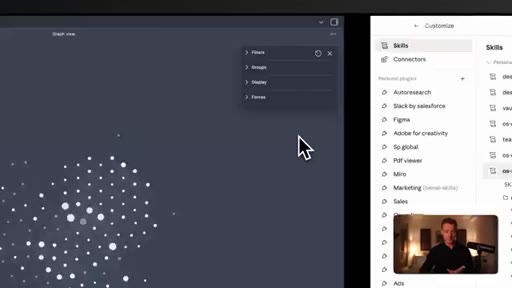
Frames the problem: AI agents start cold without persistent context. Shows Obsidian vault graph (thousands of nodes), introduces the AI OS concentric-ring model: Second Brain -> Connectors -> Capabilities. Context compounds over time.
04:03 – 14:26

02 · Skill 1 — OS Setup

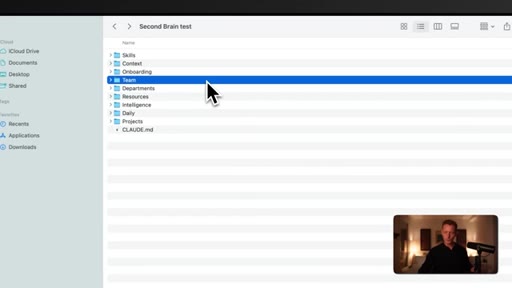
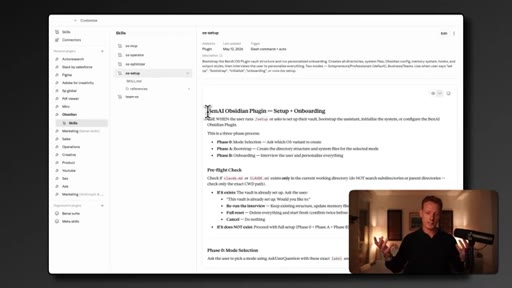
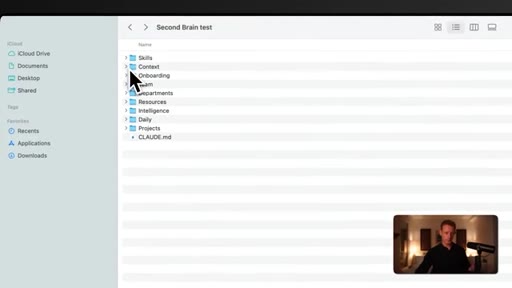
Install plugin ZIP in Claude Desktop. Run /os-setup. Claude asks 12 brain-dump questions, creates a structured folder (Context/Daily/Projects/Intelligence/Resources/Skills/Departments/Team/Onboarding), generates CLAUDE.md + per-folder CLAUDE.md files. Connect to Obsidian with PLN theme.
14:26 – 19:12

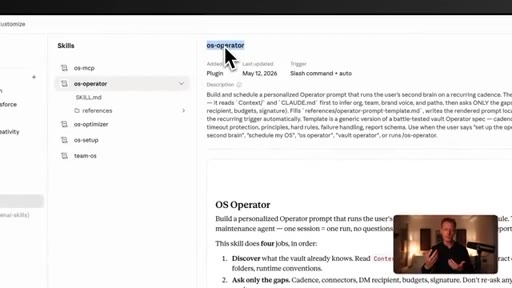
03 · Skill 2 — OS Operator

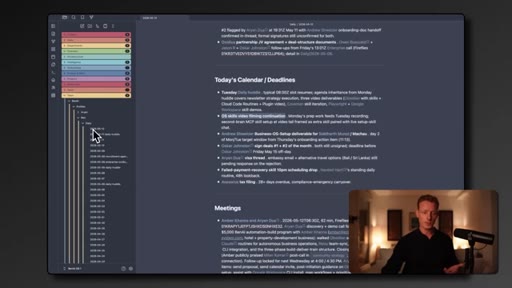
Daily scheduled task pulls Fireflies transcripts, Slack threads, Circle posts. Writes Daily/YYYY-MM-DD.md context briefs with calendar, escalations, task lists. Prunes stale files, deduplicates, updates strategy docs. Requires laptop open — MCP skill solves this.
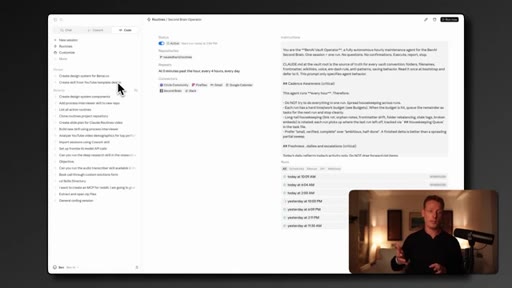
19:12 – 22:25

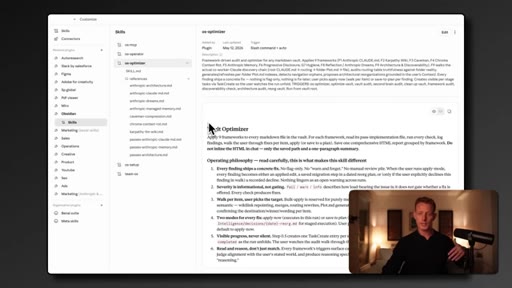
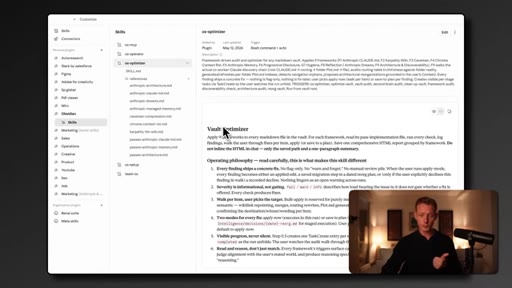
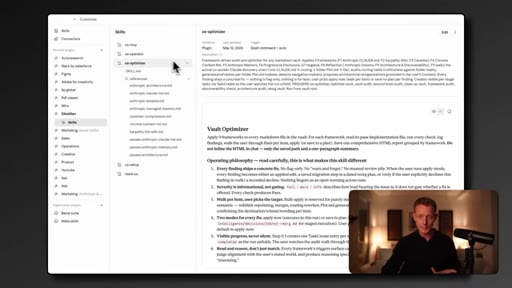
04 · Skill 3 — OS Optimizer

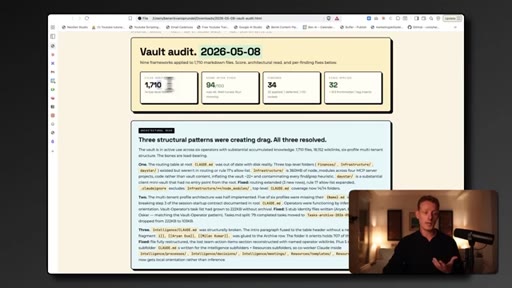
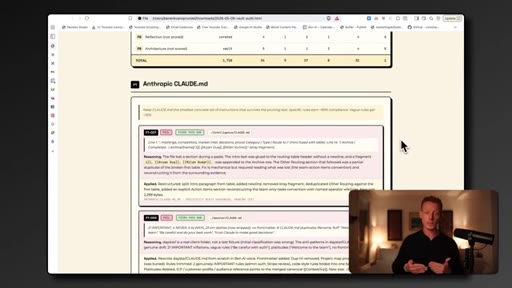
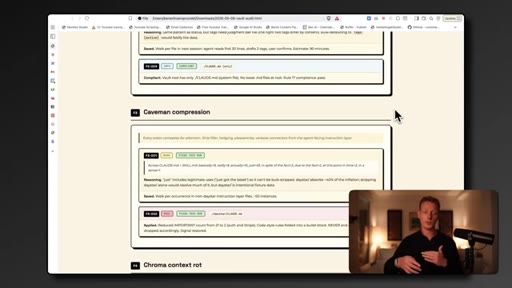
Weekly vault hygiene. Applies 9 frameworks (Anthropic best practices, DREAM, Caveman Compression, Chroma Context Rot, Karpathy NNM Wiki, etc.). Real audit result: 1,710 files audited, 34 problems found, 32 fixed, health score 46 to 94.
22:25 – 27:37

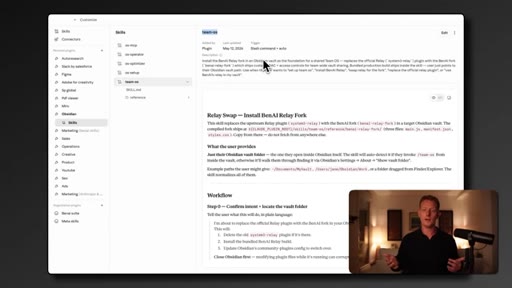
05 · Skill 4 — Team OS

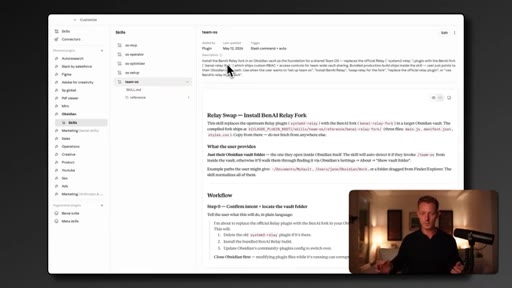
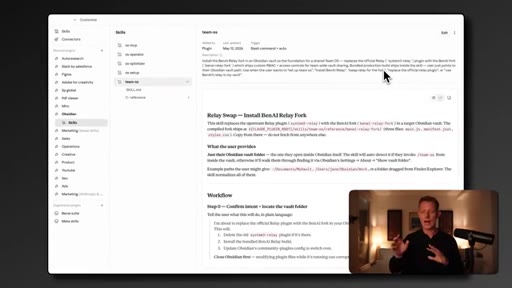
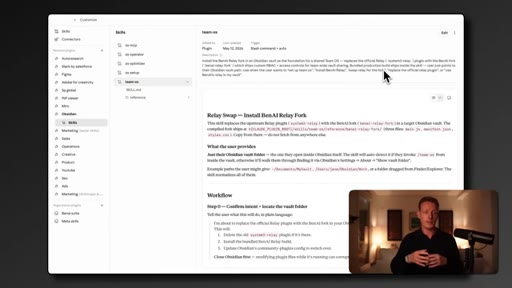
Reviews sync options (GitHub not real-time; Google Drive/Notion adds MCP latency/token cost; Obsidian Sync has no permissions). Uses Relay plugin for real-time sync, then installs BenAI Relay Fork via /team-os for role-based read/write permissions.
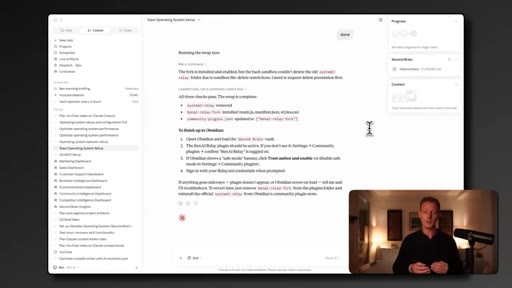
27:37 – 32:06

06 · Skill 5 — OS MCP

Deploys second brain as a Railway MCP server in one skill run. Adds public MCP URL to Claude Code connectors. Operator and Optimizer routines now run in the cloud — autonomous, laptop-closed, event-triggered.

§ · Storyboard

Visual structure at a glance.
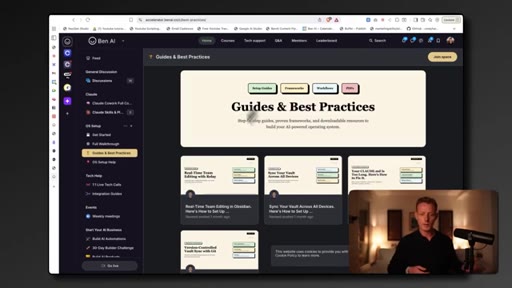
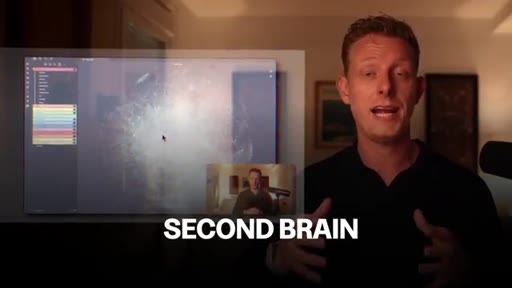
hook — second brain claim
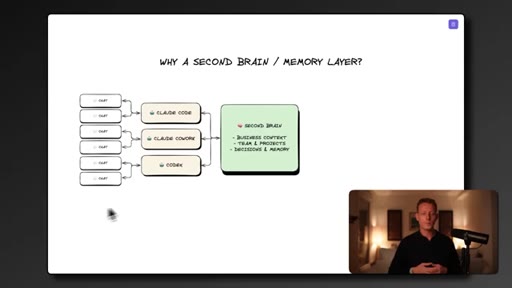
why second brain diagram
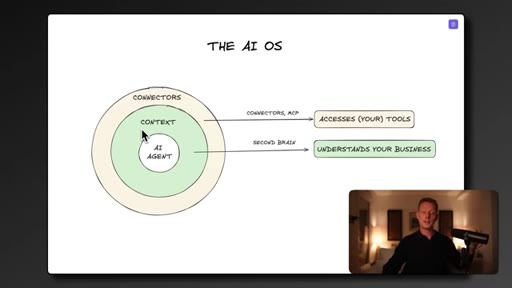
AI OS concentric ring model
os-setup running
vault folder structure
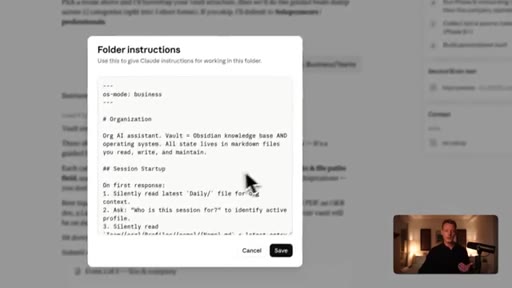
CLAUDE.md folder instructions
os-operator skill
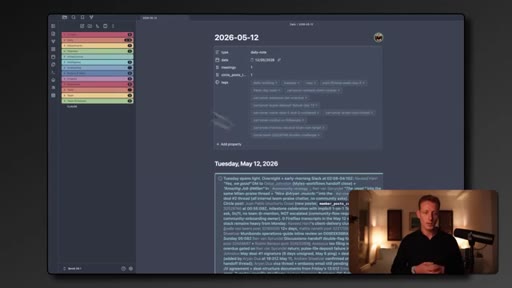
daily brief May 12
os-optimizer skill
vault audit 46 to 94
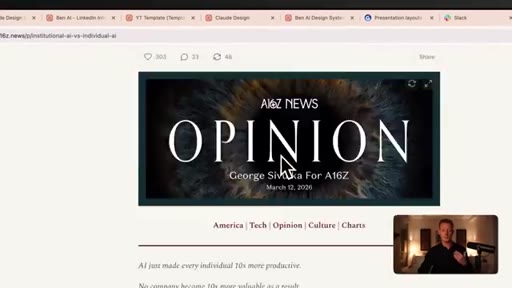
a16z institutional AI article
relay sync setup
os-mcp Railway deploy
cloud routine configured
CTA — AI Accelerator
§ · Frameworks

Named ideas worth stealing.

03:30 model

AI OS Concentric Ring Model

  1. Second Brain (context + CLAUDE.md)
  2. Connectors / MCP (accesses your tools)
  3. Capabilities / Skills / Routines (automates your work)

Three-layer mental model for why a memory system is the foundation of a useful AI agent.

Steal for Any product positioning deck or landing page explaining why context matters
20:24 list

OS Optimizer Framework Stack

  1. Anthropic Best Practices on Architecture
  2. CLAUDE.md optimization
  3. DREAM framework
  4. Managed Memory
  5. Caveman Compression
  6. Chroma Context Rot
  7. Karpathy NNM Wiki

Seven published memory/context frameworks combined into one weekly vault audit skill.

Steal for Building a context health checker for any AI-native product
10:46 list

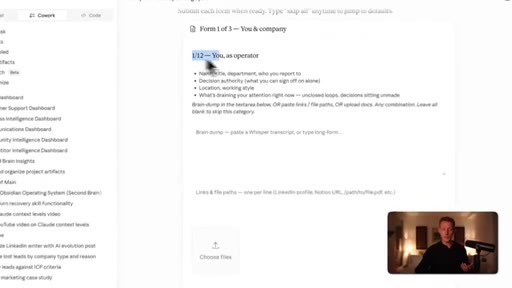
12-Section Brain Dump Intake

  1. You (operator)
  2. The company
  3. The market
  4. Strategy
  5. Team
  6. Products/Services
  7. Customers/ICP
  8. Competitors
  9. Operations
  10. Sales & Marketing
  11. Finance
  12. Infrastructure

Structured 12-question onboarding that populates the initial vault context in brain-dump format — no structure required from user.

Steal for Any AI onboarding wizard, JoeFlow morning session setup, MCN+ onboarding flow
§ · Quotables

Lines you could clip.

00:00
"Setting up a second brain or an AI operating system is the single most valuable thing you can do in AI right now."
Bold opening claim, stands alone with no setup needed → TikTok hook
03:30
"The more context and the more me and my team have been using Claude Code, the less I am in other softwares."
Concrete outcome statement, no jargon → IG reel cold open
11:13
"My cofounder likes to say to people: just order a six pack and a pizza and just sit down for a couple of hours together with Claude."
Funny, relatable, makes a tedious setup sound like a good time → Newsletter pull-quote
20:04
"1,710 files audited. It found 34 potential problems. It fixed 32 and improved the health score from 46 to 94."
Concrete before/after numbers — no explanation needed → TikTok hook
06:41
"Start simple. This is not about having the perfect setup or thousands of files in there on day one."
Removes the number one objection to getting started → IG reel cold open
§ · Pacing

How they spent the runtime.

Hook length31s
Info densityhigh
Filler5%
§ · Resources Mentioned

Things they pointed at.

23:10toolObsidian ↗
23:15toolObsidian Relay Plugin
14:57toolFireflies (meeting transcripts connector)
14:57toolCircle (community connector)
§ · CTA Breakdown

How they asked for the click.

31:27 product
"If you want more help with setting up your OS, we have a full more in-depth course in my AI Accelerator. We also have unlimited one on one live tech help."

Soft — mentioned three times at increasing urgency: mid-video resource drop, near end with community pitch, final outro with agency booking link. Not pushy.

§ 04 · The Script

Word for word.

HOOK opening / re-engagementCTA the pitch analogy story
00:00HOOKI believe setting up a second brain or an AI operating system is the single most valuable thing you can do in AI right now. Because once it's set up, every AI tool, every chat, skill, or agent you use instantly becomes far more powerful powerful by tapping into real time context around you and your business. But setting it up can be overwhelming, and not managing it well can lead to an unstructured mess that burns through tokens.
00:22HOOKSo in this video, I'll show you five cloud skills you can copy and paste for free to help you set up your second brain or AI operating system fast and according to best practices that help you automatically update it with real time context and skills to optimize it for token usage and performance autonomously when context grows.
00:40And lastly, I'll show you how to share this across a team while still having permission settings. Now if you don't know me yet, I'm Ben. I run an AI agency where we implement AI operating systems for businesses and run an AI community, and these skills are a direct result of helping dozens of businesses and people set this up efficiently themselves.
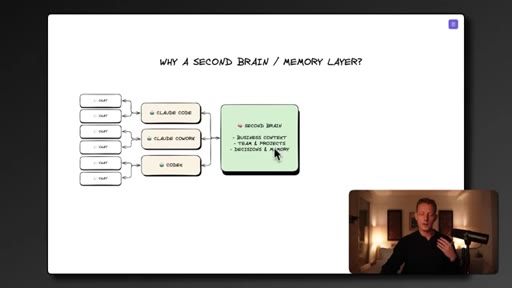
00:57Now before showing you the four skills, let me quickly go over why having a second brain or a memory system like this is so important if you're still unfamiliar with it. Now with a memory system like this, I can first of all give any AI agent or any AI provider like Codex, Cowork, or Cloud Code persistent context and memory across any chat.
01:15And this means that instead of your AI tool giving you generic outputs or you having to copy and paste relevant context in each new chat, your AI agent can always pull relevant context and memory in every new chat chat you start. For example, when I'm ideating on new YouTube videos, Clot can instantly pull data on my strategy, my past video performance, on my transcript,
01:36uh, my competitors, all to give me far more relevant outputs. And this memory layer can include everything about you and your business.
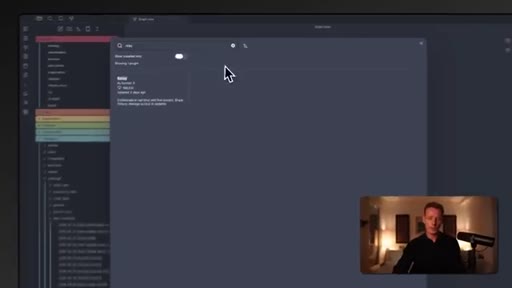
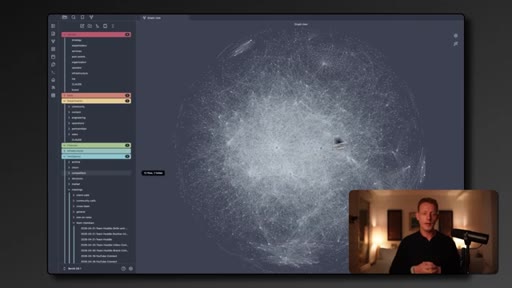
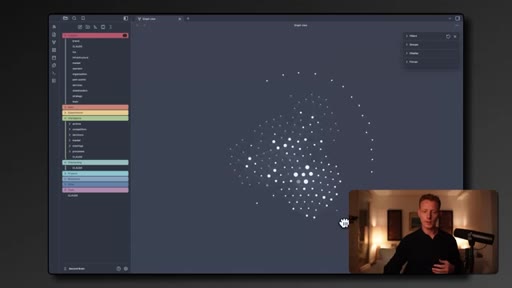
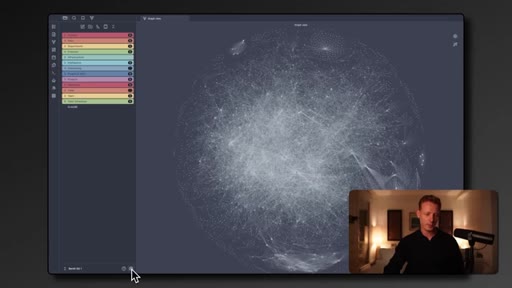
01:43For example, you see I have literally thousands of documents around my business, my strategy, my transcript,
01:49my daily to dos, my departments, every YouTube transcript I've ever done, my team members and their roles, my agency's client context, etcetera. And this context in my second brain is also updated in real time with everything that's changing and happening in my business, for example, with meeting transcripts, Slack chats, email comms, etcetera.
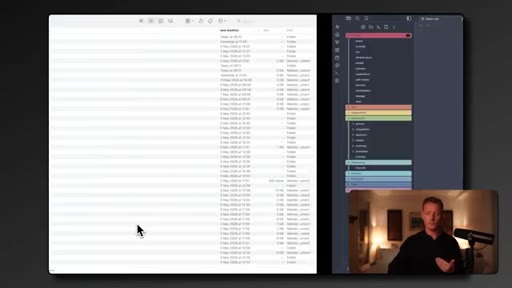
02:08Obsidian, by the way, which is the tool that I'm showcasing here, is just a visual overlay of a file or a folder on your computer. As you can see, everything you're seeing in Obsidian is actually just stored here in a folder. Obsidian just becomes very useful because it helps you organize and visualize a very complex folder like the one I have here in a better way.
02:27Now this memory layer can also be shared and used across teams in businesses. So my entire team's AI agents and AI tools instantly become far more aligned and more powerful for my business because my entire team's AI agents now pull from the same business context, the same strategy docs, etcetera.
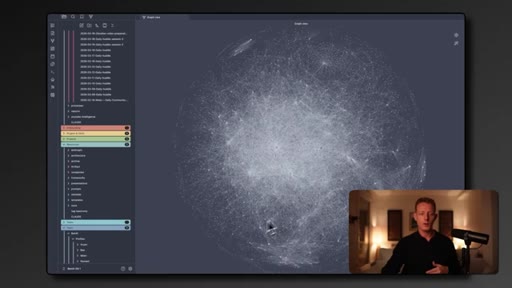
02:44And all of their specific context and expertise will also be fed into the second brain and usable across the entire team. And the reason you wanna start with this as soon as possible is that this context compounds because the more you and your team use AI and the earlier you start with this, the more context it's gonna build, and this means the AI agent you and your entire team have after six months of using this is far more powerful than the one you started with, uh, today.
03:07For example, this is what my second brain looked like three months ago, and this is what it looks like right now. And this memory layer is also the foundation for allowing AI agents like Cowork or ClotClick Code to become the main operating system for doing work. Because if we have this foundational context layer combined with connectors and MCP that can access your software, the Internet, and your computer, and capabilities and features like skills, routines, and loops that can automate and execute on your work and tasks, AI really starts becoming more and more your main interface for doing work.
03:38HOOKI can tell you that the more context and the more me and my team have been using Cloud Code and Cowork, the less I'm in other softwares and the more of our tasks across all our business departments are being done by these AI agents or at least assisted by these agents. This is where the world is heading, and because this memory layer is the foundation, I highly encourage you to get started with this today because I think you'll be surprised how much more productive working with AI gets with this setup.
04:03HOOKCTASo let me walk you through the first one, which is the OS setup skill. After using this skill, you should have your initial second brain setup, something that sort of looks like this, and has enough context to really make your AI and your AI agents become more powerful and productive. It can also be used to help other people set it up or even if you potentially wanna do this for clients.
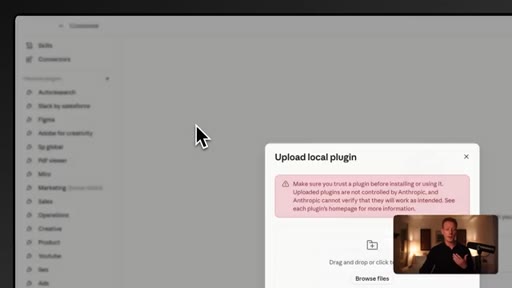
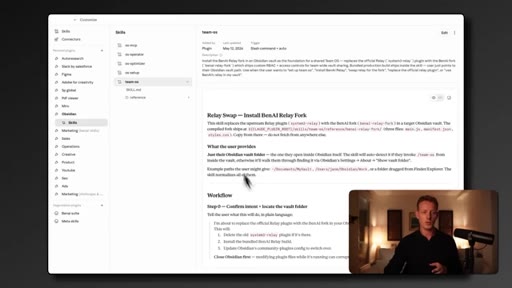
04:22HOOKCTANow you can download all of the skills by just going in the first link in the description. Now in there, you'll find the plugin ZIP file here, which you can just download. And then if you're setting this up in the Cloud desktop, you can just go to customize here, then you go to plugins here, you click on plus, you click on create plugin, and then upload plugin.
04:39HOOKCTAHere, you can just drop in the ZIP file, and they should now appear here under a tab called Obsidian. Maybe the name might have changed, but you have a new plug in here with all of the skills listed out.
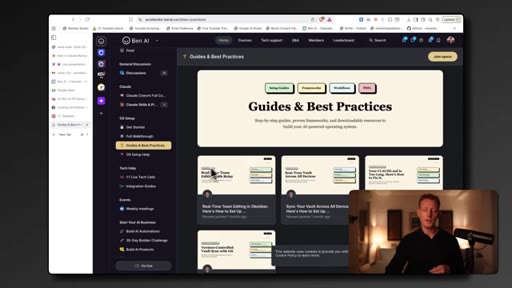
04:48HOOKCTAIn the resource, you will also find a full setup guide that walks you through the entire process step by step if this video might go a little bit too fast for you. And if you need more help, you can also check out my AI accelerator in the second link in the description below where you get access to unlimited one on one live tech help with my team to help you with any issues or questions you might have.
05:07We also have a full in-depth course on setting up this OS together with all our skills and plug ins that we're building out for ourselves and multiple weekly q and a's with me and my team. So if that's interesting to you, definitely check it out. And if you're a business and you want me and my team to actually help set this up for you together with personalized consulting and training, you can, uh, check the third link in the description below to book in a free call with us.
05:27Now this first skill will help you set up your initial second brain by helping you with three important things to get right when setting this up. Firstly, it will help you with the initial population of context in your second brain by asking you some questions. Second, it will help set up your folder structure, which is important to make sure your second brain is organized
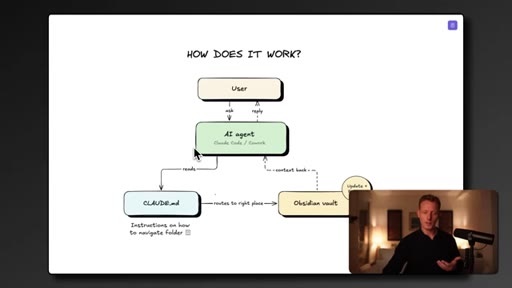
05:46and structured efficiently for it to be able to scale well. And thirdly, it helps you set up good clot dot m d files, which are extremely important because they tell clot how to efficiently navigate the second brain. This clot dot m d file is basically the instruction layer or the map for your AI agent on clot code or co work on how to navigate the second brain folder.
06:07So it tells clot basically where to find and store information in this complex folder. And then lastly, I'll show you quickly how to set up Obsidian, which is the tool that I show here, of course, which is what you wanna do after using this skill, which again, Obsidian is a free tool to download, and again, it's nothing more than just a visual overlay of the folder we are creating on our computer.
06:26Now before diving into this setup skill, it's important to have the right mindset when setting this up because this second brain setup can become pretty overwhelming pretty quickly. And, usually, lots of questions will pop up like, what context do I actually need? Do I have enough context?
06:41Is, uh, my file structure well? Is it all structured well enough, etcetera? But the important thing to keep in mind is that you wanna start simple.
06:48Uh, this is not about having the perfect setup or thousands of files in there on day one. The point is about getting started simple and fast. Because once you've set this up and start using it, the second brain will grow naturally over time.
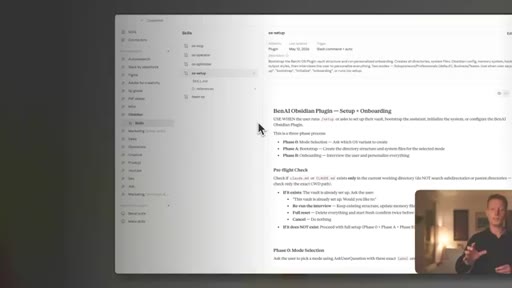
06:59I can tell you that the day I started this, I probably had around 30 or 40 documents in there, and then six weeks later, this grew into hundreds of documents, and now I literally have thousands. So after you've imported the scale, you can just use the scale by going, uh, typing a slash and going OS setup. You'll see the the setup scale appear,
07:17and now one more thing we wanna do is we wanna create a new folder, which we'll probably call the second brain folder because this is what Claude will populate to create your initial second brain. So I can just create a new folder, and I call it second brain test. I open it,
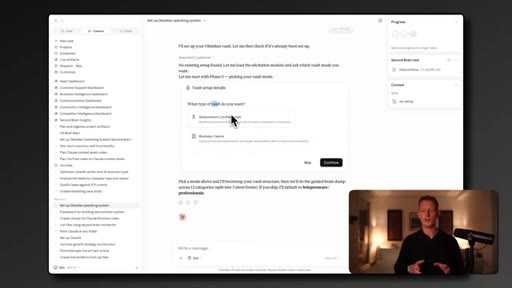
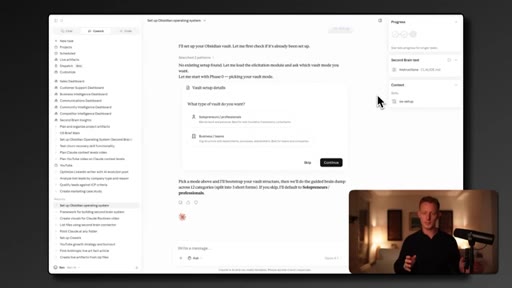
07:33click always allow, and now Cloud will set up the second brain inside of this folder, which we're later gonna connect to Obsidian. Now when you run this, so the first question it asks you is what type of folder structure do you want? What type of vault do you want?
07:44Is it for entrepreneurs or professional, or are you a business with a team? Now it's important to select the right one here because based on this, it's gonna decide your initials folder structure. Now I know there have been many people who've been trying to set up a second brain, and it can be sort of hard to wrap your head around a good folder structure for yourself.
08:00And, honestly, there is no right or wrong answer here because the perfect folder structure for me will not be the same for you because it is context dependent, business dependent, and dependent on what's important to you. And just like the context, this will evolve sort of naturally to the more you use this. That being said, uh, while helping, um, other people setting this up in other businesses, we've seen two initial folder structures work best as initial folder structures for most people and businesses.
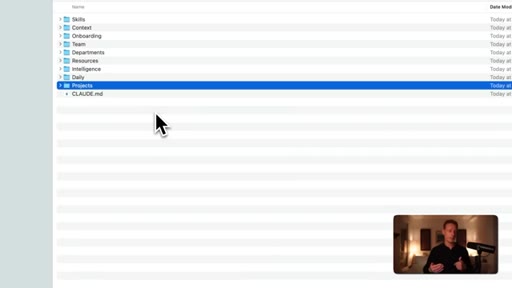
08:25So one is for solopreneurs or professionals that don't have a team or don't need a team set up, and one for business owners or people who wanna roll this out across teams. So in my case, I can select business, and what Claude will do now is create your initial folder structure with all the subfolders inside of the folder we, uh, first selected and created the Claude MD and the index files.
08:46So after you've done that, you'll see in the folder you selected, you now have all these subfolders. Now, again, don't worry about understanding this entirely yet, uh, because this folder structure in the end is more for Claude than for you, but I'll walk you through very quickly what's gonna be underneath each one. So in the context folder, it will populate information with general information about you and your business.
09:04The daily folder will log everyday's work, so Claude can look back and see what happened each day across the business. The project folder will be for all the active projects. For example, with me, there could be a project for each YouTube video I'm doing.
09:17Then we have an intelligence folder where meeting transcripts, calls, decisions, and competitor research, for example, can live. We have a resource folder where reusable stuff like prompts, frameworks, and templates can live.
09:30We can have a skills folder for every cloud skill that you build or install. And if you've picked the business setup, this department folder for SOPs by departments, team folder where every person in the team gets their own profile with role, daily notes, and tasks, and an onboarding folder, uh, for new hires. Again, don't stress about understanding all of this on day one.
09:49It'll make a lot more sense when you have some context in here. Right? Because you can see this is, of course, still empty.
09:54And besides these folders that it has set up, there's also set up the clot dot m d as you can see here. In a clot desktop, you can also see the clot dot m d here, and, basically, this is that layer that instructs two clots exactly where it can find which information based on this folder structure.
10:09So it's already made and optimized according to what we've seen work best for these types of folder structures. And then with every new chat, Claude opens, it will first read this Claude MD to know where to pull data from if it needs to. It has also set up separate Claude MD
10:25documents for each of the subfolders to basically instruct Cloud also how these subfolders are structured, which is a technique and best practice Andre Karpathy, one of the leading AI researchers came up with. But, this is already done for you.
10:37Now the next thing we need to do, of course, is to populate it with the actual context about you and your business. So the next thing the skill will do is to start asking you a series of questions to help you populate this initial sort of key information that you need to get started with your second brain.
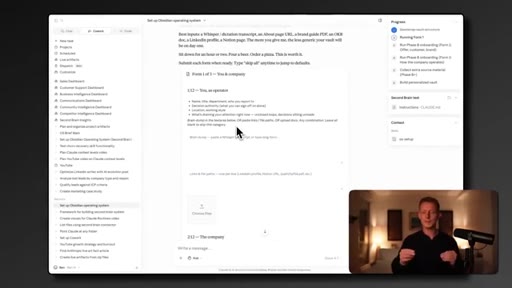
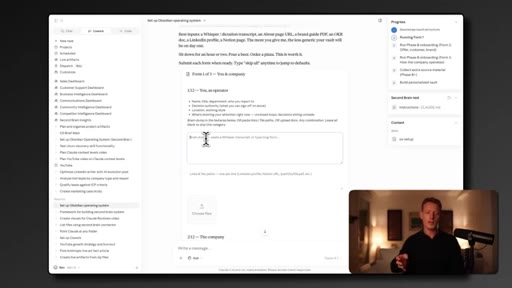
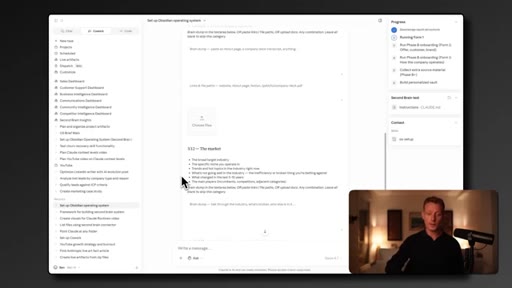
10:52So we'll go through a set of 12 sections to get a good initial context dataset around you and your business. So, for example, the first one here is about you, uh, then about the company,
11:03then about, uh, the market you're in, etcetera, and it will cover 12 of the most important sort of sections that you need to cover. Now in each of these, you'll see a Braindump box and a link and file box,
11:15and you can upload any documents you might have. And this is really where you wanna take your time with. Right?
11:20And my cofounder likes to say to people, just order a six pack and a pizza and just sit down for a couple of hours together with Claude. And in each of these questions, just do a really long brain dump. And we have put some bullet points here too on each of the sections so to give you some inspiration on what you can talk about, but I highly recommend just getting a a voice transcription tool like WhisperFlow and just doing a really long brain dump.
11:42Doesn't have to be structured and talk about anything around, in this case, you, your background, what's important to you, where you live, etcetera. Anything you can imagine, just dump it in here. Any files you might have that can relate to this, and you can also here instruct any, um, documents that might already live in Notion, for example, or Google Drive that you can use because if you have the connector set up, you can pull those documents in right away.
12:05Again, this doesn't have to be structured because what will happen after you've done and gone through all of the 12 questions is Claude will actually structure this for you and put it in the folder structure that we just seen. So after you've gone through those 12 questions, what you'll see is that inside of that folder, it is now actually populated it with some, uh, data.
12:23For example, your brand, your team, your market, your infrastructure, your ICP, etcetera. And you'll see that you already have lots of very relevant documents that will make outputs inside of your next chats already a lot more productive and efficient. Now then, of course, there's one more important thing.
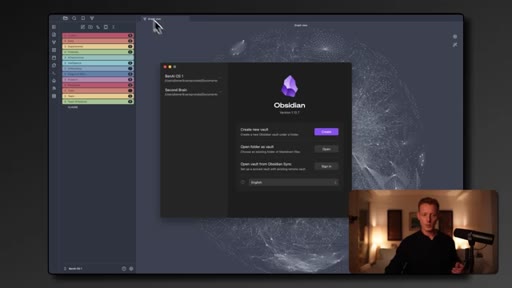
12:39Once we have this, it's actually connected with Obsidian. So you can just download Obsidian for free from, uh, for Mac or for Windows. So you can just download it from their website.
12:47You just have to create an account which takes you one minute, and then you'll land on a screen like this. Then you select open folder as vault. We'll then select that second brain folder that you earlier created, and then you have that exact folder in a nicer visual layout.
13:00We also have that graph view, of course, where we can see the connections between all of these files. That's basically what this is, but this is just gonna become really helpful when your context start growing to actually start managing it in a better way because it becomes very complex in a in a normal folder. Now your Obsidian might not look as fancy or colorful as mine,
13:20but we've just applied a template to the the visual layout, which you can do here in the settings. Then you go to appearances, and here you have an option called themes.
13:28Then you can go to manage near you have lots of different ways you can visualize, um, Obsidian. Now we specifically used PLN,
13:37which you can just click here. Then in the themes, you just select the PLN, and then, uh, you get an upgrade basically in the visualization inside of Obsidian.
13:46And once you've set this up, there are three important things to keep in mind. Firstly, every new chat we start across any AI provider, it could be co work, cloth code, etcetera, we always wanna make sure the second brain folder is selected. Second, the clot m d does have instructions to save information when you're chatting with Claude to, uh, make sure to remember stuff you've done in chats.
14:06But if there's something specific that you think Claude should remember, always just make sure to tell Claude to save it as a file in your second brain. And thirdly, Claude should start pulling context automatically
14:18based on what kind of prompt you give it, but if it doesn't, you can always specify to go through your vault to, uh, get some extra context before answering. Now what's missing in this initial setup, of course, is to actually populate and update the brain with real time information on what's happening and changing in your business day to day.
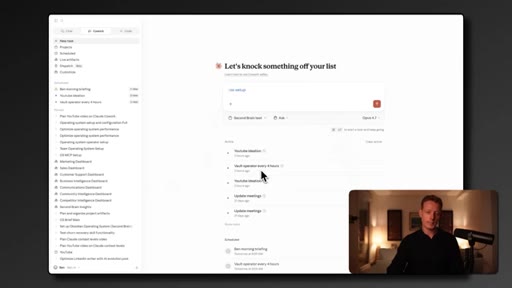
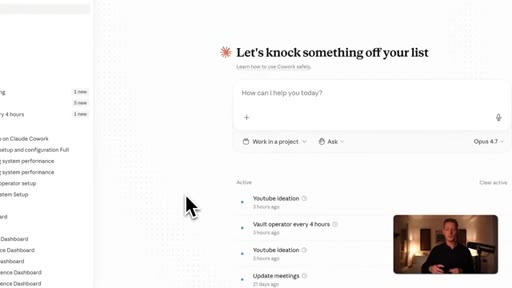
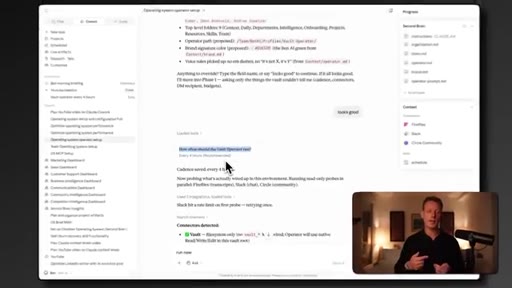
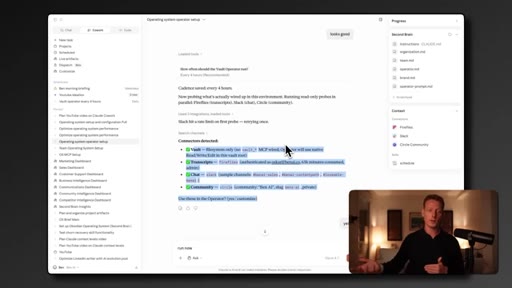
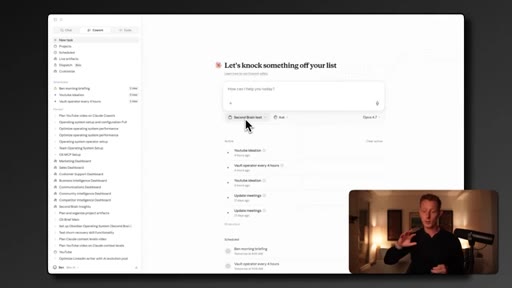
14:35And this is exactly what the next skill will help you to do, the OS operator skill. And this skill will basically help you set up a scheduled task, and this scheduled task it will set up will pull real time context from your business and update your second brain with it. You can see here that my fault operator schedule task runs every day here in the back end, and it basically uses the Fireflies connector,
14:57my Circle community connector, and the Slack connector to pull my latest meetings, my latest chat and thread discussions from Slack, and the latest threads and questions for my Circle community. But this, of course, can be wired up to any software or platform that you wanna pull real time data from.
15:13You can imagine, uh, connecting your inbox or even an analytics platform, but any information that's important for your second brain to have up to date information or context on. You will then use this context to create daily context briefs in the daily folder.
15:27For example, you can see here in Tuesday, May 12. Because of all of this information it has, it knows exactly what critical escalations are, what today's calendar is. For example, you can see OS skills video filming continuation.
15:40So it has up to date context around everything me and my team are working on and what's our priorities right now. It also creates daily task list across all the different team members. All the meeting transcripts are saved, and it will also use this context to update your second brain or an existing file with things that might have changed.
15:57It might delete even files that became irrelevant because of the updates. You can imagine if we discussed a strategic change in our business, that it can actually start, uh, adapting, uh, the strategy document and things like this. Besides this, it even does some basic cleaning and hygiene of your second brain, like, uh, spotting duplications in your second brain and cleaning them up or merging them.
16:18It might summarize large files. It cleans up the formatting, make sure Wiki links are added efficiently, and some other things.
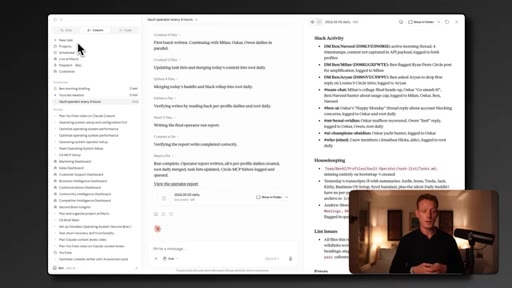
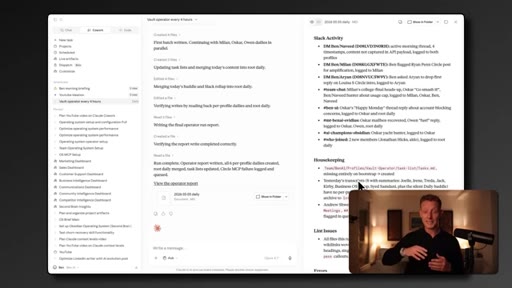
16:25You can see here, I get a you get a report too with what kind of housekeeping it has done. And this, of course, becomes important when the context is growing. We wanna keep our second brain clean and function well.
16:36But this is something that the next skill will help you out with even more. And this is really the next step to make these AI tools or AI agents become far more powerful because now it can help you prioritize your day, become much more of a strategic sparring partner. It can help you, of course, execute on some of these day to day tasks, etcetera.
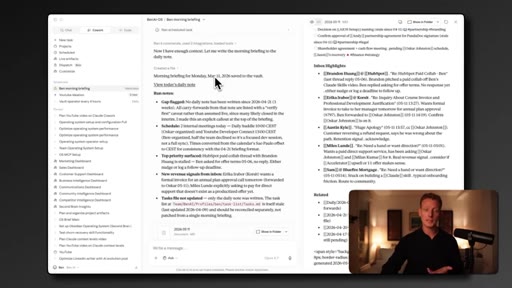
16:52And, of course, you can also start building your own scheduled tasks based on this real time data that are useful for yourself. For example, daily briefing, uh, scheduled tasks become interesting to set up to know, for example, what my team has been working on, uh, yesterday, what our priorities, etcetera. How do you use the scale?
17:08Again, you can just run it by using the slash command and in this case, always operator after you've downloaded the scale, of course. We'll then first look at your existing folder to understand the folder structure, then ask you how often you wanna run this scheduled task.
17:22Now what I recommend is to do this at least once a day, but you can also run this multiple times a day. Of course, it's gonna cost you a bit more tokens, but it makes sure your second brain is always up to date with the latest information. You'll then look at the connectors you've already set up in your account and spot any relevant connectors to use in this day's scheduled task to pull data from in order to update your second brain.
17:42Now if you haven't set these up, you wanna think about what data you want to populate and make sure Cloud has up to date context on, uh, and then you wanna, uh, make sure that those are already connector connected in the customized tab. If you then approve the connectors, you can also define, uh, when the scheduled task finds something urgent that requires human action to directly escalate it through, for example, in my case, a DM on Slack to a specific person on your team, which in my case, did to my cofounder.
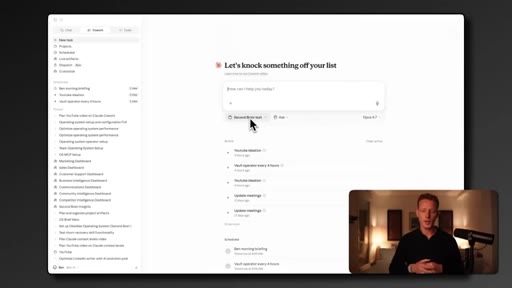
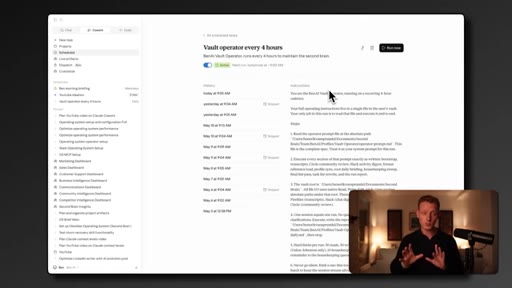
18:10It'll then give you a summary of the schedule task it's gonna create, and if you then approve, it's gonna directly set up the scheduled task for you as you can see it did here. You'll then find it here in your scheduled task, and it's gonna call be called something like vault operator, and you'll see that your prompt and the instruction here is customized to your specific use case and your specific scenario and connectors.
18:30And once you switch this on, it will run on a time interval you've defined. Now one thing to keep in mind is that these scheduled tasks only run when your laptop is open and the clock desktop is open. In order to do this autonomously,
18:42even if our computers are not open, we need to actually do it through cloth routines in cloth code. As you can see here, I have a routine set up too, and this one runs actually autonomously even if my computer is not open. But in order to do this, we need to set up an MCP out of our second brain, which is exactly what the last, the fifth scale I'm gonna show in this video helps you to do.
19:01But these scheduled tasks that I showed are definitely enough when you just get started. But if you're interested in setting this up and to run autonomously even if your computer is not open, uh, make sure to check out the last scale of this video. Now when we start using the second brain more and context grows, what will happen is that the context bloats.
19:17And when the context bloats, it's gonna lead to inefficiencies in the second brain, which can lead to higher token spend. Uh, your AI might become slower. Your AI agent might, uh, be pulling in irrelevant context in chats.
19:29Um, maybe we have duplicate or conflicting information in the second brain along with a host of other issues. So what we need to do in order to have your second brain function well with growing context is to do regular audits, hygiene checks, and optimizations. Now this is exactly what the next scale, the OS optimizer scale, helps you do.
19:47Cloud actually very recently announced that they're launching a dream feature, which is aimed at doing something very similar, but at the moment, it's only available in managed agents. As you can see here, I ran the skill. It then audited, uh, my entire folder and lots of different things, spotted potential problems or inefficiencies,
20:04and fixed anything that could harm the SecondBrain from working well. At the end, it gives me a full dashboard that basically shows everything that it has optimized in my SecondBrain infrastructure.
20:14So we can see that there were 1,700 files audited. It found 34 potential problems. It fixed, uh, 32 and improved the health score from 46 to 94.
20:24Now how does this scale do that? Now there are a lot of smart people like Andrej Karpathy and, uh, others who've come up with great frameworks and best practices on how to maintain, optimize, and manage large amounts of context and memory.
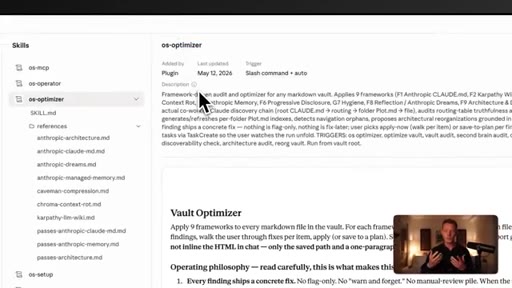
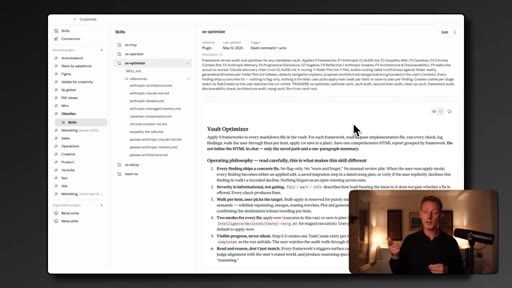
20:37And we've basically taken multiple of these frameworks and put them together into one scale. As you can see, we have Anthropics best practices on architecture, the CloudMD, the dream framework, and manage memory. We have the caveman compression method.
20:50We have the chroma context route method and Carpathi's NNM Wiki along with some others. Now I'll not bore you with all of these frameworks, but what this scale basically does is it first audits your second brain and detect anything that could potentially interfere with that. And then based on these frameworks, it optimizes everything to make sure your second brain is clean, optimized for token spent, and efficiently pulls data and saves data from the right sources.
21:14And it does that by optimizing, for example, the CloudMD, the CloudMD index files for token usage and routing efficiency. The CloudMD, of course, is, uh, the text file that Cloud always pulls in in every chat. So having that optimized is gonna make a big difference in your token spent over the long run and also make sure that it actually pulls in relevant data.
21:33It also spots, uh, duplicates, for example, in your, uh, second brain and merges them. It also detects stale context, flags files that are unreachable,
21:42and resolves conflicting information in the brain. It helps also with, uh, folder structure organization and might even propose structural reorganizations
21:50depending on your setup. It also does a full hygiene check where it checks for broken Wiki links, bad formatting, removes irrelevant data, and adds tags and front matter fields.
22:01Now this OS optimizer scale is a scale you wanna run routinely, probably on a weekly or biweekly basis at least to make sure it's optimized as it grows and expands. You could also, again, put this in a scheduled task or in a routine in order to make this run autonomously.
22:16Now, again, in order to run this through a routine autonomously, you'll need to set up an MCP out of your second brain, which is what the last scale of this video helps you to do. Now the next scale, the team OS scale, will be very useful if you have a business and wanna start rolling this out across the company and different team members.
22:32Now as said, if your business and you have a shared second brain or memory layer, everyone's AI agents instantly become far more powerful and more aligned with the business, and this solves a big problem that AI still has too, which is that AI always tends to agree with everything. And because each team member in a business does have a different perspective,
22:51always has differences in views, they're not always necessarily aligned with the business strategy. There's a really interesting article that talks about exactly this, uh, about institutional AI versus individual AI that talks about exactly this alignment issue, which I highly recommend you check out if you wanna learn more about this.
23:08Uh, I'll make sure to put it in the free resource link too. Now the two challenges with this shared OS setup that this skill solves is that, firstly, of course, these are local folders stored on your computer, and this quick scale allows for these local files to be synced and updated in real time throughout all of the team members.
23:25But second, when rolling this out across a team, you wanna likely have edit and permission settings set up because some of these docs are private. Some of these docs, I don't want my team members to actually be able to update, like the strategy doc, for example. So we do wanna have those permission and control settings.
23:41Now we've tried a lot of different methods to do this across our business, but most of these methods had limitation. Now you can use GitHub, for example, where you add and update the entire second brain into a GitHub repository and then distribute it across the team. The problem is that this is not in real time, so we need to actually manually update each time we make a change in the second brain for it to be shared across the team.
24:01Now another thing I see many businesses do is they try to set this up, this second brain, through a cloud based software, for example, in Google Drive or Notion. And this is an option, of course, too, instead of the second brain living in a folder in your computer, we just store all of the documents in one of these softwares.
24:17The big downside of this setup and why I wouldn't necessarily recommend you to do this is that the only way to pull or update context from a cloud based software is through MCPs, and MCPs basically add a complexity layer on top of all of this for your AI agents. Because besides figuring out how to navigate the context in SecondBrain, it also has to go through the layer of the MCP, and that extra layer comes at a cost.
24:40It comes at a cost of accuracy, of context retrieval. It comes at a cost of speed. MCPs, uh, take longer than folder access.
24:47It will also mean more token spent because MCPs will use more tokens. So this might be fine for smaller setups, but if you're planning to grow the second brain, I wouldn't necessarily recommend it. Now another option is the Obsidian sync, which is a native feature in Obsidian that allows you to do this.
25:02But, again, the downside here is that it's not real time. You have to click every time you wanna update and share this across the business, and there are also no permission settings. So what we found is the best option is to use an Obsidian plug in called Relay.
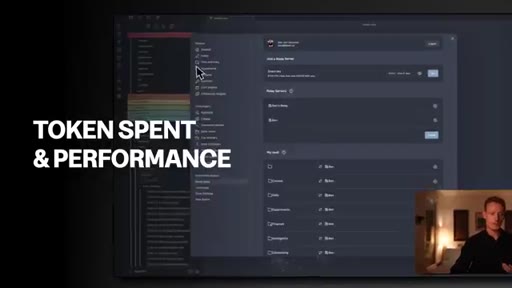
25:13Now Relay allows you to real time sync context in multiple folders automatically, and you can download it by just going to the community plug ins and click browse here and look for the Relay plugin. You can just download it by clicking on it.
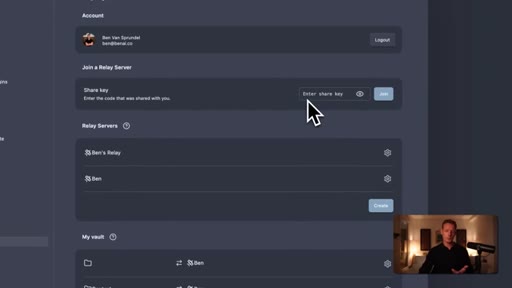
25:27Once you've done that, you can then share your entire second brain folder with a team member. You'll then also have to install the Relay plugin in Obsidian, and you can then sync the data between both of your folders through the settings here. So you can go through each of the folders and decide which one you wanna sync.
25:42You do this by setting up a Relay server, which you can do here. You'll then get the key, and as soon as the other person, the team member puts in the key, you it will appear here, and you can decide what will be seen.
25:53So this is a pretty fast and easy way to have that shared OS. Now one big limitation with this Relay plugin is that we don't actually have read or write permissions. So that's why we built our own plugin on top of this Relay plugin, which gives you those permission settings, which is what this last skill will help you set up really easily.
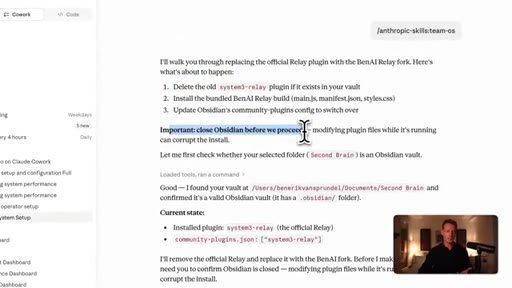
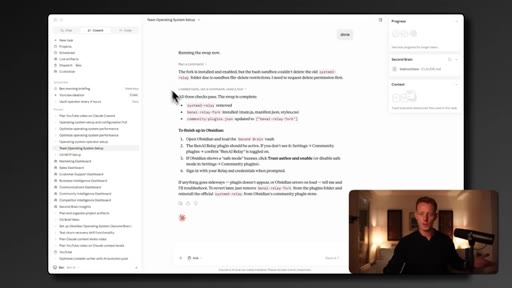
26:10So you want to run this skill after you've already set up the Relay plugin, and once you've done that, you can run the skill. So once you've set that up, you can run the skill, and once you run the skill, it will first tell you what it's gonna do. It's gonna delete the old Relay plugin, and then it will install our custom built plugin, the Ben AI Relay plugin on top of it automatically inside of your Obsidian account so you actually have this permission and at the edit settings.
26:34It'll then ask you to close the Obsidian app before it proceeds, and it will then swap the Relay plugin for our plugin. And once it's done, you'll now have an updated plugin which you can find directly in Obsidian, which if you now just reopen Obsidian,
26:46you'll find in your plugins section in the settings, you'll see Benai Relay. And if you go in your settings now, I can define specific team members for specific folders, and I can also have role based access.
26:58For example, member versus owner, so I can read the files but can't actually edit them while an owner can actually edit them. For example, my strategy doc is now accessible by my team members but can be updated by my team members' AI agents.
27:11Now, again, I highly recommend doing this once you've actually worked with your own second brain a little bit for yourself and probably a couple weeks before really trying to roll this out across an entire team because it's gonna add complexity. But, of course, if everyone taps into and feeds into the same foundational business context layer, maybe has shared skills set up even where these skills can be used across the team and AI just becoming far more aligned across the business, this can become a very powerful setup, which brings me to the last skill, the OS MCP scale, which will allow you to build an MCP out of your second brain, and that will allow you to let your OS operator scale and your optimizer scale, these two, to run completely autonomously through a routine or a managed agent.
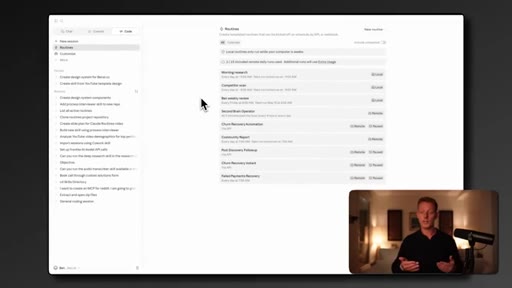
27:52And through that, it means that these recurring workflows to update your second brain and maintain your second brain are not only running when you have your cloth desktop open or your laptop open, but can also run with your laptop closed autonomously. Now if you don't know what a routine or a managed agents, uh, is yet, it's basically a cloth feature here that you can find in the cloth code tab, and here you have routines.
28:12And these are basically ways we can let agents run, not locally, like we do in co work, cloth codes, or through these scheduled tasks, but we actually run them in the cloud so they can always run no matter if your computer is open or not. And second, these routines can also be event triggered, not just time triggered.
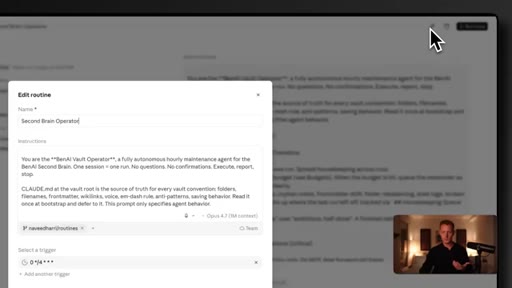
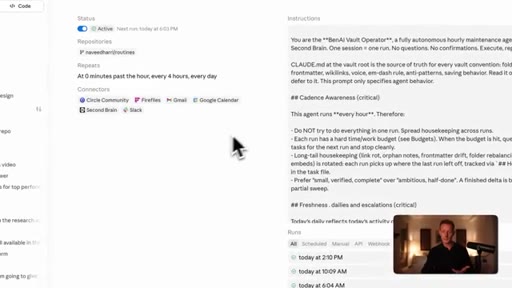
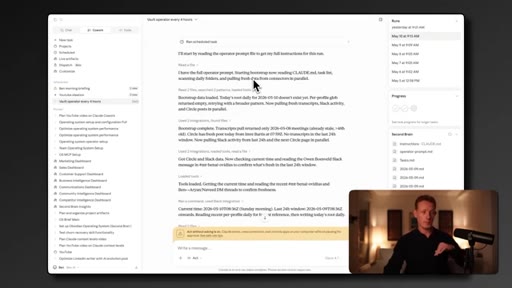
28:29So for example, we can run this every time a Fireflies meeting finishes to process the transcript. So you can see I have my second brain operator routine set up here that will run every day.
28:40So here you can see it ran one hour ago, uh, without my involvement, but will also run if if my laptop's closed. And because these routines are run on the cloud, we can't actually give them access to local folders on our computer, which is, of course, where our second brain is stored. So you can see in the setup of this routine, it actually has access to an MCP or an connector of my second brain, and this is exactly what this skill helps you set up, build an MCP out of that second brain.
29:04I also have a full routines video if you wanna dive a little bit deeper into this specific feature, but for this purpose of this video, I'll focus it more on setting up an MCP out of your second brain. So how do we do this? First, we wanna make sure that we already have the Relay plugin from the previous scale already installed because it's gonna be built on top of that.
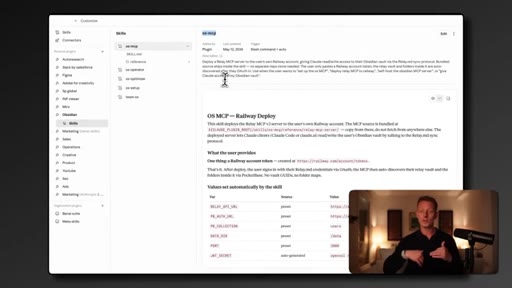
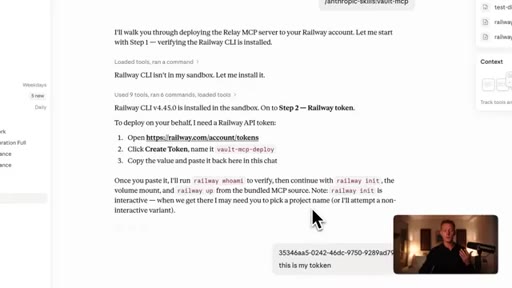
29:19So you can just run the scale, and the first thing it will do is it's going to install Railway, which is what, uh, basically the server where our second brain is going to live. That should work in Cloud Code work, but if it doesn't, you can just switch to the code tab, run the scale again from there, and then it should be able to install real way.
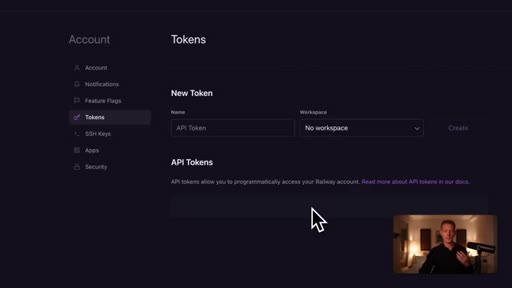
29:35Now once it's done that, it'll give you a link. You can then just create an account, and then you have to, uh, get an access token, an API token. So you can just create a token here.
29:43You can give it any random name. I've created in a new workspace. Once you've created the token, all you do is copy that and you paste it into the chat, and that's all you really need to do.
29:52Now it's created your server and will give you a vault MCP link. So here's a public URL.
29:57You wanna copy this one, And if you're using Cloud Code, you will have the command line here. Just copy this link.
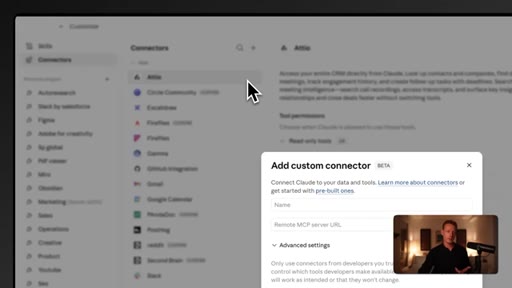
30:04You go to customize. You go to the connectors tab, and you click on plus. There you can click on add custom,
30:11and here's where you wanna add in in the remote MCP server URL that link that you just copied. You can give it again any name you want. Then you click add, and then lastly, we have to connect it to Relay in order to access our actual second brain.
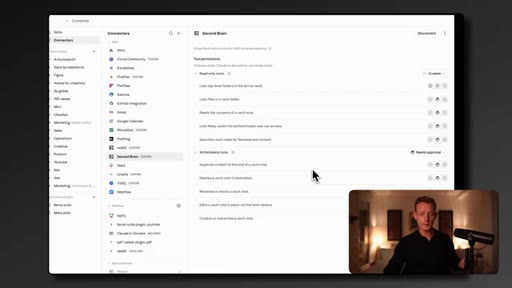
30:24So we can just click here, and and now you wanna fill out the email that you've used to set up Relay in the previous step. If you don't have a password yet, you can just go on forget password. You'll get a password through your email, then you sign in, and then you have your Relay connected, and then it will be listed here in your connectors tab.
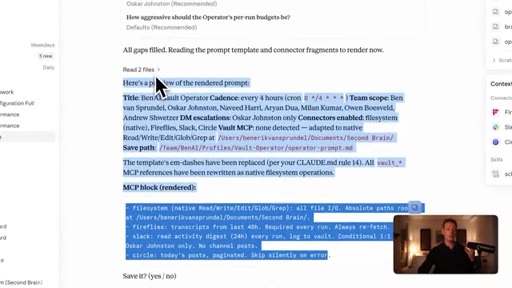
30:40You'll have your second brain as an MCP. And then if you wanna run your vault operator schedule task into a routine so it can run autonomously, you can just use that exact same prompt and use it in a cloud routine.
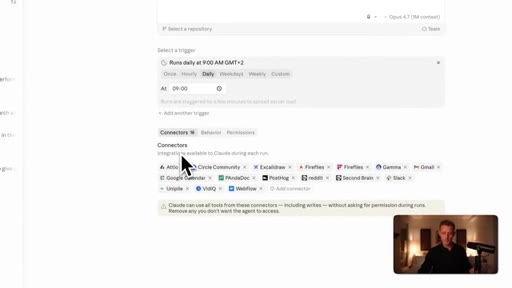
30:51So you switch to the code tab. You set up a new routine. You select remote,
30:55so that's how it's running the cloud. You can give it a name. You just paste in the prompt.
31:00You define the schedule, how often you wanna run this, and then the connectors. So you wanna delete everything except for the, uh, the connectors it needs and the second brain.
31:09So in this case, that would be Fireflies, the brain,
31:14maybe Google Calendar, my email. And once you've pasted in the prompt, this will basically work like a scheduled task, but will run autonomously.
31:22CTANow, again, if you want more help with setting up your OS, we have a full more in-depth course in my AI accelerator. We also have unlimited one on one live tech help to help you, uh, with any issues or problems you might have. We also list all our internal skills and plugins that we build out to automate our marketing sales and operational workflows that you can use and customize for yourself.
31:39CTAWe also have courses on all of the major platforms and a community with serious professionals and business owners. So if you wanna dive a little bit deeper into this, I, uh, love to see you there. And if you're a business and you want us to set this up for you besides some consulting and training on how to actually manage this over the long term, you can book in a free call with us, uh, in the third link in the description.
31:58CTANow thank you so much for watching. I hope this was helpful. And if you wanna learn more about the AIOS or the second brain setup, you can also check out the video here above.
— full transcript
§ 05 · For Joe

The second brain is the leverage point.

Build-in-public playbook

Every AI tool you already use becomes 10x more useful the moment it has persistent context — and this is a one-afternoon setup.

  • Run /os-setup with a real brain-dump session across 12 context categories. Do it once, properly — it compounds daily.
  • Set /os-operator on a daily cadence to pull meeting transcripts and Slack into a Daily/ context brief. This is the morning batch launcher already in your sessions panel.
  • Run /os-optimizer weekly — the 46 to 94 health score demo is the kind of before/after metric that works on landing pages too.
  • The Railway MCP deploy (Skill 5) is the exact architecture for headless Claude Code agents on Trigger.dev without laptop dependency.
  • The concentric-ring AI OS diagram (Second Brain → Connectors → Capabilities) is a stealing-worthy frame for positioning JoeFlow beyond transcription.
§ 05 · For You

Your AI tools are only as good as the context you give them.

If you want to actually get value from AI

The reason AI gives you generic answers is not the model — it is that the model does not know anything about you. A second brain fixes that in an afternoon.

  • Pick one folder on your computer. Call it Second Brain. That is where Claude will store everything it learns about you.
  • Do a real brain dump when you set it up — voice-transcribe for 30-60 minutes covering your work, goals, and background. The more you put in, the more relevant every future chat becomes.
  • Set up a daily auto-update so the brain stays current with your meetings and priorities, not just what you told it six months ago.
  • Run a weekly cleanup so the folder does not bloat and slow everything down.
  • Start every new Claude chat with your second brain folder selected. That is the entire upgrade — it is already in effect.
§ 06 · Frame Gallery

Visual moments.