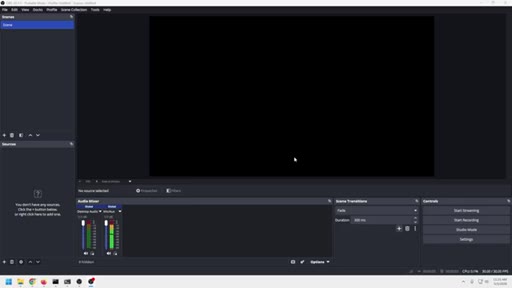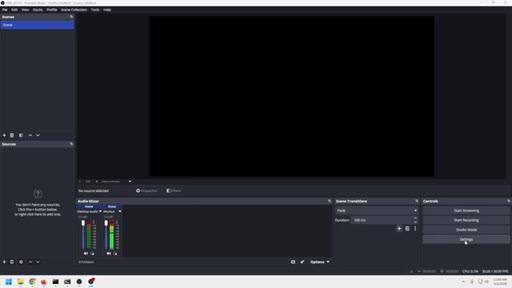
The bait, then the rug-pull.
Most streamers treating OBS like a mystery box are really chasing the same root mistake in five different symptoms. Michael Feyrer Jr. opens by naming the cluster — blurry video, random lag, weird audio, encoder overload — and reframes all of it as one solvable problem, then spends 28 minutes proving it live inside the software.
What the video promised.
stated at 01:37 "I wanna tackle the five main issues and show you how to adjust the settings to figure out what is right for your machine." delivered at 26:25
Where the time goes.
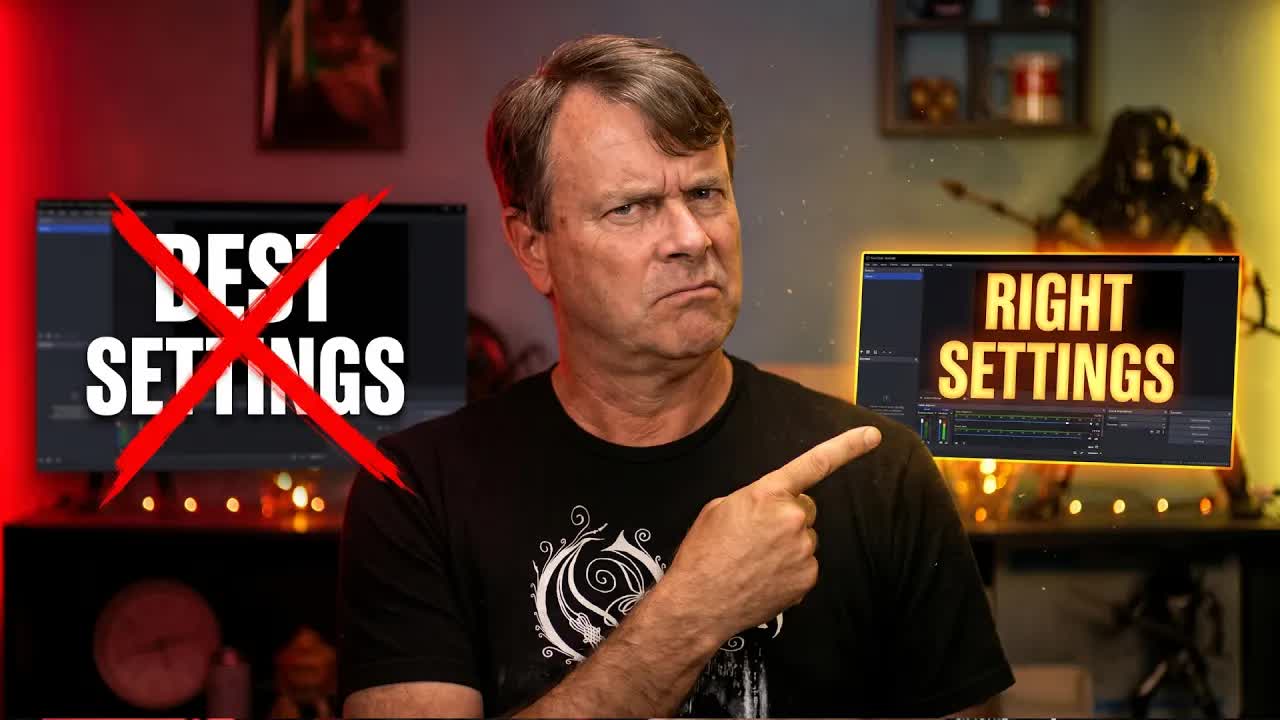
01 · Cold open — right settings vs. best settings
Pattern interrupt on symptom cluster; thesis that there are no universal OBS settings, only right ones for your machine.
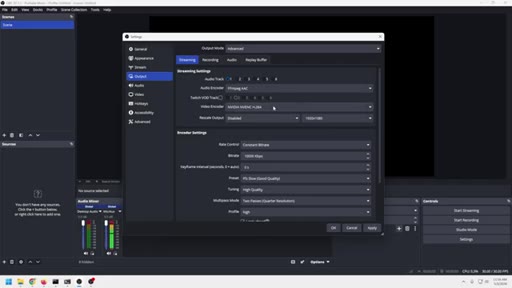
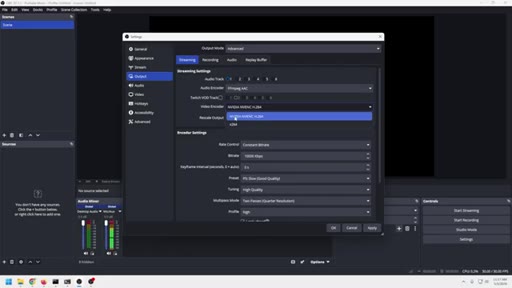
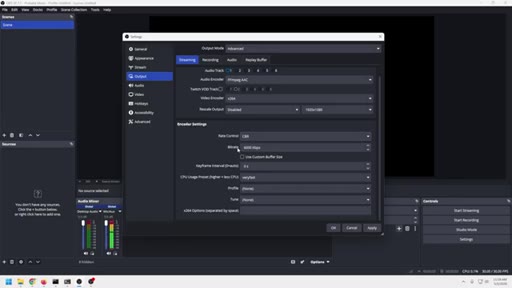
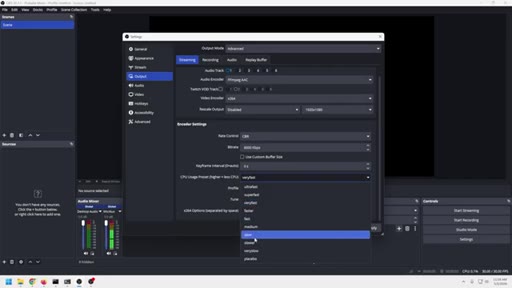
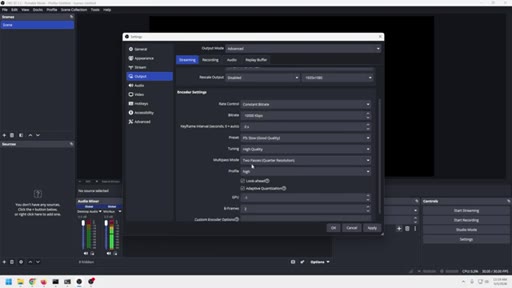
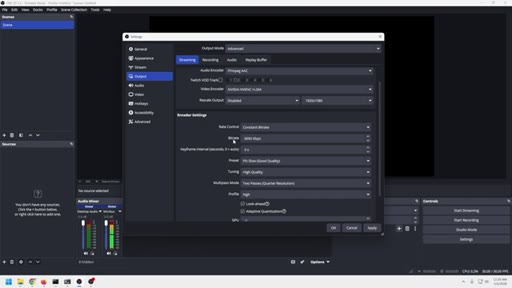
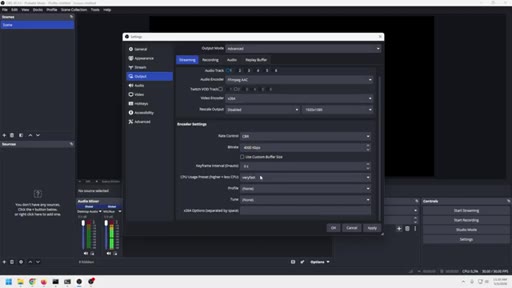
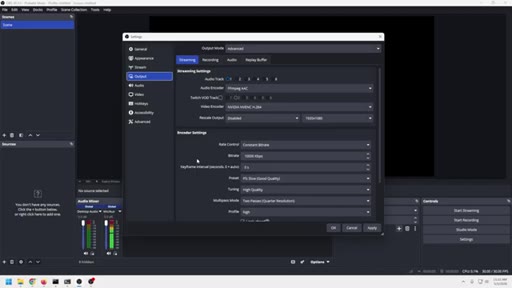
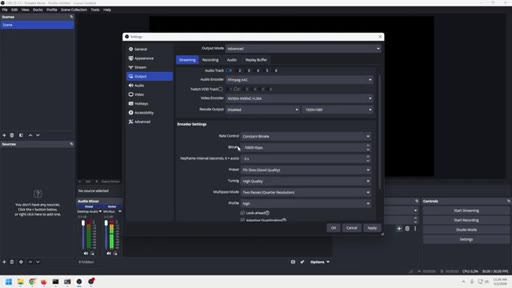
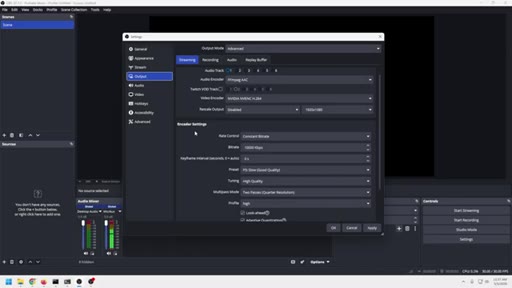
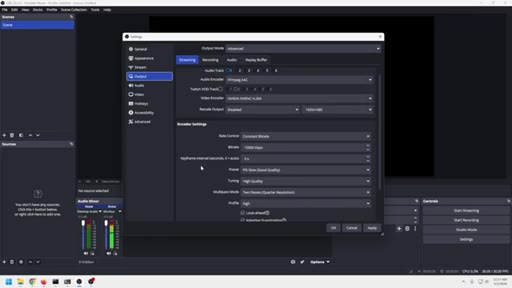
02 · Mistake 1 — Blurry streams (bitrate & encoder)
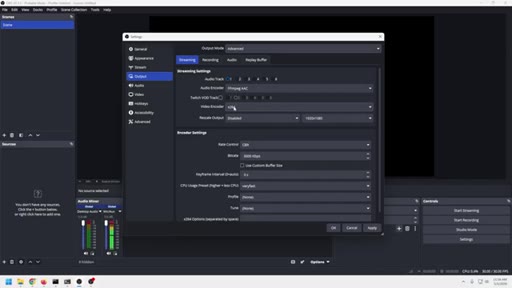
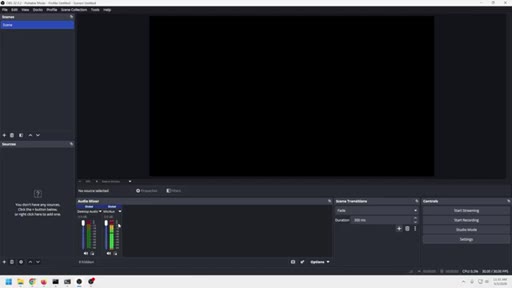
Switch Output to Advanced mode; choose NVENC vs x264 based on GPU; balance bitrate, resolution, and framerate; x264 CPU preset explained.
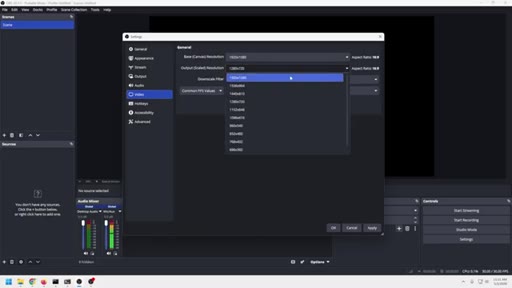
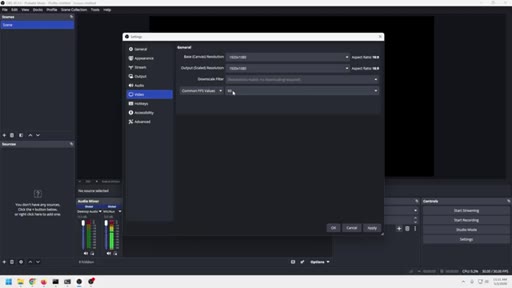
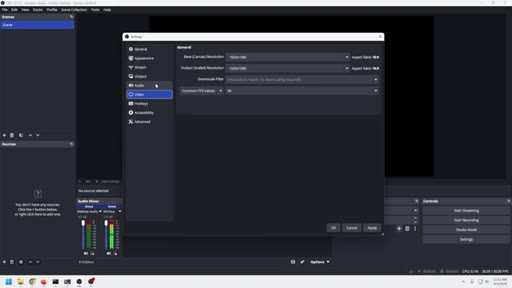
03 · Video resolution and frame rate tips
720p is fine for mobile-first audiences; matching base and output canvas resolution; 60fps doubles processing load.
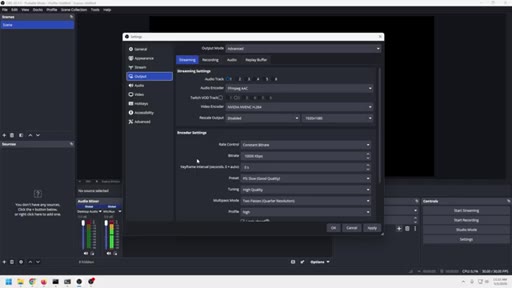
04 · Mistake 2 — Laggy or choppy streams
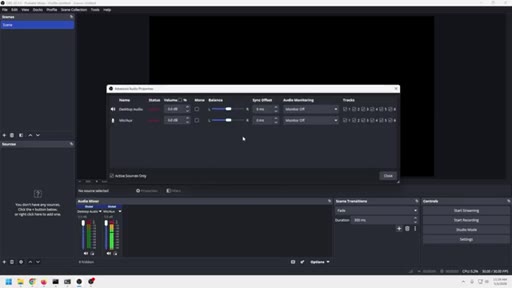
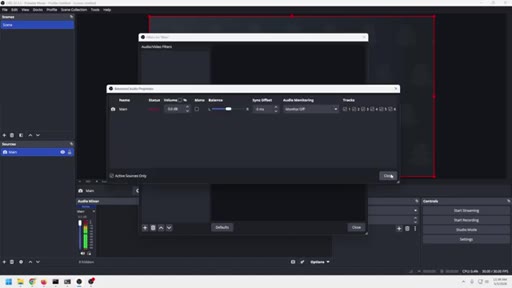
Defines lag vs latency; revisits encoder settings; audio offset fix via Advanced Audio Properties for sync issues that stay constant vs drift.
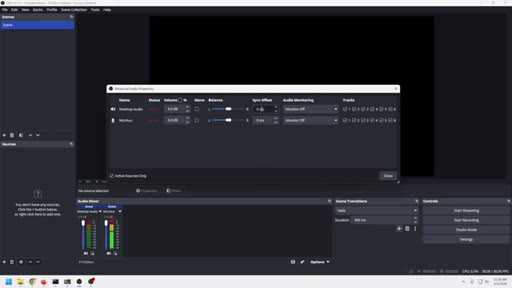
05 · Mistake 3 — Bad audio quality
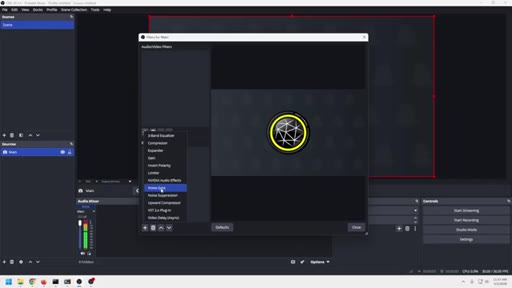
Audio chain concept: source → filters → routing → output. Caution against blindly stacking filters.
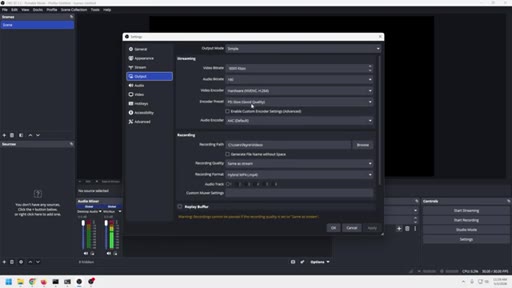
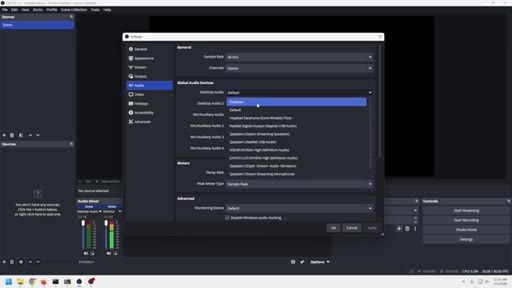
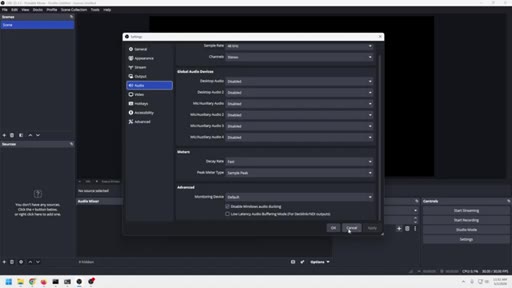
06 · Disabling global audio devices
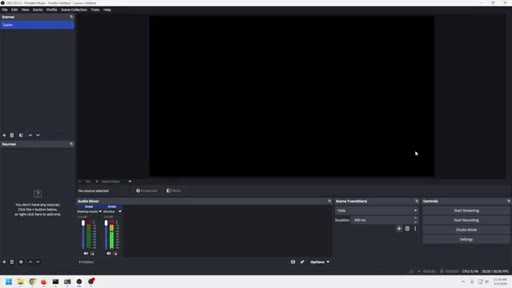
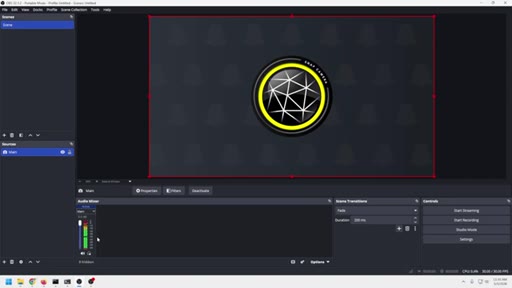
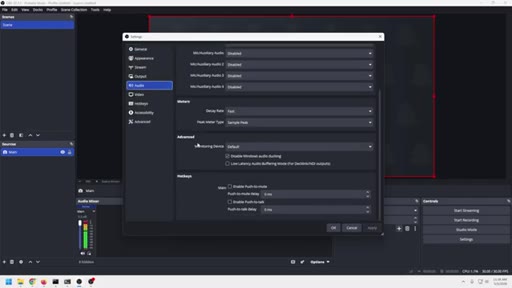
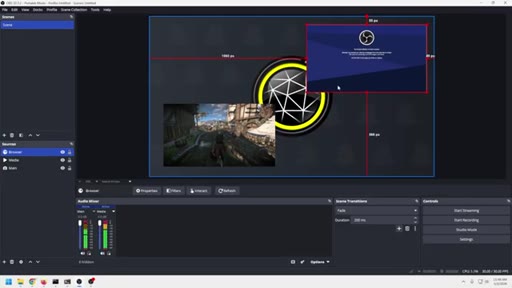
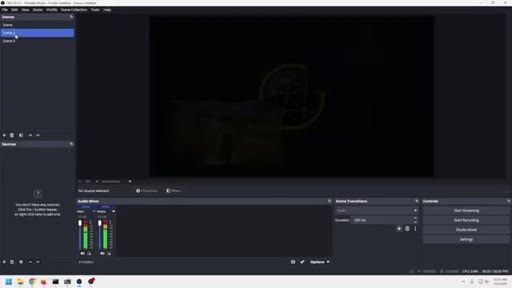
Live demo: disable Desktop Audio + Mic/Aux globally in Settings → Audio; add mic directly as a source per scene to prevent doubling.
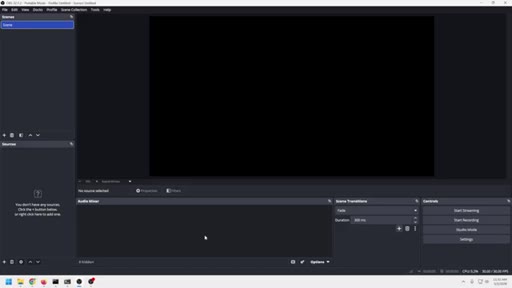
07 · Monitoring device, audio filters, video delay
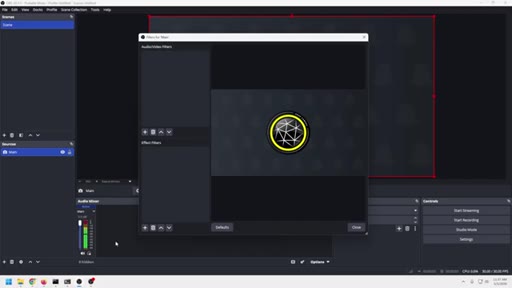
Set monitoring device to headphones not speakers; only add filters when a real problem exists; video delay as audio sync fallback.
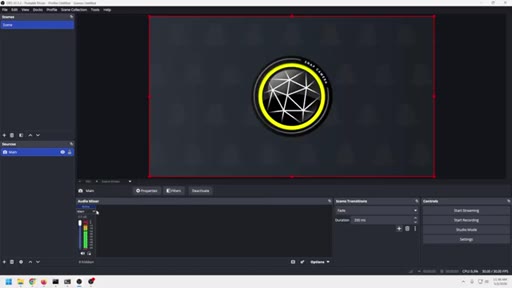
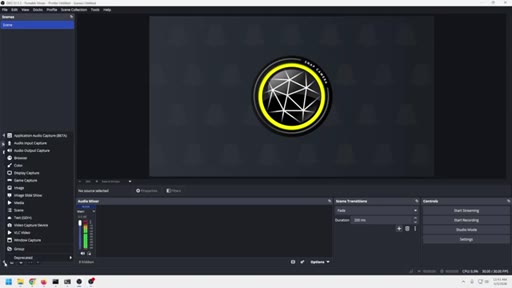
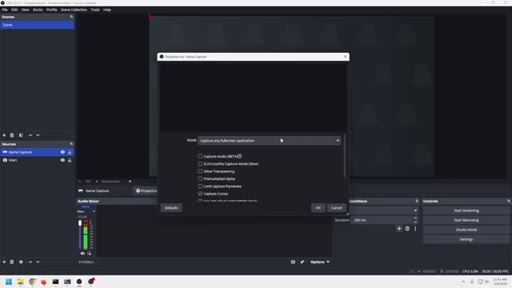
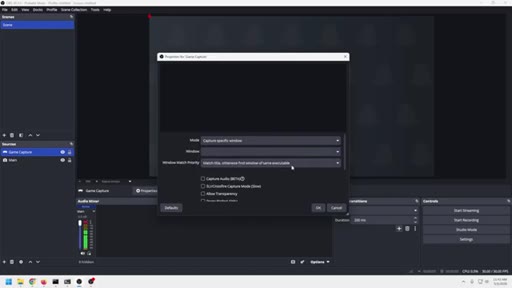
08 · Mistake 4 — Performance drops and capture methods
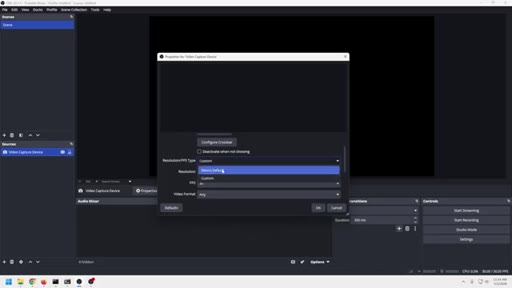
Display capture vs game capture vs window capture; GPU overhead from OBS rendering on top of a running game.
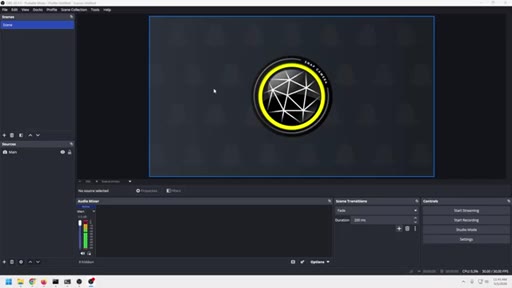
09 · Optimizing scenes and media sources
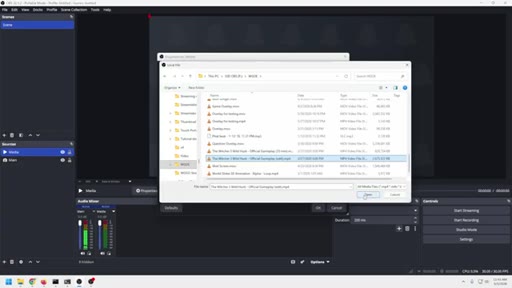
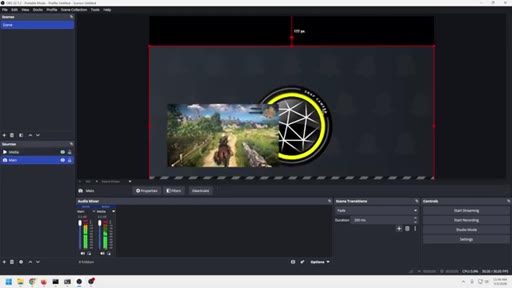
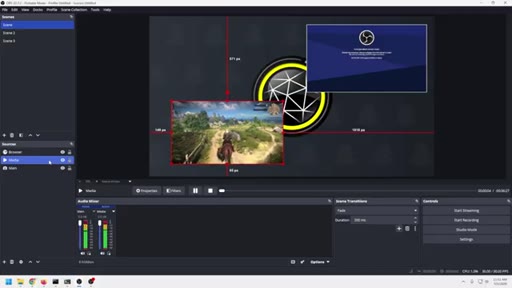
Match media source framerate and resolution to stream; Shutter Encoder (free) to re-encode assets; close file when inactive per media source to free RAM between scenes.
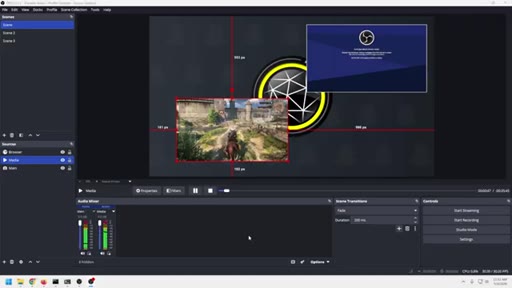
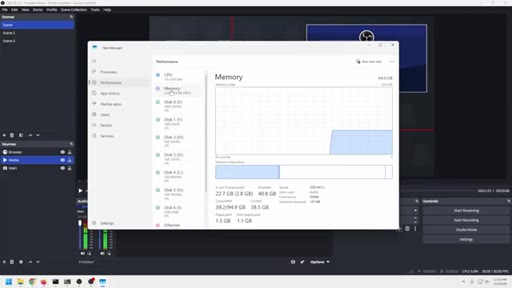
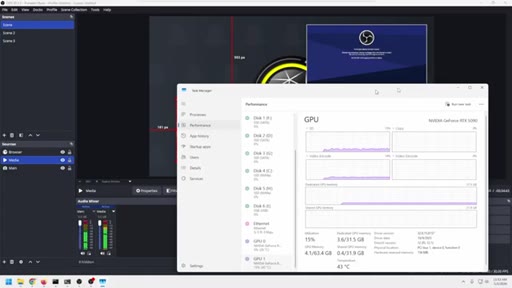
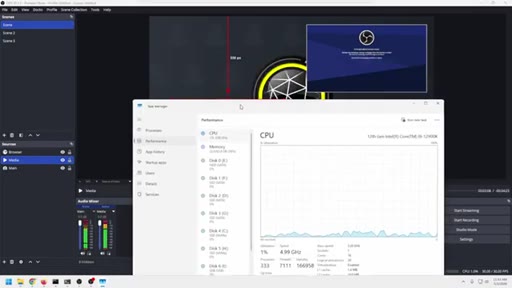
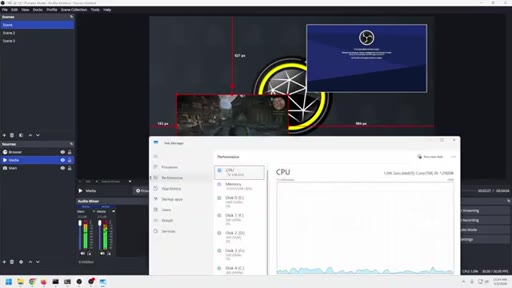
10 · Monitoring headroom with Task Manager
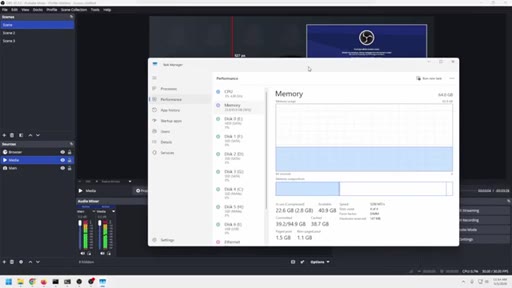
Live Task Manager → Performance demo: CPU, GPU (NVIDIA RTX 3090), Memory (64 GB shown at ~36% in use), Network — watch these while streaming to locate the bottleneck.
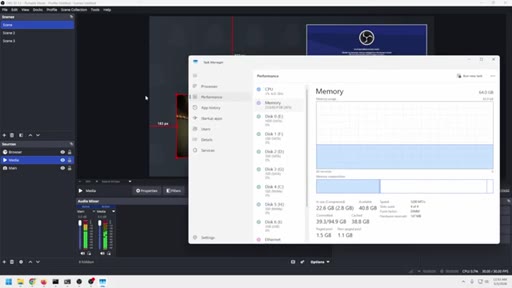
11 · Mistake 5 — Outdated OBS tutorials
OBS changed significantly in 6–8 months; following old tutorials creates confusion and random-fix stacking; find current sources.
12 · Subscribe CTA and wrap
Subscribe ask, comments prompt, next-video card.
Visual structure at a glance.
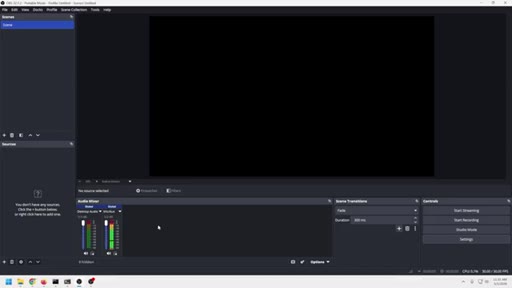
Named ideas worth stealing.
The Big Five OBS Mistakes
- Blurry streams (bitrate/encoder imbalance)
- Laggy or choppy streams (same root, different symptom)
- Bad audio (broken chain + global device confusion)
- Performance drops (wrong capture method + scene bloat)
- Outdated tutorials (stacking random fixes)
Reframes scattered OBS symptoms as five named problems with known fixes, giving viewers a diagnostic mental model.
Audio Chain
Source → Filters → Routing → Final output. If one link is wrong the whole thing sounds wrong. Used to explain why random filter-stacking backfires.
Right Settings vs Best Settings
The thesis: universal 'best settings' tutorials fail because every machine is different. Right settings are calibrated to your hardware.
Lines you could clip.
"People will tolerate video that is a little soft, but they will not tolerate bad audio for very long."
"The biggest OBS mistake in 2026 is still people chasing the best settings instead of the right settings."
"90% of people who watch live streams are watching them on your phone. So there is no reason to stream in 4K or 2K or even to be locked in to 1920 by 1080. 720p is perfectly fine."
"Removing your global sources is going to solve 95% of your problems."
How they spent the runtime.
Things they pointed at.
How they asked for the click.
"Go ahead and hit that subscribe button down there and make it easy to find me next time you need a tutorial on OBS."
Soft and well-earned — lands after genuinely delivering on the promise. Framed as utility ('easy to find me'), not an ask. Reinforced with next-video card.
Word for word.
Steal the diagnostic frame.
The '5 mistakes' structure turns a generic settings tutorial into a troubleshooting tool — that is why it gets clicks even in a saturated niche.
- Lead with the symptom cluster, not the solution — qualify your audience in the first 10 seconds.
- The reframe ('you don't have 5 problems, you have 1') is the hook. Every niche has an equivalent buried inside beginner confusion.
- Find the one live demo that causes an instant visual aha — the global audio disable is his. It costs nothing to shoot and earns massive goodwill.
- Make a counterintuitive permission slip early (720p is fine) — it reduces overwhelm and builds trust before the dense technical content hits.
- Recommend one free third-party tool mid-video with no pitch attached. Builds credibility before the CTA.
- Frame the subscribe CTA as 'make it easy to find me next time' — utility positioning, not a favor ask.
Fix your OBS today.
Most OBS headaches trace back to a handful of settings you have probably never been shown — here is where to start.
- Switch Output mode from Simple to Advanced — it unlocks encoder controls you cannot access otherwise.
- If you have an NVIDIA GPU, switch from x264 to NVENC. Your CPU load drops dramatically.
- Go to Settings → Audio and disable every Global Audio Device. Add your mic directly inside your scene as a source. This alone fixes most double-audio and phantom-audio problems.
- 720p at 6,000 kbps looks great for live streaming — 90% of your viewers are on phones anyway. Stop obsessing over 1080p60 if your machine struggles.
- Open Task Manager → Performance while streaming. Watch CPU, GPU, and Memory. Whatever spikes when things go wrong is your actual bottleneck.
- If a tutorial you are following does not match what you see in OBS, it is probably outdated — OBS changed significantly in 2025-2026.