Riley Brown · Youtube · 27:56

Codex Just Replaced 1,000 Hours of Video Editing Tutorials

A 28-minute live build showing how to create a full multi-scene motion graphic launch video inside OpenAI Codex using the Remotion plugin — entirely by typing.

Posted
April 24th 2026
1 months ago
Duration
27:56
Format
Tutorial
educational
Channel
RB
Riley Brown
§ 01 · The Hook

The bait, then the rug-pull.

The first thing this video does is pick a fight with Claude Code — not to be contrarian, but because the Remotion plugin makes the argument for itself. In under 30 minutes, a full motion graphic launch video gets built from zero using nothing but typed sentences inside OpenAI's Codex desktop app.

§ · Chapters

Where the time goes.

00:00 – 02:40

01 · Intro

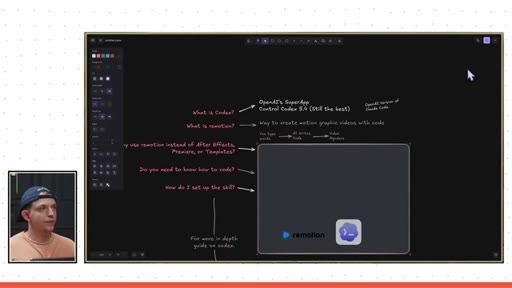
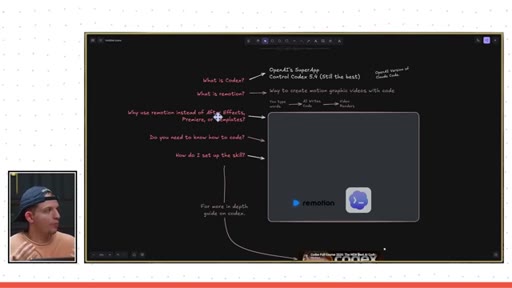
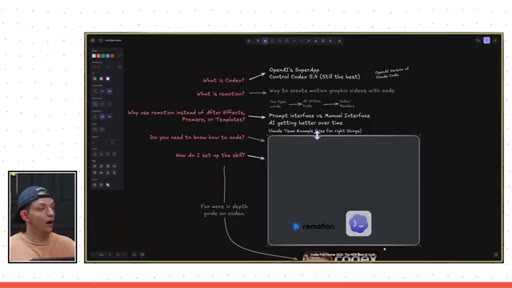
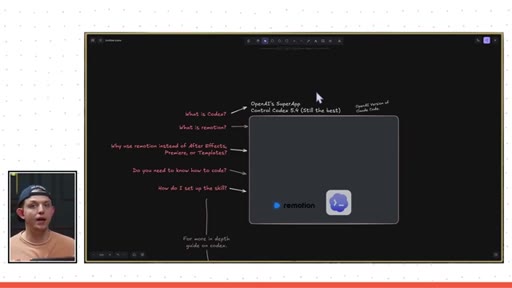
Hook positioning Codex above Claude Code; teaser of the Remotion plugin output; on-screen sketch table of contents.
02:40 – 04:31

02 · What is Remotion?

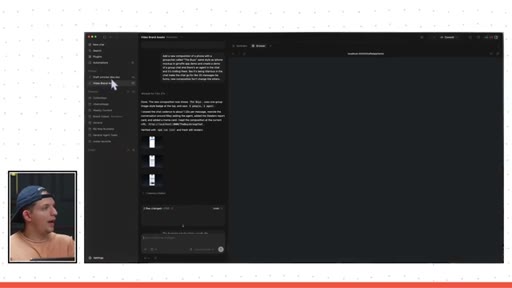
Remotion explained as code-based motion graphics; AI makes the code step invisible; Claude's 300M-view Remotion launch video campaign used as proof.
04:31 – 05:47

03 · Setting Up the Remotion Plugin

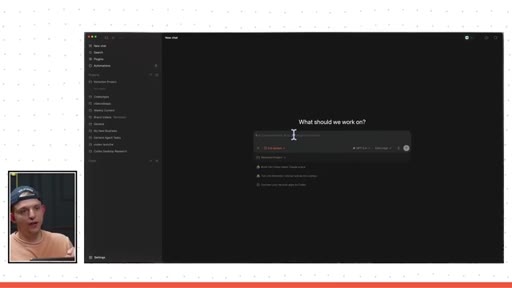
Download Codex desktop app, create a project folder, install Remotion from the plugin marketplace in two clicks — no CLI.
05:47 – 15:53

04 · First Prompt: Hello World

First @Remotion composition prompt; iterate on jiggle animation; Remotion vocabulary (compositions, sequences, localhost preview, render button).
15:53 – 15:53

05 · Building the AI Motion Graphics Composition

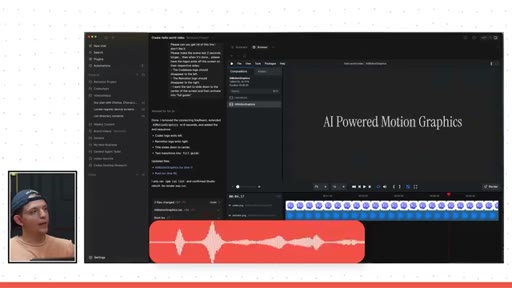
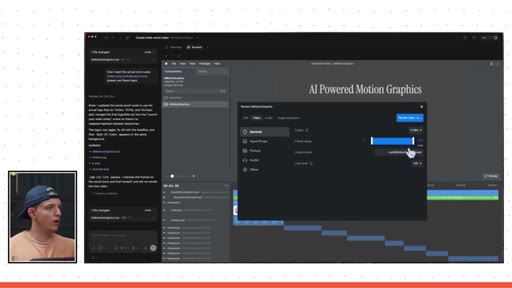
Add Codex and Remotion logo PNGs as assets; prompt for dark background with animated laser beam; iterate with CleanShot annotations; animate text morph from AI Powered Motion Graphics to Full Guide.

15:53 – 19:25

06 · Brand Assets and Organization

Build a library of reusable compositions (gradients, Lissajous figures, iPhone mockups, logos) for consistent visual style via @mention in future prompts.
19:25 – 21:47

07 · Adding Music with Suno

Generate relaxing funk instrumental on suno.ai; drag MP3 into project folder; prompt agent to place at 75% volume throughout.
21:47 – 26:37

08 · Adding More Scenes

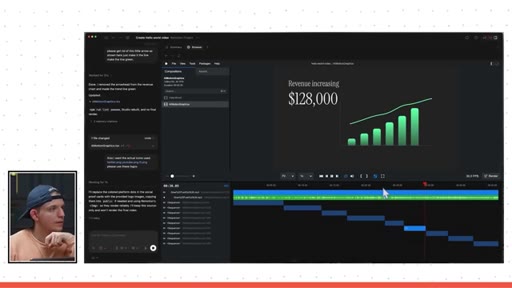
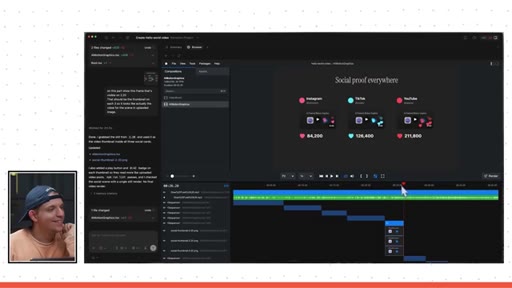
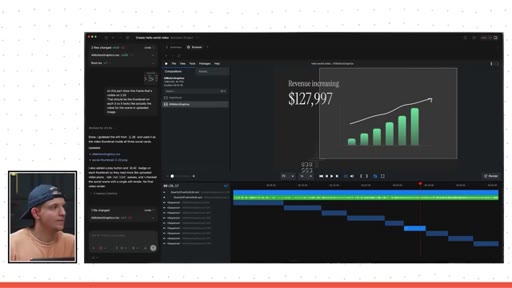
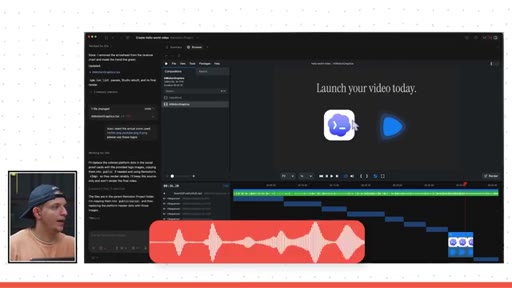
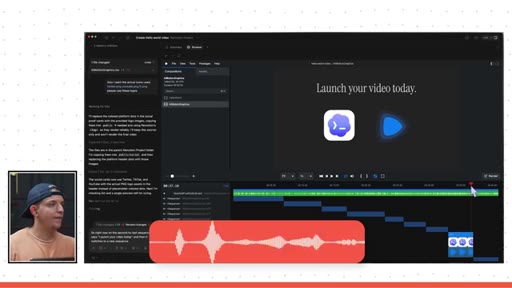
Four new scenes added: social proof platform icons with like counters, revenue bar chart to $128k, Launch your video today CTA, final OpenAI Codex sign-off.
26:37 – 27:12

09 · Rendering the Video

H.264 export via Remotion render panel; output file ready to upload to Twitter/X.
27:12 – 27:56

10 · Final Thoughts

Recap: full branded video built in about 8 prompts in under 28 minutes. Encourages further iteration for professional-grade output.

§ · Frameworks

Named ideas worth stealing.

07:48 concept

Composition / Sequence Vocabulary

  1. Composition (standalone video unit)
  2. Sequence (time-offset layer within a composition)
  3. Assets (PNGs, SVGs, MP3s — non-code files)
  4. Localhost preview (live render in side browser)

The four Remotion concepts you need before prompting: compositions are the video containers, sequences are the timeline layers, assets are the media files, and localhost is where you preview in real time.

Steal for Any tutorial that needs a vocab primer before the demo
15:53 model

Brand Assets Library

Pre-build a dedicated composition containing all reusable brand elements — logos, background gradients, animated figures. Reference them by name in future prompts so every video inherits consistent style without re-describing it.

Steal for Any workflow where visual consistency across multiple outputs matters
13:28 concept

Annotated Screenshot Prompting

Instead of describing an element in words, screenshot the interface, draw on it with CleanShot, and paste it into the prompt. The model sees exactly what you mean and eliminates a round-trip of clarification.

Steal for Any iterative AI workflow involving visual interfaces
§ · Quotables

Lines you could clip.

02:53
"All you have to do is type words in English, AI writes the code, and the video will render."
One sentence that removes the entire barrier to entry → TikTok hook
03:47
"Claude used Remotion to create like 20 launch videos in the span of one month... they got over 300 million views."
Specific numbers, credible source, instantly shareable stat → IG reel cold open
13:28
"I love to be overly prescriptive — it just saves me a lot of time in the long run."
Counterintuitive prompting tip that most people skip → newsletter pull-quote
§ · Resources Mentioned

Things they pointed at.

02:40toolRemotion ↗
19:25toolSuno.ai ↗
04:31channelRiley's 1h40m Codex deep-dive video
§ 04 · The Script

Word for word.

00:00One of the reasons why I think Codex is better than Cloud Code is because of their built in plugins. And one of the coolest built in plugins that they have, in my opinion, is the Remotion plugin.
00:11Directly inside Codex, OpenAI's new super app, you can generate motion graphic videos. Not only this, but you can actually use their new image model to create assets and then put them in your videos that you can create
00:25simply by typing. In this video, I'm gonna show you exactly how to create motion graphic videos with Remotion inside Codecs, and I'm gonna show you how to set up your project so that you can create high quality brand assets.
00:38I'm gonna show you how to create images and SVGs that you can place into your videos, and if have you a ChatGPT subscription, you have access to Codecs, and you can get started right away.
00:49And if you like videos like these, I make them multiple times per week, so make sure to hit that like and subscribe button. Let's not waste any more time. Let's dive into the video.
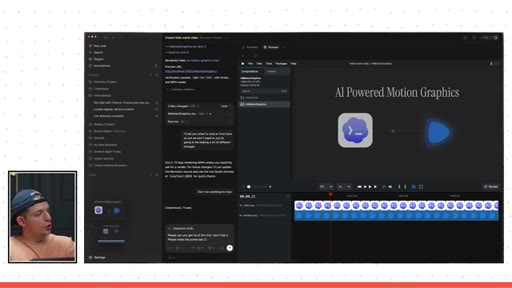
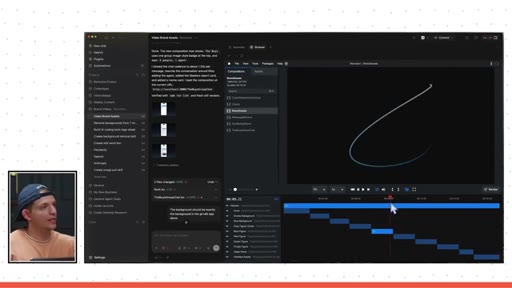
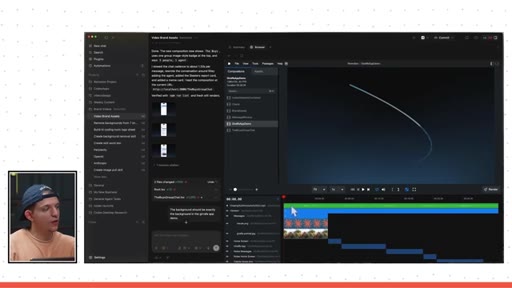
01:00Okay. So this right here is codecs, and this right here is Remotion.
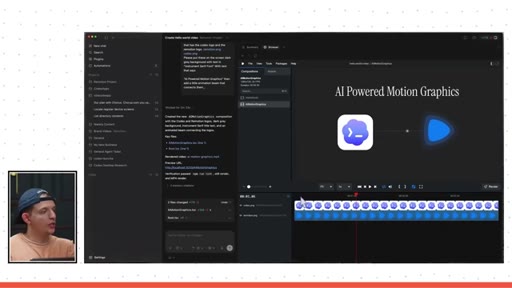
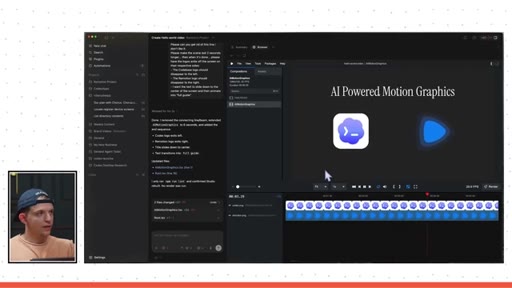
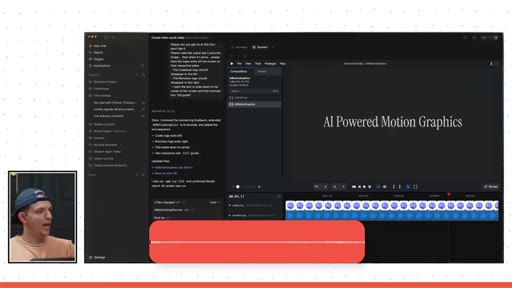
01:06This is where I typed my prompt, and this is where the video showed up. This was a result of a couple of prompts.
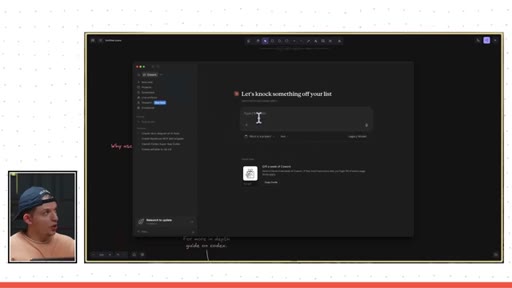
01:18So let's first talk about what is Codex. And so all Codex is is OpenAI's
01:24super app. And in my opinion, it is the best way, especially if you're not fully technical, to control Codex 5.4,
01:31the best general agent in the world, in my opinion, especially at really hard complex tasks, which I'm doing more and more frequently, and I think it is the best interface for AI agents. It is OpenAI's
01:45version of ClaudeCode's desktop app. ClaudeCode's
01:49desktop app has Claude Code in it now. In my opinion, it is much worse than OpenAI Codecs. Claude Code also decided to have a distinction between code and co work.
02:02In codex, they're combined together. So if you ask for a work based task like a spreadsheet document or a presentation, you have to do that in co work for it to create the right artifact, but code is specifically for coding.
02:14In codex, you can just ask codex for a presentation. Right?
02:19You can just ask Codecs for a doc. It'll give it to you and you can open it up here on the side. The same way you can also open a
02:27video here on the side and you can create websites here on the side and you can basically do anything or create anything that you might wanna create on a computer inside Codecs. And so that brings us to the question, what is Remotion? And so Remotion is simply a way to create motion graphic videos
02:46with code. And I don't know if you've heard, but AI writes code pretty well.
02:50So all you have to do is type words in English, AI writes the code, and the video will render. Remotion is a plugin.
03:00Right? You can see all the plugins up here. I type whatever I want in the video here, which is into codecs using the model g b t 5.4
03:08extra high. It generates some code and then it renders right here. And I can click this to export my video.
03:15So why would you use Remotion instead of just using After Effects or Premiere or some other template software? Well, it's just a difference of preference. One is a prompt interface, one is a manual interface that takes a long time to learn.
03:27And it depends on what you're working on. And also AI is getting better over time. Right?
03:31As AI gets better, it'll get a lot easier to do a prompt interface. Right now, if you're an expert, I still recommend using After Effects or other animation software. But one really good example of when it is super useful to use Remotion
03:45is when Claude actually used Remotion to create like 20 launch videos in the span of one month. And so Claude has been releasing these videos right here.
03:56When they first launching these types of videos, these were all created with Remotion. You can create these little animations here with Remotion, and they got over 300,000,000
04:07views over the course of a month just releasing these Remotion videos for all of their feature launches, and they literally were releasing one every single day. So Remotion just allows you to create videos really quickly, and you can do this in Claude Code or you can do it in Codecs like we're doing today.
04:24Okay. So earlier I mentioned that you can very easily download the Remotion skill or the Remotion plugin. How do you set this up?
04:32Well, I'll show you right now. And if you get confused by any of this at all, I created a codex video. This is a one hour and forty minute video that covers everything,
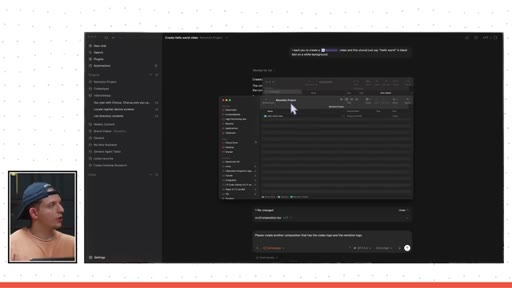
04:41uh, inside codex, but I think you'll pick it up pretty quickly in this video. So what we're gonna do here is we're gonna go up to create a new project inside Codecs,
04:51and this is because we might create a ton of videos and we want this organized in a folder. And we wanna be able to create many chats within this folder, and that's why you create projects. So we're gonna go ahead and create a new project, and we're actually gonna create this in the desktop folder.
05:07We're create new folder, and now we're gonna say Remotion project, and then we're just gonna press open.
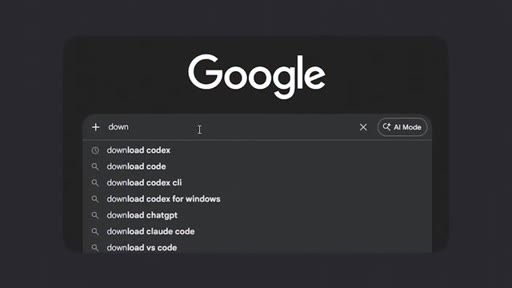
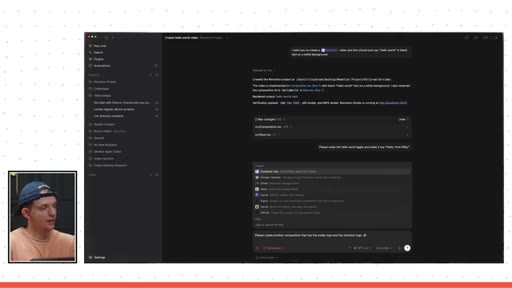
05:13And then you'll see your project start over here. So what we can do is we can press this create a new chat, and you can literally go to Google, type in download codecs, and you can download it directly to your computer. You what you can do here is you can go up to plugins and then you're just gonna go to plugins
05:30and what you're gonna do is you're gonna type in Remotion. And then you're gonna download this and you're gonna be good to go. It's gonna say, you sure you wanna download?
05:37You're gonna hit yes and you're ready to use Remotion. Now once you create a new chat, let's go ahead and test this with something very, very simple.
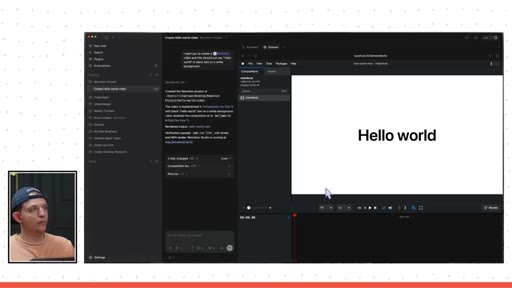
05:47I want you to create a, and then you can press at Remotion video,
05:53And this should just say hello world
05:58in black text on a white background. Right?
06:03Let's get this up and running and then we can start, uh, making really complex videos. Boom. And so just like Claude Code, the AI agent is going to work, and once it's done, it'll run it locally and then you'll be able to open it up here in this side browser.
06:20Before anything gets run, this kind of opens up in this summary and you can see the prod the progress, you can see the artifacts, and you can see the sources. So this worked for about two minutes and we got this response here.
06:33And what you're looking for is this local host link. This is running it locally on your computer. And if you click on this, boom.
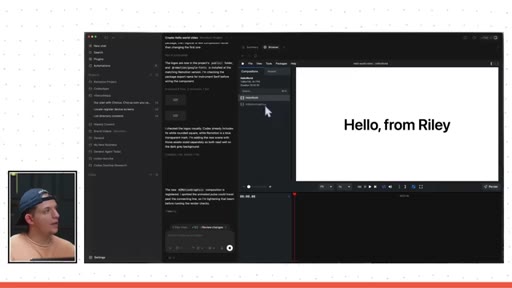
06:42The Remotion plugin automatically opens up, and you can almost think of this Remotion plugin as like a mini app that's running on your computer, and whatever you type here gets updated here. All we ask for is a hello world, and this is what we got.
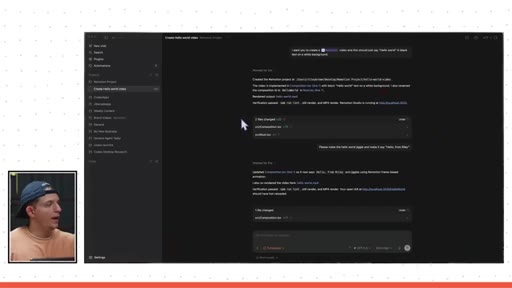
06:56We can hit play and nothing happens. Literally just loops saying hello world. We can say, please
07:03make the hello world jiggle and make it say
07:09hello comma from Riley. I promise we're gonna do more exciting stuff.
07:14I think it's important to be boring at the beginning just to give you a little taste. Okay. Hello, world.
07:18There's a reason why when you start coding that you start with a hello, world project. You just gotta make something exist, and then you can make the things better. You can let your imagination go after you understand the fundamentals.
07:29And while that was loading, uh, for fifty one seconds, I closed the sidebar just to show you that if you the sidebar ever gets closed and you can just click on this. There you go. We have the change.
07:38It says, hello from Riley, and it now jiggles. Okay. Now what I wanna do is I wanna do
07:45some basic vocabulary. And what I wanna talk about right here is I wanna talk about this right here. So this right here is a composition.
07:55We have now created one composition, which is this hello world composition, and we can ask for it, uh, another composition.
08:04And so what I'm gonna do, I'm going to say, please create another composition that has the Codex
08:12logo and the Remotion logo. And what I'm gonna do is I'm actually going to find
08:18the logos on the Internet. Okay. So I just downloaded them off Google images.
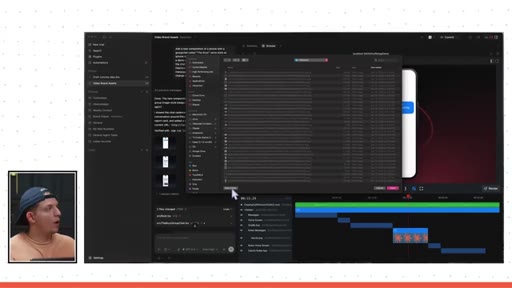
08:23This is the Remotion logo. This is the Codex logo. Now what I'm going to do is I'm gonna go to our Remotion project and we can just hit open in finder.
08:31So now we see that the project folder is open. It is at desktop Remotion project which matches Remotion project. And you can see here that the agent has created this folder called hello world video.
08:43So So now what we wanna do is we just wanna drag those two images into this folder and they are called codex dot png and remotion dot png. So now we can at mention remotion.
08:56And you can see here remotion png shows up at codex PNG. There we go. Please put these on the screen,
09:06dark gray background with text
09:11in instrument sans, instrument serif
09:15font, uh, with text that says AI powered
09:21video motion graphics. Then add a little animation beam
09:28that connects them. So we can run this.
09:32And what it should do is it should add a new composition that'll show up right here, and then the timeline will be different.
09:41And I'll show you how to create more scenes in the timeline in just a second. Okay. So it is still thinking and still working, but you can see here it added AI motion graphics.
09:52Check this out. Watch what happens when I click. Boom.
09:55Now we see some stuff show up here. I'll explain this once it's done generating. Okay.
10:01So it is done, and let's take a look at this. Look at this. This is pretty cool.
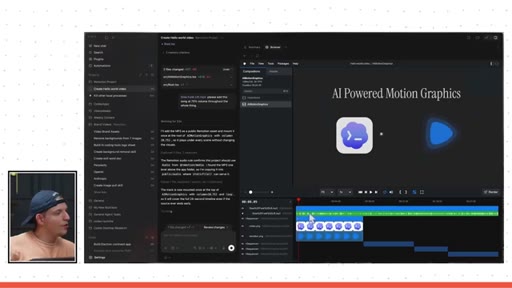
10:06Right? We have these two logos sending a beam to each other, and so this is kind of like there you're kind of connecting them. Now let me show you how we can quickly make changes.
10:18But the first thing that I wanna do is I can see that it actually rendered the video. If I click on this, it actually shows the full rendered video, but we don't need to do this every time.
10:28I'll say, I'll tell you when to render, uh, from here on out.
10:35We don't need to we are gonna be making a lot of different changes. So we can run that prompt.
10:41Don't do anything for now. So now what I wanna do is I wanna talk about vocab for a little bit. I will take a screenshot of this.
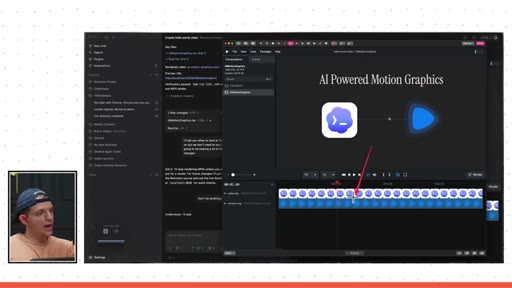
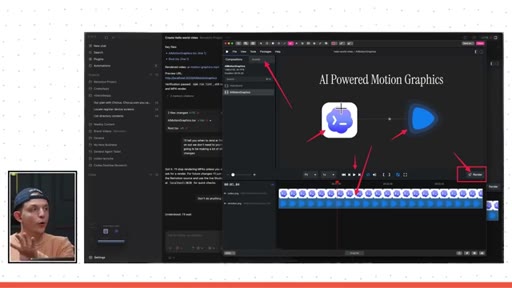
10:55So this right here is the timeline and this is a scene inside your timeline.
11:03And, of course, you can hit play and do all of the normal things, and here's where you render. Notice here that the AI can just decide when to render it and send me an m p four, but you can also render it yourself by pressing this button right here.
11:18And you can actually decide the settings on how you want to render it. If it's the same as if you were exporting it on Premiere Pro or CapCut. Additionally,
11:28we have something up here called assets. And so I'm gonna click on this assets folder, and I believe that the two assets are gonna be one and two. Right?
11:38These are PNGs, which are assets, which are different than code. Everything else is code.
11:43Right? This laser beam is code, this text is code, and the background is code. The assets are gonna be the little assets that you add to your app.
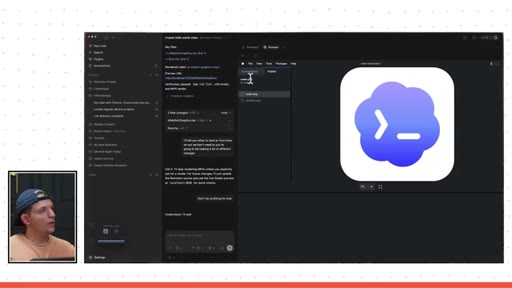
11:53And in this case, we added these PNGs with no background, which the AI added to the scene. And so we can verify this if we click on assets. There you go.
12:02We see codecs and motion. If we go back to compositions
12:06and click on this, we are back. Now what we can say is, please,
12:12can you get rid of this line? I don't like it. Now notice how it's like, okay, what line, like, am I talking about?
12:22In in this case, it would probably get it, but I love to be overly prescriptive. It just saves me a lot time in the long run. And this is also because I use CleanShot Pro.
12:30It's super easy to just, like, take a screenshot, open this up, and I can very easily just, like, label the line. And I can just paste it in, and the AI will see that I'm literally pointing at this line right here. Please make the scene last two seconds
12:45longer. Then when it's done, please have
12:51the logos animate off the screen to their, uh, respective side. So the Codex logo should disappear left, the Remotion logo should disappear right, and then I want the text to slide down to the center of the screen and then animate into
13:09full guide. And so I'm gonna add quotes here after full guide, and now we're gonna run this prompt.
13:15So this one's a little bit longer of a prompt. And again, we're running this. We're using codecs.
13:19We're using GPT 5.4. Reasoning effort extra high. It is the best right now in my opinion.
13:26Okay. It's done. It worked for about a minute and two seconds.
13:29And by the way, this is going a little bit slower or faster because I'm using the fast mode. It is twice as expensive, but I spend a lot on AI and this is something I'm perfectly willing to spend money on. So what I can do is I can test this.
13:43Let's take a look. So here the beam is gone.
13:49Okay. So here, this is a good guide. This came down,
13:55and then full guide came on here. And so you'll notice here there's actually 30 frames per second.
14:02So right now we're at four seconds exactly. And these are not, you know, decimal points. These are frames,
14:08this part right here. And so we can actually reference a specific frame. So this is like at four seventeen.
14:14I can I can say four seventeen? At this frame when AI powered motion graphics turns to full guide, was hoping the text would literally change from AI powered motion graphics
14:27to full guide as if it was being like backspaced and then retyped, not like having it fade out and then the other one fade in. Find a way to like maybe reorder the letters into it and use your best judgment and find the best animation for this.
14:42Also, just wanted the line between the two logos to disappear. I like the little ball that was being shot from the Codex logo to the Remotion logo, so please re add that.
14:53And remember, if you hit command enter, this will steer it into the conversation. This does not mean queue it up for once it's done with this.
15:02It steers it, so it basically adds this to the current session. And so now it's gonna do both of these things in one swoop or, you know, one edit. Alright.
15:11After two minutes, it is done. Let's give it a look here. Let's see.
15:15So now we have a little ball going across. Dude, let's go. And now we can say hold
15:22the full guide for another
15:25two seconds. Gonna run that.
15:29I want it to hold this at the end for two seconds longer. It ends too early. Okay.
15:33So it's done. Let's just skip right here to the end. Let's see.
15:37So it goes from here to here, backspace, full guide.
15:42Bang. So we just created that. In a couple of prompts, we created this motion graphics video.
15:48And, yeah, so you're starting to get the hang of it. Let's dive into some other cool stuff here. Okay.
15:53So I wanna talk a little bit about organization and how to create consistent assets. So I wanna show you here that you can see here that this shot right here.
16:03So this I have this, like, cool animation in the background that you can actually see by going up to brand assets, and we can actually find it right here. So we have this background cool animation.
16:16Remember, this is just code. This is called the Lysogis figure, fun fact, and we're using this for a brand asset and we're also I also created this background gradient.
16:26And so I created this composition called brand assets, and here we have all the logos that we might want to use. We have, uh, a dark gray gradient, a blue gradient, a gray figure, a blue figure, a red figure, a green figure,
16:41and then we have some other cool, uh, types of things that I might want to use. And what this allows me to do is just ask the agent for specific things. And you can see here that this is called a red figure.
16:53Right? So if we go to red figure right here, we can very easily just ask the agent for a red figure. I can say, hey, there's a red figure in brand assets.
17:02Just use that. And so then we can create new videos that all have the same background. And so since we have an iPhone mock up, I was able to ask the agent, hey, can you create another iPhone mock up for this part?
17:15And one thing we'll get to later, you notice here there's this green thing, you can ask the agent to add music. And so here, you can see that there's music, and we'll talk about that in just a second.
17:25One thing that you can also do is you can actually open up this full screen mode, which I actually do really like. And you can even close this side panel so it's literally full screen. And so now we can actually really we can start to add more scenes to this.
17:39So we have full guide. And now, um, I'm gonna outline the steps really quick.
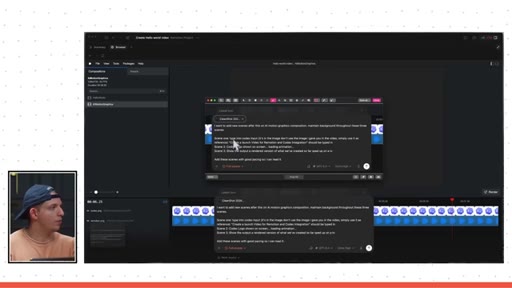
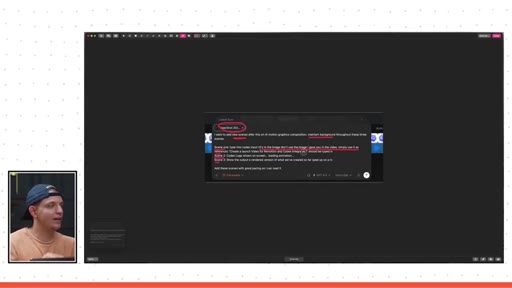
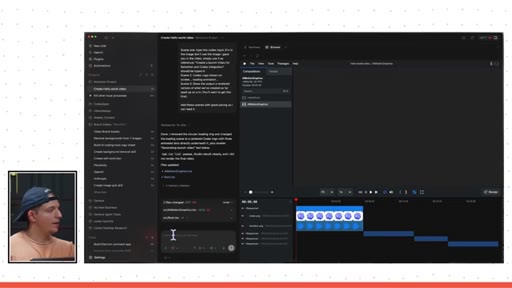
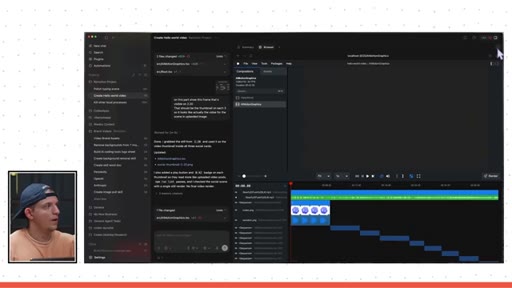
17:45Okay. So I just typed out my prompt, and I wanna break it down real quick. Firstly, I included one screenshot, which is just the Codex user interface, and this is just a reference to the agent.
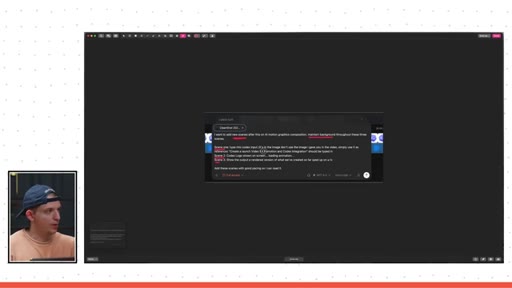
17:55I'm gonna screenshot this because I'm gonna do an in-depth analysis of this prompt real quick. So what I'm doing here is I'm basically saying I want to create new scenes after this.
18:06So I wanna create new scenes, and here I put scene one, scene two, and scene three. And then I also said maintain the background throughout.
18:14And then I said, uh, type in a codecs input. So we're gonna type into the codecs input. And then I said, it's in the image.
18:22Don't use the image I gave you. Simply use it as reference. Right?
18:25This image is referenced in this part of the prompt. And then I said, this text should be typed in.
18:33Right? Create a launch video for Remotion and Codex integration. So we're basically creating the video that we're creating now.
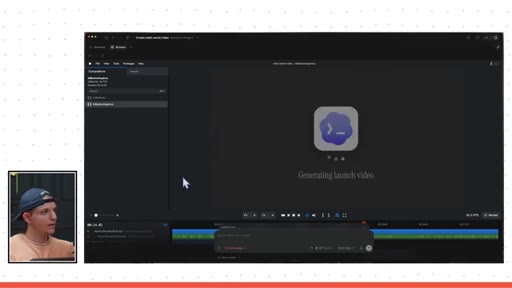
18:40So it's kind of meta. And then show the Codex logo in scene two and then a loading animation. And then in scene three, it should show
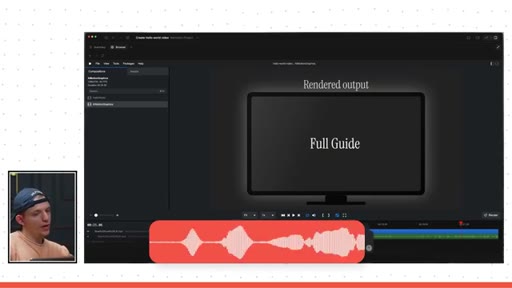
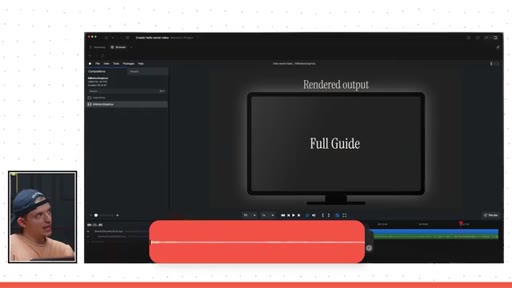
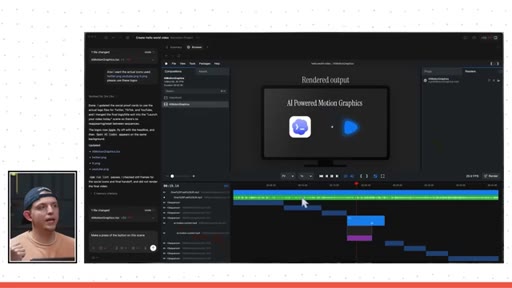
18:49the video rendered of what we created so far. And so basically, it's going to take the video that we're making, put it on a TV in the final scene, and show that it's rendered, if that makes sense.
19:00So I'm gonna go ahead and enter this prompt here. Okay. So I entered the prompt, and you can see here, we can actually toggle this on and we can see what the AI is saying.
19:08And again, we can always toggle back and we can see the exact prompt that we used right here. And in this full screen view, we can only see what the AI is responding, but this allows us to kind of fully immerse ourselves into whatever it is that we're creating.
19:24And while that's loading, I'm actually gonna go to suno.ai. And what I can do here is I'm just going to type in relaxing funk launch
19:35video
19:39instrumental and we can hit create and we can actually, yeah, change this to instrumental.
19:59Alright. That's not bad.
20:03I like this one. Okay. So we can just click on download.
20:08We'll download the m p three file. Now I'm gonna go back to Codecs. And what I can do here, I'm gonna open up this project folder.
20:16And so here we see this song slow funk lift. I can drag this into
20:23this folder right here. And now what I can do is I can say at slow
20:28funk lift, please add this song
20:32at 75% volume throughout
20:38the whole thing. And now it's gonna add that really quickly.
20:41And then we can see how it did. And you can see here it added one, two, and three sequences. Sorry.
20:48These aren't scenes. These right here are called sequences, and we'll take a look at this.
20:53This actually doesn't look too bad. You can see here that it added this, like, green line right here. So we can see that the, uh, slow funk song is actually in our app or or in our video.
21:04We'll take a look at it right when it's done. Okay. So everything's done.
21:07Let's take a look at this. I'm gonna go full screen for this. Let's take a look here.
21:12We can lower this. Let's see.
21:30Oh, let's go.
21:34Oh, there you go.
21:39So literally, it put the video that we made, it exported it, and then put it in here. This is actually awesome. Let's add a few more scenes.
21:48I'm gonna add four more scenes real quick. I'm gonna type in my prompt. I'm gonna take a few minutes to think about it.
21:54Okay. Remember, keep the, uh, background consistent throughout the rest. Remove the glows,
21:59like the the background, like, glowing behind the, uh, TV. I actually don't like that.
22:05Or, like, reduce it to barely anything, and then keep the background the same throughout the rest. The first thing I wanna show is a scene that shows social media platforms.
22:15Maybe show three different social media platforms and then show that we're getting a ton of likes, like hearts.
22:21Oh, and then, uh, yeah. Show that, and then show quick pan to another scene where it shows revenue increasing, then switch to another scene where it shows views going from zero to 1,000,000, And then say the last scene, scene four that I want you to add is like show the Remotion and Codex logo again
22:40and then have the text on it say, uh, launch your video today. And then what I want is for the final scene, scene five, for the logos to fly out again and then put OpenAI Codecs.
22:55Just those that text at the center of the screen to finalize it. That's the final sit part. It's a long prompt.
23:02We'll go ahead and enter that in. Okay. It's done.
23:04Let's give this a try. So let's see.
23:15Let's see.
23:26Okay. This is pretty good. Pretty good so far.
23:28Remove the background gradient that looked kinda ugly. I like it. Let's
23:33go. This is a fire shot here. Look at this.
23:38There we go. We don't have the the, uh, the correct icons for TikTok, and YouTube.
23:44We need to get that, but I'll add that in just a second. Okay.
23:51Not bad. We can change this. So I'm just gonna start
23:56going like this. I'm just gonna literally, uh, circle this right here.
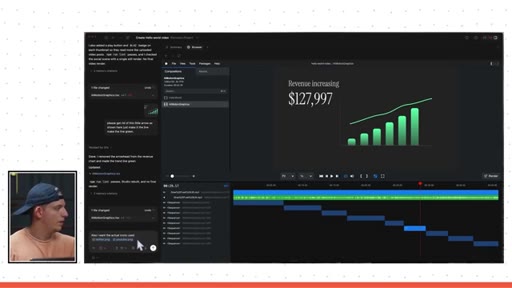
24:01Um, I'm just gonna say please get rid of this little arrow
24:08as shown here. Just make it the line,
24:13make the line green. And then I'm gonna say also I want the actual
24:20icons used. And so I just grabbed the logos off the internet.
24:25We're gonna drag them into the Remotion project once again. And, um, I can put YouTube.
24:35YouTube. There we go. And at.
24:38Okay. Uh, please use these logos.
24:43Okay. While that's running, it looks like this was fixed. This looks a lot better.
24:47So the logos should be replaced here. Let's check out the rest.
24:56Nice.
25:00Nice. Launch your video today.
25:11Okay. So here, I wanna combine these. So right now on the second to last sequence, it says launch your video today, and then it switches to a new sequence.
25:21Right? Switches to a new sequence that like has them stop jiggling. So in this new sequence, it like changes
25:29the icon like the icon stay the same, but it, has them reappear and then they are not jiggling. Instead, I want it to just be the second to last scene, should be the last scene.
25:39And then they should be jiggling, and then they should fly off the screen. And then the text that says launch your video today should fly off the screen at the same time. And then the OpenAI Codex text should appear exactly as it does.
25:55So then it will be a lot smoother. Okay. We'll fling that one in there as well and it's still working but look at this.
26:02Here we go. We can see Twitter. I know Twitter is no longer in existence.
26:06It's, uh, x now but we're just doing this for fun. I mean this is coming together pretty well. I mean we're creating this video pretty quickly.
26:17Okay. It's done. Let's check out this last part.
26:20So it's right after this scene right here.
26:33I mean, come on. Let's go. And then now to export the video, we just hit render.
26:39Um, uh, I just do it the h dot two six four. And, yeah, let's just render this video. And we can see here that this is rendering the video right here.
26:49And this means actually turning into a video that you can export and you can upload onto Twitter or something. And what we can do here is we can see this right here.
26:59And now once we're done, we could very easily just drag this up into Twitter and we could launch our launch video. And look at that. We have our launch video just like that.
27:11Anyway, we covered a lot in this video. We dove into Codex. We covered adding images and different assets to our video.
27:18We generated a song, added it to the video, and I think it came out really well for, you know, seven to eight prompts. If we spent another, like, three hours on this, I'm sure we could have made it just absolutely insanely good.
27:32But I think this is pretty solid for the sake of this video. I hope you learned how to create engaging content for social media, and these really do well on Twitter. But thank you guys for watching.
27:42I'll see you here in the next video. Peace.
— full transcript
§ 05 · For Joe

Motion graphics are now a prompting problem, not a software problem.

WHAT TO LEARN

The gap between imagining an animated video and having one is now a typed sentence, not a software license and a learning curve.

  • Remotion renders motion graphics from code, and Codex writes that code from plain English — meaning your only real skill requirement is being specific about what you want to see.
  • Overly prescriptive prompting — annotating a screenshot and pointing at the exact element — cuts iteration rounds compared to describing things in words.
  • A brand assets composition built once and referenced by name becomes the visual DNA of every future video without re-prompting it from scratch.
  • AI music generation tools like Suno can supply a complete audio track in under a minute; once the MP3 is in the project folder, one prompt places and volumes it.
  • The Hello World principle applies to AI video too: make something exist first, then make it good — starting ambitious almost always produces worse first outputs than starting simple.
  • The prompt interface will catch up to expert-level animation software for most use cases; it is still a time question rather than a capability question.
§ 06 · Frame Gallery

Visual moments.