Nate Herk | AI Automation · Youtube · 05:41

STOP Using Bypass Permissions, Use This New Feature Instead

Claude Code ships auto mode — a classifier-backed middle path between constant permission prompts and the anything-goes risk of dangerously skip permissions.

Posted
March 24th 2026
2 months ago
Duration
05:41
Format
Tutorial
educational
Channel
NH
Nate Herk | AI Automation
§ 01 · The Hook

The bait, then the rug-pull.

Claude Code just shipped a permission mode nobody asked for by name but everyone needed: something between the stop-and-ask default and the full-trust chaos of dangerously skip permissions. Auto mode is that third option, and this video is a crisp five-minute proof that it works.

§ · Chapters

Where the time goes.

00:00 – 00:46

01 · What Is Auto Mode

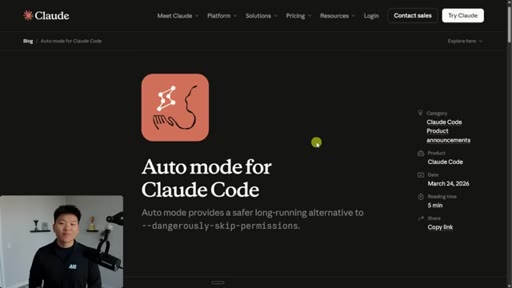
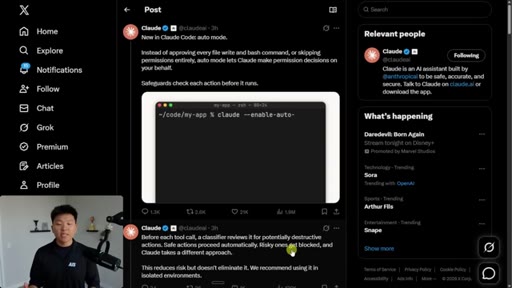
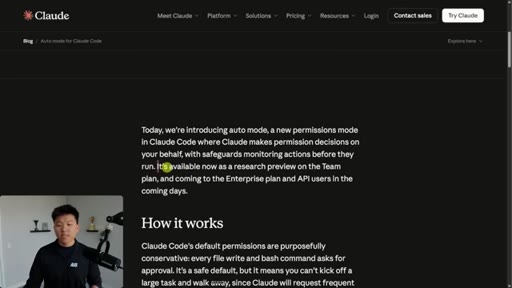
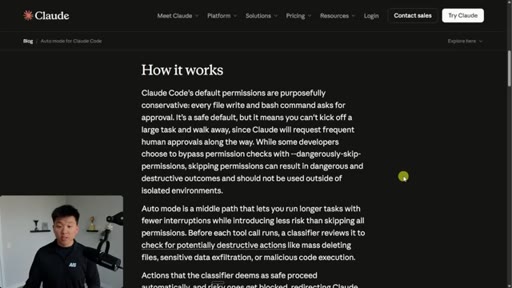
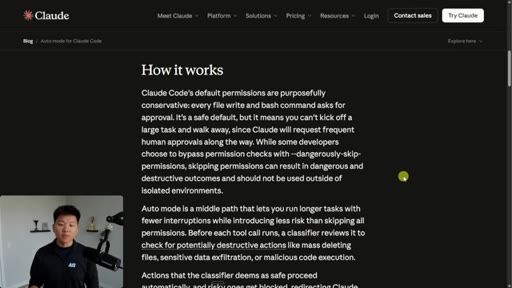
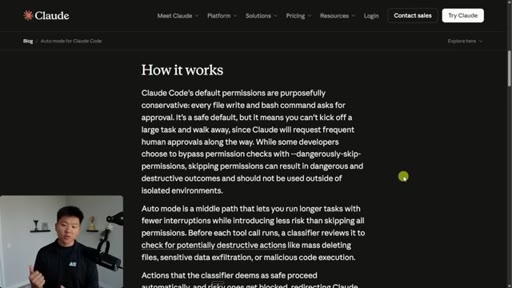
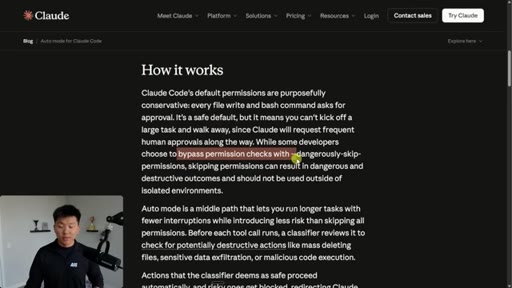
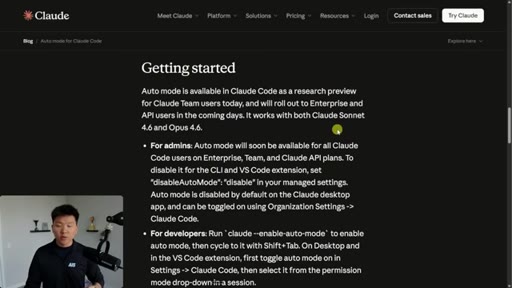
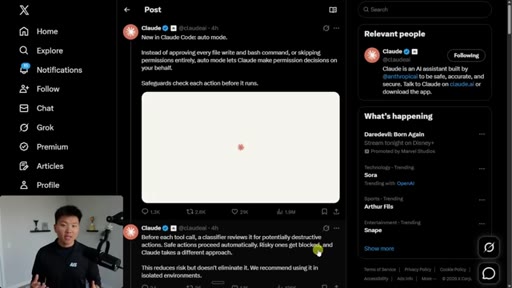
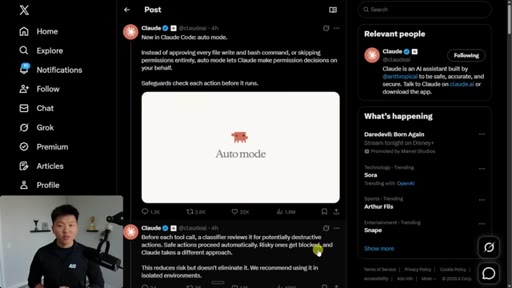
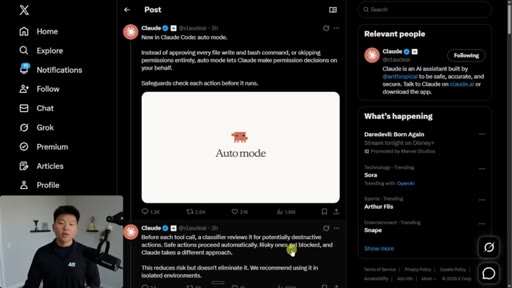
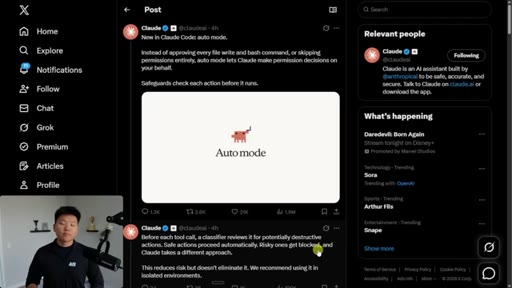
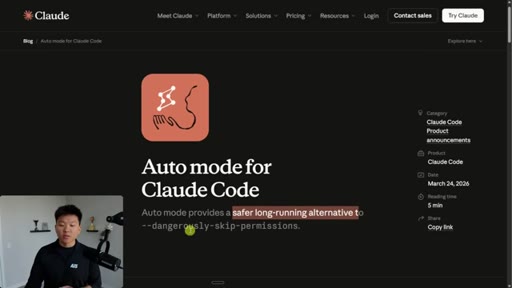
Opens on the Anthropic blog post announcing auto mode. States the problem: permission prompts interrupt long-running tasks, but the only alternative has been dangerously skip permissions.
00:46 – 01:35

02 · Bypass Permissions and Custom Settings

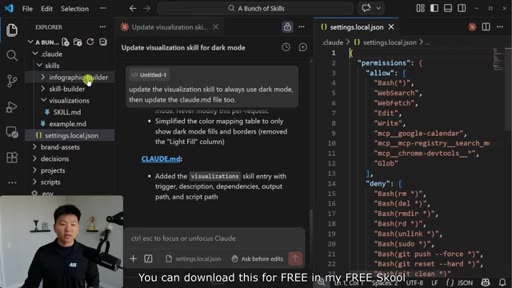
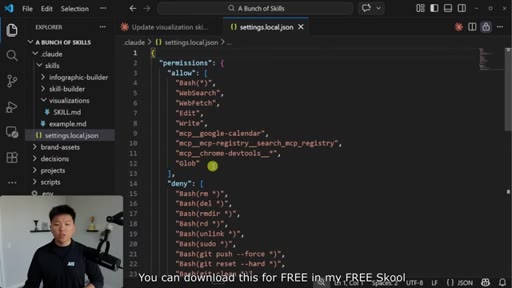
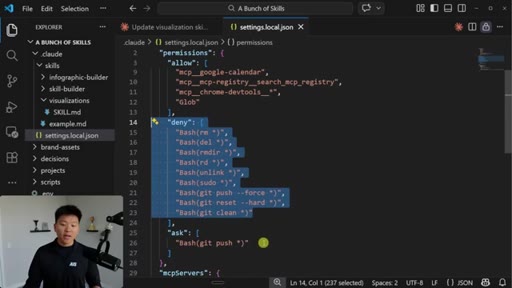
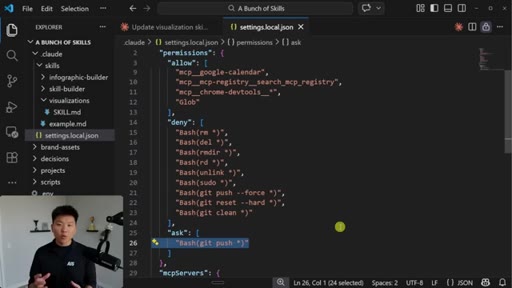
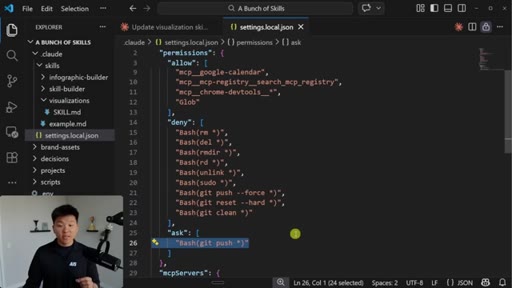
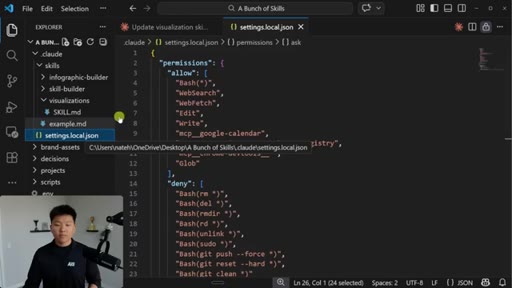
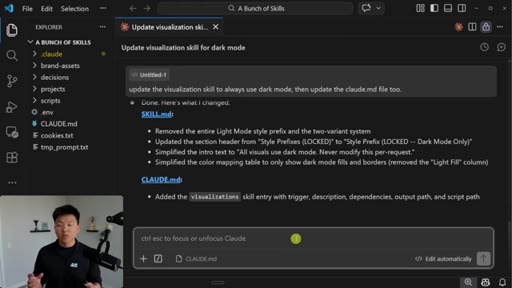
Shows the existing workaround — a settings.local.json with explicit allow and deny bash command patterns. Acknowledges this is still the best option for fine-grained per-project control.
01:35 – 02:55

03 · How Auto Mode Works

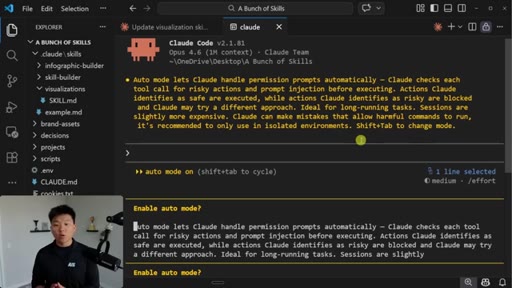
Reads the official description from the Claude Code terminal. Explains the classifier, the four risk categories it targets, the slight cost increase per session, and the current Team-only availability.
02:55 – 04:57

04 · Testing Auto Mode

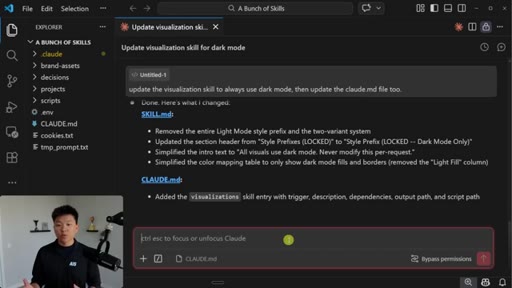
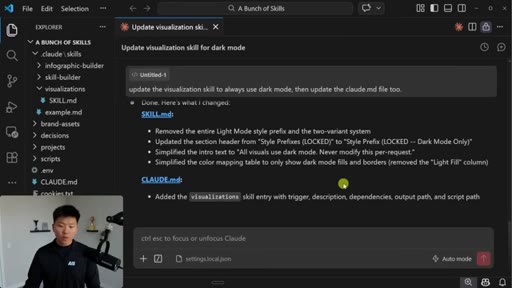
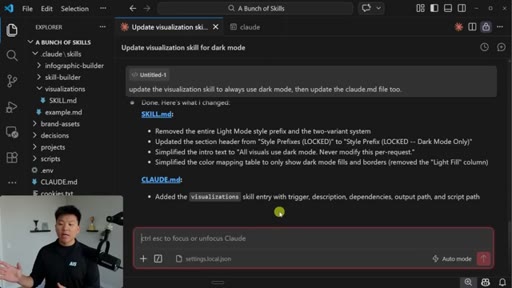
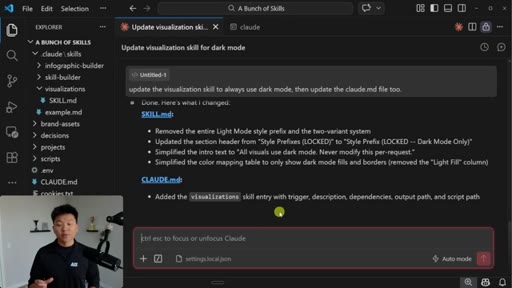
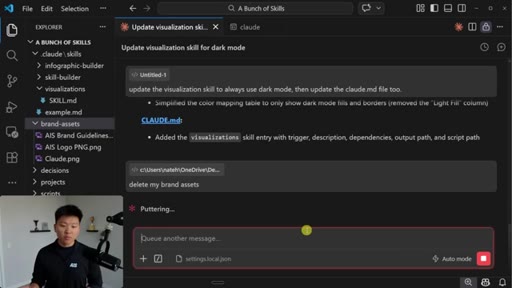
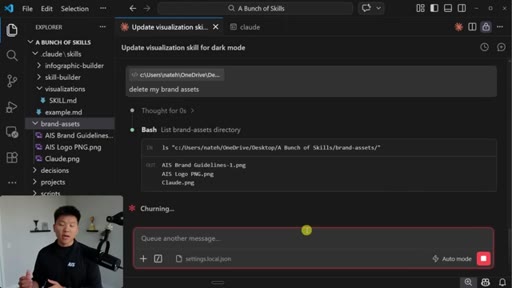
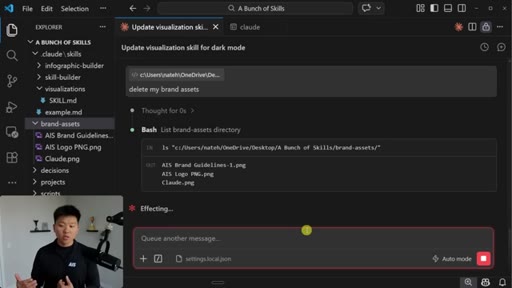
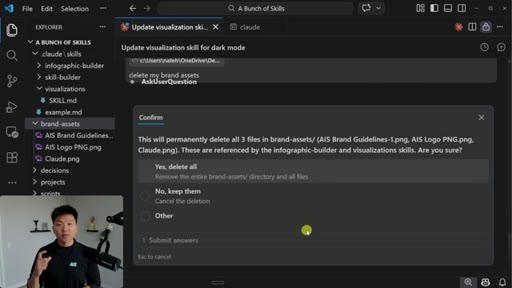
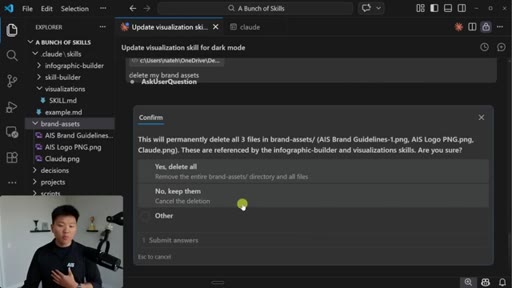
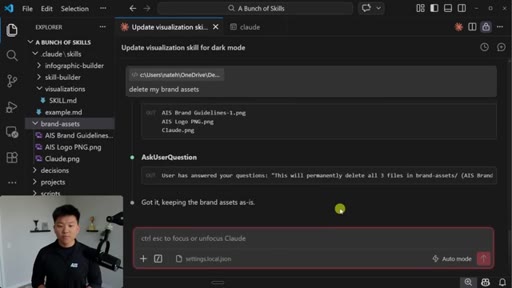
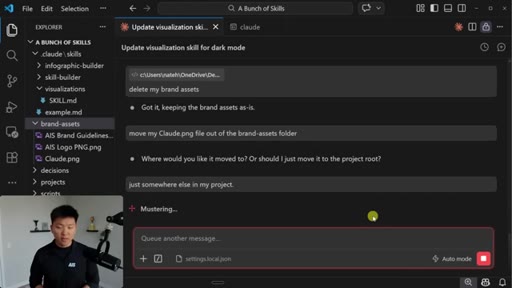
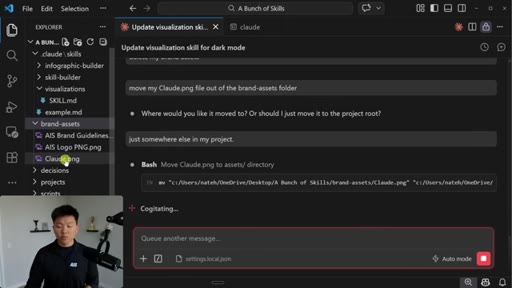
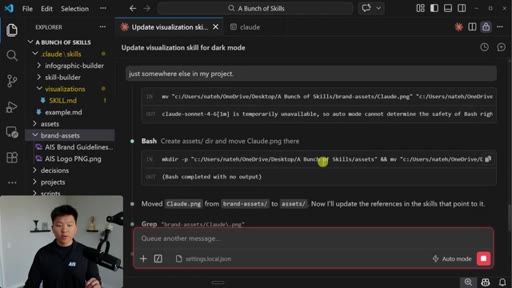
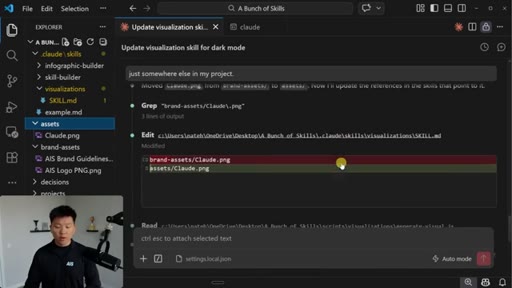
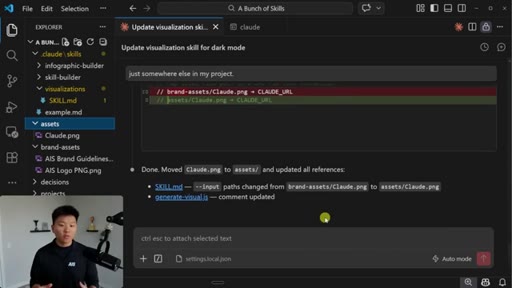
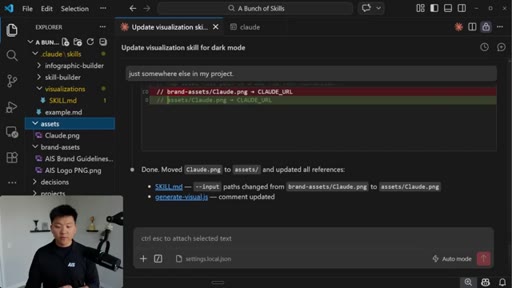
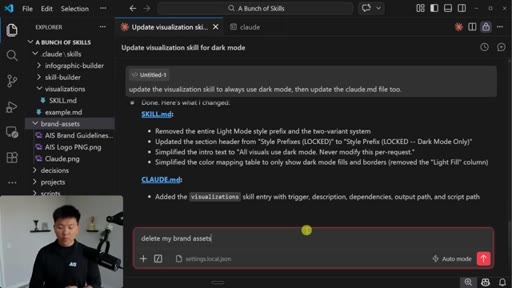
Live demonstration in VS Code. Test 1: asks Claude to delete brand assets — classifier blocks it and escalates to user. Test 2: asks Claude to move a file — runs silently without any prompt, creating a folder and moving the file automatically.
04:57 – 05:26

05 · How to Enable It

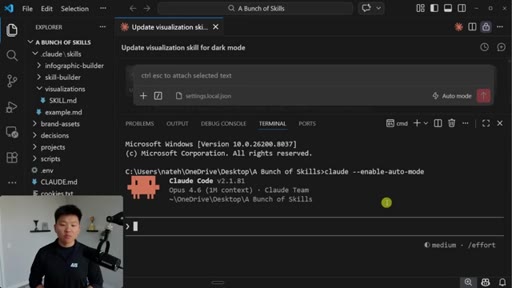
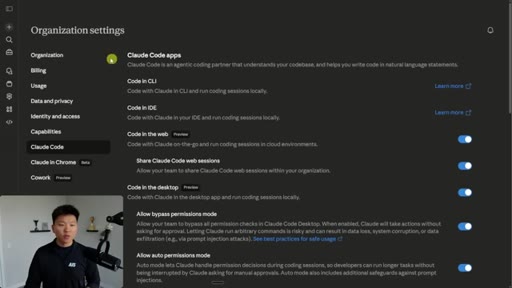
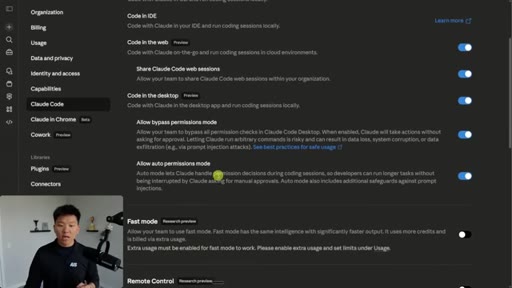
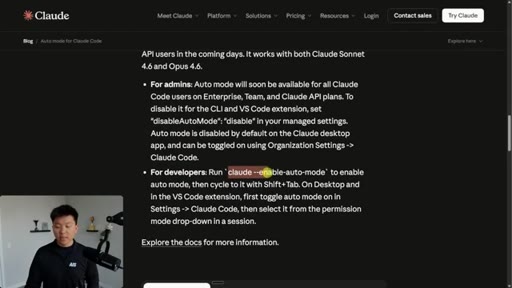
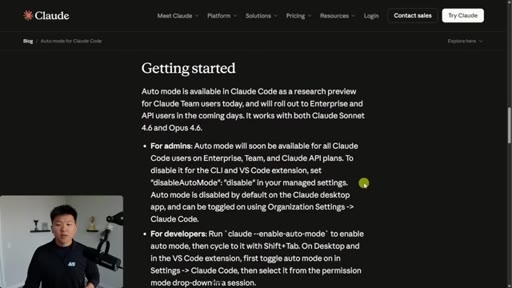
Shows the Organization Settings toggle for allowing auto permissions mode. Demonstrates the claude --enable-auto-mode terminal command and Shift+Tab cycling in VS Code.
05:26 – 05:41

06 · Final Thoughts

Subscribe ask. Closing note that Anthropic is shipping features daily.

§ · Storyboard

Visual structure at a glance.

blog post intro
settings.local.json
auto mode description
live test
enable steps
subscribe
§ · Frameworks

Named ideas worth stealing.

01:35 list

Three Permission Modes

  1. Ask before every action (default)
  2. Custom allow/deny list via settings.local.json
  3. Auto mode (classifier-based)

The video implicitly frames three tiers of Claude Code permission management from most to least manual intervention.

Steal for any explainer on AI agent safety settings
§ · Quotables

Lines you could clip.

01:30
"Dangerously skip permissions for a reason — if you're not watching it, it could go do anything."
punchy, self-contained warning that resonates with anyone who has left an agent running → TikTok hook
03:35
"Auto mode is the middle path — fewer interruptions, less risk than skipping all permissions."
clean one-sentence product description, quotable as a stand-alone insight → IG reel cold open
§ · Resources Mentioned

Things they pointed at.

04:57toolclaude --enable-auto-mode command
§ · CTA Breakdown

How they asked for the click.

05:26 subscribe
"if you learned something new or you enjoyed the video, please give it a like. Definitely helps me out a ton."

Soft and fast — one sentence at the very end after all content is delivered. No mid-roll pitch.

§ 04 · The Script

Word for word.

HOOK opening / re-engagementCTA the pitch metaphor
00:00HOOKWell, I'm back with another Cloud Code update. Today, we have auto mode. Auto mode provides a safer long running alternative to dangerously skip permissions.
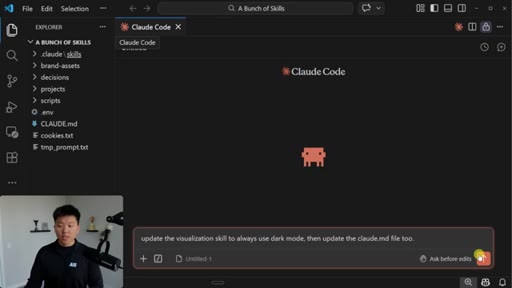
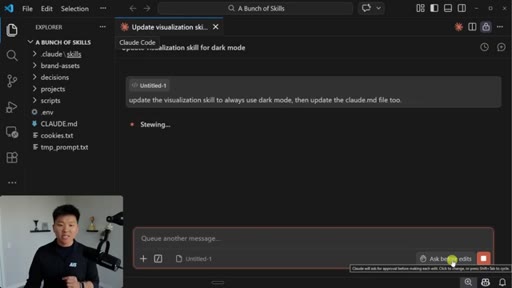
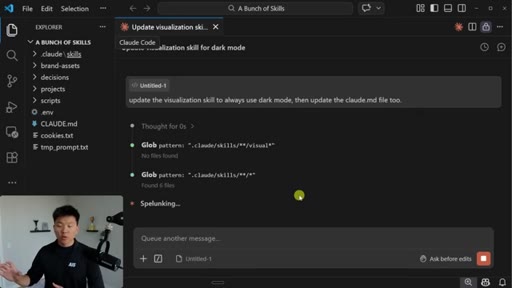
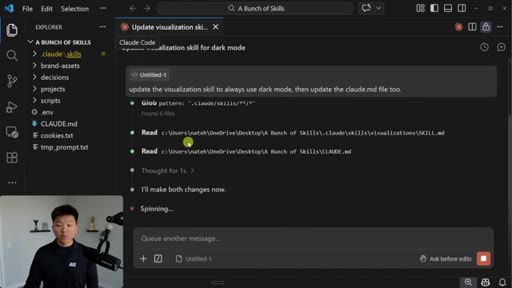
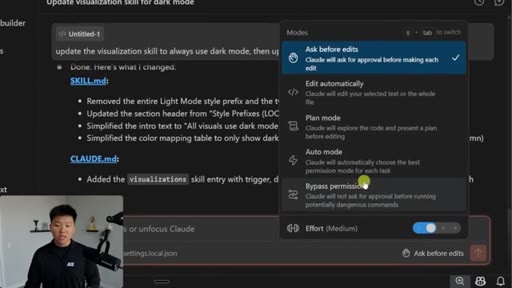
00:08HOOKSo what that means is when you're in Cloud Code and you shoot off a message, you are in some sort of permission mode. In this case, we are in ask before edits. So that means exactly what it sounds like.
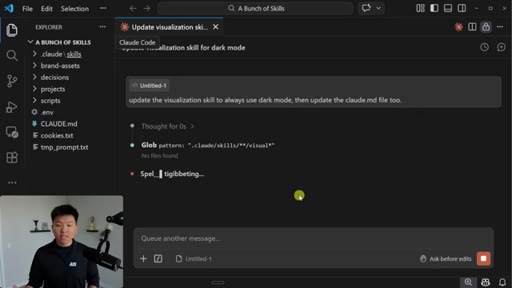
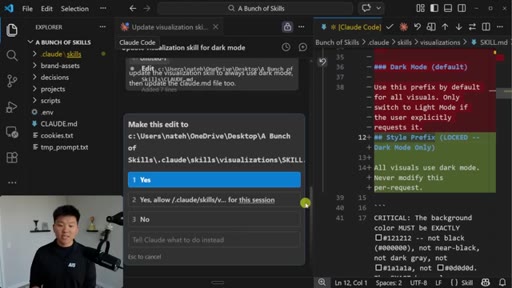
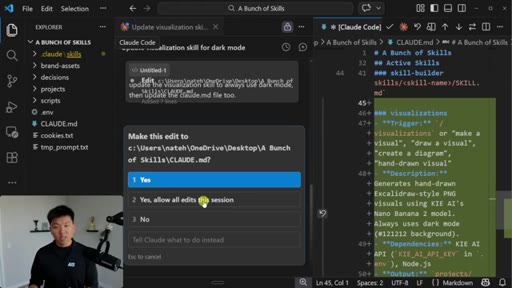
00:17HOOKEvery time before it does an edit, it's going to stop working and it's gonna ask me. Which means if I wanted to step away or, you know, work on something else, it would keep interrupting my workflow. So right here you can see that it's able to read things, but now when it wants to actually make changes, it's gonna pop up this tab.
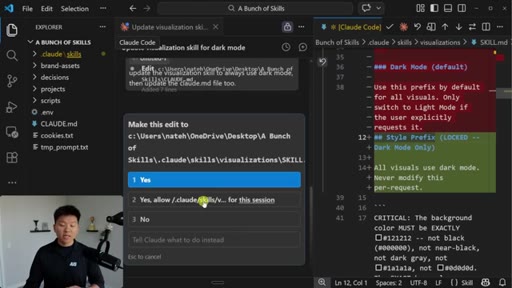
00:31It's gonna say, hey. Am I allowed to do this? You can either say yes for one time only, or you can say yes every time in this session.
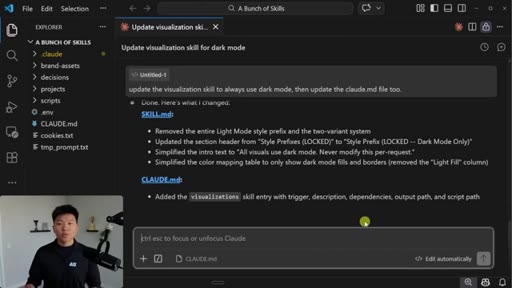
00:38And as you can see, it's popping it up again and stopping my session because it has to make two edits. And it's not just about the writing functions. Sometimes it'll stop your workflow and say, hey.
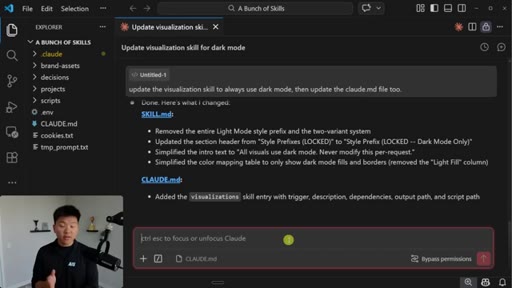
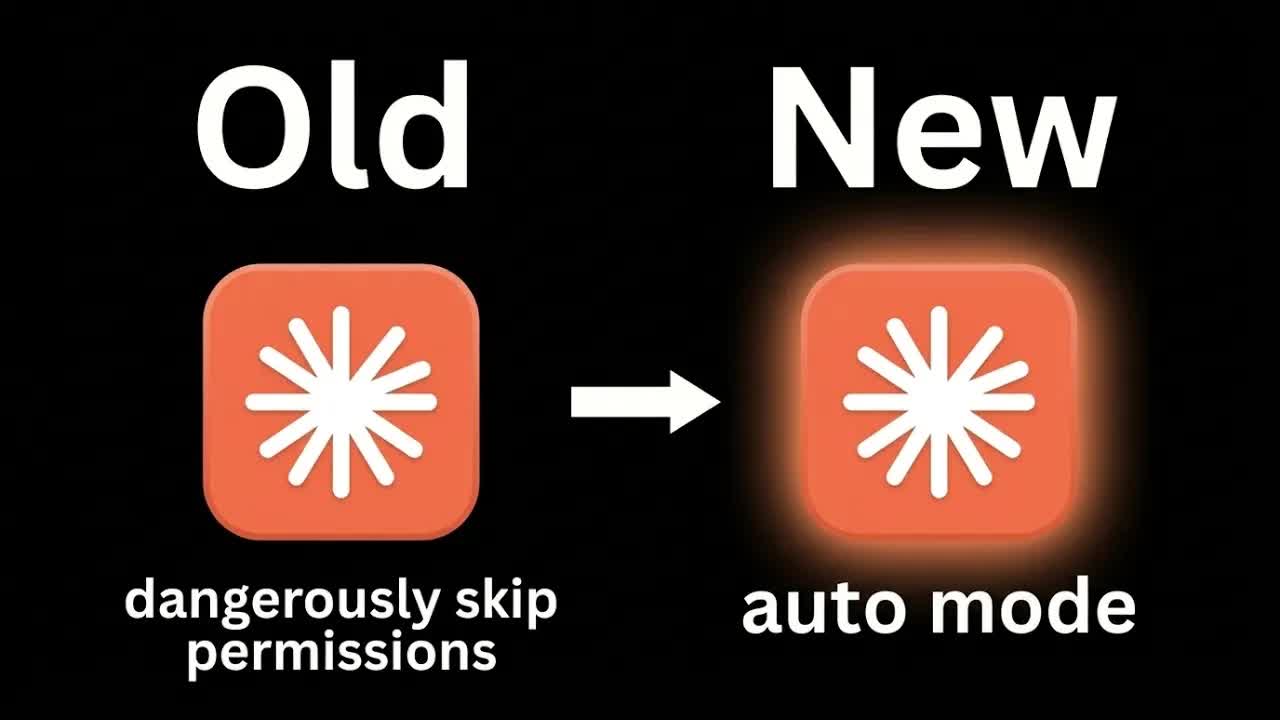
00:46Can I do this web fetch? Or can I run this bash command? So the other option that a lot of people have been using and what I've shown sometimes in my videos is that you can use bypass permissions mode, which basically means Claude will do anything at whatever it wants, and it won't ask for any permission.
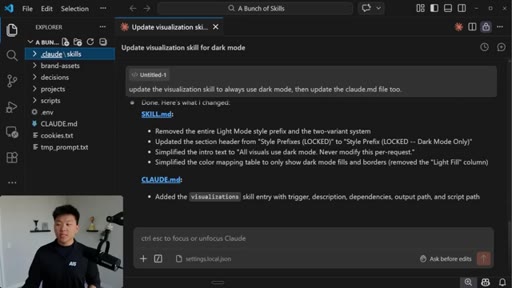
01:00Which sounds great because a lot of times when you're working on stuff, just want it to go through and not interrupt you. But it's called dangerously skip permissions for a reason because at the end of the day, if you're not watching it, it could go do anything. So the fix that I had been using for a long time is within my dot cloud folder, I would have a local settings file, which looks like this.
01:16And this basically says, okay, Cloud Code, you can do anything on your allow list, but you can't do anything on your deny list. And anything here, you have to ask me explicitly before. And so this gave me a lot more control over what Code does and what it can't do.
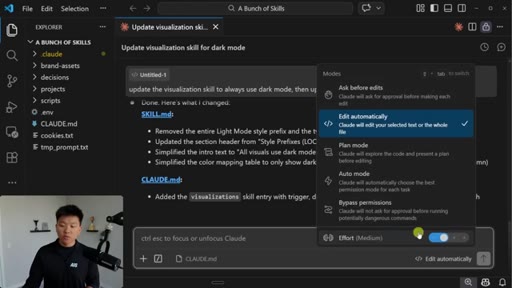
01:30And in some cases, still think that this is the actual best option to use, because you can change these per project, and you could also set this globally if you'd like. But with Claude code's new release of auto mode, it basically makes those permission decisions on your behalf. So now instead of having to copy and paste this settings file over to all of my new projects, I could basically just come into the permissions mode.
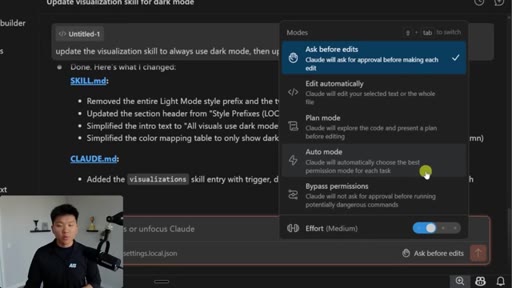
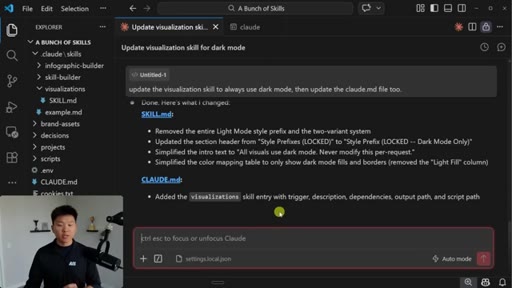
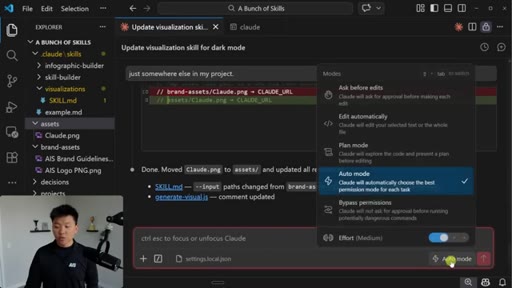
01:48I could change this to auto mode right here, which says Claude will automatically choose the best permission mode for each task. And you can do this in Versus Code like you're seeing me do right here. Or if you open up a terminal and you run Claude like this, which is Claude enable auto mode, it will launch up Claude.
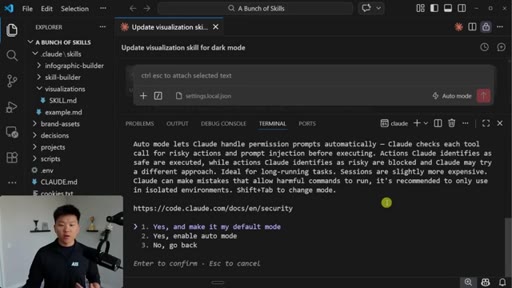
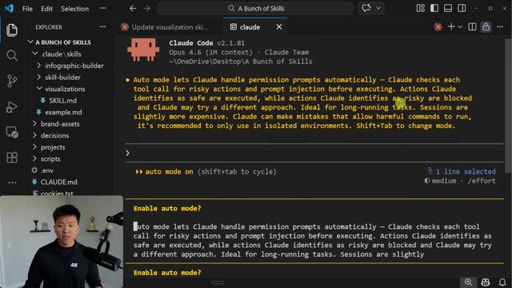
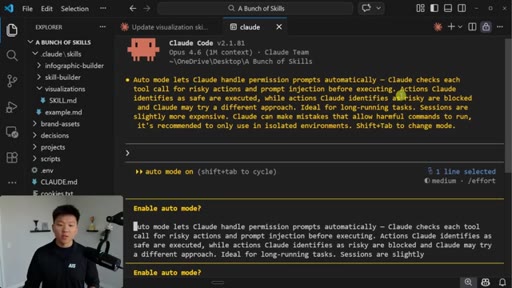
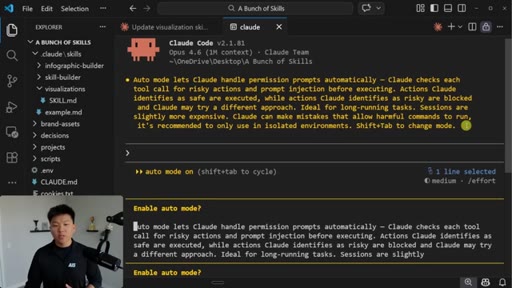
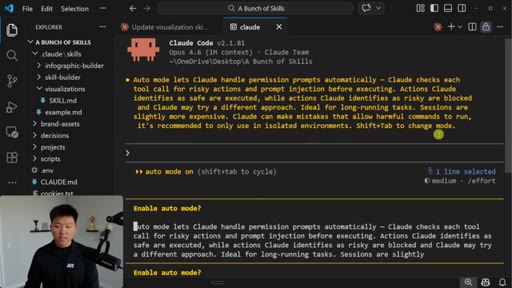
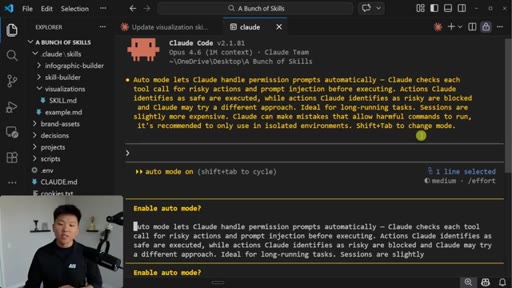
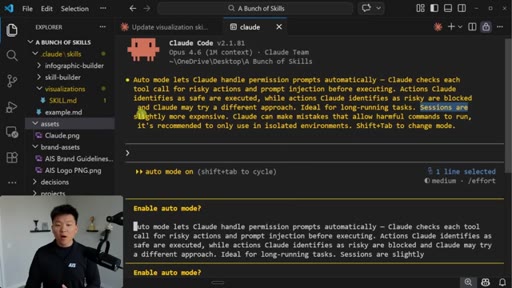
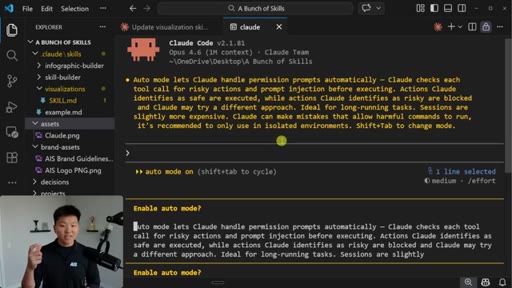
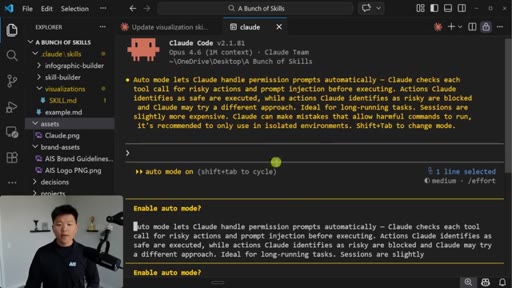
02:03And then when you shift tab through, you can see that we now have the auto mode setting. And right here, you can see that it says auto mode lets Claude handle permissions automatically. Claude checks each tool for risky actions and prompt injection before executing.
02:15Actions Claude identify as safe are executed, while actions Claude identifies as risky are blocked, and Claude may try a different approach. It's ideal for long running tasks. Sessions are slightly more expensive.
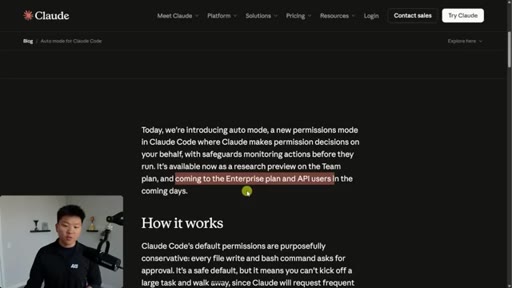
02:24Claude can make mistakes that allow harmful commands to run, so it's recommended to only use in isolated environments. So right now, this is only available in the team plans. Right here, you can see I'm on Claude team.
02:35Because it is a research preview, but soon it will be coming to enterprise plan and API users. And so now that I have auto mode on, whether that's in my terminal or whether that is in my Versus Code, I could basically run some skills, run some agents, walk away, and would I have a little bit more confidence that it's going to be managing permissions for me.
02:52And if it's something that's super unsafe, it will probably block it. So just as a test, I'm going to send off a message that says delete my brand assets while I'm in auto mode because this might be something that I wouldn't want it to do. In my settings dot local dot JSON, I basically exclude it from running any commands that would remove or delete things.
03:09So let's see what happens here in auto mode. Okay. This is awesome.
03:12It actually says, okay. This is a risky thing. I'm gonna go ahead and ask the user if I should do this, and I'm able to then say, nope.
03:18I don't want you to delete them. Just keep them, and then it's going to basically stop that operation. But if we try something that's a little bit less risky but still, you know, changes the way that your folder is set up or something like that, in this case, I'm asking it to move my claw dot PNG, which is right here.
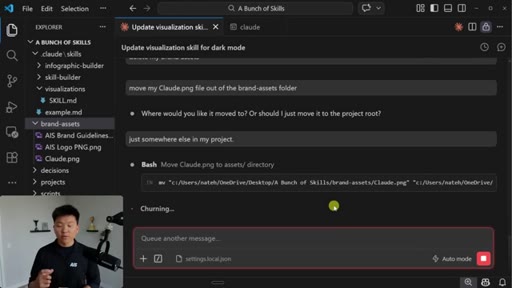
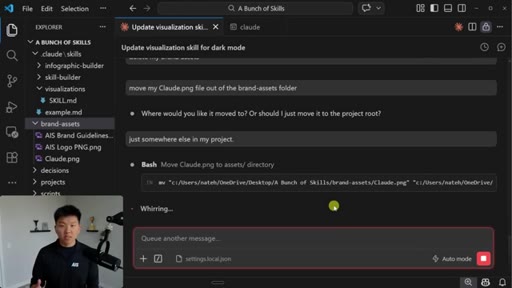
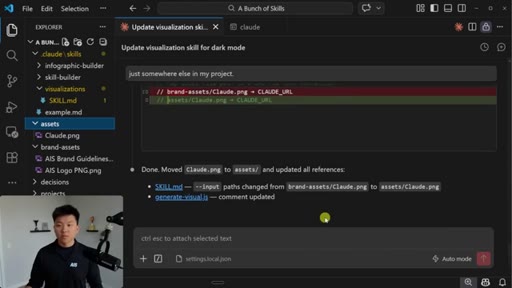
03:31Just move it somewhere else in my project, and hopefully, it's able to do this without confirming for me because it's not really a risky action, and it should be able to just keep going and not stop my workflow. So it just did a lot of things, and it didn't ask me for any permission. It created a new folder right here called assets.
03:45That's where it ended up moving it. It also had to do a grep. It had to do an edit.
03:49It had to do a read. It sent me some more information, and it did all of that, like I said, on auto mode without asking me for permission because none of that was risky. So the way that this works is Claude code, by default, the permissions are purposely conservative.
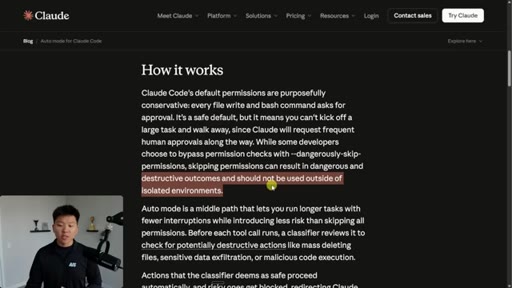
04:01Every file write and bash command asks for approval. It's a safe default, but it means that you can't just kick off a huge task and walk away, which is really annoying. I'm sure all of you guys have experienced that.
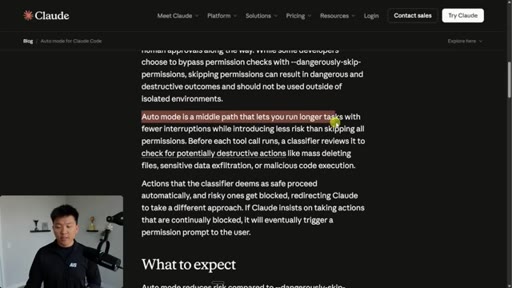
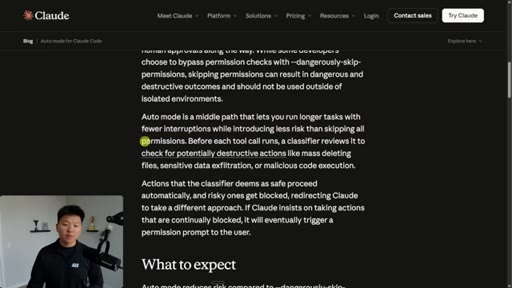
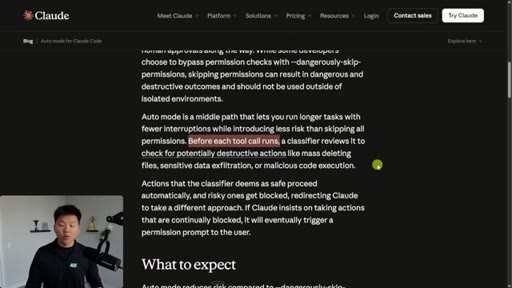
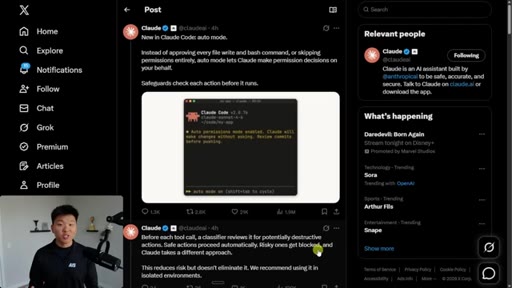
04:10While some developers choose to bypass permissions, myself included, with dangerously skipped permissions, this can result in dangerous and destructive outcomes and should not be used outside of isolated environments. So auto mode is the middle path that lets you run longer tasks with fewer interruptions while introducing less risk than skipping all permissions.
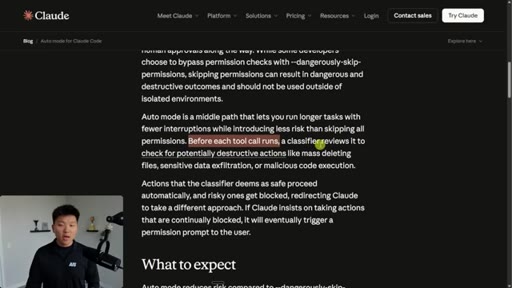
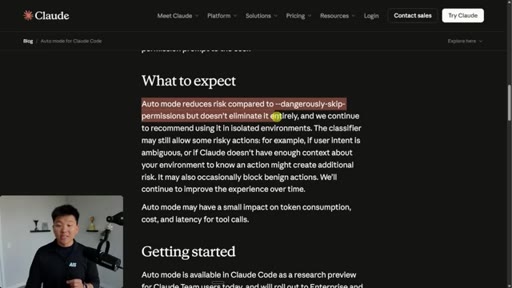
04:27That's pretty cool because basically before every single tool call, a classifier reviews it to check for potentially destructive actions like deleting or sensitive data. Things like that. So basically it reduces risk, but it does not eliminate it entirely.
04:41And we also did see in the terminal, if I go back over here and go to the terminal, it basically said here that these sessions are slightly more expensive because I'm assuming before every tool call, it uses AI to say, hey. Is this dangerous? What should I do?
04:54And that would explain why it's more expensive. So like I said, in order to use this, it is right now research preview, and it's only available for clawed team users. But if you are on a team, all you have to do is you come in here and you go to your organization settings,
05:06and then you right here are able to enable allowing auto permissions mode. Same way that you would allow bypass permissions mode. And then you guys saw earlier, all we had to do was we had to run this command right here, claud dash dash enable auto mode.
05:19CTAOr if you're in Versus code and you're just using it like this, you should be able to see it right there. And And then also if you want to be able to disable it, you can do that like that. So anyways, I know that was a super quick one, but I wanna keep you guys up to date because Anthropic is shipping every single day.
05:31CTASo if you learned something new or you enjoyed the video, please give it a like. Definitely helps me out a ton. And as always, I appreciate you guys making it to the end of the video.
05:38CTAI'll see you on the next one. Thanks, everyone.
— full transcript
§ 05 · For Joe

The classifier that decides what Claude can do alone.

WHAT TO LEARN

Auto mode does not eliminate permission friction — it relocates the judgment call from you to an AI classifier that runs before every tool call.

  • The binary choice between ask every time and skip everything was always a false one — auto mode proves you can insert a third layer of programmatic judgment.
  • A classifier checking for destructive actions before each tool call costs slightly more per session, but that overhead is the price of walking away from a long task without a safety net.
  • The existing settings.local.json allow/deny pattern remains the right tool when you need surgical per-project control; auto mode is the right tool when you want a portable default across all projects.
  • Risky action categories worth knowing: destructive file operations, sensitive data access, prompt injection attempts, and malicious code execution — these are the four things the classifier is trained to catch.
  • Research previews that show up in team plans tend to reach Enterprise and API within weeks; tracking these early gives you a deployment window before competitors have access.
  • The tell that a session used auto mode is the cost increase — a useful signal when reviewing billing to understand how much autonomous tool-calling is actually happening in a session.
§ 06 · Frame Gallery

All frames.