Leon van Zyl · Youtube · 20:52

Claude Code Skills - The Only Tutorial You Need

A 20-minute end-to-end walkthrough of Claude Code Skills: install from marketplace, build from scratch, handle API keys securely, and watch the agent auto-invoke skills to rebuild a fitness app.

Posted
February 9th 2026
3 months ago
Duration
20:52
Format
Tutorial
educational
Channel
LV
Leon van Zyl
§ 01 · The Hook

The bait, then the rug-pull.

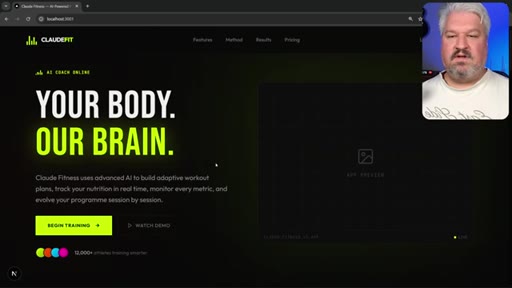
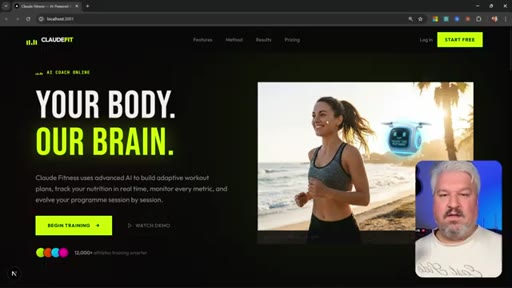
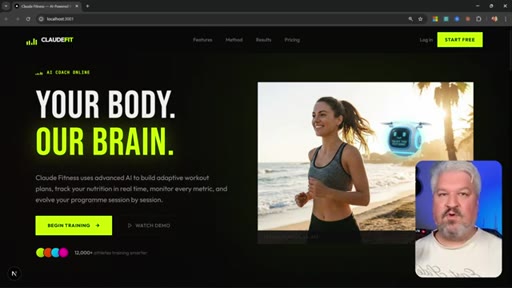
The video opens on the finished product — a polished fitness-app hero with an AI-generated beach jogger and a floating chatbot coaching her — then rewinds to the blank, AI-sloppy version to make the point visceral. Everything in between is the skills stack that produced it.

§ · Stated Promise

What the video promised.

stated at 00:42 "In this video you will learn everything you need to know to get started with using skills — from finding and installing skills to creating your very own skills." delivered at 20:47
§ · Chapters

Where the time goes.

00:00 – 00:54

01 · Cold open — finished result

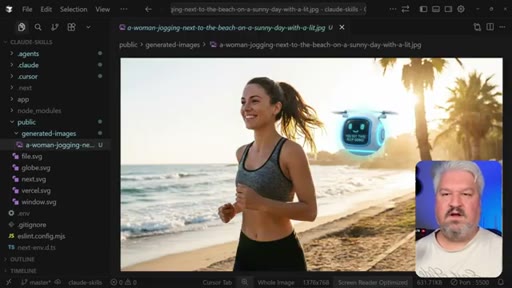
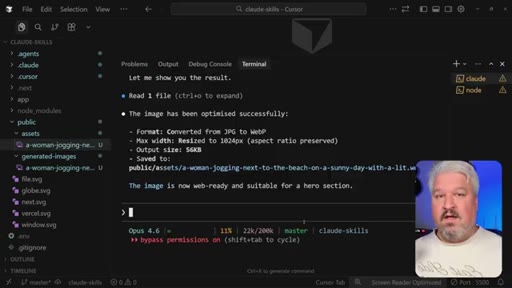
Shows the AI-generated hero image on the completed fitness app, setting the before/after frame for the whole tutorial.
00:54 – 01:47

02 · What are Claude Code Skills

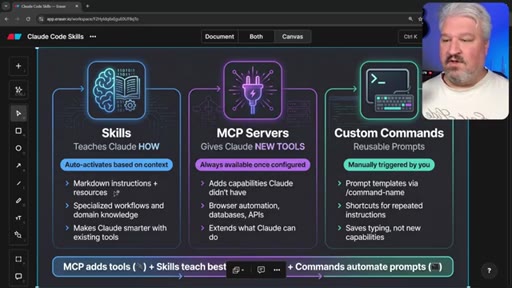
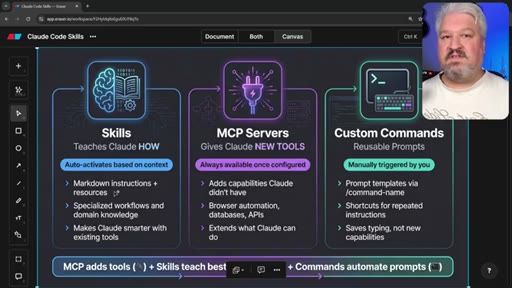
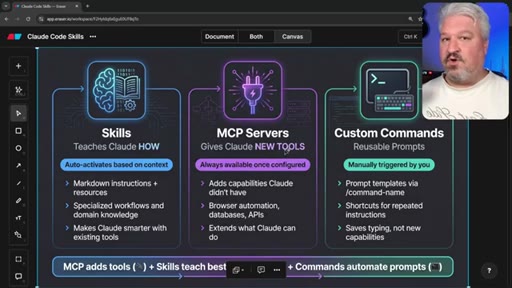
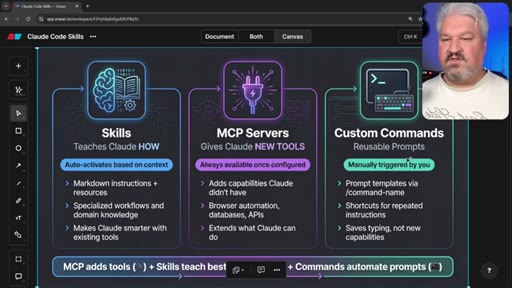
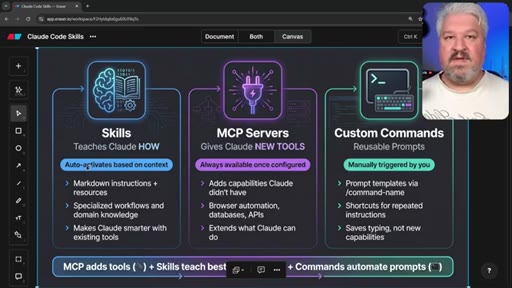
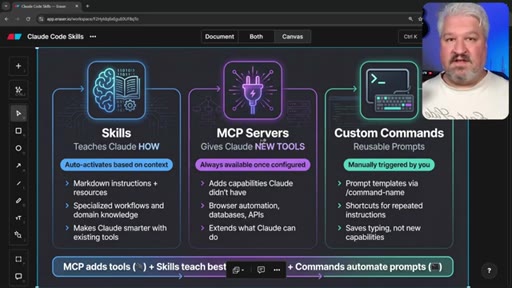
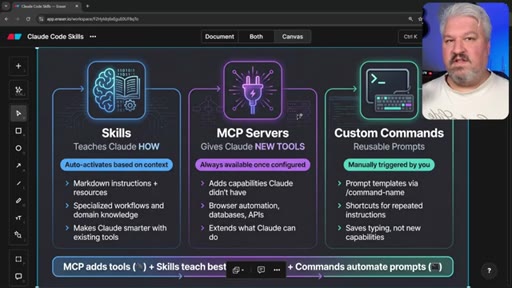
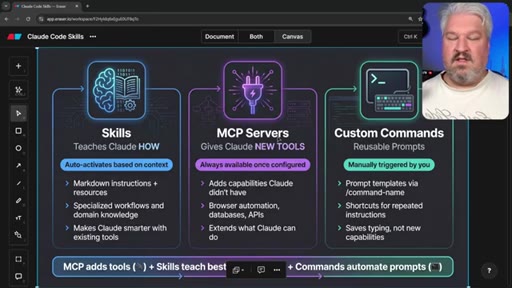
Infographic breakdown: skills are markdown files with precise instructions + resources that teach Claude a workflow it cannot do natively.
01:47 – 03:00

03 · Skills vs MCP Servers vs Custom Commands

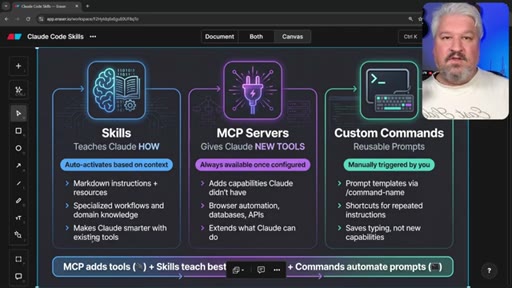
Key differentiation: MCP tools always load into context; skills are lazy-loaded and near-zero token cost until invoked; custom commands are just saved prompts.
03:00 – 04:02

04 · Why skills save context tokens

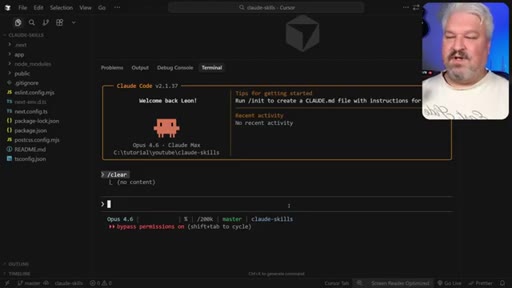
Live demo of /context token usage: multiple skills installed, barely any context consumed until the skill is actually needed.
04:02 – 05:44

05 · Installing via Claude Code plugin marketplace

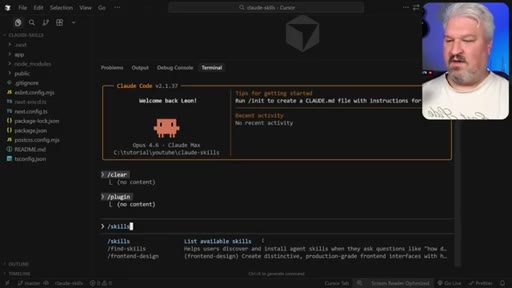
Plugin panel > Marketplaces > add Anthropic GitHub repo URL > browse plugins > spacebar to select > I to install.
05:44 – 07:55

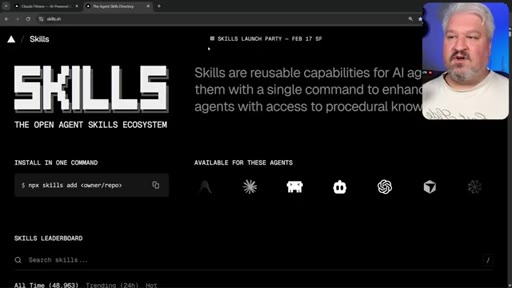
06 · skills.sh — open agent skills ecosystem

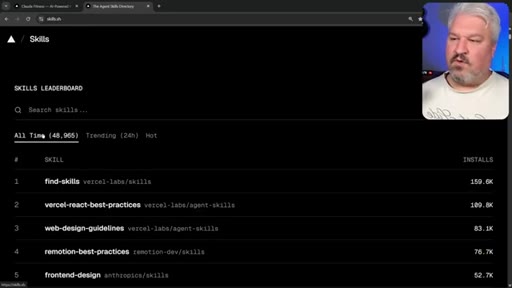
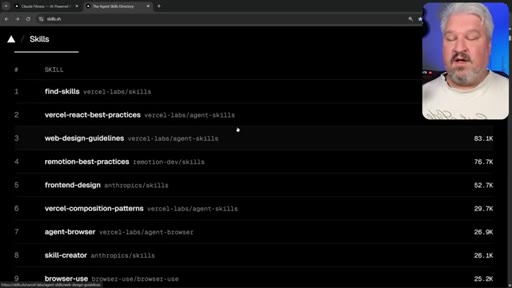
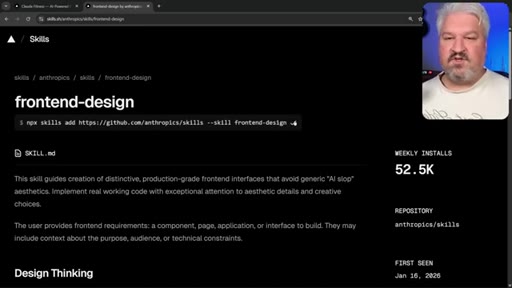
Vercel's skills.sh: browse trending/all-time favorites, copy npx install command, choose project vs global scope, add Symlink.
07:55 – 09:46

07 · Viewing installed skills + token usage

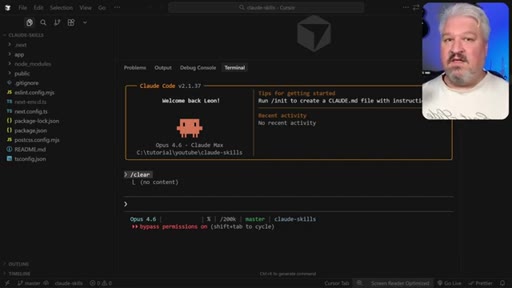
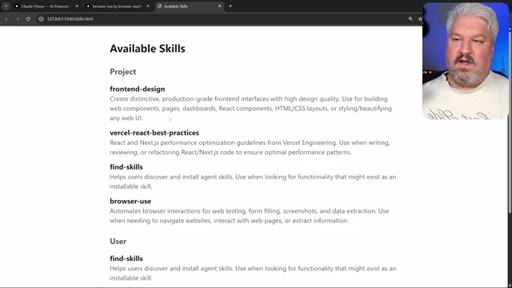
Claude Code /skills panel shows all project skills with minimal token footprint. HTML listing trick visualizes exactly what is in context.
09:46 – 11:29

08 · frontend-design skill in action

Prompt Claude to use the frontend-design skill — skill loads into context at that moment — full app redesign executes. Browser-use skill auto-verifies the result.
11:29 – 12:36

09 · Skill creator skill

Install skill-creator skill to let Claude build new skills from documentation snippets.
12:36 – 15:31

10 · Free local image gen alternative

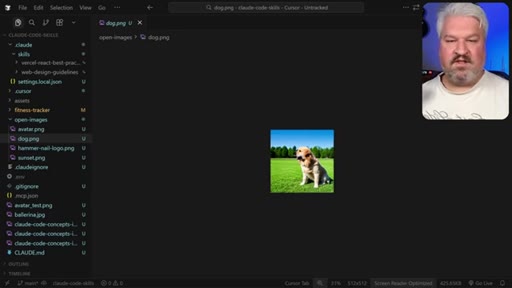
Bonus: open-source Hugging Face model, no API key, Python script runs locally. dog.png demo. Useful for icons/avatars, not photorealistic.
15:31 – 17:46

11 · Building Nano Banana Pro skill + .env pattern

Get working example from AI Studio, paste into Claude with skill-creator. Critical: never hard-code API keys — use .env + tell Claude variable name, Python reads os.environ.
17:46 – 19:01

12 · Testing the image generator skill

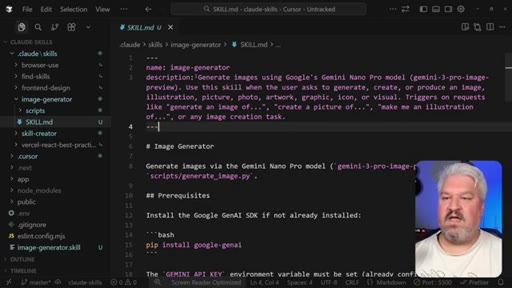
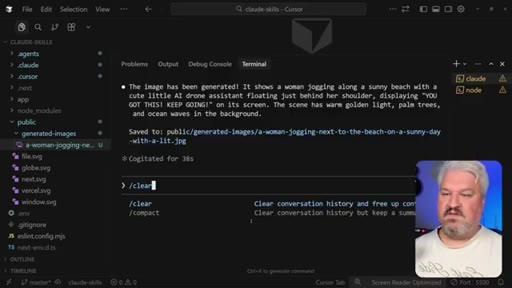
Claude auto-invokes image-generator skill, runs Python script, produces 600KB PNG of woman jogging on beach with AI assistant.
19:01 – 20:47

13 · Image optimizer skill — 631KB to 56KB

Create image optimizer skill (resize + WebP conversion). 631KB PNG becomes 56KB WebP. Placeholder on hero section replaced with the result.
20:47 – 20:52

14 · Final result + CTA

Final fitness app with generated+optimized image in hero. Like/subscribe ask, link to next video.

§ · Storyboard

Visual structure at a glance.

cold open — finished app
skills infographic
skills.sh marketplace
frontend-design skill fires
Nano Banana Pro skill creation
image optimizer skill
final result
§ · Frameworks

Named ideas worth stealing.

00:54 model

Skills vs MCP Servers vs Custom Commands

  1. Skills — markdown instructions, auto-activated, lazy-loaded
  2. MCP Servers — always in context, always consuming tokens
  3. Custom Commands — saved prompts, manually triggered

The three extension mechanisms for Claude Code, differentiated by when they load into context and how they are invoked.

Steal for Any explainer about extending Claude Code — the infographic framing is immediately understandable and reusable for MCN+ curriculum
15:55 model

API Key Security Pattern for Skills

  1. .env file in project root (gitignored)
  2. Tell Claude the variable name in your prompt
  3. Generated Python script reads from os.environ
  4. Never hard-code in skill files, never pass to Claude directly

The correct pattern for handling sensitive credentials when building Claude Code skills.

Steal for Direct validation against JoeFlow own ~/.claude/.env + load_env loader pattern
03:00 concept

Lazy-load context architecture

Skills only load their full markdown + supporting files into context when the agent determines the skill is needed. Until then only the skill name + one-line description is in context.

Steal for Selling skills-over-MCPs argument when context window management matters
§ · Quotables

Lines you could clip.

09:50
"Unlike MCP servers where the tools along with their documentation is always sitting in memory — Claude only loads the minimum amount of context, and only if the skill is needed will it dive into these folders."
Clean, jargon-light explanation of a non-obvious architectural difference — no setup needed → TikTok hook
01:05
"Skills are basically markdown files with very precise instructions."
Best one-line definition of Claude Code Skills in the whole video → IG reel cold open
15:55
"Please do not pass it to Claude directly and please do not ask Claude to hard code it in the skills itself."
Direct authoritative security warning — clippable as a standalone tip → Newsletter pull-quote
§ · Pacing

How they spent the runtime.

Hook length54s
Info densityhigh
Filler5%
§ · Resources Mentioned

Things they pointed at.

§ · CTA Breakdown

How they asked for the click.

20:48 subscribe
"If you enjoyed this video, please hit the like button and subscribe to my channel for more Claude code and agentic coding tutorials."

Clean single-sentence ask at the very end, no sponsor, no link farm.

§ 04 · The Script

Word for word.

HOOK opening / re-engagementCTA the pitch analogy
00:00HOOKNow let's have a look at adding an image to this hero section. Please generate an image of a woman jogging next to the beach. The agent correctly identified that it's got access to our image generator skill.
00:11HOOKAnd if we have a look at it, we get this image with this little chat bot saying, hey, you got this, keep going. And on this placeholder, once we place with an image generated by Claude code, we can use skills to give our agents access to extra capabilities. Like you saw in the intro, we were able to get Claude code to generate images,
00:28HOOKwhich is something that Claude can't do natively. So in this video, you'll learn everything you need to know to get started with using skills from finding and installing skills to creating your very own skills. We'll also have to look at the differences between skills, MCP servers,
00:45HOOKand custom commands. And we'll also look at advanced topics like creating skills that rely on sensitive data like API keys. So, I think this infographic describes it best.
00:57HOOKWe can use skills to teach Cloud Code how to do something that it couldn't do natively. For example, generating images. Skills are basically markdown files with very precise instructions.
01:07And along with those instructions, we can also include any other resources. For example, if the agent needs to generate an image, the markdown file will contain precise instructions on how to use a Python script to generate those images. Or another example is the front end design skill,
01:24which provides a lot of context and resources for building high quality UI designs. So we can use skills to specify very specific workflows
01:34and even provide domain knowledge. So basically, we can use skills to take the existing knowledge built into Claude along with any tools that it already has access to to execute very specific workflows. Skills get confused with MCP servers all the time, but the real difference is that MCP servers simply provide new tools to the agent.
01:55So these tools could give the agent access to control a browser window or to access a database, etcetera.
02:01And, of course, we can combine skills with tools to create very specialized workflows. And custom commands are purely reusable prompts.
02:10So custom commands are not really related to skills or MCP servers in any way. These are simply reusable prompts that the user can store to easily access those prompts again.
02:21Whereas skills is actually auto activated by the agent based on the conversation's context. If we ask the agent to generate an image, it will then see it's got access to the image generation skill, pull in that skills markdown file, and then follow the instructions in that file to generate an image. Of course, for the MCP servers and any other tools, those will always be available in the agent's context.
02:45So, yes, you could have a tool that can generate images as well, but keep in mind that tool along with all of its metadata will be preloaded into the agent's context and consume tokens whether or not the agent needs a tool or not.
02:59That's why in some instances, skills are preferred over MCP servers because as you'll see in this video, skills actually take up very little context. If you are interested in this infographic,
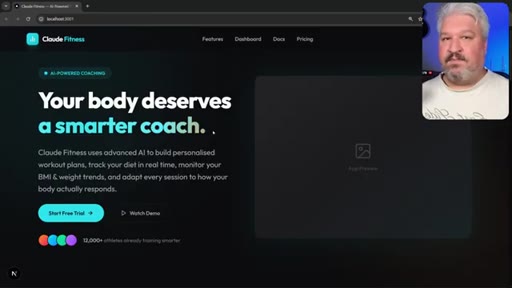
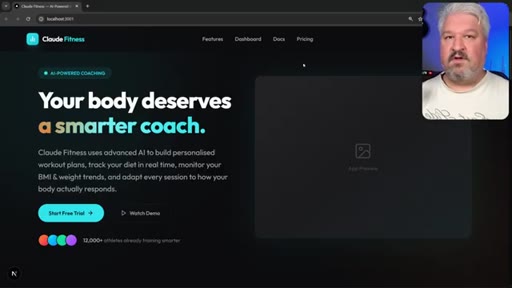
03:10I'll link to it in the description of this video. I use Claude without any skills or MCP servers to create this landing page for a fitness app.
03:19So this is very much based on the training data built into Claude. And it doesn't look bad, but we will use our skills to greatly improve this design. And of course, towards the end of the video, I'll show you how to create your own skill for generating images,
03:33and then we'll replace this placeholder with our actual AI generated image. So how do we add skills to Claude Code?
03:40Luckily, that's super easy. We can download skills from existing marketplaces, so skills created by other users, or we can create our very own skills.
03:50Let's start by downloading skills from existing marketplaces. Now, there are really two ways to do this. Now, one solution, and this is actually the most complex solution, I'll show you an easier way in a second, is to use the built in plugins function within Claude code.
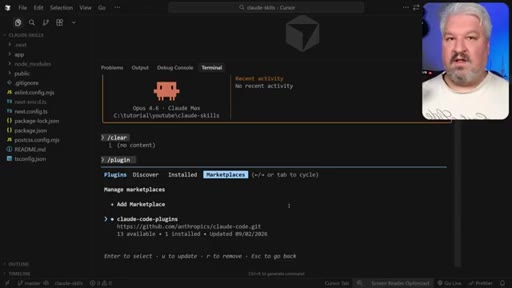
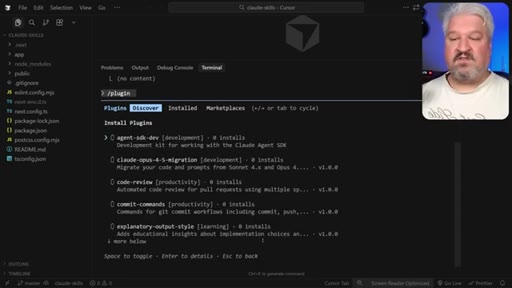
04:05So within Claude, we can go to plugin, and by default, you won't see any plug ins in this list. What you'll have to do is press right to go to marketplaces
04:15and then add a new marketplace like the official Anthropic marketplace. So these marketplaces are typically stored in GitHub repositories.
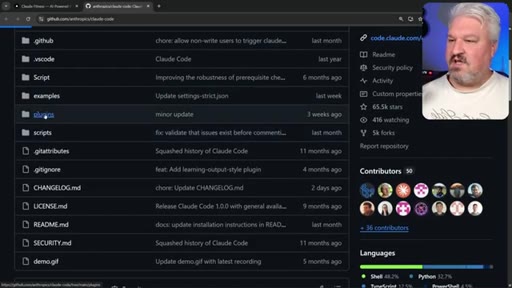
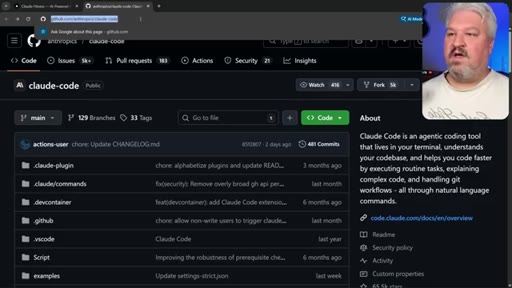
04:24And Anthropic has this official repository, which I'll link to in the description as well. And in this repo, we have access to several plugins.
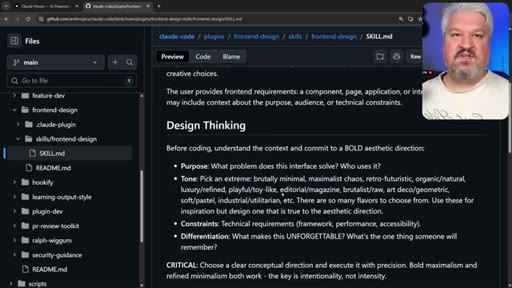
04:33So if we go into the plugin folder, we can see all these available plugins. And within there, we have something like the front end design skill,
04:42which basically contains a folder for the skill itself and this markdown file containing very strict instructions on using this skill. Now, we don't really care about the contents of these files at this stage.
04:55If you want, you can definitely read through it, but it's nothing more than very detailed instructions. Now, there are many repositories out there and if you note the repository path, all you have to do is copy the URL then we can go to add marketplace, paste in that GitHub URL,
05:11and of course, I'm getting this message because I've already installed this marketplace. But for you, you will now see this marketplace, you will be able to browse all the plugins,
05:22and you can simply press space bar to select any plugins you want, like this front end design skill. So after selecting the skill that you want, you can simply press I on the keyboard to install that skill. And then afterwards, if we run the skills command,
05:38we will see the front end design skill has been installed. Now, this has been installed at user level. Now, I'm going to show you a way easier way to find and install skills.
05:49Simply go to this website skills.sh. This is a really cool project from Vercel, and this is an open agent skills ecosystem. This makes it really easy to search for new skills.
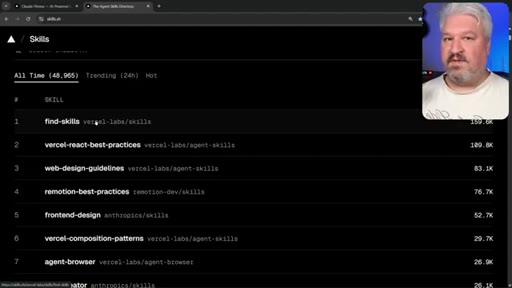
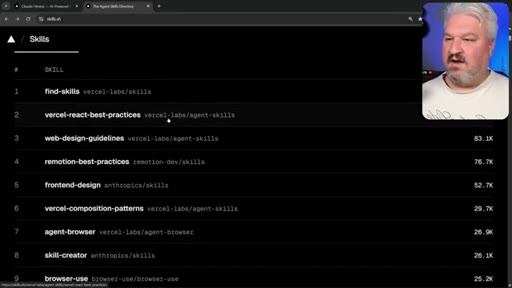
06:02You can also view all the training skills, what's hot right now, or just have a look at the all time favorites. This is such a cool project. If we have a look at these all time favorite skills,
06:14the most popular one seems to be this find skills skill. So with this skill, we can ask the agent to automatically search this marketplace for a suitable skill, and it will be able to install the skill itself.
06:27Another really useful skill is a skill creator skill. So with this skill, we can give our agents some instructions and it will be able to create the skill itself.
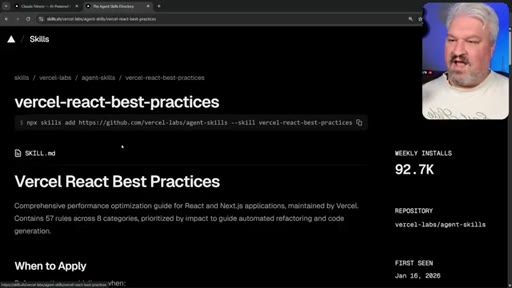
06:36There are so many really useful skills here. I do recommend this for Sell React best practices skill if you are using Vite or React or Next. And I also really like this front end design skill.
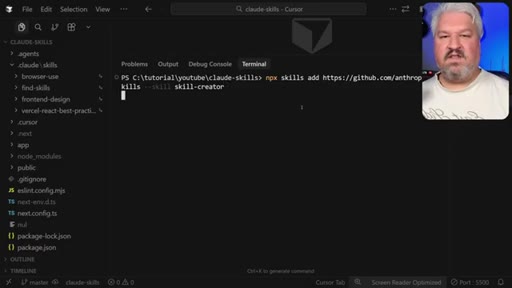
06:50So let's actually have a look at installing this skill. All we have to do is copy this command, then back in our project, let's paste in that command and press enter.
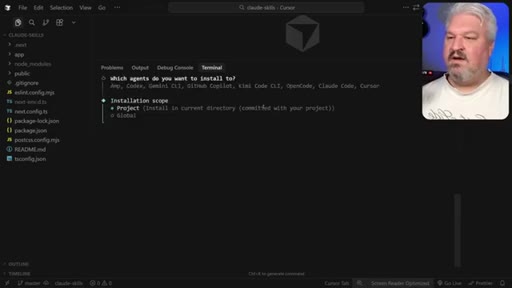
06:59Now we can select our tool or CLI. So I've got Cloth Code installed and I'm also using cursor.
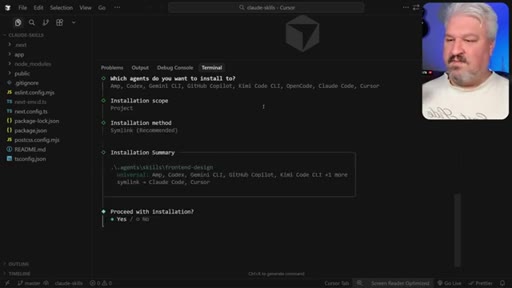
07:06So I'll just press space to select these tools. Let's press enter. Then we can specify if we want to use the skill at project level or globally
07:14across all of our projects. I like setting up skills at project level because that way I can add them to the repository and my entire team will have access to the same skills.
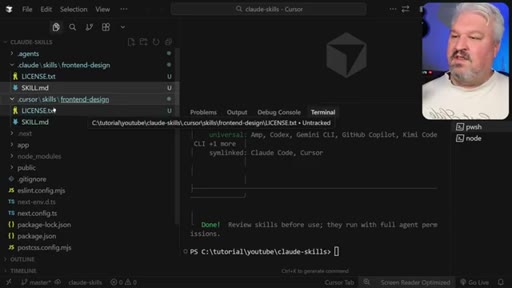
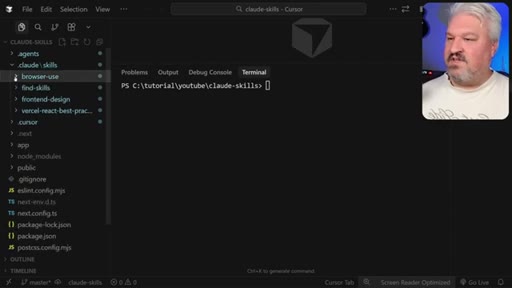
07:25Then I'll select Symlink, let's proceed with installation, and what this did is in the Claude folder,
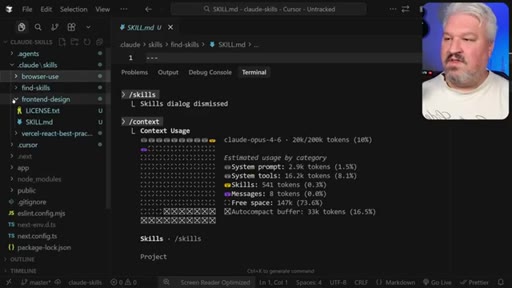
07:31we now have this skill subfolder with this front end design skill. And in here, we've got our skill dot n d file.
07:39Since we also selected cursor, we can find the skill in the cursor folder as well.
07:45And as a catch all, it's also created the skill in the dot agents folder. A lot of tools and frameworks use the dot agent folder as well. Let's go ahead and install a few more.
07:56If you want to create video animations, you can install Remotion as well. It's a really cool and fun skill.
08:02But I'm actually going to install the find skills skill. Apologies for saying skills so many times. Then let's install this.
08:11Cool. Let's also grab the React best practices as I am using Next. Js in this project.
08:17Let's install this skill. And if we wanted to give our agent access to a browser, we can install the browser use skill as well. And that's it.
08:25I think you get the idea. So we've got a skill for using the browser. We've got a skill for finding skills in the marketplace.
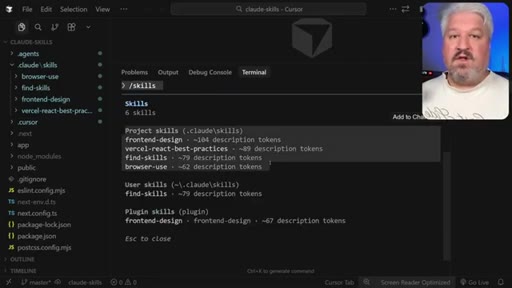
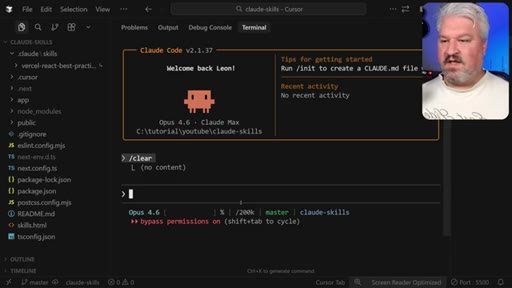
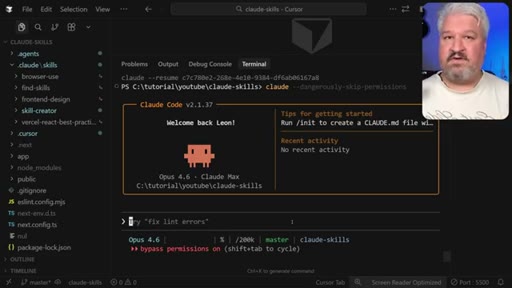
08:32And then we have some skills to assist with the front end design and using React. Right. Now, if we open Cloth Code and we go to skills,
08:41we can see all of our project skills over here. If you don't see the skills, simply restart Clawed Code and they should be available. And look at this.
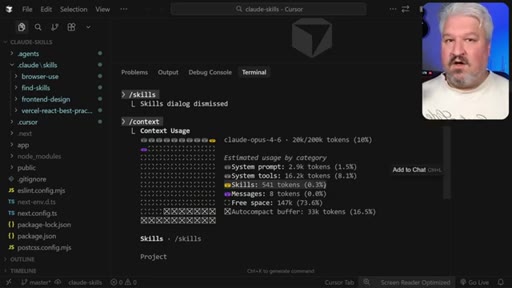
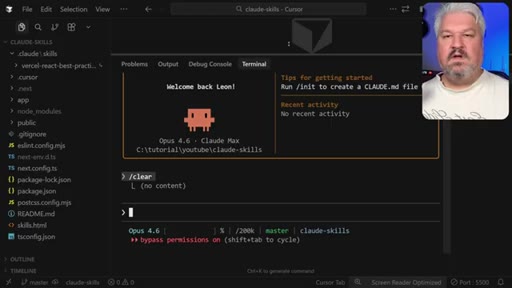
08:49You can see that these skills barely use any tokens. If we run the context command, we can see a token usage for the skills over here as well.
08:58And although we've added a lot of skills to this project, we're barely using any tokens. And that is because Claude only loads the minimum amount of context into memory and only if the skill is needed will it dive into these folders
09:11to pull in all of these additional files and context. But until then, the context window is really lean. There's actually a very nice way to visualize this by asking Claude code, please create an HTML file in the root of this project listing all of the skills that you have available.
09:28Do not dive into the details of the skills, only list the context that you have available at this current point in time on this page. And this is the only information that's loaded into context at this point in time. It's just enough for the agent to be aware
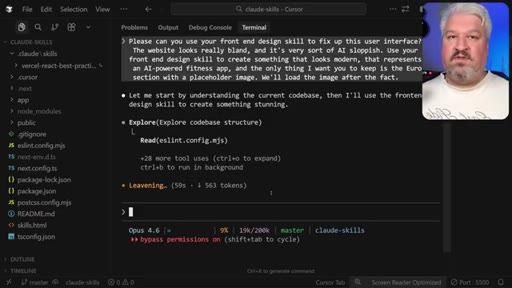
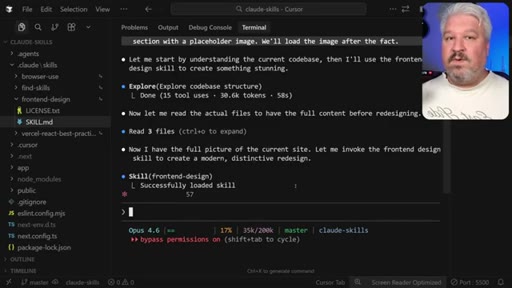
09:43of what skills are available and when to use them. Speaking of using skills, let's get taught to fix this UI. Please, can you use your front end design skill to fix up this user interface?
09:55The website looks really bland and it's very sort of AI sloppish. So use your front end design skill to create something that looks modern, that represents an AI powered fitness app.
10:06The only thing I want you to keep is the Euro section with a placeholder image. We'll load the image after the fact. Now you might have noticed that I asked Broad explicitly to use the skill.
10:17Now you don't have to do that. The agent should be able to identify the skill and then use it automatically. But I personally like to nudge the agent towards using these skills.
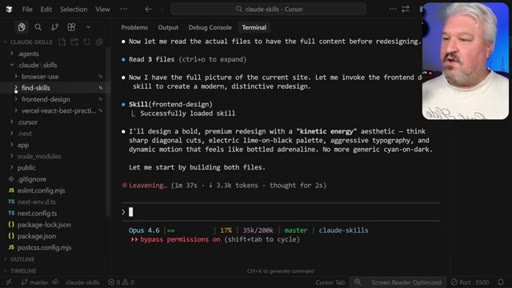
10:27And look at that. The agent now loaded the skill into memory, and it's only at this point in time that all of this context, everything in here, and you can see this is really a large file,
10:38all of this context is only loaded into the conversation at this point in time. Unlike MCP servers where the tools along with their documentation
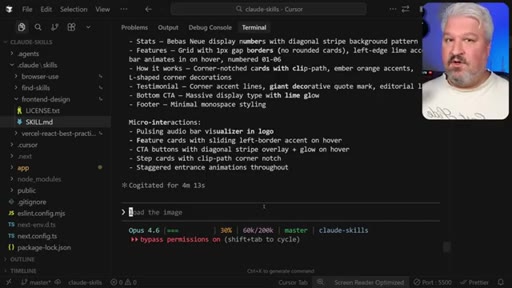
10:48is always sitting in memory. So Claude is currently cooking and this app should look very different in a few moments. Once Claude made these changes, but let's also get it to verify the changes by using the browser.
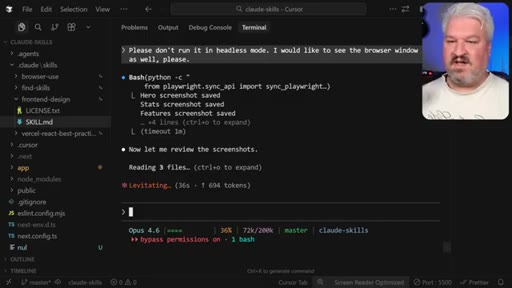
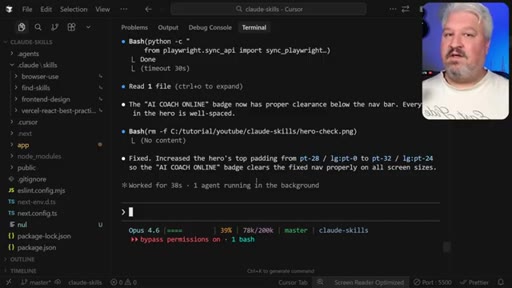
11:00Please use your browser use skill to verify your changes. The UI needs to look correct. And there you go.
11:07I'm not pressing anything. This is the agent actually just going through the page itself and checking if everything is okay. I did ask the agent not to run the browser in headless mode because I wanted to see the browser myself.
11:21I think the colors and the font work way better with a fitness brand, and I also like the new logo. Everything else just looks really professional. Let's have a look at adding an image to this hero section.
11:32Now, by default, Claude can't generate images. So what we could do is give it a skill to teach it how to generate images. Creating skills is really easy.
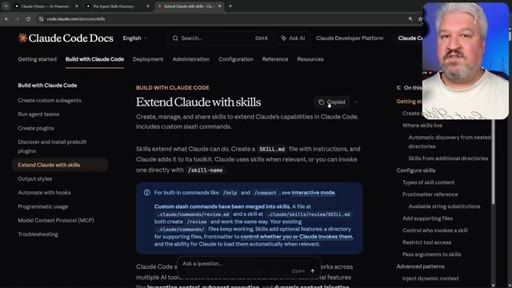
11:42Of course, you can try to do it yourself by going through this documentation and then just following the instructions.
11:49Or what you can do is simply just copy the content of this page, give it to Claude, and say, hey. I want you to create a skill based on this documentation, and this is the skill that I want you to create.
11:59An even easier solution is to simply download the skill creator skill. So copy this command, then let's run the skill. I'll select Claude code.
12:10We'll install the project level, And now our agent has access to a skill creator skill. I'll just restart Claude code. Now this is really up to you.
12:20I'm going to use Nano Banana Pro, which is a paid service for generating these images. But I think for fun and as an added bonus, I'll also show you how to use an open source model, which is completely free and it should work on everyone's hardware.
12:34But before we create our own skill, you might want to join my school community. This is a fantastic place for accessing all the resources in my videos, and you can share ideas and get assistance from like minded people in this community. So if you want a structured way to learn all of these different skills, then this is the place for you.
12:51I also started uploading exclusive videos and q and a live streams. And I've only priced this at $7 a month, which is a complete steal for the value and you will be supporting my channel. Now as I mentioned, we will be using Nano Banana Pro to generate these images, but I do want to prove to you that it is possible to use open source models as well.
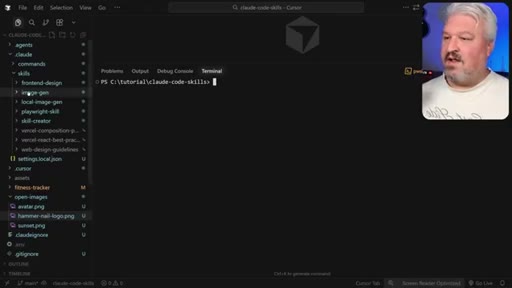
13:10So in this other repository, I created this local image gen skill. This will use a free open source model to generate the images.
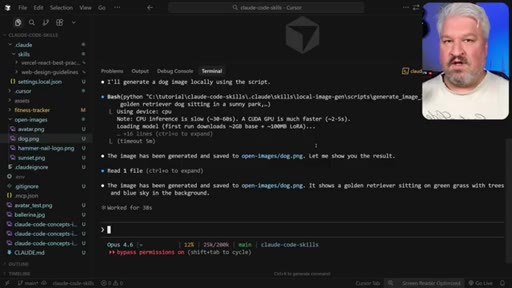
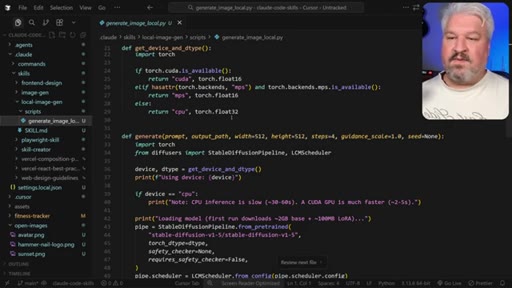
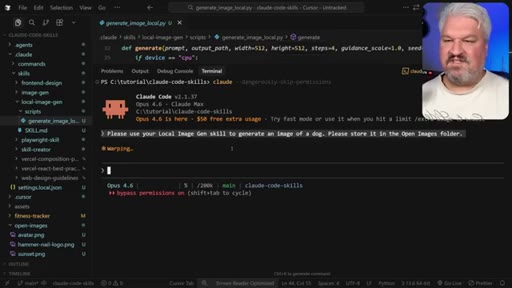
13:19So you don't need an API key, you don't need accounts, there's no cost involved, nothing. The agent will simply run this Python script, and this script uses a really tiny model for generating these images, which means we can simply ask Claude Code, please use your local image gen skill to generate an image of a dog.
13:38Please store it in the open images folder. And let's just send that. It's just for fun.
13:43The agent is loading in that local image gen skill. It's now running the underlying Python script for generating the image. And now we have this dog dot PNG file,
13:53which is a little bit tiny, but indeed it is an image of a dog. Now I probably won't use this to generate anything photorealistic, but this could be useful for generating icons
14:04or user profile images. And, of course, you don't have to use this specific model either. You can go on Hugging Face and generate something that will work on your hardware setup.
14:14If you are interested in playing around with a skill, I'll upload it to the community. But what you're interested in is building your own skills. So how can we create a nano banana image generation skill that Claude Code can use?
14:27The first thing is to figure out what that workflow actually looks like. So we need to find a skill. Remember, skills are really these predetermined
14:35or procedural workflows that you want the agent to go through whenever performing an action. For generating images with Nano Banana Pro,
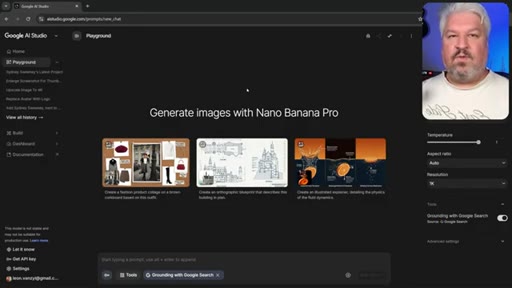
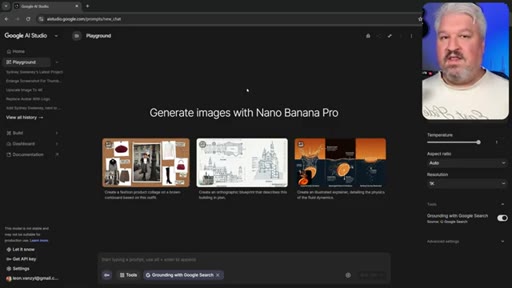
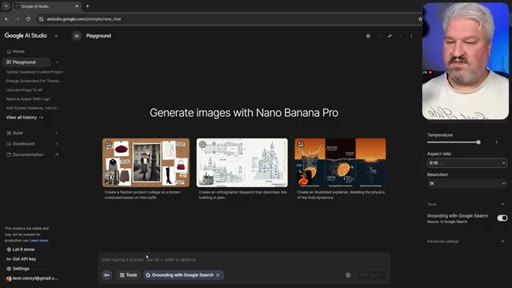
14:43we need the agent to use a script. And the easiest way to do that is to create a working example. So I'll send the guy to a I studio dot Google dot com, and I'll select the Nano Banana Pro model.
14:55Then for the aspect ratio, I'll just select an example like this, a woman running on the beach.
15:05I'll just add photo realistic. Let's run this. And cool.
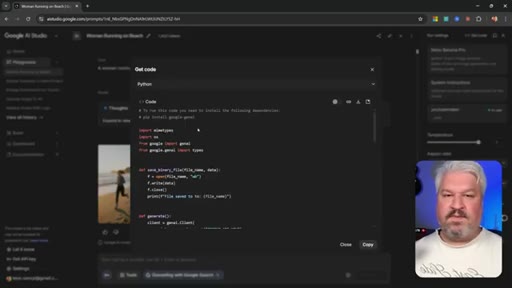
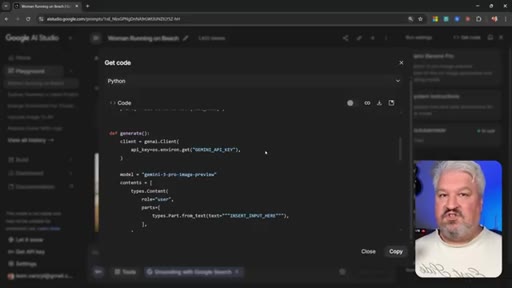
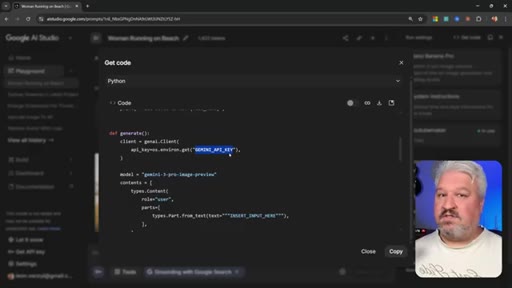
15:09We now have this image, so let's go to get code. And now we have this example code snippet. So I'm actually going to copy this.
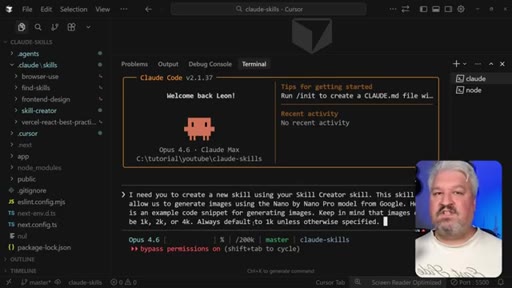
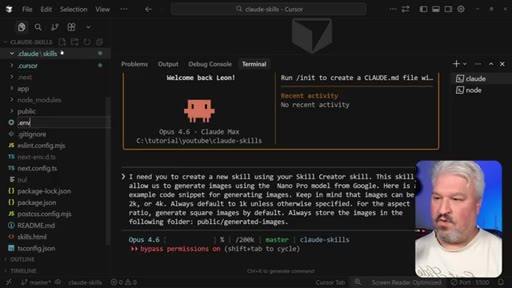
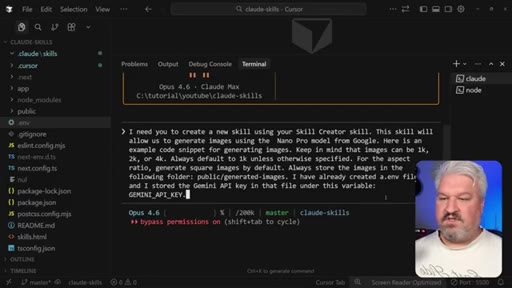
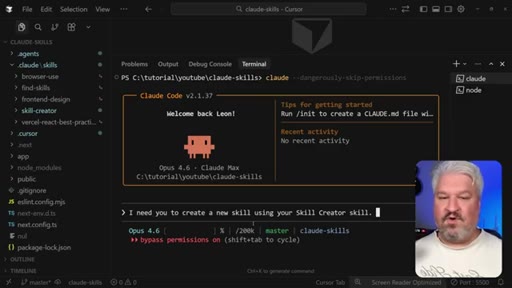
15:18Then back in our project, let's say I need you to create a new skill using your skill creator skill. This skill will allow us to generate images using the nano pen nano pro model from Google. Here is an example code snippet for generating images.
15:35Keep in mind that images can be one k, two k, or four k. Always default to one k unless otherwise specified. For the aspect ratio,
15:45generate square images by default. Always store the images in the following folder. Then I'll just type public slash
15:53generated images. But here is a really important topic, working with sensitive data,
16:00including things like API keys. The Gemini API, as with many other SDKs and APIs,
16:06require an API key to work. So this is actually expecting the Gemini API key to be passed to it. Now you do not want to hard code these keys in the skills because if you deploy that skill or maybe even share it with someone else, you're going to leak your API key.
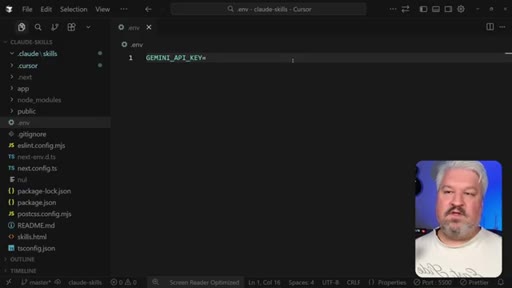
16:24So how do you store sensitive data and securely pass it to these skills? Well, in this instance, what we have to do is create a new file in the root of the project and call it dot env.
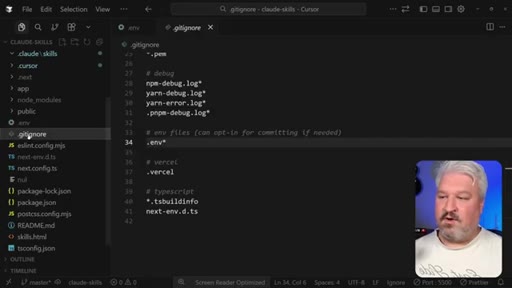
16:35This dot env file should always be excluded by Git and should never be published to the repository. So in your dot ignore file, always ensure that you are excluding dot env files.
16:47And if you don't have a dot ignore file in your project, simply create one. Then in this file, I'm going to create this variable. So in AI Studio, I'll go to get API key.
16:59You can just create a new key or I'll just reuse this one. And I'm going to do this off camera, but all you have to do is paste in your key and save this dot ENV file. Now, I'm going to tell Claude, I have already created a dot ENV file and I stored the Gemini API key in that file under this variable
17:18like so. So just always keep in mind, if you are working with sensitive data, please do not pass it to Claude directly
17:26and please don't ask Claw to hard code it in the skills itself. Right. Let's run this.
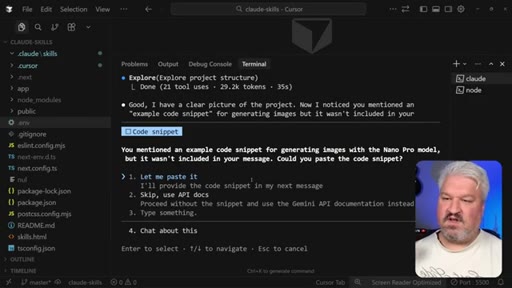
17:31And as you can see, the skill creator skill was loaded, and of course, it's asking a few questions like, you mentioned an example code snippet for generating images with a Nano Banana Pro model, but it wasn't included. Alright. That's my bad.
17:44So I'm just going to pass that to Claude. Alright. So we now have this image generator skill.
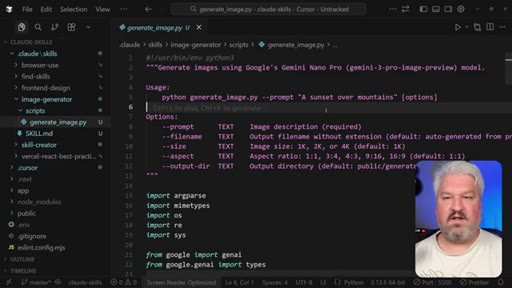
17:49If we have a look at the skills file, we have a description and all the instructions for using the script, as well as all of the different sizes and aspect ratios.
17:59This is really, really cool. Now the secret sauce behind the skill is this script.
18:05So in the scripts folder, we have this Python file, and it's this Python file that's going to use the Gemini SDK to generate the image.
18:13And this is grabbing the Gemini API key from our environment variables. It's not hard coded in the script at all. So let's test it out.
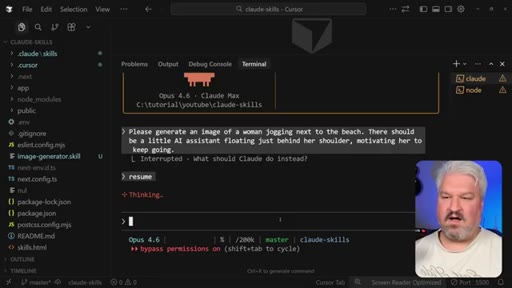
18:22I'm actually going to exit out of Claude. Let's go back in. Let's say, please generate an image of a woman jogging next to the beach.
18:31There should be a little AI assistant floating just behind her shoulder, motivating her to keep going.
18:38I accidentally pressed escape, so let's just say resume. The agent correctly identified that it's got access to our image generator skill. It's running the Python script.
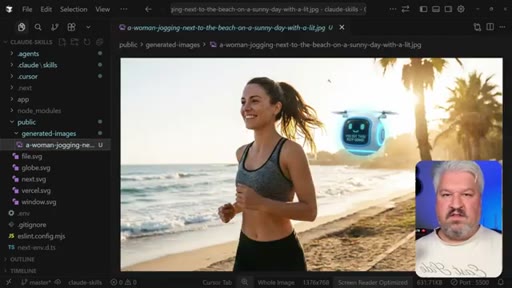
18:48Alright. So we've got our new file in this generated images folder. And if we have a look at it, we get this image with this little chat bot saying, hey, you got this, keep going.
18:58This will be the perfect image to use on our website. But the problem is if we have a look at the file size, this is over 600 kilobytes, which is way too big for a website.
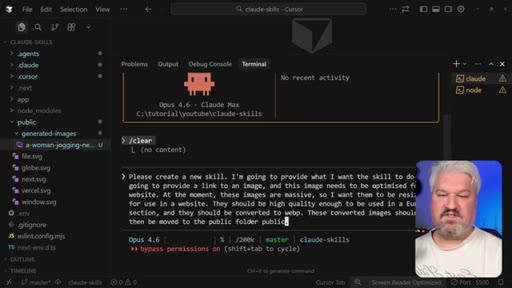
19:08So thankfully, what we can do is create a new skill. So let's say, please create a new skill. What I want the skill to do is I'm going to provide a link to a to an image, and this image needs to be optimized
19:22for a website. At the moment, these images are massive, so I want them to be resized for use in a website,
19:30and they should be high quality enough to be used in a euro section, and they should be converted to WebP. These converted images should then be moved to the public folder.
19:41I'm actually just going to type public slash assets like that.
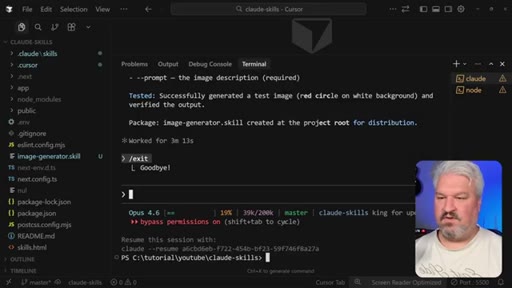
19:45Alright. Let's send this. So now in the Cloud folder under skills, we now have this image optimizer skill, which also uses a Python script for resizing the images and converting them to WebP.
19:56So I'll just restart Cloud Code again, and it say, please use your optimized image skill on this image. Then let's throw in this image that we generated earlier. Let's send this.
20:08And just as a reminder, this image is 631 kilobytes. And now we have this assets folder,
20:15and in here, let's open up this version of the image. And as you can see, the details are all there. This looks fantastic.
20:22But this version of the image is only 56 kilobytes. That's way better.
20:27Please, can you replace the placeholder on the home page with this optimized image? And it's in this.
20:34And now this placeholder was replaced with an image generated by Cloth code. How awesome is that? If you enjoyed this video, please hit the like button and subscribe to my channel for more Claude code and agentic coding tutorials.
20:46CTAThen also check out this other video, and I'll see you in the next one. Bye bye.
— full transcript
§ 05 · For Joe

The lazy-load architecture is the whole argument.

Skills over MCPs — when it matters

Skills cost near-zero context until the agent needs them — that is the moat over MCPs for capability-heavy projects.

  • Use the Skills vs MCP vs Custom Commands infographic (00:54) as the canonical explainer for MCN+ curriculum on extending Claude Code.
  • The .env + variable-name-in-prompt pattern validates the JoeFlow ~/.claude/.env + load_env design — this is the community-standard approach.
  • The skill-creator skill (skills.sh install) is a fast path to building new JoeFlow skills: feed it the API docs and a working code snippet.
  • skills.sh is the discovery layer — worth listing your own skills there when they are ready to share.
  • The 'barely any tokens until invoked' framing is the strongest pitch for skills when users ask why not just use an MCP.
§ 05 · For You

What you can actually do with this.

For the builder watching this

You can teach Claude Code to do things it cannot do natively — image generation, web optimization, browser verification — by writing a markdown file and a Python script.

  • Install the frontend-design skill from skills.sh and ask Claude to fix any AI-sloppy UI — it works in one prompt.
  • Install the skill-creator skill, paste in an API doc page, and Claude will write the skill file and Python script for you.
  • Store API keys in a .env file, gitignore it, and tell Claude the variable name — never paste keys into the chat.
  • Use the image optimizer skill pattern (resize + WebP) any time you need to cut asset sizes before deploying.
§ 06 · Frame Gallery

Visual moments.