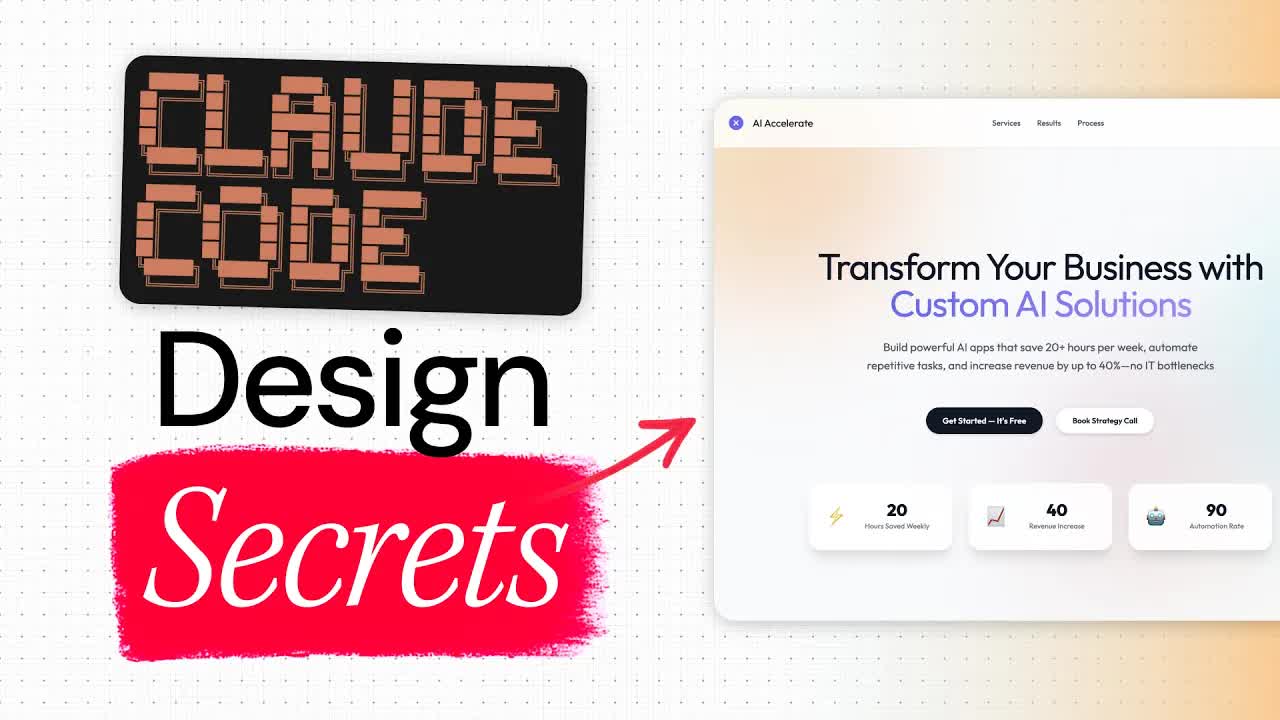
The bait, then the rug-pull.
Two commands. One prompt. That's the gap between the purple-gradient soup that every AI tool defaults to and something that actually looks like a designer touched it. Chris has been designing apps for fifteen years — and he's calling this the best Claude Code skill he's ever used.
What the video promised.
stated at 00:08 "I'm gonna show you how to set up this skill and use it with Claude code to create incredible UI designs in minutes." delivered at 09:30
Where the time goes.

01 · Intro + viral hook
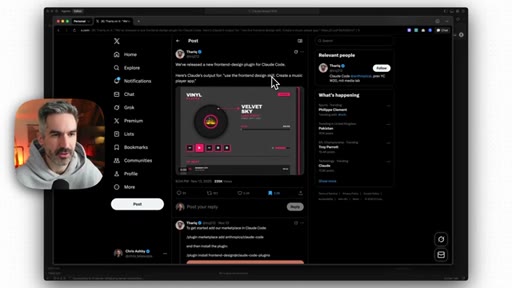
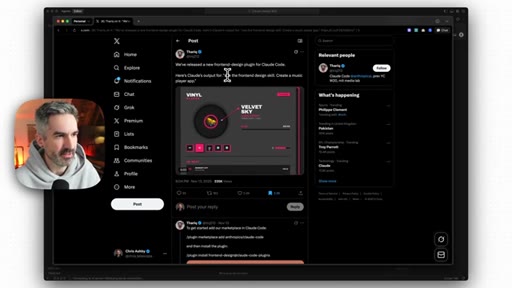
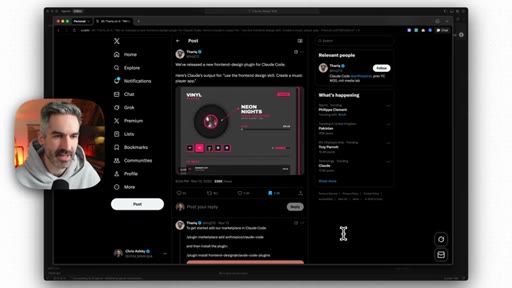
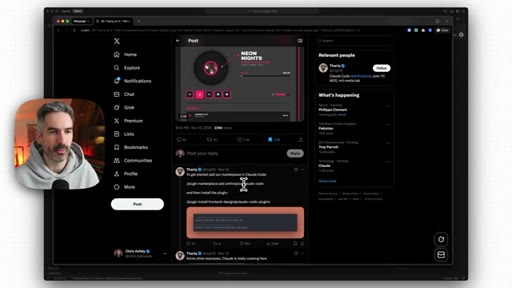
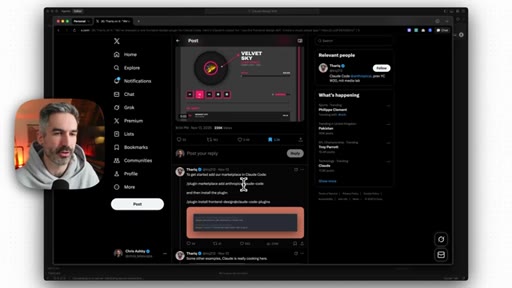
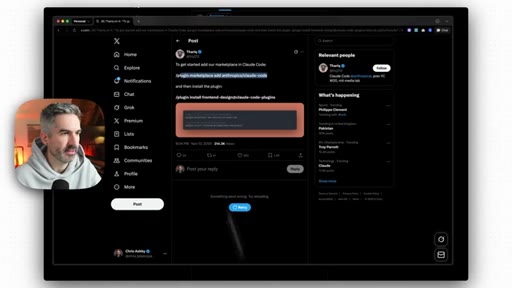
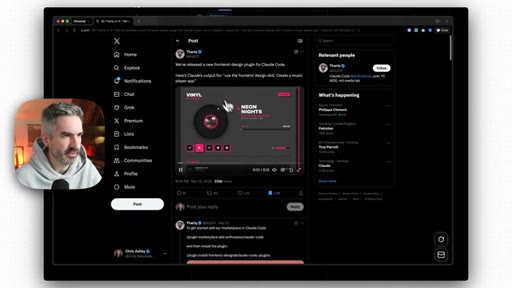
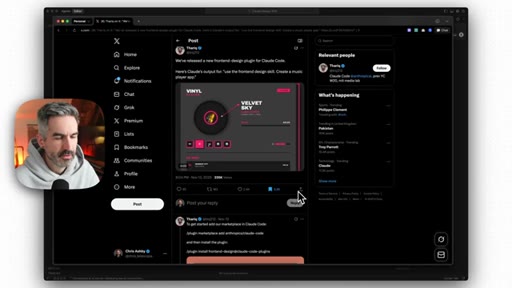
Chris opens to-camera with the bold claim, references X post with 235K+ views, shows music player output from skill as proof of quality.
02 · Install overview + examples
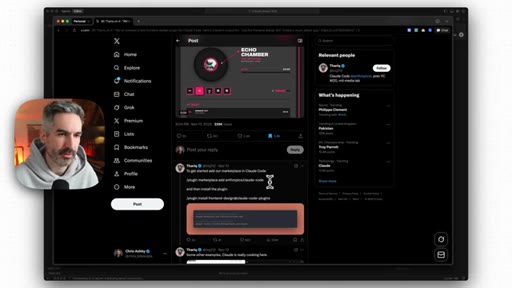
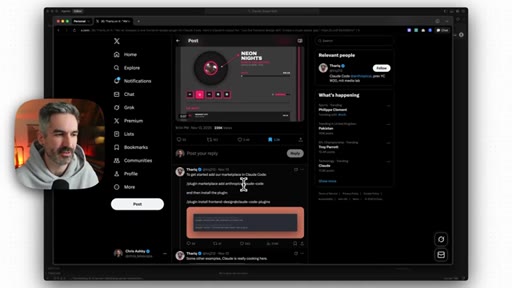
Shows the viral X thread — two-command install sequence. Explains what the skill does: avoids generic AI aesthetics, generates creative production-grade UI.
03 · Plan + build baseline
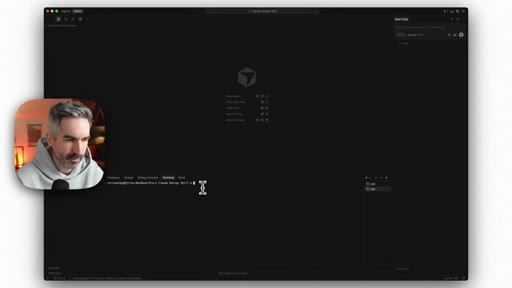
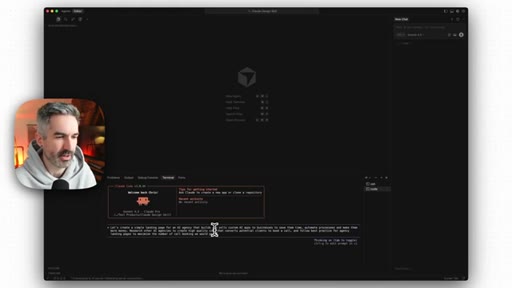
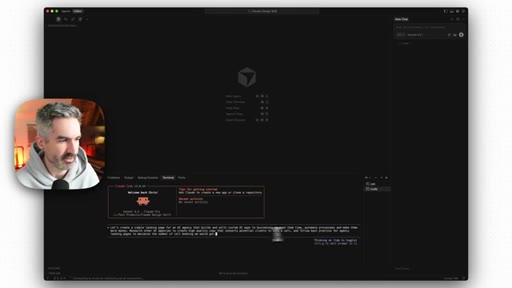
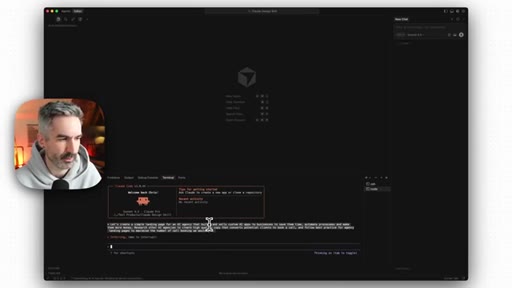
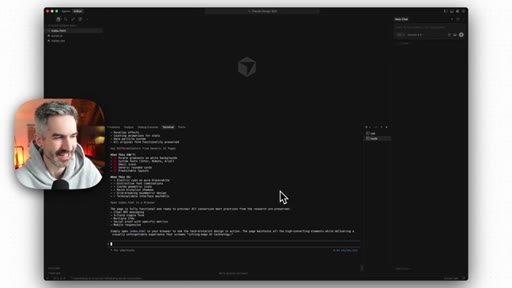
States the three-act demo plan. Opens Cursor terminal, prompts Claude Code to generate a full AI agency landing page from scratch.

04 · Baseline review
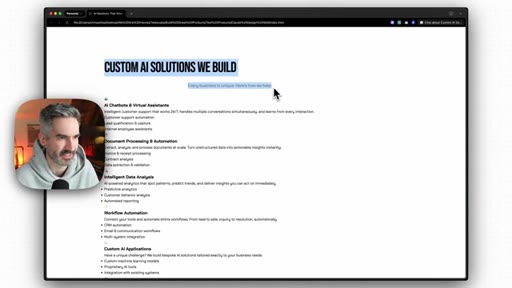
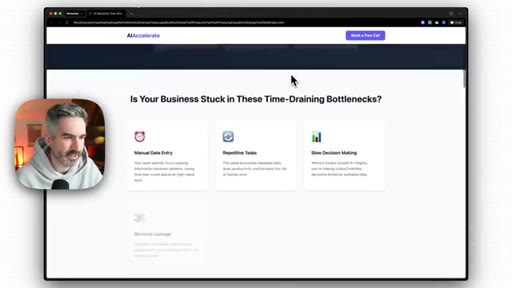
Reviews default output in browser — soft blue/purple, basic layout, typographically flat. 'It's not the purple gradients usually… but it's using purple. As it always does.'

05 · Install the skill
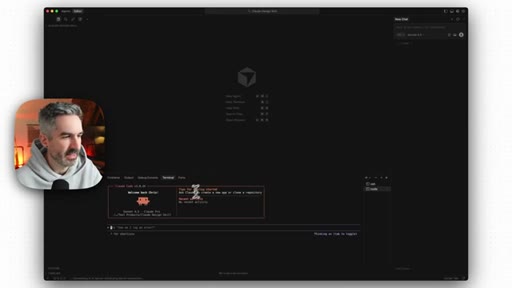
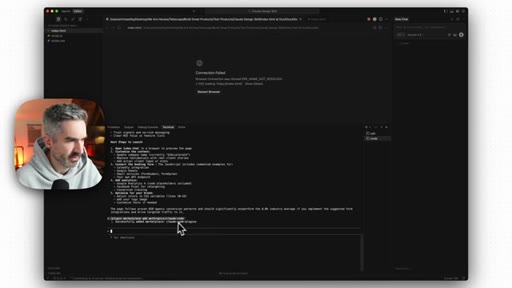
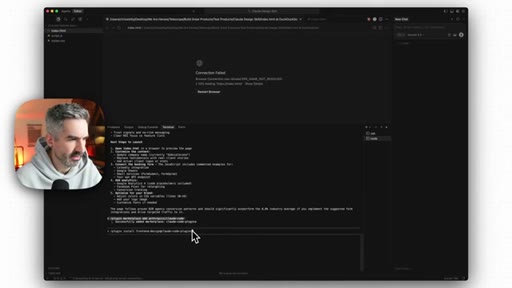
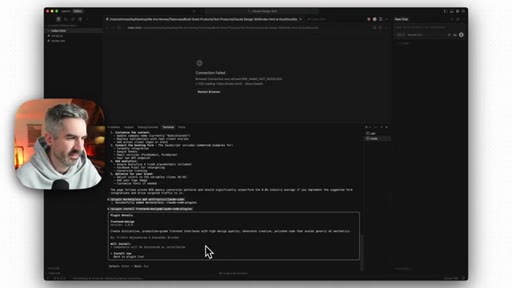
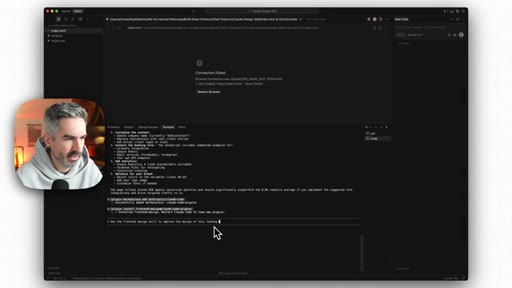
Pastes the marketplace add command, then the plugin install command, into Claude Code chat. Both succeed in under 60 seconds.
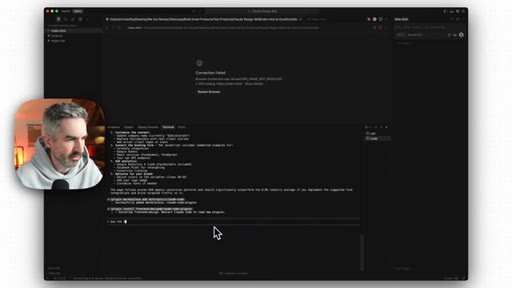
06 · Apply skill — unguided pass
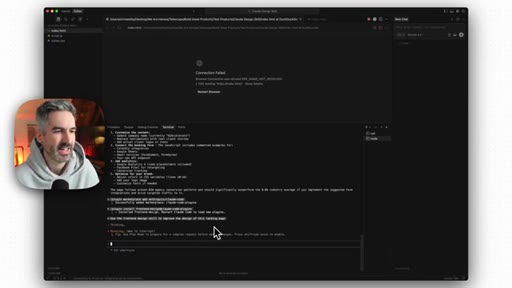
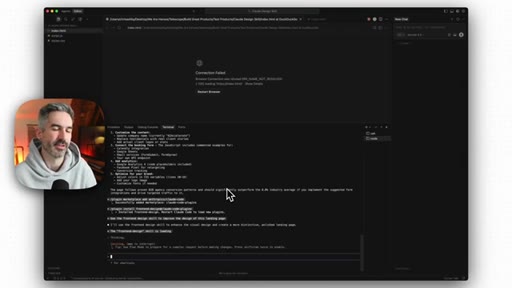
Single prompt: 'use the front end design skill to improve the design of this landing page.' No reference, no color guidance.
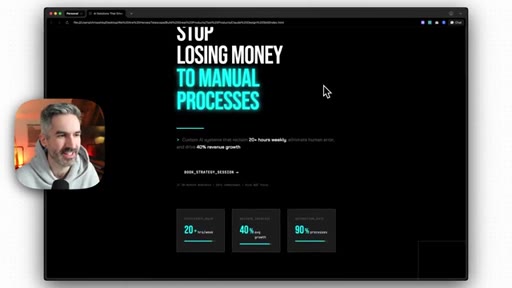
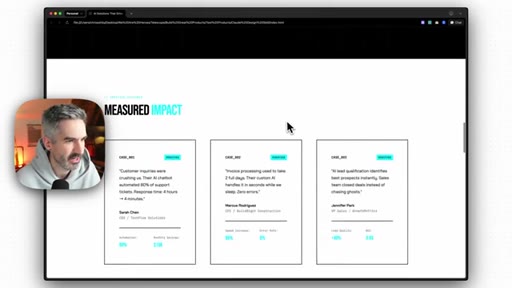
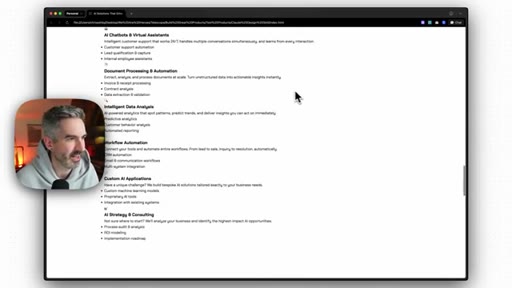
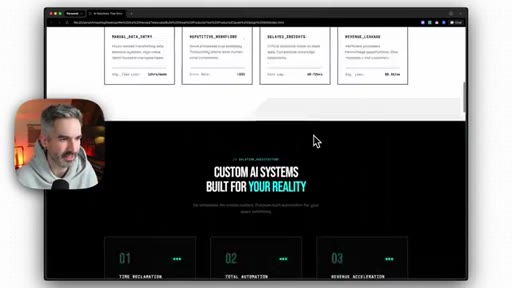
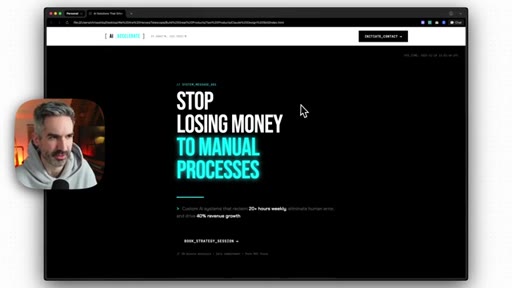
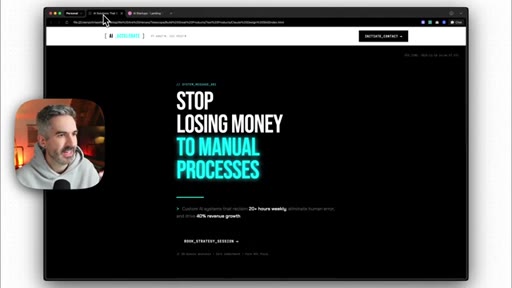
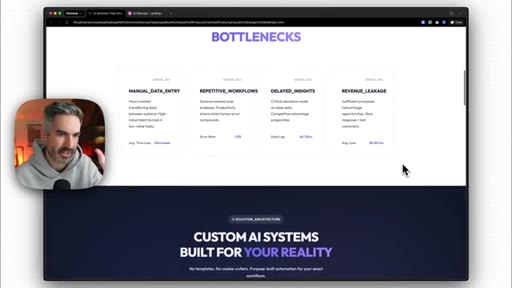
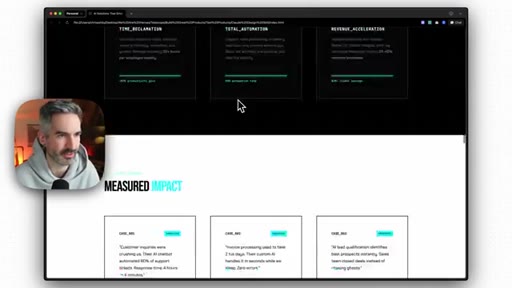
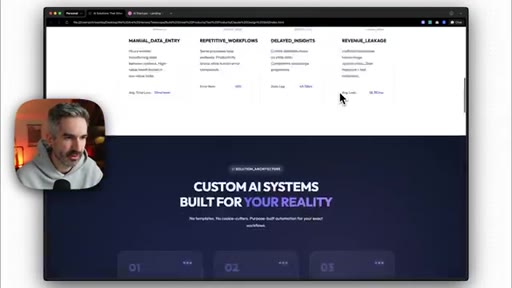
07 · Unguided result walkthrough
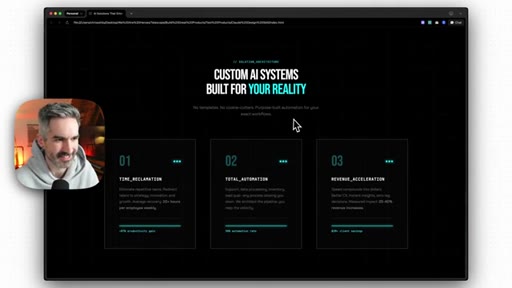
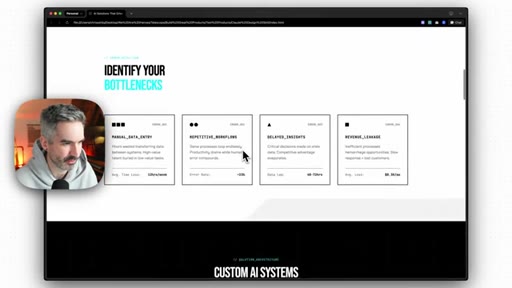
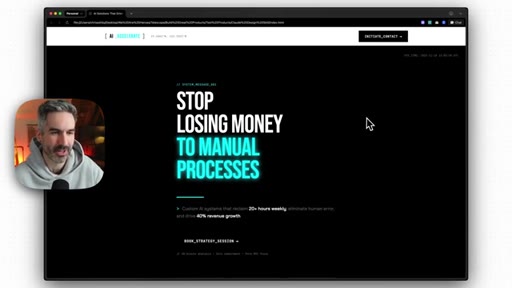
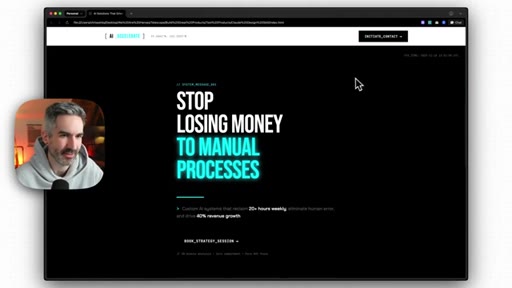
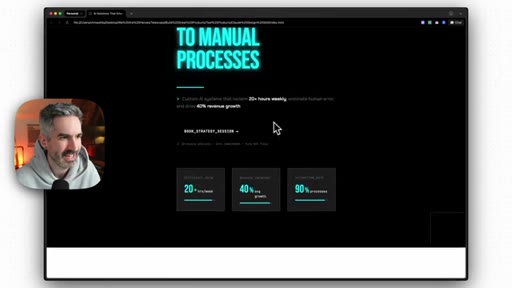
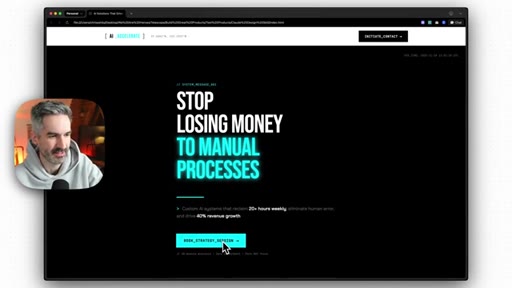
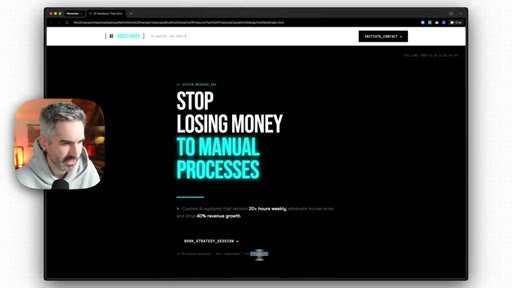
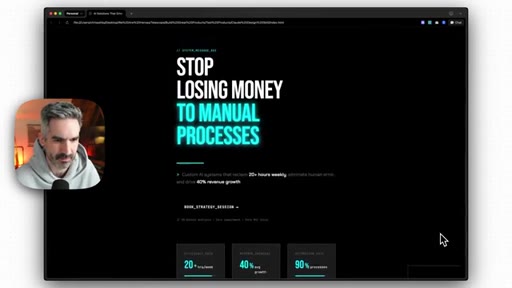
Black/white/cyan brutalist redesign. Bold all-caps type, scroll glow, hover cards with grid texture. CTA button invisible on dark bg; some sections broken; overall quality dramatically higher.
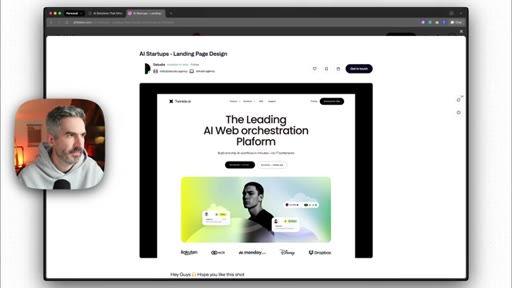
08 · Dribbble reference pick
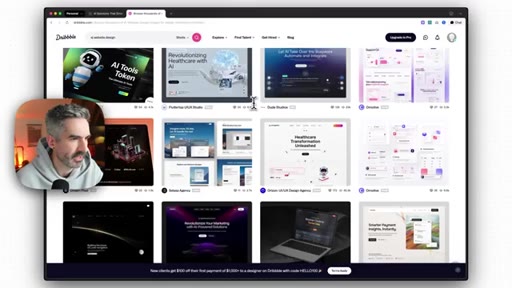
Navigates to Dribbble, searches 'AI website design,' picks a clean soft-gradient design as the art direction reference.
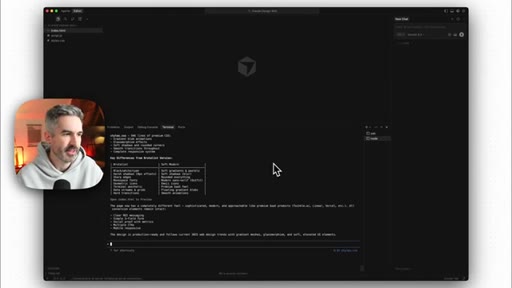
09 · Apply skill — reference pass
Prompt: 'use the front end design skill to improve the design of this landing page following the attached screenshot.' Pastes the Dribbble image. Claude outputs a style-shift summary.
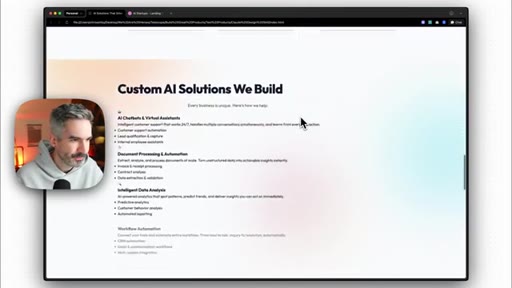
10 · Reference result walkthrough
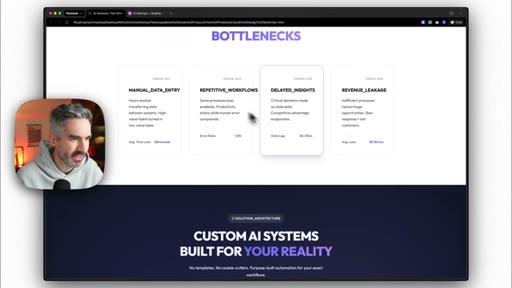
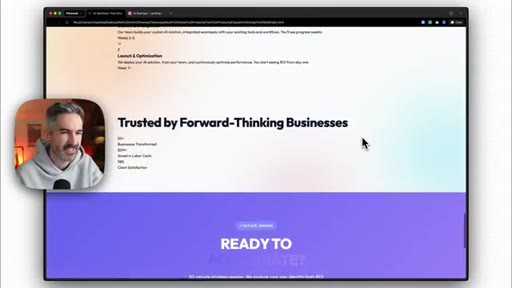
Soft pastel gradients, blur shadows, Outfit typeface, rounded corners, smooth scroll, floating blob backgrounds. Some sections still mis-aligned. Overall: 'better than 99% of designs from other AI tools.'

11 · Next-level: design system upgrade
Explains the ceiling-breaker: create a design system file (tokens, colors, fonts, shadows) in the codebase, then prompt the skill to follow it. Yields near-consistent production output.

12 · Takeaways + CTA
Skill = near-professional quality; generic purple gradient is the enemy. CTA: Skool.com/aiapps for courses on building, launching, scaling apps.
Visual structure at a glance.

Named ideas worth stealing.
Black + White + One Color Foundation
- Pick one accent color only
- All other decisions flow from that single contrast pair
- Add a second color palette on top only if needed
Chris's baseline design rule — any landing page starts with a monochromatic base plus one accent. The skill enforces this automatically on the freeform pass.
Two-Pass Skill Workflow
- Pass 1: freeform (no reference) — see what the skill decides autonomously
- Pass 2: reference-guided (attach a Dribbble screenshot) — map a specific art direction
- Pass 3 (upgrade): design system in codebase + skill = production consistency
Use the skill twice on every new project. Freeform first to see the skill's interpretation, then with a reference to dial in the art direction. Design system pass only for production-grade builds.
Dribbble as Art Direction Shortcut
Skip Figma moodboarding. Find a screenshot on Dribbble that matches your target aesthetic, paste it into Claude Code alongside the skill invocation. The skill maps palette, typography, shadow style, and motion language onto your existing HTML.
Lines you could clip.
"This might be the best Claude code skill I've ever used."
"Black, white, and one color — that is a great place to start for any good design."
"The ability to create your own custom skills that do a specific task incredibly well would just allow you to unlock even more potential from Claude Code."
"Take your app designs to a level of quality that is nearly professional — so much better than all of the purple gradients that you get everywhere else."
How they spent the runtime.
Things they pointed at.
How they asked for the click.
"If you are building an app with AI and you wanna join a community of other people building apps too, then you can head over to school.com/aiapps."
Clean end-card placement, no mid-roll interruption. No sponsor. Single destination with clear value prop (courses + community). Skool logo visible in OCR at 12:13 and 12:21.
Word for word.
Install it now. Use it on every component as you build.
The default AI design floor is purple gradients and centered cards — the skill raises that floor to near-professional in two commands.
- Install with two commands (both in the video description / X post): /plugin marketplace add + /plugin install frontend-design@claude-code-plugins.
- Run freeform first — 'use the front end design skill to improve the design of this page' — to see what the skill decides autonomously.
- Then run again with a Dribbble screenshot attached for art direction. No Figma moodboard needed.
- Fix the one known weak spot yourself: the skill won't always nail CTA button contrast on dark backgrounds — check it manually.
- Add a design system file (color tokens, spacing, fonts) to your codebase and prompt the skill to follow it for production-grade consistency.
- Don't apply the skill after the whole app is built — invoke it on each component or section as you build. Easier to fix incrementally.
- The skill principle generalizes: any Claude Code skill that wraps a specific expert task will outperform a vanilla prompt by an order of magnitude.
You can get professional-looking UI without being a designer.
The reason most AI-built apps look like AI-built apps is that no one told the model what 'good design' means — this skill does exactly that.
- Two commands install a 'design brain' into Claude Code — after that, one prompt can transform a page from amateur to near-professional.
- You don't need to know typography, color theory, or Figma. Paste a screenshot of something you like and Claude maps it onto your code.
- The 'black + white + one color' rule is genuinely useful for anyone starting a new project — commit to it before you write a single line of CSS.
- If the output has one broken section, fix that section manually — don't throw out the whole redesign.
- Dribbble is a free, searchable library of professional UI references. Screenshot → paste → redesign is a workflow anyone can repeat.